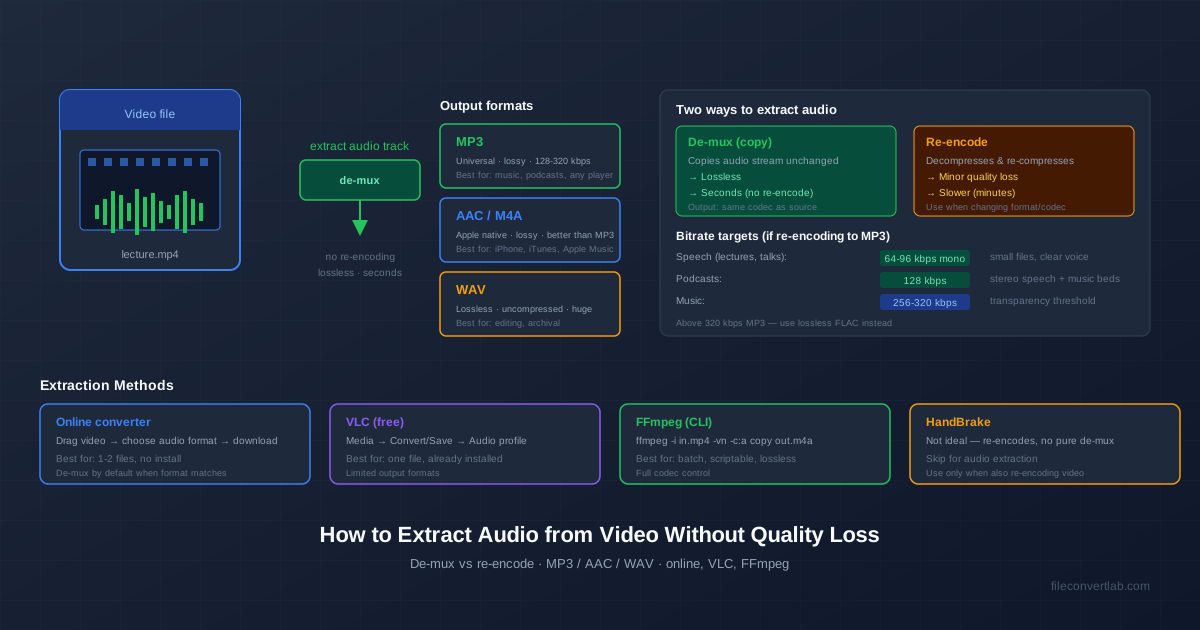
Every video file is a container holding at least two streams: a video track and an audio track. Extracting audio from video means pulling just the audio stream out and saving it as a standalone file. Done right, the extracted audio is a perfect, bit-for-bit copy of what was inside the video — no quality loss, no re-compression, and the whole thing takes seconds rather than minutes.
Quick answer: for an MP3 without installing anything, drop the file into our video to MP3 converter. For a lossless copy of the original track, run ffmpeg -i video.mp4 -vn -c:a copy audio.m4a and match the extension to the codec inside (table below). Both work with MP4, MOV, MKV, AVI and WebM sources.
The catch is that not every tool does it the right way. Many converters re-encode the audio by default — decompressing and re-compressing it, which introduces a small quality loss and takes much longer. The trick is to use de-muxing (also called stream copy) whenever the output format matches the audio codec inside the video.
De-Mux vs Re-Encode: The Key Distinction
Understanding this one distinction is the difference between a lossless, five-second extraction and a slower, slightly degraded one.
- De-mux (stream copy). The tool reads the video container, locates the audio stream, and writes it to a new file unchanged. No decompression, no re-compression. Output quality is identical to the source. Speed: near-instant even for long files, because the CPU is just copying bytes.
- Re-encode. The tool decompresses the audio back to raw PCM and then re-compresses it with a new codec (or the same codec at a different bitrate). This is necessary when you want a different format — for example, extracting AAC audio from an MP4 but saving it as MP3. Re-encoding always involves some quality loss, though at high bitrates it is not audible.
Rule of thumb: de-mux when you can, re-encode when you must. If the audio codec inside the video is acceptable for your use case, copy it out. If you specifically need MP3 (because your player cannot handle AAC), re-encode — but start from the original video, never from an already-extracted file.
What Audio Format Is Inside Your Video?
The output format you can extract losslessly depends on what the video contains.
Common pairings:
| Video container | Typical audio codec | Lossless extraction |
|---|---|---|
| MP4 / MOV | AAC | .m4a / .aac |
| MKV | Opus, Vorbis, AAC, FLAC | .opus / .ogg / .m4a / .flac |
| AVI | MP3, AC3 | .mp3 / .ac3 |
| WebM | Opus, Vorbis | .opus / .ogg |
| Notice that MP3 only appears losslessly for AVI. If your source is an MP4 and you want MP3 output, you must re-encode — there is no way around it. Conversely, if you just want the AAC audio out of an MP4, de-muxing preserves it perfectly. |
Choose Your Output Format
Three output formats cover almost every need:
- MP3 — universal compatibility. Every player, browser, car stereo, and phone reads MP3. Lossy, but transparent at 256-320 kbps for most listeners. Best for sharing when you do not know what the recipient's player supports.
- AAC / M4A — Apple-native, slightly better quality than MP3 at the same bitrate, and the default inside MP4/MOV. Best for iPhone, iTunes, Apple Music libraries. If your source is an MP4, de-mux to M4A for a perfect copy.
- WAV — uncompressed PCM, lossless, but the files are large (roughly 10 MB per minute of stereo audio). Best for editing in a DAW or archival where you want zero generation loss.
For most people who extract audio from a video — a lecture, interview, or song from a video, MP3 at 192-256 kbps is the sweet spot. If file size is a concern and the content is speech-only, drop to 96 kbps mono — the file shrinks dramatically with no noticeable loss in intelligibility.
Bitrate Targets for Common Use Cases
When you re-encode to MP3, the bitrate decides both file size and quality. Picking the right target avoids wasting space on inaudible detail:
| Content | Recommended MP3 bitrate | Why |
|---|---|---|
| Speech only (lecture, talk) | 64-96 kbps, mono | Voice needs little bandwidth; mono halves the size |
| Podcast (speech + music beds) | 128 kbps, stereo | Music intros need stereo; 128 kbps covers it |
| Music (casual listening) | 192-256 kbps | Transparent for most listeners on most gear |
| Music (archival, high-end) | 320 kbps — or use FLAC | Above 320 kbps, switch to a lossless format instead |
| For a deeper comparison of lossy vs lossless audio and when each matters, see our MP3 vs WAV guide. |
How to Extract Audio from Video Online
For a few files and no install, the online converter is the lowest-friction option. It takes MP4, MOV, MKV, AVI, WMV, FLV and WebM and writes the audio track as an MP3.
- Open the converter and drop in one video, or up to 20 at once.
- Wait while each file is uploaded over an encrypted connection and processed on our servers.
- Download the MP3 — or, with several videos, click Download all as ZIP.
What you should know before using it:
- Output is always MP3, encoded at high-quality variable bitrate (around 190 kbps on average). That's a re-encode, not a de-mux, so it isn't bit-for-bit — but at that bitrate the difference isn't audible for speech or casual music listening.
- Uploads are capped at 100 MB per file as a guest or on a free account, 500 MB on Premium and 1 GB on Premium Plus, and every file counts against the daily limit.
- Need a lossless copy, M4A, WAV or FLAC? Use VLC or FFmpeg below — they can copy the audio stream out untouched.
The video converter hub covers video-to-video formats if you need the picture as well.
Extract Audio from Video with VLC
VLC is primarily a video player, but its Convert/Save dialog also extracts audio.
It is a good choice for a single file when VLC is already on your machine.
- Open VLC. Click Media → Convert / Save.
- Click Add, select your video file, then click Convert / Save.
- In the Profile dropdown, pick Audio - MP3, Audio - Vorbis (OGG), or Audio - FLAC.
- Click the wrench icon next to the profile to fine-tune bitrate. Tick Keep original audio track if you want a lossless de-mux.
- Enter a destination filename ending in .mp3, .ogg, or .flac, then click Start.
VLC's extraction is slower than FFmpeg and the interface is fiddly, but it works for occasional one-offs without installing anything new.
Extract Audio from Video with FFmpeg (Lossless, Batch)
FFmpeg is the industry-standard command-line tool for video and audio work. It is free, runs on every platform, and processes files far faster than any GUI tool. The cost is a command-line interface — but for extraction, only a handful of commands matter.
Lossless de-mux (AAC out of an MP4)
ffmpeg -i input.mp4 -vn -c:a copy output.m4a
The flags: -i input.mp4 sets the source. -vn tells FFmpeg to skip the video stream. -c:a copy is the magic flag — it copies the audio stream without re-encoding. Output is an .m4a file that is byte-identical to the audio inside the MP4.
Re-encode to MP3 at 192 kbps
ffmpeg -i input.mp4 -vn -c:a libmp3lame -b:a 192k output.mp3
Here -c:a libmp3lame selects the MP3 encoder, and -b:a 192k sets the bitrate. Swap 192k for 128k, 256k, or 320k as needed.
Batch extraction (every MP4 in a folder)
Mac and Linux:
for f in *.mp4; do ffmpeg -i "$f" -vn -c:a copy "${f%.mp4}.m4a"; done
Windows PowerShell:
Get-ChildItem *.mp4 | ForEach-Object { ffmpeg -i $_.Name -vn -c:a copy ($_.BaseName + ".m4a") }
Either version processes hundreds of files unattended — ideal for ripping audio from a lecture series or extracting interview soundbites.
FFmpeg is also the engine behind most "free converter" software. If you have ever used a graphical tool that felt fast and reliable, FFmpeg was probably doing the actual work behind the scenes. For how the three compare, see the VLC, FFmpeg, and HandBrake overview.
What About HandBrake?
HandBrake is excellent for video conversion, but it is the wrong tool for pure audio extraction: it always writes a video file, so there is no way to save just the soundtrack. Reach for HandBrake only when you genuinely need to re-encode the video as well, for example when producing a web-optimised MP4 as described in our video compression guide.
Common Problems and Fixes
- Output file is silent. The video's audio is in a codec your extraction tool did not support. Check the source with ffmpeg -i input.mp4 — the console output lists every stream. Install the missing codec or re-encode to a different output format.
- Output file is huge. You probably forgot -vn and included the video stream. Re-run with -vn to discard video data.
- Audio is out of sync. Almost always caused by re-encoding at the wrong sample rate. Use -ar 44100 (CD quality) or -ar 48000 (video standard) to match the source.
- FFmpeg says "codec not currently supported in container". You tried to de-mux a codec into a container that cannot hold it — for example, copying Opus audio into an M4A. Switch the output extension to one that supports the codec (.opus, .ogg, .m4a, etc.).
Related Reading
Once you have the audio file, you may want to convert it further. Our WAV to MP3 guide covers bitrate choices for music, and the audio bitrate explainer breaks down what 128 kbps vs 320 kbps actually sounds like. For pulling audio from an iPhone-shot clip specifically, the MOV to MP4 article explains the container side of the equation.
Quick Summary
- De-mux when possible. Stream copy (-c:a copy in FFmpeg) gives you a bit-perfect audio file in seconds.
- Re-encode only when the format must change. Going from AAC to MP3 requires it; accept the minor loss and pick a sensible bitrate.
- Pick the output format by use case. MP3 for universal sharing, M4A for Apple devices, WAV for editing.
- Bitrate by content. 96 kbps for speech, 128 kbps for podcasts, 256-320 kbps for music.
- For batch jobs, use FFmpeg. A short loop processes hundreds of files unattended, faster than any GUI tool.