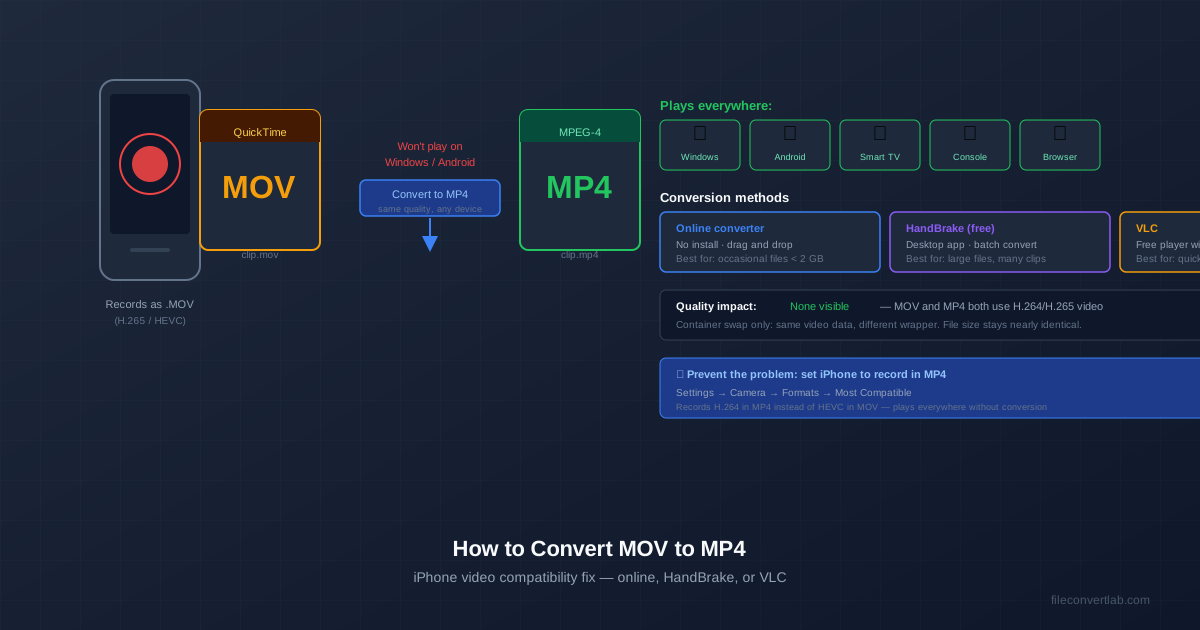
To convert MOV to MP4, upload the file to an online MOV to MP4 converter or run it through a free desktop tool like HandBrake; either gives you an H.264 MP4 that plays on Windows, Android, TVs and in every browser. iPhones record MOV with the H.265 (HEVC) codec, which plays perfectly on Apple devices but trips up much of everything else.
Here's the short version: MOV and MP4 are both containers, not video formats.
The actual video inside (H.264 or H.265) can be identical. A container swap keeps every pixel intact. A re-encode is only needed when the target device lacks a codec decoder — for example, older hardware that cannot play HEVC.
Why iPhone Uses MOV (and Why That's a Problem)
Since iOS 11, Apple's default camera setting is High Efficiency.
This records HEVC video inside a QuickTime MOV file. HEVC roughly halves file size compared to H.264 — useful for 4K recording, but the trade-off is compatibility.
The MOV wrapper and HEVC codec are poorly supported outside the Apple ecosystem:
- Windows 10 / 11 — needs the HEVC Video Extensions from the Microsoft Store ($0.99) unless the PC maker preinstalled a decoder. Without it, the built-in player shows an error.
- Android — most recent phones decode HEVC, but gallery and messaging apps don't all accept the MOV container or iPhone HDR video, so what plays for one person fails for the next.
- Smart TVs, game consoles, older editing software — many expect MP4 (H.264) and reject HEVC-MOV outright.
- Web browsers — Safari plays HEVC; in Chrome and Edge it depends on the computer's hardware decoder, and Firefox support is limited.
Converting to MP4 (H.264) produces a file that plays everywhere. The cost is file size: HEVC was designed to need about half the bitrate of H.264 for the same picture, so an H.264 copy is usually bigger. If size matters more than compatibility, keep the HEVC originals and convert only the copies you share.
MOV vs MP4: What's Actually Different
Most people assume MOV and MP4 are different video formats. They aren't. They are containers — wrappers that bundle video, audio, subtitles, and metadata into one file. The actual video compression is handled by a codec (H.264, H.265, ProRes, and so on). The same H.264 video stream can live inside either container with no quality difference.
| Aspect | MOV (QuickTime) | MP4 (MPEG-4 Part 14) |
|---|---|---|
| Container owner | Apple | ISO / MPEG standard |
| Supported codecs | H.264, H.265, ProRes, AIC | H.264, H.265, AV1, VP9 |
| Plays on iPhone / Mac | Yes (native) | Yes (native) |
| Plays on Windows / Android | Limited (HEVC paid add-on) | Yes (universal) |
| Web browser support | Safari only | All modern browsers |
| Typical use | Apple-native editing (Final Cut, iMovie) | Sharing, streaming, web |
| Bottom line: MP4 is the safer choice when the file leaves the Apple ecosystem. MOV makes sense only when you edit in Final Cut or iMovie and stay on Apple hardware. |
Three Ways to Convert MOV to MP4
Method 1: Convert MOV to MP4 Online (Fastest)
For one clip or a few, an online converter is the least friction. Our MOV to MP4 converter takes files up to 100 MB without an account (up to 1 GB on Premium Plus). You can drop several clips at once — they convert one after another and you can Download all as ZIP. Video is the heaviest job in the daily limit, so a guest can convert about five clips a day.
Drag the MOV files onto the page, click Convert, and download the MP4s. Processing happens on our servers, so even an older laptop handles it without its fans spinning up.
The converter always re-encodes to H.264 video with AAC audio — the combination every device plays. That's a re-encode, not a container swap, so it isn't bit-for-bit identical to the source. For a lossless container swap, use FFmpeg on your own computer:
ffmpeg -i input.mov -c copy output.mp4
A swap keeps the HEVC video, so it only helps if the target device can already play HEVC.
Method 2: HandBrake (Free, Batch, Most Control)
HandBrake is a free, open-source video transcoder for Mac, Windows, and Linux. It gives full control over codec, resolution, bitrate, and audio. Use it when you need to convert many files at once, hit a specific file size, or produce a web-optimised MP4.
- Download HandBrake from handbrake.fr and install it.
- Drag your MOV file (or a folder of MOV files) onto the HandBrake window. For multiple files, use Queue → Add Multiple.
- In the Summary tab, set Format to MP4. Tick Web Optimized — this moves the MOOV atom to the front of the file so it starts playing before the download finishes.
- Under Video, pick H.264 (x264) for maximum compatibility, or H.265 (x265) for smaller files that fewer devices can play.
- Set Quality to RF 20 (good balance) or RF 18 (visually lossless). Lower numbers mean higher quality and larger files.
- Click Start Encode. Encoding speed depends on your computer and the clip length.
HandBrake's built-in Fast 1080p30 preset is a sensible default for most footage. If the video is going on a website, see compressing video for the web.
Method 3: VLC or QuickTime (Already on Your Computer)
If VLC is already installed, Media → Convert / Save with the Video - H.264 + MP3 (MP4) profile converts a single clip. It's slower and clunkier than HandBrake, so use it for one-offs only. On a Mac, QuickTime Player's File → Export As re-saves a clip as H.264. Step-by-step instructions for each platform — Mac, Windows, iPhone and VLC — are in how to convert .MOV to MP4 on any device.
When You Don't Need to Convert at All
Two scenarios make conversion unnecessary:
- The viewer already has VLC or another universal player installed. VLC on Windows, Mac, Android, iOS, and Linux plays HEVC-MOV out of the box. If you know the recipient has VLC, just send the original file.
- The clip is only ever going to be viewed on Apple devices. iPhone, iPad, Mac, and Apple TV all play HEVC-MOV natively. No conversion needed for an iCloud-shared family video.
For everything else — sharing with Windows users, uploading to a CMS, embedding in a presentation, posting to social media — convert to MP4 first.
Quality Impact: Container Swap vs Re-encode
Understanding this distinction saves both quality and time:
- Container swap (MOV → MP4, same codec) — the video and audio streams are copied into a new wrapper with no re-compression. Output quality is identical to the source, and it's fast because nothing is re-encoded.
- Re-encode (HEVC → H.264) — the video is decompressed and re-compressed with a new codec. There is a theoretical quality loss, but at high bitrates (RF 18-20 in HandBrake) it is invisible to the eye. Re-encoding takes longer and is the only option when the target device can't decode the original codec.
Rule of thumb: ask whether the target device supports the source codec. If yes, swap containers. If no, re-encode to H.264.
Prevent the Problem: Set iPhone to Most Compatible (H.264)
If you regularly share iPhone videos with Windows or Android users, skip conversion entirely by changing one setting:
- Open Settings on the iPhone.
- Go to Camera → Formats.
- Switch from High Efficiency to Most Compatible.
The iPhone now records H.264 video. The files still end in .MOV, but H.264 inside plays on far more Windows PCs, Android phones, TVs and browsers, and a container swap to .mp4 becomes lossless and instant. The trade-off: bigger files than HEVC. For 4K recording at long durations, that adds up; for short clips that get shared immediately, it's the right trade.
Keep High Efficiency if you mostly stay in the Apple ecosystem or shoot a lot of 4K. Switch to Most Compatible if you routinely share clips with non-Apple users.
Working with Other Video Formats
The container-vs-codec logic applies to every video conversion. MKV files face the mirror-image problem: great codec support inside, but uneven device playback.
Converting MKV to MP4 uses the same container-swap approach when both files use H.264.
For a broader view of how MOV fits alongside MP4, MKV, AVI, and WebM, see our video formats explained guide. If the end goal is a smaller file rather than compatibility, Compress Video shrinks it directly.
For a quick conversion without installing anything, convert MOV to MP4 with our online tool — you upload from the browser and the conversion runs on our servers.
Quick Summary
- MOV and MP4 are containers. The codec inside (H.264, H.265) decides quality and size. Container swaps preserve quality; re-encodes reduce it slightly.
- iPhone MOV = HEVC by default. Windows and Android need a paid codec pack or third-party player. Convert to MP4 (H.264) to avoid the friction.
- Pick the method by use case. Online converter for a few clips, HandBrake for big batches and control, VLC or QuickTime for a quick one-off.
- Prevent the problem. Settings → Camera → Formats → Most Compatible records H.264. Trade-off: bigger files.
- Don't convert when you don't have to. If the recipient uses VLC or stays on Apple devices, the original MOV plays fine.