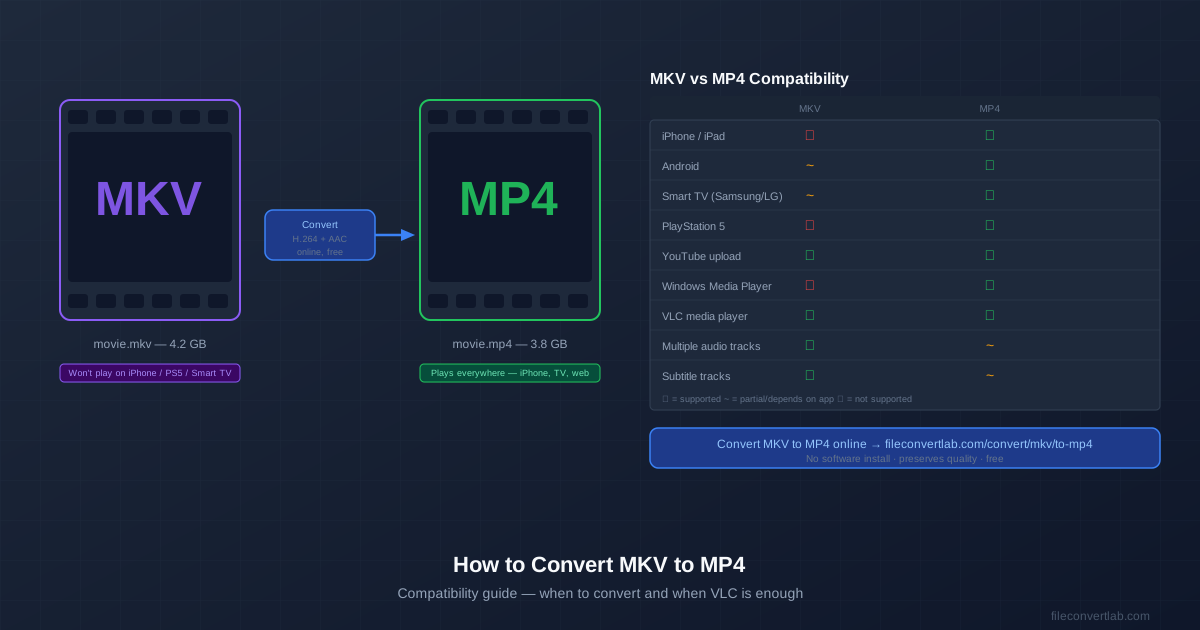
MKV is a great format for storing video — it supports multiple audio tracks, subtitles, chapters, and virtually any codec. The problem is compatibility: iPhones, iPads, PlayStation consoles, and many Smart TVs refuse to play MKV files. Converting MKV to MP4 fixes this.
The fastest way: drop the file into our MKV to MP4 converter and download the MP4. It takes up to 20 files at once and offers them as one ZIP. For files over the upload limit, HandBrake (a free desktop app) is more practical.
MKV vs MP4 in Two Lines
Both are containers: the same H.264 or H.265 video can sit inside either one. The difference is which devices open the wrapper — MP4 plays almost everywhere, MKV mostly on computers. The full comparison is in MKV vs MP4.
Compatibility at a Glance
| Device / Platform | MKV | MP4 |
|---|---|---|
| iPhone / iPad | ✗ | ✓ |
| Android (native player) | Varies | ✓ |
| Smart TV (Samsung, LG, Sony) | Varies | ✓ |
| PlayStation 5 | Limited | ✓ |
| Xbox Series X/S | Limited | ✓ |
| Windows 10/11 Media Player | Varies | ✓ |
| VLC (any platform) | ✓ | ✓ |
| YouTube upload | ✓ | ✓ |
| Web browser (HTML5 video) | Varies | ✓ |
When You Don't Need to Convert
If you're watching the MKV file only on a desktop or laptop with VLC installed, skip the conversion. VLC plays MKV on Windows, Mac, and Linux without any issues.
Install VLC from videolan.org and your MKV files work immediately.
Similarly, if you're uploading the video to YouTube, both MKV and MP4 work — YouTube accepts MKV and re-encodes it anyway. No conversion needed before uploading.
Convert when: you need to play on iPhone, Apple TV, PlayStation, Xbox, embed in a website, or share with someone who may not have VLC.
How to Convert MKV to MP4 Online
- Open the MKV to MP4 converter.
- Upload your .mkv file — or several; they are uploaded over an encrypted connection and converted on our servers.
- Download the .mp4 file, or click Download all as ZIP for a batch. No software installation required, and it works on an iPhone or Android phone too. Uploads are capped at 100 MB as a guest, 500 MB on Premium and 1 GB on Premium Plus — for bigger files, use HandBrake.
How to Convert MKV to MP4 with HandBrake
HandBrake is a free, open-source video converter for Windows, Mac, and Linux.
It's the best option for files above the upload limit (long 4K recordings, whole seasons) and gives you full control over quality.
- Download HandBrake from handbrake.fr and install it.
- Open HandBrake and drag your MKV file into the window (or use File → Open).
- In the Presets panel on the right, choose a preset like "Fast 1080p30" for general use, or "H.264 MKV 1080p30" if you want to keep MKV format.
- For MP4 output: in the Summary tab, set Format to MP4. Check Web Optimized if you'll be streaming the file.
- Click Browse to choose where to save the output, then click ** Start Encode**.
HandBrake uses your CPU (and GPU if available) for encoding, so a long 1080p or 4K film takes a while on a laptop — let it run.
Does Converting MKV to MP4 Reduce Quality?
It depends on the tool. Our online converter re-encodes to H.264 video and AAC audio (128 kbps), the combination every device plays. For everyday viewing on a phone or TV you won't notice the difference.
If the MKV already contains H.264 or H.265 video, a desktop tool can remux it instead — move the streams into an MP4 wrapper without touching them, with zero quality loss. The VLC and FFmpeg recipes for that are in our MKV to MP4 remux guide.
Which MP4 Plays on iPhone, PS5 and Smart TVs
H.264 video with AAC audio in an MP4 file is the combination the widest range of devices plays — and it's exactly what the online converter produces. H.265 (HEVC) MP4s play on recent iPhones, Macs and most 4K TVs, but older TVs and some browsers still reject them. If a converted file won't play, check the device's supported-format list for its resolution and frame-rate limits.
What Happens to Subtitles and Audio Tracks?
MKV can hold several audio tracks and subtitle tracks; MP4 is pickier. Text subtitles (SRT) can live in an MP4, image-based ones (PGS, VOBSUB) can't, and some players only show the first audio track. Don't count on extra audio languages or subtitles surviving an online conversion. If they matter, either keep the MKV and watch it in VLC, or follow the remux steps in the MKV to MP4 guide.