You have a folder of old home videos, a recording from a screen capture tool, or a file from a decade-old camcorder — all in .avi format. The problem: your phone, smart TV, or video editor either won't open them or plays them without audio. Converting .avi to .mp4 solves all of this. This guide explains what AVI is, why it causes compatibility problems, and how to convert your AVI files to MP4 without losing video quality.
What Is the AVI Video Format?
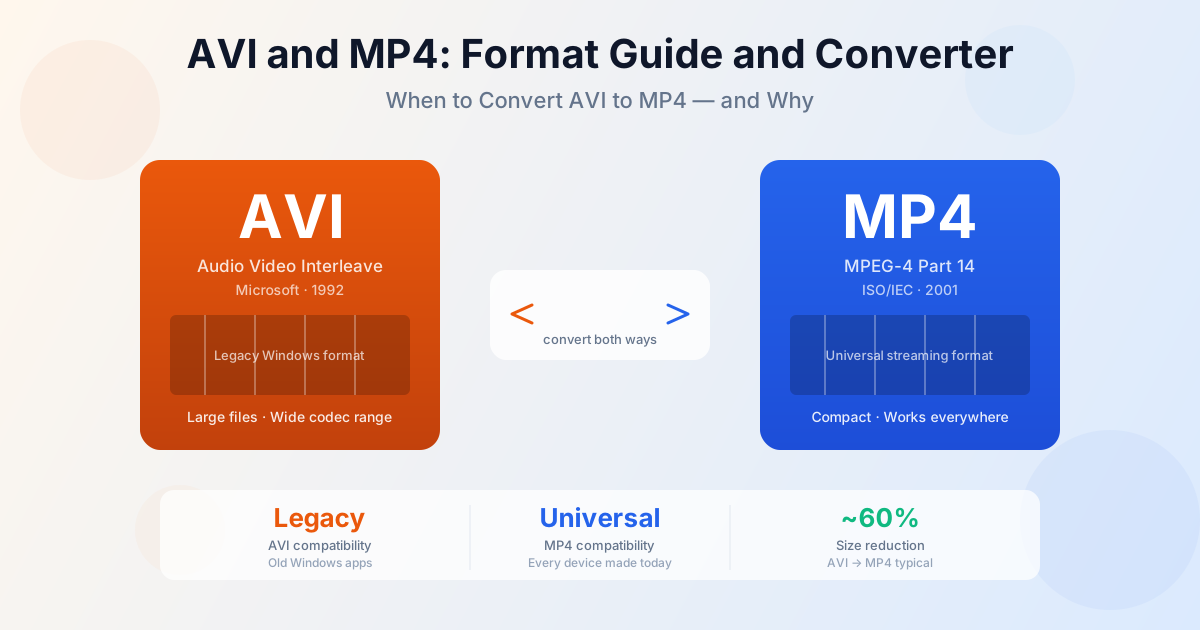
AVI (Audio Video Interleave) is a video container format created by Microsoft in 1992 as part of the Video for Windows framework. It was the dominant Windows video format throughout the 1990s and early 2000s — nearly every video recorded, ripped, or downloaded on Windows during that era ended up as an AVI file.
AVI is a container, not a codec. It can hold video encoded with many different codecs: DivX, Xvid, MPEG-4, H.264, Cinepak, Indeo, and others. This flexibility made AVI popular but also created compatibility headaches — an AVI file encoded with the Indeo codec from 1998 requires a different decoder than an AVI file encoded with H.264 in 2010, even though both have the same .avi extension.
Common sources of AVI files today:
- Old camcorders and digital cameras — many consumer cameras from 2000–2010 recorded in AVI
- Screen recording software — older versions of tools like Fraps saved gameplay footage as AVI
- Downloaded movies from the early internet era — DivX-encoded AVIs were the standard before streaming
- Edited video exports — some legacy editing software defaulted to AVI output
- Surveillance cameras — older security cameras often save recordings as AVI
Why AVI files don't play on modern devices
AVI itself isn't the problem — the codec inside it is. Modern devices include decoders for H.264 and H.265 video, AAC and MP3 audio. They don't include decoders for Indeo, Cinepak, DivX, or Xvid — codecs common in older AVI files. When your phone or smart TV encounters an AVI with one of these codecs, it either refuses to open the file or opens it but plays only part of the stream (often video without audio, or a black screen).
A second problem is the container itself. Streaming services, web browsers, and mobile apps are optimized for MP4 with H.264 video. They may refuse AVI entirely regardless of the codec inside it. iOS and most Android video apps don't support AVI at all. Chrome and Firefox don't play AVI in the browser. Smart TVs vary — some accept AVI from USB, others don't.
Converting AVI to MP4 solves both problems at once: it re-encodes the video into H.264 (which everything supports) and packages it in an MP4 container (which everything accepts).
How to convert AVI to MP4 online
For a quick individual file, the simplest approach is our AVI to MP4 converter.
Upload the .avi file, and the converter re-encodes it to H.264 MP4. No software installation required.
- Open the converter at fileconvertlab.com/convert/avi/to-mp4
- Upload your .avi file — drag and drop or click to browse. Large files (1 GB+) may take a few minutes to upload
- Start conversion — the file is re-encoded to H.264 MP4 on the server
- Download the .mp4 file — typically ready in under a minute for files under 500 MB
For large batches of AVI files — hundreds of old camcorder recordings, for example — a desktop tool handles multiple files more efficiently. VLC (free, cross-platform) can batch-convert: Media → Convert/Save → Add files → Convert/Save → Profile: "Video H.264 + MP3 (MP4)". HandBrake is another free option with more quality controls.
Will conversion reduce video quality?
It depends on the codec in the source AVI. There are two scenarios:
AVI with modern codec (H.264, Xvid, DivX): Re-encoding to H.264 MP4 involves a second encode pass, which adds a small amount of quality loss. At a reasonable bitrate (matching or exceeding the source), this loss is invisible to most viewers. The file will also be noticeably smaller — H.264 in MP4 is more efficient than the same codec in an AVI container.
AVI with legacy codec (Indeo, Cinepak, MPEG-1): These codecs already produced lower-quality video.
Re-encoding to H.264 at a higher bitrate can actually look cleaner than the original because H.264's compression algorithm handles motion and detail better. You're not recovering lost quality, but you're not making things worse noticeably.
The rule of thumb: convert at a bitrate equal to or higher than the source. For old camcorder footage, 4–8 Mbps H.264 preserves everything the original AVI contains. For surveillance footage or screen recordings at lower resolution, 1–2 Mbps is usually sufficient.
AVI vs MP4: what actually differs
Both are container formats — they wrap encoded video and audio streams. The container itself doesn't determine quality; the codec and bitrate inside it do. The differences that matter in practice:
| Feature | AVI | MP4 |
|---|---|---|
| Device support | Windows-native; limited on mobile, smart TV, browser | Universal — every device made in the last 15 years |
| Streaming | Not designed for streaming; requires full download | Supports fast-start (moov atom at front) for streaming |
| Typical codecs | DivX, Xvid, Indeo, H.264 (varies widely) | H.264, H.265, AV1 (standardized) |
| File size | Often larger due to less efficient container overhead | Smaller at equivalent quality |
| Subtitle support | Limited (external .srt files or hardcoded) | Multiple subtitle tracks in-container |
| Chapter markers | Not natively supported | Supported |
| Browser playback | Not supported in any browser | Native support in all modern browsers |
When to convert MP4 to AVI instead
Converting from MP4 to AVI is less common, but there are legitimate reasons to do it:
- Legacy editing software — older video editors (early versions of Windows Movie Maker, Sony Vegas, VirtualDub) work more reliably with AVI than MP4. If you're editing on an old Windows system, AVI with an uncompressed or lossless codec gives a better editing experience.
- Specific hardware — some industrial and broadcast equipment accepts only specific AVI codecs. Check your hardware's manual before converting.
- VirtualDub workflows — VirtualDub processes AVI natively. If your pipeline uses VirtualDub for frame-level editing or filtering, you need AVI input.
- Archival with uncompressed video — AVI supports uncompressed RGB video, which is occasionally used for archival masters when lossless compression isn't available. MP4 with lossless H.264 is generally preferable, but some legacy archival workflows specify AVI.
For this direction, use our MP4 to AVI converter.
Note that this is also a re-encode, so apply the same quality logic: use a bitrate that preserves the source detail.
Converting AVI files with audio problems
The most common AVI issue is video playing without audio. This happens when the AVI contains an audio codec the playback device doesn't support — typically AC3 (Dolby Digital) or PCM audio in a format the device rejects.
Converting to MP4 re-encodes audio to AAC, which plays on every device.
A second audio problem: AVI files sometimes have audio/video sync drift, especially in longer recordings. This happens because AVI uses a fixed interleave rate that doesn't account for variable-bitrate video. Re-encoding to MP4 eliminates this problem because MP4 uses timestamped packets instead of a fixed interleave structure.
If your AVI has multiple audio tracks (common in DVDs ripped to AVI with multi-language audio), the converter will use the first audio track. If you need to select a specific audio track, a desktop tool like HandBrake gives you per-track control.
Other Legacy Video Formats Like AVI
If you're clearing out old video files, you may also have MKV or MOV files alongside AVI. These are also container formats that sometimes cause compatibility issues:
- MKV — a modern container that supports any codec. Usually plays well, but some devices reject the container. See our MKV to MP4 guide for details, or use the MKV to MP4 converter.
- MOV — Apple's QuickTime format. Plays well on Mac and iOS but causes issues on Windows and Android. Our MOV to MP4 converter handles these.
The pattern is consistent: MP4 with H.264 is the safe universal format. Converting from AVI, MKV, or MOV to MP4 is the same operation — re-encodes to H.264 and repacks into an MP4 container.
Summary
AVI files are stuck in 2005 — great codec options, terrible container support on modern devices. Converting to MP4 takes under a minute and makes the video play on any phone, TV, or browser. Use the AVI to MP4 converter for individual files, VLC or HandBrake for batches. If your workflow specifically requires AVI, the MP4 to AVI converter handles the reverse.
Related Tools
- AVI to MP4 converter — convert legacy AVI files to universal MP4
- MP4 to AVI converter — go back to AVI for legacy software workflows
- MKV to MP4 converter — convert Matroska video to MP4
- .MOV to MP4 guide — convert iPhone video for universal playback