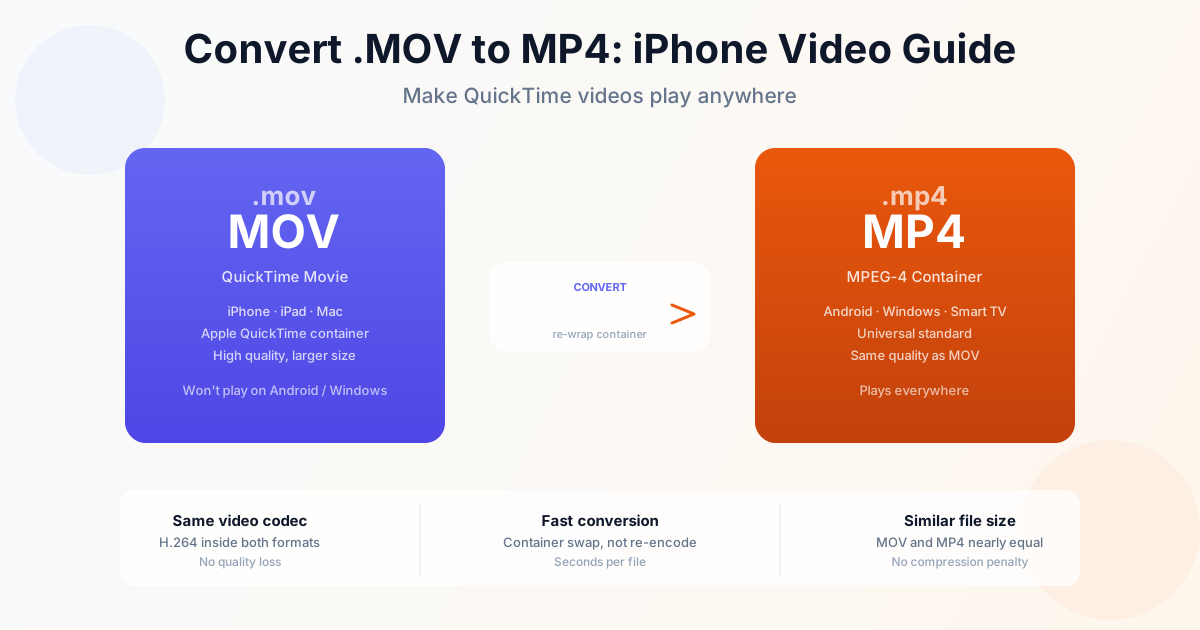
You record a video on your iPhone, share it with someone on Android or Windows, and it won't play. The culprit is the .mov extension — Apple's QuickTime format, which lacks native support outside Apple devices. Converting it to .mp4 solves the problem instantly, and because both formats use the same video codec, there's no quality loss.
Use our MOV to MP4 converter to convert .mov files online. The guide below covers why .mov files exist, how to convert on each platform, and the one case where quality actually changes.
Why .MOV and .MP4 Look the Same But Aren't
Both .mov and .mp4 are container formats — they're wrappers that hold video, audio, and subtitle tracks. The video codec inside (H.264 or HEVC) is usually identical between a .mov and an .mp4 recorded on the same device.
The difference is the container specification. MOV was created by Apple for QuickTime. MP4 is an international standard (ISO 14496) that every platform supports. When a Windows device says it can't play your .mov file, it's failing to read the container — not the video itself.
This is why converting .mov to .mp4 is fast and lossless: the converter just rewraps the video data in a different container. No re-encoding needed.
Convert .MOV to .MP4 Online (Any Device)
The fastest method for any platform:
- Open the MOV to MP4 converter
- Upload your .mov file (drag and drop or browse)
- Click Convert
- Download the .mp4 file Works in any browser including Safari on iPhone. No account, no software install required.
Convert .MOV to MP4 on Mac
QuickTime Player (built-in)
- Open the .mov file in QuickTime Player
- Go to File → Export As
- Choose 1080p (or 4K if your video is higher resolution)
- QuickTime saves a new .mp4 file — the original .mov is unchanged QuickTime's Export As always produces an .mp4 container. This is a lossless operation for most iPhone videos — the H.264 or HEVC codec stream is copied without re-encoding.
Finder Quick Actions (batch)
To convert multiple .mov files at once:
- Select all .mov files in Finder
- Right-click → Quick Actions → Convert Video
- Choose MP4 and resolution
- macOS converts all files and saves them alongside the originals
Convert .MOV to MP4 on Windows
VLC Media Player (free)
- Open VLC → Media → Convert/Save (or Ctrl+R)
- Click Add and select your .mov file
- Click Convert/Save
- In the Profile dropdown, choose Video — H.264 + MP3 (MP4)
- Set the output filename with .mp4 extension and click Start VLC re-encodes the video, which takes longer than a container swap but produces a widely compatible MP4.
Convert .MOV to MP4 on iPhone
The quickest fix is to stop recording in MOV format entirely:
- Open Settings → Camera → Formats
- Select Most Compatible This makes your iPhone record in H.264 MP4 instead of HEVC MOV. Videos will be slightly larger but play natively on every platform without conversion.
For existing .mov files already on your phone, use Safari to open our converter, upload the .mov from your Files app, and download the .mp4 directly.
When Does MOV to MP4 Conversion Change Quality?
A lossless container swap preserves quality perfectly. Quality only changes if:
- You choose a lower resolution during export (e.g., exporting a 4K .mov as 1080p MP4 — this re-encodes and reduces resolution intentionally)
- The converter re-encodes instead of remuxing — some tools always re-encode, which is slower and may reduce quality if the target bitrate is lower than the source
- HEVC to H.264 conversion — if your iPhone recorded in HEVC (High Efficiency format) and you need compatibility with older devices, the output must be H.264, which involves re-encoding
For standard iPhone videos, a good converter detects the codec and performs a remux (no re-encode) whenever possible.
Summary
MOV and MP4 use the same codecs — only the container differs, so a remux is instant and lossless. Use the MOV to MP4 converter for files you already have; for new recordings, switch iPhone to Settings → Camera → Formats → Most Compatible so future videos record as H.264 MP4 natively.
Related Tools
- MOV to MP4 complete guide — full format comparison, all platforms
- AVI to MP4 — convert old Windows video format to MP4
- MKV to MP4 — remove MKV container for device compatibility
- Extract audio from .MOV — convert .mov video to MP3 audio