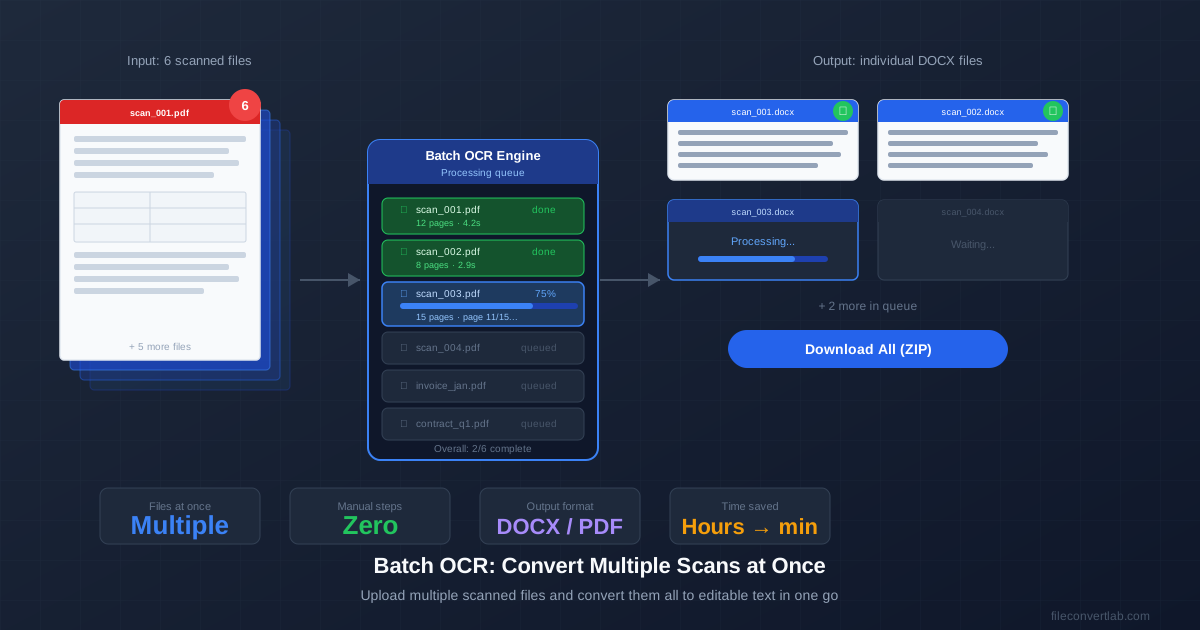
Converting scanned documents one at a time is tedious. You upload a file, wait, download the result, upload the next one, wait again. For a folder of 30 scanned invoices or a box of archived contracts, that approach takes hours of active attention.
Batch OCR solves this: upload all the files at once, let the tool process them, then download everything when it's done. This guide covers how to do it effectively — including how to handle large archives, mixed file formats, and multi-language batches.
When Batch OCR Makes Sense
Batch processing is worth setting up when you have more than 5–10 files to convert.
Below that threshold, individual conversions are fast enough that the overhead of organizing a batch isn't worth it. For larger volumes, batch is the right approach for these situations:
- Document archive digitization: Converting years of paper records to searchable digital text. Box of monthly reports, folder of old contracts, collection of scanned receipts.
- Invoice and form processing: Accounts payable departments scanning incoming invoices. Each invoice is a separate file; batch OCR extracts text from all of them without manual intervention per file.
- Research and legal document review: Large sets of scanned court documents, academic papers, or reference materials that need to become searchable.
- Digitizing photo collections: If you have hundreds of photos of documents (whiteboards, signs, printed pages), batch processing converts them all to text files without uploading each individually.
How to Run a Batch OCR Job
- Prepare your files. Rename files systematically if they aren't already (invoice_01.pdf, invoice_02.pdf, ...). Remove any password-protected files — those will fail during OCR. Check that files are right-side-up; a rotated PDF produces garbled OCR output.
- Open the OCR converter. Go to our image to Word converter or PDF to Word OCR tool . Both support multi-file upload.
- Upload all files at once. Click the upload area and select multiple files in the file dialog (Ctrl+A or Shift+Click to select many), or drag a whole folder onto the upload area. Files upload in parallel over your connection.
- Set language and output format. Choose the output format — DOCX for editable Word documents, searchable PDF to keep the original visual layout — and the document language: a language you choose applies to all files in the batch, while Automatic detects the language of each file separately.
- Start conversion and leave it running. Processing runs sequentially through your files. A batch of 20 standard-length documents (5–10 pages each) typically takes 5–15 minutes. You don't need to watch it.
- Download results. When complete, download individual files or the full batch as a ZIP archive. File names match your input files.
Batch Size and Reliability
Larger batches are more convenient but introduce more risk if something goes wrong.
A practical guide to batch sizes:
| File count | Total size (300 DPI) | Est. time | Recommendation |
|---|---|---|---|
| 1–10 files | Under 50 MB | 1–5 min | Ideal — upload all at once |
| 10–30 files | 50–150 MB | 5–20 min | Works well in one batch |
| 30–100 files | 150–500 MB | 20–60 min | Split into 2–3 batches |
| 100+ files | 500 MB+ | Hours | Process in sessions of 20–30 |
Preparing Files for Batch OCR
A few minutes of preparation before a large batch saves much more time in fixing output errors afterward.
- Remove password-protected files. Password-protected PDFs fail during OCR. Identify and remove them from the batch before uploading — they'll need the password removed first using a PDF editor.
- Check orientation. Quickly page through your PDFs to catch any rotated pages. A batch with one sideways scan produces one garbled output file. Fix orientation in a PDF viewer before uploading.
- Remove non-scanned files. If your batch includes PDFs with selectable text (not scans), those don't need OCR — they can be converted directly with regular PDF to Word . Mixing scanned and text-based PDFs in the same batch works, but OCR on a text PDF is slightly wasteful when direct conversion is faster and more accurate.
- Use consistent naming. Name files before uploading so output files are organized from the start. invoice_2024_01.pdf through invoice_2024_12.pdf is much easier to work with than IMG_4521.pdf through IMG_4533.pdf.
- Mixed languages: leave Automatic. A language you choose applies to every file, but on Automatic each file gets its own language detection, so documents in different languages can share one batch. Pick a language only for a batch that's all in it.
Batch OCR Output Options
Choose your output format based on what you need to do with the documents afterward:
- DOCX (Word): Best when you need to edit the text content — update information, extract specific data, reformat. Each input file produces one DOCX with full editing capability.
- Searchable PDF: Best for archives where you want to keep the original visual appearance but make documents searchable and copy-able. The scanned image stays as-is; OCR text is embedded as an invisible searchable layer.
- Plain text (TXT): Best for bulk text extraction — feeding content into databases, search indexes, or data processing pipelines. No formatting overhead, smallest file size.
For document management systems and archives, searchable PDF is usually the right choice — it preserves the legal/visual integrity of the original scan while adding full-text search. For data entry workflows where you need to extract and process the content, DOCX or TXT is more practical.
What to Do When a File Fails
In a batch of 30 files, one or two failures is common — usually caused by a problematic file rather than an OCR engine error. When a file fails:
- Open the file in a PDF reader. Can you view it? If not, the PDF may be corrupted. If it opens but text is unreadable, the scan quality may be too poor for OCR.
- Check for password protection. Try selecting text in the PDF — if a password dialog appears, the file needs to be unlocked before OCR can process it.
- Re-export or re-scan. If the PDF is corrupted, try opening the original scan in an image viewer and re-saving as a fresh PDF. For poor-quality scans, rescan at 300 DPI if possible.
- Convert the problematic file individually. Upload just that one file, which makes it easier to see the specific error message and diagnose the cause.
Batch OCR for Specific Use Cases
Invoice processing
Batch-convert all incoming invoice scans to DOCX or TXT. For structured data extraction (amounts, dates, vendor names), the TXT output can be fed into a spreadsheet or accounting system. For filing and reference, searchable PDF preserves the original invoice layout while making it searchable by invoice number or vendor.
Archive digitization
Convert physical document archives to searchable PDFs in batches. Process by category or date range — for example, all 2020 contracts, then all 2021 contracts. Searchable PDF output means files look identical to the originals but are now full-text searchable in your document management system.
Research document collection
Academic papers, legal cases, or reference materials often arrive as scanned PDFs.
Batch OCR converts the whole collection to searchable text, making it possible to search across all documents for specific terms, names, or citations — something impossible with image-only scans.
For individual multi-page documents rather than batches of separate files, see our guide on OCR for multi-page PDFs . For choosing between OCR output formats, see the OCR output formats guide .