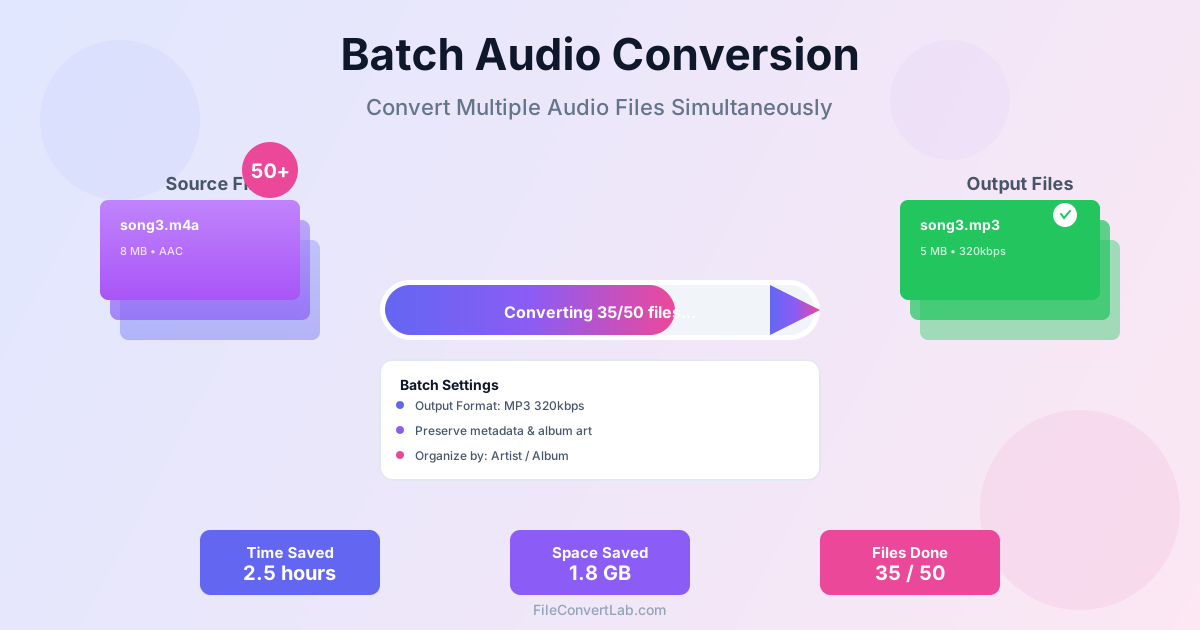
Converting a single audio file is straightforward, but what if you need to convert an entire music library with hundreds or thousands of files?
Batch audio conversion lets you process multiple files simultaneously, saving hours of manual work. This guide covers everything you need to know about batch converting audio files efficiently while preserving quality, metadata, and organization.
What is Batch Audio Conversion?
Batch conversion means processing multiple audio files in a single operation rather than converting them one at a time. Instead of manually converting 500 FLAC files to MP3 individually—which could take days—you select all files, configure settings once, and let the software process everything automatically.
Batch conversion is essential for several common scenarios: migrating your entire music library from lossless to compressed format for portable devices, standardizing file formats across a collection, preparing audio files for specific devices or platforms, or converting podcast episodes for distribution.
Common Batch Conversion Scenarios
Converting Lossless Libraries to Portable Format
Many music enthusiasts maintain FLAC or WAV libraries at home but need MP3 versions for smartphones and portable players with limited storage.
Batch converting your entire FLAC library to 320 kbps MP3 creates a portable-friendly version while keeping your lossless originals intact.
For a typical 1000-song library (40 GB FLAC), batch conversion to MP3 takes 30-60 minutes and results in approximately 7 GB of portable files— a size suitable for most smartphones. See our FLAC vs MP3 comparison to understand the quality trade-offs.
Standardizing Mixed Format Collections
If you've accumulated music from various sources over the years, you might have a mix of MP3, M4A, OGG, FLAC, and WAV files. Batch conversion lets you standardize everything to a single format for consistency, making your library easier to manage and compatible with all your devices.
Device-Specific Format Requirements
Some older devices only support specific audio formats. Car stereos, for example, often require MP3 or WMA files and won't play FLAC or M4A.
Batch conversion makes it practical to create device-specific libraries without maintaining multiple manual copies.
Preparing for Batch Conversion
Organize Source Files First
Before starting batch conversion, organize your source files logically:
- Group files by conversion task (e.g., all FLAC files in one folder, WAV files in another)
- Ensure consistent file naming for better organization in the output
- Verify that source files are not corrupted (play a few random samples)
- Check that metadata and album art are correct before converting, as it's easier to fix in the source format
Choose Conversion Settings
Select appropriate settings based on your goals:
- Output format: MP3 for universal compatibility, AAC for Apple devices, OGG for open-source preference
- Bitrate: 320 kbps for maximum quality, 256 kbps for balanced quality/size, 192 kbps for podcasts or when space is critical
- Sample rate: Usually keep original (44.1 kHz for CD quality), or specify 48 kHz for video-related audio
- Metadata options: Enable preservation of all tags (artist, album, title, genre, year, comments)
Plan Output Organization
Decide how converted files should be organized. Common structures include:
- Artist/Album/Track: Creates folders like "The Beatles/Abbey Road/01 - Come Together.mp3"
- Flat structure with prefixes: All files in one folder named "Artist - Album - Track.mp3"
- Mirror source structure: Keep the same folder hierarchy as source files
- Genre-based: Organize by music genre before artist/album
Step-by-Step Batch Conversion Guide
Step 1: Select Source Files
Use our batch converter to select multiple files or entire folders.
Most batch tools support drag-and-drop, making it easy to add hundreds of files at once. You can mix different source formats (FLAC, WAV, M4A, OGG) in the same batch—the tool will handle each appropriately.
Step 2: Configure Output Settings
Set your desired output format and quality. For creating a portable music library from FLAC sources:
- Format: MP3
- Bitrate: 320 kbps (highest quality)
- Sample rate: Keep original (44.1 kHz)
- Channels: Keep original (stereo)
- Metadata: Copy all tags and album art
Step 3: Set Output Location and Naming
Choose where converted files will be saved and how they'll be named.
Using templates like Artist/Album/TrackNumber - Title.mp3 automatically creates an organized folder structure. This saves hours of manual file organization later.
Step 4: Start Conversion and Monitor Progress
Begin the batch process and monitor progress. Modern converters show:
- Current file being processed
- Overall progress (e.g., "Converting 47 of 500 files")
- Estimated time remaining
- Any errors or warnings You can usually continue using your computer for other tasks while conversion runs in the background, though performance-intensive conversion may slow down other applications.
Step 5: Verify Results
After conversion completes, verify the results:
- Check that file counts match (500 input files = 500 output files)
- Spot-check a few converted files to verify audio quality
- Confirm metadata and album art transferred correctly
- Review any error messages or failed conversions
- Verify folder organization matches your intended structure
Best Practices for Batch Conversion
Always Keep Lossless Originals
Never replace your lossless originals (FLAC, WAV, ALAC) with lossy conversions. Converting from MP3 back to FLAC doesn't restore lost quality—it just creates larger files with the same lossy quality.
Maintain lossless archives on home storage, then create compressed copies for portable use.
Test Settings on Small Batches First
Before converting 5000 files, test your settings on 10-20 files first.
Verify the output quality, file naming, folder structure, and metadata preservation. Correcting mistakes after converting thousands of files is much more painful than spending a few minutes testing first.
Use Consistent Bitrates for Libraries
Stick to one bitrate for your entire portable library (e.g., all files at 320 kbps). Mixing bitrates (some 128 kbps, some 320 kbps) creates inconsistent listening experiences where some songs sound noticeably worse. Standardizing on high quality throughout ensures consistent audio quality.
Consider Using Multiple CPU Cores
Most modern batch converters can process multiple files simultaneously using multiple CPU cores. If your computer has 4 or more cores, enable parallel processing to significantly speed up large batch jobs. A quad-core processor can often convert 4 files at once, cutting total time by 75%.
Common Mistakes to Avoid
- Converting lossy to lossy: Going from MP3 to AAC or vice versa applies compression twice, degrading quality. Convert from lossless sources when possible.
- Using too low bitrate: 128 kbps is barely acceptable for music. Use 256 kbps minimum, 320 kbps for best results.
- Ignoring metadata: Failing to preserve or fix metadata before conversion results in poorly organized libraries with missing album info.
- No backup before batch operations: If something goes wrong during conversion, you want to be able to start over from originals.
- Converting without testing: Always test settings on a small sample before processing thousands of files.
Related Audio Conversion Topics
For more information on audio conversion, check out our other guides:
- FLAC to MP3 conversion guide — Detailed guide for converting lossless to compressed format
- WAV to MP3 conversion guide — Converting uncompressed audio to MP3
- MP3 vs WAV comparison — Understanding lossy vs lossless formats
- FLAC to MP3 converter — Convert your files online
Conclusion
Batch audio conversion is an essential skill for managing large music libraries efficiently. Rather than spending days converting files one by one, batch processing lets you convert hundreds or thousands of files with a single operation, saving hours of manual work.
The key to successful batch conversion is preparation: organize your source files, test settings on a small sample, choose appropriate output quality, and plan your folder structure. Always keep lossless originals as your master library, using batch conversion to create portable versions for specific devices and use cases.
With proper planning and the right settings, you can convert your entire music collection in a few hours while maintaining excellent quality, preserved metadata, and organized folder structures—making your music library easier to manage and enjoy across all your devices.