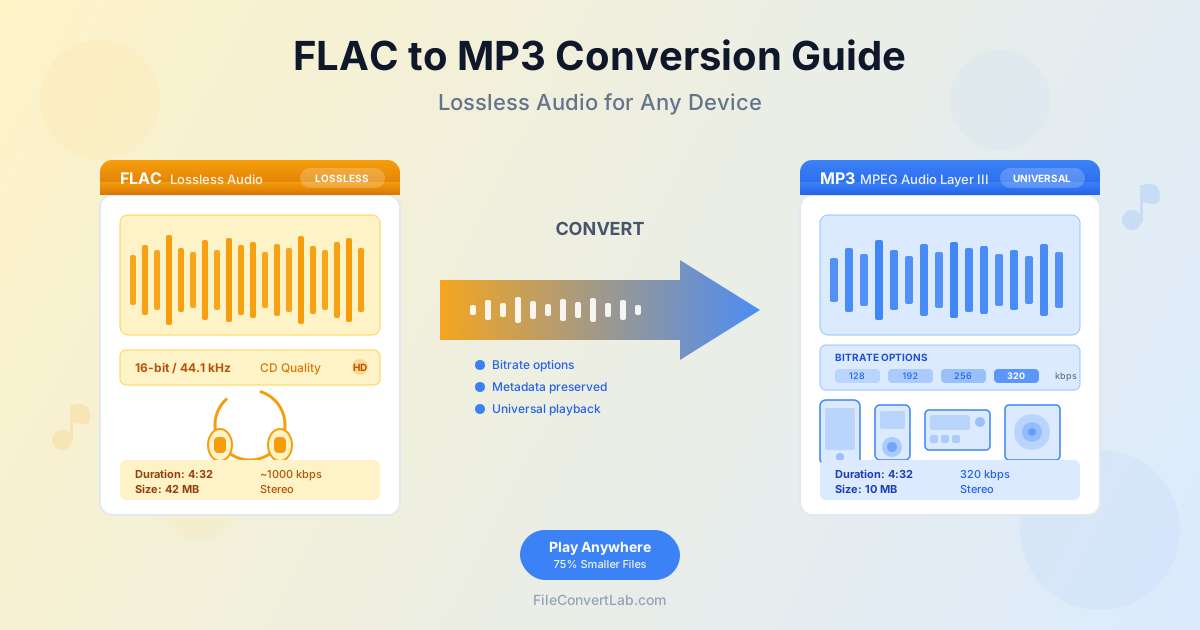
FLAC (Free Lossless Audio Codec) delivers perfect audio quality by preserving every detail of the original recording without any compression losses. However, this premium quality comes with a trade-off: large file sizes and limited device compatibility. Many portable music players, car stereos, and older devices simply cannot play FLAC files. Converting FLAC to MP3 solves these problems, giving you a universally compatible format that works everywhere while still sounding excellent at higher bitrates. This comprehensive guide covers everything you need to know about FLAC to MP3 conversion, from understanding the formats to choosing optimal settings for your specific needs.
What is FLAC (Free Lossless Audio Codec)?
FLAC is an open-source audio format that compresses audio files without losing any quality. Unlike lossy formats like MP3, FLAC preserves every single bit of the original recording. When you decompress a FLAC file, you get back exactly what was encoded, bit-for-bit identical to the source.
How FLAC Compression Works
FLAC uses predictive coding to achieve compression. The encoder analyzes the audio signal and predicts what the next sample will be based on previous samples. It then stores only the difference between the prediction and the actual value, which requires fewer bits. This process is completely reversible, meaning no information is discarded. Typical FLAC compression reduces file size by 40-60% compared to uncompressed WAV while maintaining perfect quality.
FLAC File Characteristics
- Bit depth: Supports 4 to 32 bits per sample, with 16-bit (CD quality) and 24-bit (high-resolution) being most common
- Sample rate: Supports up to 655,350 Hz, though 44.1 kHz (CD) and 96 kHz (high-res) are standard
- File size: Approximately 50-70% of equivalent WAV file, typically 25-40 MB for a 4-minute song at CD quality
- Metadata: Full support for Vorbis comments including artist, album, track number, and embedded album art
- Seeking: Fast random access for quick navigation within files
Where FLAC Excels
FLAC is ideal for archiving music collections, audiophile listening on high-end equipment, and as a master format for audio editing. It is the preferred format for purchasing high-resolution audio downloads from services like HDtracks, Qobuz, and Bandcamp. Many music enthusiasts maintain FLAC libraries as their primary collection, converting to MP3 only when needed for portable devices.
Why Convert FLAC to MP3?
Despite FLAC's quality advantages, there are compelling reasons to convert to MP3 for everyday use. Understanding these trade-offs helps you make informed decisions about when conversion makes sense.
Universal Device Compatibility
MP3 is the most universally supported audio format in existence. Every smartphone, tablet, computer, car stereo, portable music player, and smart speaker can play MP3 files. FLAC support, while growing, is still inconsistent. Many car audio systems do not recognize FLAC. Older iPods and some current portable devices lack FLAC playback. Converting to MP3 ensures your music works on any device you encounter.
Significant File Size Reduction
A typical FLAC file is 3-4 times larger than an equivalent high-quality MP3. For example, a 4-minute song might be 35 MB as FLAC but only 9 MB as 320 kbps MP3. This difference matters for:
- Limited storage devices — Fit more music on phones, MP3 players, and USB drives
- Streaming over cellular — Reduce data usage when playing music on the go
- Cloud storage costs — Store larger collections within storage limits
- Faster transfers — Copy music to devices more quickly
Practical Listening Scenarios
The quality difference between FLAC and high-bitrate MP3 is subtle and often inaudible in real-world listening conditions. In a noisy gym, on public transit, or through car speakers on the highway, the environmental noise masks any subtle compression artifacts. For these scenarios, MP3 provides excellent quality with much better practicality.
Lossless vs Lossy Audio Explained
Understanding the fundamental difference between lossless and lossy compression helps you make informed decisions about audio quality and when conversion is appropriate.
Lossless Compression (FLAC, ALAC, WAV)
Lossless compression works like zipping a file: when you decompress it, you get back exactly what you started with. FLAC reduces file size by finding patterns in the audio data and encoding them efficiently, but no audio information is discarded. The decompressed audio is bit-for-bit identical to the original recording. This makes lossless formats ideal for archival and situations where maximum quality matters.
Lossy Compression (MP3, AAC, OGG)
Lossy compression achieves much smaller files by permanently removing audio data that the encoder determines is less audible to human listeners. MP3 uses psychoacoustic models based on how human hearing works. It identifies sounds that are masked by louder sounds, frequencies at the edge of hearing, and other details that most listeners cannot perceive. By discarding this data, MP3 achieves 80-90% file size reduction with quality that most listeners find acceptable or even indistinguishable from the original.
Quality Comparison
| Aspect | FLAC (Lossless) | MP3 320 kbps (Lossy) |
|---|---|---|
| File Size (4-min song) | 25-40 MB | ~10 MB |
| Quality | Perfect (bit-perfect) | Excellent (transparent to most) |
| Device Support | Limited (growing) | Universal |
| Editing Suitability | Excellent (no quality loss) | Limited (re-encoding degrades) |
| Best Use Case | Archival, audiophile systems | Portable devices, general use |
Choosing the Right MP3 Bitrate
The bitrate you choose when converting FLAC to MP3 determines both the quality and file size of the output. Higher bitrates preserve more audio detail but create larger files. Understanding the options helps you find the right balance.
128 kbps - Basic Quality
At 128 kbps, MP3 compression becomes noticeable, especially in complex music with lots of high-frequency content like cymbals, strings, and detailed percussion.
Speech and simple music sound acceptable. This bitrate is suitable for:
- Voice recordings, podcasts, and audiobooks where speech clarity matters more than musical fidelity
- Background music where critical listening is not the goal
- Situations where storage is extremely limited File size: approximately 1 MB per minute of audio
192 kbps - Good Quality
192 kbps offers a significant improvement over 128 kbps with only modest file size increase. Compression artifacts are less apparent, and most casual listeners find this quality acceptable for music. This bitrate works well for:
- General music listening through standard headphones or speakers
- Portable music libraries where you want decent quality with reasonable file sizes
- Background music that you occasionally focus on File size: approximately 1.5 MB per minute of audio
256 kbps - High Quality
At 256 kbps, the quality is very good, and compression artifacts become difficult to detect even for attentive listeners. This bitrate represents an excellent balance between quality and file size for most users:
- Music enthusiasts who want quality but not maximum file sizes
- Listening on good quality headphones or home speakers
- Building a music library for everyday enjoyment File size: approximately 2 MB per minute of audio
320 kbps - Maximum Quality
320 kbps is the highest standard MP3 bitrate and provides quality that most listeners cannot distinguish from the original lossless source in controlled listening tests. This is the recommended choice when:
- You want the best possible MP3 quality and storage space is not a major concern
- Listening on high-quality audio equipment where subtle differences might be apparent
- Creating MP3s that you will keep long-term and do not want to re-convert later
- The source material is high-quality studio recordings or acoustic music with lots of detail File size: approximately 2.4 MB per minute of audio
Bitrate Comparison Chart
| Bitrate | Quality Level | 4-Minute Song | 100-Song Album |
|---|---|---|---|
| 128 kbps | Basic | ~4 MB | ~400 MB |
| 192 kbps | Good | ~6 MB | ~600 MB |
| 256 kbps | Very Good | ~8 MB | ~800 MB |
| 320 kbps | Excellent | ~10 MB | ~1 GB |
Step-by-Step: Converting FLAC to MP3
Follow these steps to convert your FLAC files to MP3 while preserving quality and metadata:
Basic Conversion Process
- Open the FLAC to MP3 converter
- Upload your FLAC file by clicking "Select File" or dragging the file onto the page
- Choose your desired bitrate (320 kbps recommended for best quality)
- Click "Convert" to start the conversion process
- Download your MP3 file once conversion completes
- Verify the file plays correctly and check that metadata transferred properly
Recommended Settings
- For music you care about: Use 320 kbps for maximum quality. The slightly larger file size is worth it for music you listen to regularly.
- For large collections: Consider 256 kbps as a good compromise. You will save 20% on storage with minimal perceptible quality difference.
- For casual listening: 192 kbps provides good quality at half the file size of 320 kbps, suitable for background music or workout playlists.
Quality Verification
After converting, verify your MP3 files:
- Play the file completely to ensure no glitches or errors
- Check metadata (artist, album, track name) transferred correctly
- Verify album artwork appears in your music player
- Compare briefly with the original FLAC to ensure acceptable quality
Preserving Metadata and Album Art
Metadata includes all the information about a music file: artist name, album title, track number, genre, year, and album artwork. Preserving this information during conversion keeps your music library organized and professional.
Understanding Audio Metadata
FLAC files store metadata using Vorbis comments, while MP3 files use ID3 tags. Despite the different formats, the information is largely compatible and transfers well during conversion. Common metadata fields include:
- Basic tags: Title, Artist, Album, Track Number, Year, Genre
- Extended tags: Album Artist, Composer, Disc Number, Compilation flag
- Technical tags: ReplayGain values for volume normalization
- Album artwork: Cover images embedded within the audio file
Ensuring Metadata Transfer
Most conversion tools automatically transfer metadata from FLAC to MP3. To ensure complete transfer:
- Verify your FLAC files have complete metadata before converting
- Check that album artwork is embedded in the FLAC file (not just in the folder)
- After conversion, spot-check several files to confirm all tags transferred
- Use a tag editor if any information is missing or needs correction
Album Art Considerations
Album artwork embedded in FLAC files should transfer to MP3 automatically. However, some considerations apply:
- Very large album art images may be resized during conversion to keep MP3 file sizes reasonable
- Some older devices have maximum image size limits for embedded artwork
- If artwork does not transfer, you may need to re-embed it using a tag editor
Batch Conversion for Music Libraries
Converting a large FLAC library to MP3 requires planning and organization. Batch conversion allows you to process entire albums or collections efficiently.
Preparing Your Files
- Organize your FLAC files by album in separate folders before converting
- Verify all files have complete and accurate metadata
- Check that album artwork is embedded in each file
- Remove any duplicates or unwanted files
- Note the total size of files to be converted and ensure sufficient storage for MP3 output
Batch Conversion Strategy
For large collections, work in manageable batches:
- By album: Convert one album at a time to easily verify results before proceeding
- By genre or priority: Start with music you listen to most frequently
- Incremental approach: Convert new additions as they come rather than the entire library at once
Organization After Conversion
- Mirror your FLAC folder structure for MP3 files
- Keep FLAC originals as archival masters
- Use consistent naming conventions (Artist - Album - Track# - Title.mp3)
- Verify batch results before deleting temporary files
Storage Planning
As a rough guide, converting from FLAC to 320 kbps MP3 reduces file size by about 75%. A 100 GB FLAC collection becomes approximately 25-30 GB of MP3 files.
At 256 kbps, expect about 20-25 GB. Plan your storage accordingly when batch converting large libraries.
When to Keep FLAC (Archival and Audiophile Use)
While MP3 is practical for everyday use, there are scenarios where keeping FLAC files makes sense. Understanding these helps you build a sustainable music library strategy.
Archival Master Collection
Many music enthusiasts maintain a FLAC library as their master archive and convert to MP3 only when needed for specific devices. This approach offers several advantages:
- Future-proofing: FLAC files can be converted to any future format without quality loss
- Multiple conversions: Create different MP3 versions (320 kbps for phone, 192 kbps for old car stereo) from the same source
- Editing flexibility: FLAC files can be edited and re-saved without quality degradation
- Maximum quality: Always have the best possible version available when needed
Critical Listening Environments
FLAC becomes worthwhile when you have the equipment and environment to appreciate the difference:
- High-end headphones: Audiophile-grade headphones (over $200) can reveal subtle details
- Dedicated audio equipment: DACs, amplifiers, and quality speakers benefit from lossless source files
- Quiet listening environment: A silent room allows you to hear nuances masked by environmental noise
- Classical and acoustic music: Genres with wide dynamic range and acoustic instruments benefit most from lossless
Music Production and DJ Use
Professionals working with audio should use FLAC or other lossless formats:
- Re-encoding lossy files (like editing MP3s) degrades quality with each save
- Mixing and mastering requires maximum source quality
- DJs benefit from lossless files that withstand stretching and processing
- Sample libraries should be lossless to preserve quality through multiple edits
Recommended Hybrid Approach
For most users, the optimal strategy is:
- Purchase or rip music in FLAC format when available
- Store FLAC files on a home computer or NAS with sufficient storage
- Convert to MP3 for portable devices and car stereos
- Keep the FLAC masters indefinitely as your archive
- Re-convert to MP3 if you change devices or want different settings
Common Issues and Troubleshooting
Problem: Converted Files Sound Bad
Cause: Bitrate setting is too low for the content type.
Solutions:
- Increase bitrate to 256 or 320 kbps for music
- Check that the source FLAC file is not already low quality (converted from low-bitrate MP3)
- Verify you are comparing on good quality playback equipment
Problem: Metadata is Missing
Cause: Source files lack metadata, or conversion tool does not transfer tags.
Solutions:
- Add metadata to FLAC files before converting using a tag editor
- Use a conversion tool that explicitly supports metadata transfer
- Manually add tags to MP3 files after conversion if needed
Problem: Album Artwork Not Showing
Cause: Artwork was not embedded in the source file or was too large.
Solutions:
- Embed artwork in FLAC files before converting (500x500 to 1000x1000 pixels recommended)
- Re-embed artwork in MP3 files using a tag editor after conversion
- Check that your music player supports embedded artwork display
Problem: Gaps Between Tracks on Gapless Albums
Cause: MP3 format adds padding that can create small gaps; some players do not support gapless playback.
Solutions:
- Use LAME encoder with proper gapless encoding settings
- Use a music player that supports gapless MP3 playback
- For critical gapless needs, consider AAC format instead of MP3
Related Audio Conversion Tools
- FLAC to MP3 — convert lossless FLAC to universal MP3 format
- FLAC Converter — hub for all FLAC conversion options
- Audio Converter — convert between all audio formats
- FLAC to WAV — convert to uncompressed WAV format
- FLAC to AAC — convert to Apple-optimized AAC format
- MP3 to FLAC — convert MP3 to lossless container (note: does not improve quality)
- WAV to MP3 — convert uncompressed WAV to MP3
- Compress Audio — reduce audio file size