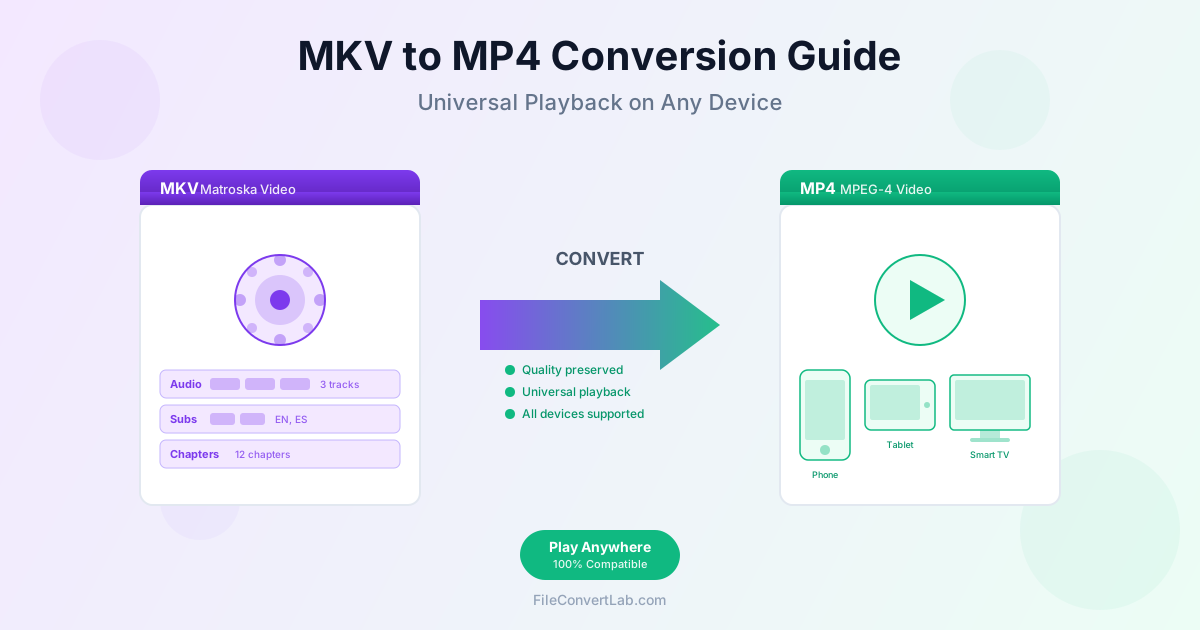
MKV files are excellent for storing high-quality video with multiple audio tracks and subtitles, but they do not play on every device. If you have ever tried to watch an MKV file on your smartphone, smart TV, or tablet and received an "unsupported format" error, you know the frustration. Converting MKV to MP4 solves this problem by transforming your video into a universally compatible format that works everywhere. This guide covers everything you need to know about MKV to MP4 conversion, from understanding the formats to handling complex files with multiple audio tracks and subtitles.
What is MKV Format?
MKV (Matroska Video) is an open-source container format designed to hold unlimited video, audio, subtitle, and metadata tracks in a single file. Named after the Russian nesting dolls (Matryoshka), MKV can contain virtually any type of content. The format was created in 2002 as a more flexible alternative to older containers like AVI and is now widely used for high-definition video content.
Key Features of MKV
- Multiple audio tracks — store different language versions or audio commentaries in one file
- Multiple subtitle tracks — include subtitles in various languages without separate files
- Chapter markers — navigate to specific scenes like a DVD or Blu-ray
- High-quality video — supports modern codecs like H.265/HEVC, VP9, and AV1
- Metadata support — store title, description, cover art, and other information
- Error recovery — designed to play even if parts of the file are corrupted
- No licensing fees — open source and free to use for any purpose
Common Sources of MKV Files
You likely encounter MKV files from:
- Blu-ray rips — high-quality copies of Blu-ray discs preserve original quality in MKV
- Downloaded movies — many online movie sources use MKV for its flexibility
- Screen recordings — some recording software outputs MKV by default
- Video editing exports — professional editing software supports MKV output
- Streaming captures — recording from streaming services often produces MKV
Why Convert MKV to MP4?
Despite MKV's excellent features, MP4 remains the more practical choice for everyday use. Here is why converting MKV to MP4 makes sense for most situations:
Universal Device Compatibility
MP4 is the most widely supported video format in existence. It plays natively on:
- iPhones and iPads — iOS fully supports MP4 playback
- Android devices — all Android phones and tablets play MP4
- Smart TVs — Samsung, LG, Sony, and other brands support MP4 natively
- Gaming consoles — PlayStation and Xbox play MP4 files
- Web browsers — Chrome, Firefox, Safari, and Edge all support MP4
- Streaming devices — Roku, Apple TV, Fire TV, and Chromecast prefer MP4
- Video editors — nearly all editing software imports MP4 without issues
Sharing and Distribution
When sharing videos with others, MP4 ensures everyone can view your content regardless of their device or technical knowledge. Recipients do not need to install special software or codecs to play MP4 files.
Social Media and Streaming
Platforms like YouTube, Vimeo, Facebook, Instagram, TikTok, and Twitter all accept MP4 uploads. MKV files often require conversion before uploading to these services.
Step-by-Step: Converting MKV to MP4
Follow these steps to convert your MKV file to MP4 format:
Basic Conversion Process
- Open the MKV to MP4 converter
- Upload your MKV file by clicking "Select File" or dragging the file onto the page
- Wait for the conversion to process — time depends on file size and video length
- Download your converted MP4 file
- Test playback on your target device to confirm compatibility
Before Converting: Check Your File
- File size — larger files take longer to upload and convert
- Video codec — H.264 is ideal for MP4; H.265/HEVC may require transcoding
- Audio tracks — note which audio track you want in the final MP4
- Subtitles — decide if you need subtitles embedded or as a separate file
- Chapter markers — these transfer to MP4 in most converters
After Converting: Verify Results
- Play the MP4 — verify video and audio quality match the original
- Check audio sync — ensure audio remains synchronized with video
- Verify subtitles — if included, check that subtitles display correctly
- Compare file size — MP4 should be similar in size unless quality was changed
- Test on target device — confirm the MP4 plays on your intended device
Handling Multiple Audio Tracks
MKV files often contain multiple audio tracks for different languages or audio commentaries. When converting to MP4, you need to choose which audio track to include:
Single Audio Track Selection
Most converters select the first or default audio track automatically. If you need a specific language or commentary track:
- Check which audio track you need before converting
- Use a converter that lets you select the audio track
- If your converter does not offer selection, consider using desktop software like HandBrake or VLC
Preserving Multiple Audio Tracks
MP4 technically supports multiple audio tracks, though not all players recognize them. If you need to preserve all audio tracks:
- Use advanced conversion software that supports multi-track output
- Consider keeping the original MKV for archival purposes
- Create separate MP4 files for each audio track if needed
Audio Codec Considerations
MKV files may contain various audio codecs. For maximum MP4 compatibility:
- AAC — the preferred audio codec for MP4, works everywhere
- AC3/Dolby Digital — may need conversion to AAC for some devices
- DTS — requires conversion to AAC for broad compatibility
- FLAC/lossless — consider converting to AAC to reduce file size
Managing Subtitles During Conversion
Subtitles in MKV files can be handled in several ways when converting to MP4:
Subtitle Types in MKV
- SRT (SubRip) — simple text-based subtitles, widely compatible
- ASS/SSA — styled subtitles with fonts, colors, and positioning
- PGS (Blu-ray) — image-based subtitles from Blu-ray discs
- VobSub — image-based subtitles from DVDs
Options for Handling Subtitles
1. Burn-in (hardcode) subtitles: Subtitles become part of the video image. They always display and cannot be turned off, but they work on every device.
2. Soft subtitles: Subtitles remain as a separate track in the MP4. Users can toggle them on or off, but not all players support MP4 subtitle tracks.
3. External subtitle file: Extract subtitles to a separate SRT file that plays alongside the MP4. Most media players support this approach.
4. No subtitles: Simply omit subtitles during conversion if you do not need them.
Choosing the Right Approach
- Smart TVs and streaming devices — burn-in subtitles for guaranteed display
- Computer playback — soft subtitles or external SRT files work well
- Mobile devices — burn-in for simplicity, or external SRT with VLC app
- Social media uploads — burn-in subtitles as platforms strip subtitle tracks
Quality Settings and Codec Options
Understanding video quality settings helps you balance file size and visual quality during conversion.
Video Codec Selection
- H.264 (AVC) — the most compatible codec, plays on virtually all devices. Best choice for maximum compatibility.
- H.265 (HEVC) — newer codec with better compression. Same quality at half the file size, but requires newer devices for playback.
Quality Presets
Most converters offer quality presets that balance these factors:
- Same as source — maintains original quality, no re-encoding if possible
- High quality — minimal quality loss, larger file size
- Medium quality — good balance for most uses
- Low quality — smaller files, visible quality reduction
Bitrate Considerations
Bitrate directly affects quality and file size:
- 1080p video — 5-10 Mbps for good quality, 15+ Mbps for high quality
- 4K video — 20-40 Mbps for good quality, 50+ Mbps for high quality
- Lower bitrate — smaller files but more compression artifacts
- Higher bitrate — better quality but larger files
Resolution Options
You can maintain or reduce resolution during conversion:
- Same as source — keeps original resolution (recommended)
- Downscale to 1080p — reduces 4K to Full HD for smaller files
- Downscale to 720p — suitable for mobile viewing or limited bandwidth
Batch Conversion for Movie Libraries
If you have a collection of MKV files to convert, batch processing saves significant time:
Organizing Your Library
- Gather all MKV files in a single folder
- Create a separate folder for converted MP4 files
- Keep original MKV files until you verify all conversions succeeded
- Consider organizing by movie title, series, or date
Batch Conversion Workflow
- Upload multiple files — use a converter that accepts multiple files at once
- Apply uniform settings — use the same quality settings for consistent results
- Process overnight — large collections may take hours to convert
- Verify results — spot-check converted files before deleting originals
Storage Considerations
Converting a large library requires adequate storage space. During conversion, you need space for both original MKV files and new MP4 files. A 1TB movie collection will temporarily require 2TB of space during conversion. Plan accordingly and consider converting in batches if storage is limited.
Troubleshooting Common Issues
Even straightforward conversions can encounter problems. Here are solutions to common issues:
Problem: Audio Out of Sync
Cause: Variable frame rate in the source file or audio track issues.
Solutions:
- Re-convert with a different converter that handles variable frame rate better
- Try converting to constant frame rate during the process
- Use desktop software like HandBrake with manual audio delay adjustment
Problem: Black Bars or Incorrect Aspect Ratio
Cause: Aspect ratio mismatch or incorrect resolution settings.
Solutions:
- Choose "same as source" for resolution and aspect ratio settings
- Avoid cropping or stretching options unless intentional
- Check display aspect ratio matches the original (16:9, 21:9, etc.)
Problem: MP4 Still Won't Play on Device
Cause: The video codec inside the MP4 is not supported by the device.
Solutions:
- Re-convert using H.264 codec which has the widest compatibility
- Check device specifications for supported codecs
- Update device firmware or use a compatible media player app
Problem: Quality Loss After Conversion
Cause: Re-encoding with lower bitrate or quality settings.
Solutions:
- Use "remux" or "copy" mode if available (no re-encoding)
- Choose higher quality presets or bitrate settings
- Accept that any re-encoding introduces some quality loss
Problem: File Size Increased After Conversion
Cause: Source uses efficient codec (H.265) converted to less efficient codec (H.264), or higher bitrate settings.
Solutions:
- Accept larger file size as the trade-off for compatibility
- Use H.265 output if your devices support it
- Lower the bitrate slightly while maintaining acceptable quality
Problem: Conversion Takes Too Long
Cause: Large file size, high resolution, or intensive processing.
Solutions:
- Use hardware acceleration if available (GPU encoding)
- Choose faster encoding presets (lower quality but much faster)
- Split long videos into shorter segments for parallel processing
- Process overnight or during idle time
MKV vs MP4: Technical Comparison
Understanding the technical differences helps you decide when to convert and when to keep MKV:
| Feature | MKV | MP4 |
|---|---|---|
| Device Compatibility | Limited (needs player apps) | Universal (native support) |
| Multiple Audio Tracks | Excellent support | Supported but less common |
| Subtitle Support | Multiple formats, unlimited tracks | Limited to specific formats |
| Chapter Markers | Full support | Supported |
| Streaming | Poor (not designed for streaming) | Excellent (web optimized) |
| File Size | Slightly larger (more metadata) | Slightly smaller |
| Open Source | Yes (free to use) | No (licensed, but widely supported) |
Related Video Conversion Tools
- MKV to MP4 — convert Matroska video to universal MP4 format
- MKV Converter — convert MKV to various video formats
- Video Converter — convert between all video formats
- MOV to MP4 — convert Apple QuickTime videos to MP4
- AVI to MP4 — convert legacy AVI files to modern MP4
- WebM to MP4 — convert web videos to MP4
- Video to MP3 — extract audio from video files