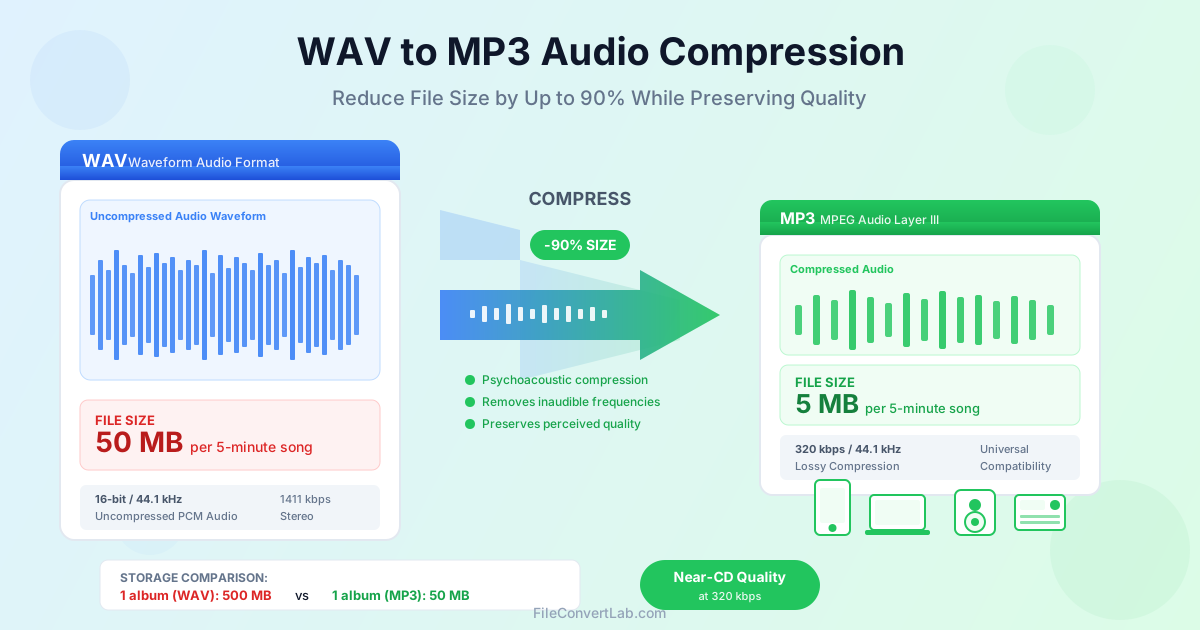
WAV files deliver pristine audio quality, but their massive file sizes make them impractical for everyday use. A single 5-minute song in WAV format can consume 50 MB of storage. The same track in MP3 requires only 5 MB — a 90% reduction. This guide explains why WAV files are so large and how MP3 compression works. You will also find step-by-step instructions for converting audio while maintaining quality for music, podcasts, and professional applications.
Why WAV Files Are So Large
Understanding why WAV files take up so much space helps you appreciate what MP3 compression achieves and make informed decisions about when conversion is appropriate.
Uncompressed Audio Storage
WAV (Waveform Audio File Format) stores audio as uncompressed PCM (Pulse Code Modulation) data. Every sample of the original sound wave is recorded precisely as captured, with no data discarded or compressed. CD-quality audio means 44,100 samples per second for each stereo channel. Each sample uses 16 bits of data.
The math is straightforward: 44,100 samples × 16 bits × 2 channels equals 1,411,200 bits per second, or approximately 1.4 Mbps. Over a minute, this translates to about 10 MB of data. A typical album of 50 minutes would require 500 MB as WAV files.
Professional Audio Requirements
Many professional audio applications use even higher-resolution WAV files. Recording studios often work with 24-bit samples at 96 kHz or 192 kHz sample rates.
This multiplies file sizes by 3 to 6 times compared to CD quality. A single hour of 24-bit/96 kHz stereo audio requires over 2 GB of storage.
While this uncompressed quality is essential for recording, editing, and mastering, it becomes impractical for distribution and everyday playback. This is where MP3 compression provides tremendous value. It reduces file sizes to manageable levels while preserving perceptual quality.
Typical WAV File Sizes
| Audio Duration | CD Quality (16-bit/44.1kHz) | High-Res (24-bit/96kHz) |
|---|---|---|
| 1 minute | ~10 MB | ~35 MB |
| 5 minutes (song) | ~50 MB | ~175 MB |
| 45 minutes (album) | ~450 MB | ~1.6 GB |
| 60 minutes (podcast) | ~600 MB | ~2.1 GB |
How MP3 Compression Works
MP3 (MPEG Audio Layer III) achieves dramatic file size reduction through psychoacoustic compression. This sophisticated approach leverages how human hearing works to remove data we cannot perceive while preserving the audio we can.
Psychoacoustic Modeling
The human ear has limitations in what it can perceive. We cannot hear frequencies above approximately 20 kHz, and our sensitivity varies across the frequency spectrum.
More importantly, loud sounds can mask quieter sounds at nearby frequencies. This makes those quieter sounds inaudible even though they exist in the recording.
MP3 encoders analyze audio using these psychoacoustic principles, identifying and removing sounds that fall below the threshold of human perception. The encoder allocates more bits to audible portions of the signal and fewer or no bits to inaudible portions. This achieves compression without perceptible quality loss at sufficient bitrates.
Lossy vs Lossless Compression
MP3 is a lossy compression format, meaning some original data is permanently discarded during conversion. Unlike lossless formats like FLAC that preserve every bit of the original, MP3 makes an intelligent trade-off between file size and perceptual quality.
At higher bitrates (256-320 kbps), most listeners cannot distinguish MP3 from the original WAV in blind tests. At lower bitrates (128 kbps and below), compression artifacts become noticeable. This is particularly true in complex musical passages with many overlapping instruments or sustained high-frequency content like cymbals.
Compression Ratios
The compression ratio achieved depends on the bitrate you choose:
| MP3 Bitrate | Compression Ratio | 5-Minute Song Size | Quality Level |
|---|---|---|---|
| 320 kbps | ~4.4:1 | ~12 MB | Transparent (indistinguishable) |
| 256 kbps | ~5.5:1 | ~9.6 MB | Excellent |
| 192 kbps | ~7.4:1 | ~7.2 MB | Very Good |
| 128 kbps | ~11:1 | ~4.8 MB | Good (artifacts audible on careful listening) |
| 96 kbps | ~15:1 | ~3.6 MB | Acceptable for speech |
Benefits of Converting WAV to MP3
The size reduction from WAV to MP3 conversion brings numerous practical advantages for storage, sharing, and everyday audio use.
Dramatically Smaller File Sizes
The most obvious benefit is the massive reduction in storage requirements. At 320 kbps, MP3 files are about 4-5 times smaller than WAV. At 128 kbps, the reduction exceeds 10x. Your entire music library can fit on a small SD card instead of a large external drive.
- 100 songs as WAV — approximately 5 GB of storage
- 100 songs as MP3 (320 kbps) — approximately 1.2 GB of storage
- 100 songs as MP3 (192 kbps) — approximately 720 MB of storage
Universal Device Compatibility
MP3 is the most widely supported audio format in existence. Every smartphone, tablet, computer, car stereo, portable music player, smart speaker, and web browser can play MP3 files natively. WAV support is common on computers but is often limited or absent on portable devices and older systems.
Faster Transfers and Streaming
Smaller files transfer faster over networks and require less bandwidth for streaming. Uploading a 50 MB WAV file takes 10 times longer than uploading the equivalent 5 MB MP3. For podcast distribution, music sharing, or cloud backup, MP3 files complete transfers far faster.
Email and Message Attachments
Most email services limit attachments to 25 MB or less. A single 5-minute WAV file would exceed this limit, while the same content as MP3 fits easily within it.
This makes MP3 practical for sharing audio via email, messaging apps, and file sharing services.
Metadata Support
MP3 files include ID3 tags that store metadata such as song title, artist, album, track number, year, genre, and album artwork. While WAV can include some metadata, ID3 tags are more universally recognized. They are better supported by music players and library management software.
Choosing the Right MP3 Bitrate
The bitrate you choose determines the balance between file size and audio quality. Higher bitrates preserve more detail but create larger files. The right choice depends on your content type and intended use.
320 kbps: Maximum Quality
This is the highest standard MP3 bitrate. Its quality is essentially indistinguishable from the original WAV in blind listening tests. Professional audio engineers and audiophiles typically cannot reliably identify 320 kbps MP3 versus lossless sources in controlled comparisons.
- Best for: Music you want to preserve at highest quality, audio archives, professional distribution
- File size: Approximately 2.4 MB per minute of audio
- When to use: When storage is not a primary concern and maximum quality matters
256 kbps: High Quality
This bitrate offers excellent quality with slightly smaller files than 320 kbps. Most listeners cannot perceive any difference from maximum quality. It is an excellent choice when you want great sound with some storage savings.
- Best for: Music libraries, portable devices, high-quality podcasts
- File size: Approximately 1.9 MB per minute
- When to use: When you want excellent quality with moderate file sizes
192 kbps: Good Quality
A popular balance between quality and file size, 192 kbps provides very good audio for most listening situations. Compression artifacts are only noticeable on careful listening with high-quality equipment.
- Best for: General music listening, podcast distribution, background music
- File size: Approximately 1.4 MB per minute
- When to use: When storage efficiency is important but quality still matters
128 kbps: Standard Quality
This bitrate was the standard for early digital music and remains acceptable for casual listening, especially through phone speakers or earbuds. Some compression artifacts become audible on good headphones, particularly in complex musical passages.
- Best for: Spoken word, podcasts, audiobooks, streaming over limited bandwidth
- File size: Approximately 0.96 MB per minute
- When to use: When minimal file size is more important than perfect quality
96 kbps and Below: Economy Quality
Lower bitrates significantly reduce file sizes but introduce noticeable audio degradation. These bitrates are appropriate only when file size is the primary concern and the content is primarily speech or non-critical audio.
- Best for: Voice memos, dictation, extremely limited storage
- File size: Under 0.75 MB per minute
- When to use: Only when extreme compression is necessary
Step-by-Step: Converting WAV to MP3
Follow these steps to convert your WAV files to MP3 format:
Basic Conversion Process
- Open the WAV to MP3 converter
- Upload your WAV file by clicking the upload area or dragging the file onto the page
- Select your desired bitrate (320 kbps recommended for music, 192 kbps for podcasts)
- Click the convert button to start the compression process
- Download your converted MP3 file once processing completes
- Verify the audio quality meets your expectations before deleting the original WAV
Tips for Best Results
- Start with high-quality source — MP3 cannot improve poor source audio; garbage in means garbage out
- Choose appropriate bitrate — match bitrate to content type and intended use
- Preserve originals — keep your WAV files until you confirm the MP3 quality is acceptable
- Avoid re-compression — never convert an MP3 to WAV and back to MP3, as each lossy encoding degrades quality
- Check metadata — verify that song information transferred correctly after conversion
Batch Conversion for Large Collections
When you have multiple WAV files to convert, batch processing saves significant time compared to converting files one at a time.
Organizing Files for Batch Conversion
- Gather all WAV files in a single folder organized by album or project
- Create a separate destination folder for the converted MP3 files
- Decide on consistent settings (bitrate, channel mode) for the batch
- Estimate storage requirements for the converted files
- Plan processing time based on total file size
Batch Conversion Best Practices
- Consistent settings — apply the same bitrate across similar content for uniform quality
- Separate by content type — use 320 kbps for music, 128-192 kbps for podcasts
- Verify early — check the first few converted files before processing the entire batch
- Maintain organization — preserve folder structure in the output to keep files organized
- Backup originals — do not delete WAV files until you verify all conversions succeeded
Processing Time Expectations
Conversion speed depends on your computer's processing power and the conversion tool used. Modern encoders can process audio faster than real-time, meaning a 5-minute song converts in seconds rather than minutes. A typical album with 10-15 songs completes in under a minute on most systems.
Quality vs Size Trade-offs
Understanding the relationship between bitrate, quality, and file size helps you make informed decisions for different situations.
When Quality Matters Most
Use higher bitrates (256-320 kbps) when:
- The audio is music you plan to enjoy for years
- You have good quality speakers or headphones
- The content has complex instrumentation or subtle details
- Storage space is not a primary concern
- The audio will be used for presentation or professional purposes
When Size Matters Most
Use lower bitrates (128-192 kbps) when:
- Storage space is limited (phones, small drives)
- The content is primarily speech (podcasts, audiobooks)
- Files need to be transferred over slow connections
- The audio will be played through basic speakers
- The content is temporary or for reference only
The Point of Diminishing Returns
Research and blind listening tests consistently show that most people cannot distinguish 256 kbps from 320 kbps MP3 files. Many cannot reliably identify 192 kbps from higher bitrates. The perceptual quality improvement above 256 kbps is minimal for the additional file size.
For most users, 256 kbps offers the optimal balance. Quality is indistinguishable from the original for practical purposes, and file sizes are about 20% smaller than 320 kbps. Reserve 320 kbps for situations where absolute maximum quality is worth the extra storage.
Preserving Metadata During Conversion
Audio metadata helps organize and identify your files. Proper handling during conversion ensures you do not lose this valuable information.
Common Metadata Fields
- Title — the name of the song or audio track
- Artist — performer or creator of the audio
- Album — collection the track belongs to
- Track Number — position within the album
- Year — release or recording date
- Genre — musical or content category
- Album Art — cover image embedded in the file
Ensuring Metadata Preservation
Good conversion tools automatically transfer metadata from WAV to MP3 when it exists. However, many WAV files lack metadata. The format has historically had limited tagging support. After conversion:
- Verify metadata transferred correctly by checking the MP3 file properties
- Add missing metadata using a tag editor if needed
- Embed album artwork if not already included
- Correct any character encoding issues in text fields
Alternative Audio Formats
While MP3 is the most compatible format, other options may better suit specific needs:
AAC (Advanced Audio Coding)
AAC offers better quality than MP3 at equivalent bitrates. It is a good choice when targeting modern devices and is the default format for Apple devices and iTunes. Visit the WAV to AAC converter to try this format.
- Advantages: Superior quality per bitrate, excellent for music
- Disadvantages: Less universal than MP3, some older devices may not support it
- Best for: Apple ecosystem, modern devices, quality-focused listeners
OGG Vorbis
OGG is an open-source format with quality comparable to or better than MP3 at the same bitrate. It is popular in gaming and open-source software. However, it has limited support on mainstream consumer devices. Try the WAV to OGG converter for this format.
- Advantages: Open source, good quality, no licensing concerns
- Disadvantages: Limited device support, not compatible with iTunes
- Best for: Linux users, game development, open-source applications
FLAC (Free Lossless Audio Codec)
If you need compression without any quality loss, FLAC is the right choice. It reduces file sizes by about 50% while preserving every bit of the original audio.
Use the WAV to FLAC converter for lossless compression.
- Advantages: Lossless quality, still reduces file size significantly
- Disadvantages: Larger than MP3, limited portable device support
- Best for: Archival, audiophiles, source material for later conversion
When to Keep WAV
Some situations call for keeping audio in uncompressed WAV format:
- Audio editing — work with lossless files to avoid quality degradation through multiple edits
- Professional mastering — maintain maximum quality for production workflows
- Archival masters — preserve original recordings before creating compressed versions
- Further processing — any audio that will undergo additional encoding or effects
Common Use Cases
Music Library Compression
Converting a WAV music collection to MP3 can reduce storage requirements by 80-90% while maintaining excellent listening quality. Use 256-320 kbps for music you care about preserving. A 500 GB collection of WAV albums can compress to under 100 GB as MP3 files.
Podcast Production
Podcasts recorded as WAV files for editing should be exported as MP3 for distribution. Most podcast platforms recommend 128 kbps mono or 192 kbps stereo. These settings balance quality and download size for listeners.
Voice Recording Archival
Interviews, lectures, and voice memos recorded as WAV can be converted to MP3 at 128 kbps or lower without significant quality loss. Speech does not require high bitrates. This dramatically reduces storage for large archives of spoken content.
Music Distribution
Independent musicians often receive final masters as WAV files. They need MP3 versions for online distribution, promotional use, or preview tracks. 320 kbps MP3 files are the industry standard for high-quality digital music distribution.
Troubleshooting Common Issues
Problem: Audio Quality is Poor After Conversion
Cause: Bitrate set too low for the content type.
Solutions:
- Re-convert using a higher bitrate (try 256 or 320 kbps)
- Check that the source WAV file is not already degraded
- Verify the conversion tool is using proper encoding settings
Problem: File Size Larger Than Expected
Cause: Using higher bitrate than necessary, or source audio is high-resolution.
Solutions:
- Use 192 kbps instead of 320 kbps for general listening
- Use mono encoding for speech content (cuts file size in half)
- Consider 128 kbps for podcasts and voice content
Problem: Metadata Missing After Conversion
Cause: WAV files often lack embedded metadata, or the conversion tool did not preserve it.
Solutions:
- Use a tag editor to add metadata to MP3 files after conversion
- Add metadata to WAV files before conversion using audio software
- Use conversion tools that prompt for metadata entry
Problem: Conversion Takes Too Long
Cause: Very large files, slow system, or inefficient conversion tool.
Solutions:
- Process files in smaller batches
- Close other resource-intensive applications
- Use a faster conversion tool or adjust quality settings
Related Audio Tools
- WAV to MP3 — convert WAV files to compressed MP3 format
- MP3 to WAV — convert MP3 back to uncompressed WAV
- Audio Converter — convert between various audio formats
- FLAC to MP3 — convert lossless FLAC to compressed MP3
- WAV to FLAC — convert to lossless compressed format
- WAV to AAC — convert to efficient AAC format
- Compress Audio — reduce audio file sizes
- Video to MP3 — extract audio from video files