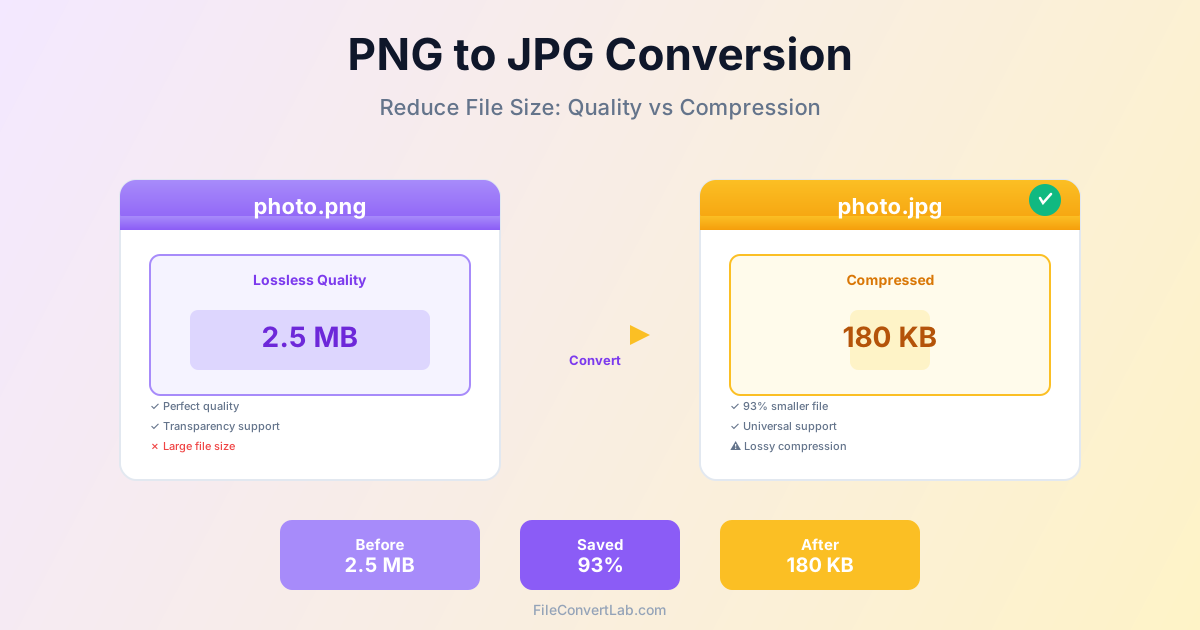
Converting PNG to JPG dramatically reduces file sizes—often by 70-95%—making images faster to load, easier to share, and more storage-efficient. While JPG uses lossy compression that removes some data, at proper quality settings the visual difference is minimal for photographs. This guide explains when to convert, optimal quality settings, and how to maintain visual fidelity while achieving maximum file size reduction.
Why Convert PNG to JPG?
PNG uses lossless compression, preserving every pixel exactly. This is excellent for graphics but inefficient for photographs, creating very large files. JPG was specifically designed for photographic compression, achieving much smaller files with minimal visible quality loss.
File Size Comparison
For a typical photograph (1920×1080):
- PNG: 2-5 MB
- JPG (90% quality): 300-500 KB
- JPG (80% quality): 180-300 KB
- Reduction: 85-95% This massive size reduction makes JPG ideal for websites (faster loading), email attachments (within size limits), and storage (more photos in same space).
When to Convert PNG to JPG
Convert PNG to JPG in these situations:
- Photographs and camera images: JPG is optimized for photographic content with smooth color gradients
- Website performance: Smaller JPG files load faster, improving page speed and user experience
- Email attachments: Most email providers have size limits (10-25 MB); JPG files are easier to send
- Storage space: Save 85-95% space on your device, cloud storage, or backup drives
- Social media uploads: Platforms re-compress anyway; starting with JPG gives you more control
- Mobile devices: Conserve limited smartphone storage with smaller photo files
When NOT to Convert PNG to JPG
Keep PNG format in these cases:
- Images with transparency: JPG does not support transparent backgrounds—transparent areas become white or black
- Screenshots and diagrams: JPG creates visible artifacts around text and sharp edges
- Logos and icons: PNG preserves sharp edges and solid colors better than JPG
- Images with text: Text becomes slightly blurry with JPG compression
- Graphics requiring exact colors: PNG preserves pixel-perfect color reproduction
- Images you will edit repeatedly: JPG quality degrades with each save; PNG does not
Understanding JPG Quality Settings
JPG quality is typically set on a scale of 1-100%, where higher values mean better quality but larger files:
| Quality | File Size | Visual Quality | Best For |
|---|---|---|---|
| 90-100% | Largest | Excellent | Print, archiving, professional use |
| 85-90% | Medium | Very good | Most photos, web use (recommended) |
| 75-85% | Small | Good | Web thumbnails, email |
| 60-75% | Very small | Acceptable | Low-res previews only |
| Below 60% | Smallest | Poor | Not recommended |
Recommended Settings
- For most photos: 85-90% quality strikes the best balance
- For web images: 80-85% provides good quality with faster loading
- For print: 90-95% preserves maximum detail
- For thumbnails: 70-80% is acceptable for small previews
How to Convert PNG to JPG
Converting PNG to JPG is straightforward with our PNG to JPG converter :
Step 1: Upload PNG Files
Select one or multiple PNG images. For batch conversion, select all files you want to convert at once rather than processing them individually.
Step 2: Choose Quality
Select your desired JPG quality setting (we recommend 85-90% for most uses). Higher quality means larger files but better visual fidelity.
Step 3: Convert and Download
The conversion processes your PNG files, applying lossy compression to create much smaller JPG files. Download your converted images and verify they meet your quality expectations.
Handling Transparency
JPG does not support transparency. When converting PNG with transparent areas to JPG:
- Transparent pixels are replaced with a solid color (usually white)
- Semi-transparent areas become fully opaque
- Alpha channel information is completely lost If preserving transparency is important, consider converting to WebP instead, which supports transparency with better compression than PNG.
Batch Converting Multiple Files
If you have many PNG files to convert, batch processing saves hours:
- Select all PNG files in your folder (Ctrl+A or Cmd+A)
- Upload them all to our converter
- Set consistent quality settings for all files
- Download converted JPG files as a ZIP archive Batch processing is especially useful when working with photo libraries or preparing images for web galleries.
Common Mistakes to Avoid
- Converting graphics to JPG: Screenshots, logos, and diagrams look better as PNG due to sharp edges and text
- Using too low quality: Below 75% quality creates obvious compression artifacts
- Converting images with transparency: Transparent areas become white/black in JPG
- Not keeping PNG originals: Once converted to JPG, you cannot restore the lost quality
- Repeated conversions: Converting JPG to PNG and back to JPG reduces quality each time
Web Performance Optimization
For website images, converting PNG photos to JPG significantly improves page loading speed:
- A 2 MB PNG becomes 200-400 KB JPG (5-10× faster to download)
- Faster loading improves user experience and reduces bounce rates
- Google PageSpeed and Core Web Vitals scores improve
- Better SEO rankings due to faster page loads
- Reduced bandwidth costs for high-traffic websites For even better performance, consider using WebP format for 25-35% additional file size reduction compared to JPG.
Conclusion
Converting PNG to JPG reduces file sizes by 70-95% with minimal visible quality loss for photographs. Use quality settings of 85-90% for the best balance between file size and visual fidelity. Reserve PNG for graphics, logos, screenshots, and images requiring transparency—convert photographs to JPG for optimal file size and performance.
Always keep original PNG files before converting to JPG, as the lossy compression is permanent. Once converted, you cannot restore the original quality. For batch operations, convert entire folders at once with consistent quality settings to save time and ensure uniformity across your image library.