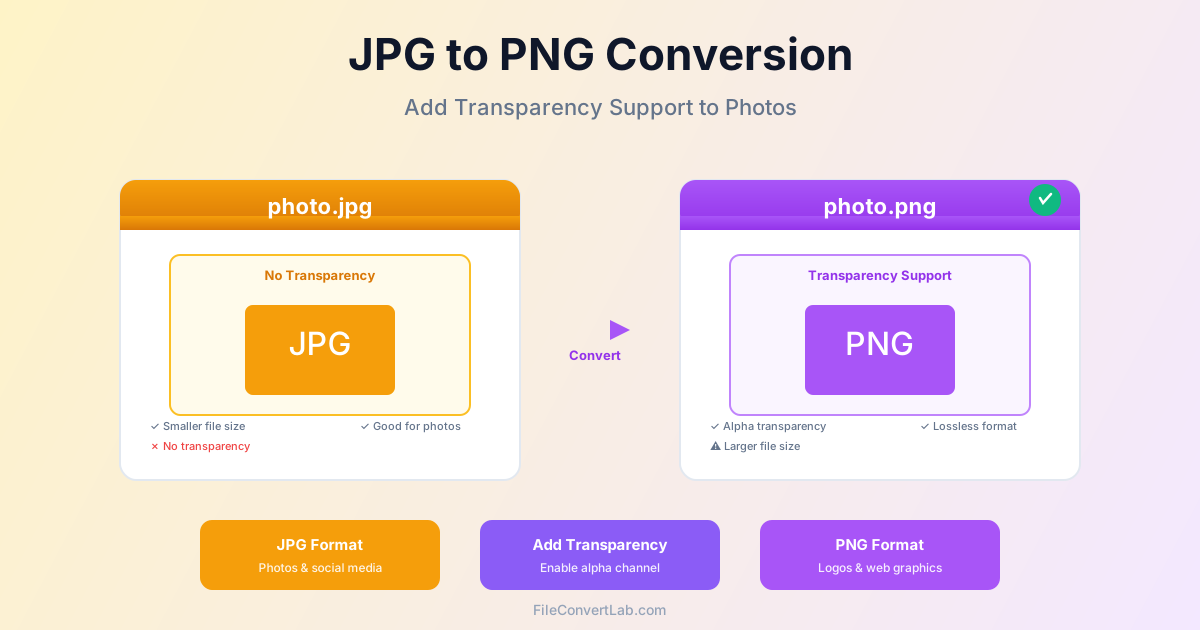
Converting JPG to PNG enables transparency support and lossless editing capabilities that JPG lacks. While the conversion doesn't improve existing quality (JPG compression already discarded data), it prevents further quality loss from repeated edits and allows you to add transparent backgrounds.
This guide explains when to convert, the file size implications, and how to maintain quality during the process.
Why Convert JPG to PNG?
JPG and PNG serve different purposes. JPG uses lossy compression optimized for photographs, while PNG uses lossless compression ideal for graphics, logos, and images requiring transparency.
Key Reasons to Convert
- Enable transparency: PNG supports alpha channel transparency; JPG does not. Convert to PNG first, then edit to add transparent backgrounds
- Prevent further degradation: Each time you edit and save a JPG, quality degrades. PNG doesn't lose quality with repeated saves
- Better for graphics: If your JPG contains text, logos, or diagrams, PNG preserves sharp edges better
- Software compatibility: Some applications work better with PNG for certain tasks (graphic design, web development)
- Future-proof editing: Converting to PNG before extensive editing prevents generational quality loss
Understanding Quality Implications
Converting JPG to PNG doesn't improve quality—it preserves whatever quality the JPG currently has in a lossless format.
What Converting JPG to PNG Does
- Preserves current image quality exactly
- Enables transparency support for future editing
- Prevents quality degradation from future saves
- Creates larger files (3-8× size increase)
- Allows lossless editing without compression artifacts
What Converting JPG to PNG Doesn't Do
- Restore detail lost during original JPG compression
- Remove JPG compression artifacts (they're permanent)
- Automatically add transparency (must be done manually after conversion)
- Improve blurry or low-quality JPGs
When to Convert JPG to PNG
Convert JPG to PNG in these situations:
- Adding transparent backgrounds: Convert first, then use image editing tools to remove backgrounds
- Extensive editing needed: If you'll edit the image multiple times, PNG prevents cumulative quality loss
- Screenshots with text: JPG compression blurs text; PNG preserves it sharply
- Graphics mistakenly saved as JPG: Logos, diagrams, or icons should be PNG to avoid compression artifacts
- Web graphics requiring transparency: Convert before adding to websites with transparent backgrounds
When NOT to Convert JPG to PNG
Keep JPG format in these cases:
- Photographs for web use: JPG's smaller size loads faster; PNG offers no visual improvement for photos
- Social media uploads: Platforms re-compress images anyway; starting with JPG maintains smaller files
- Storage space is limited: PNG files are 3-8× larger with no quality improvement
- No editing planned: If you won't edit the image, there's no benefit to PNG's lossless format
- No transparency needed: The main advantage of PNG doesn't apply
File Size Comparison
Converting JPG to PNG significantly increases file size:
- 500 KB JPG → 2-4 MB PNG (4-8× larger)
- 1 MB JPG → 4-8 MB PNG (4-8× larger)
- 200 KB JPG → 800 KB - 1.5 MB PNG (4-7× larger) This size increase is because PNG uses lossless compression, preserving all pixel data that JPG's lossy compression retained. Photos compress poorly as PNG because photographic content (smooth gradients, noise) doesn't compress efficiently with lossless algorithms.
How to Convert JPG to PNG
Converting JPG to PNG with our JPG to PNG converter :
Step 1: Upload JPG Files
Select one or multiple JPG images. For batch conversion, select all files you want to convert simultaneously.
Step 2: Convert to PNG
The conversion decodes the JPG and re-encodes it as PNG using lossless compression. The visual quality remains identical—no improvement or degradation occurs during this step.
Step 3: Download PNG Files
Download your PNG files. They'll be significantly larger than the original JPGs but will now support transparency and won't degrade with future edits.
Adding Transparency After Conversion
Converting JPG to PNG enables transparency but doesn't automatically make backgrounds transparent. To add transparency:
- Convert JPG to PNG first
- Open PNG in image editing software (Photoshop, GIMP, Photopea)
- Use background removal tools to delete unwanted areas
- Save as PNG to preserve transparency Many online tools can remove backgrounds from PNG files. The key is converting to PNG first, as JPG cannot save transparency even if you remove the background.
Batch Converting JPG to PNG
For converting many files:
- Select all JPG files you want to convert
- Upload them to our converter in a single batch
- All files convert simultaneously
- Download converted PNG files as a ZIP archive
Common Use Cases
Converting Screenshots
If screenshots were saved as JPG, convert to PNG to restore text clarity.
JPG compression creates artifacts around text and UI elements, while PNG preserves sharp edges perfectly.
Preparing for Background Removal
Convert product photos to PNG before removing backgrounds for e-commerce.
JPG cannot save transparency, so conversion is necessary before background removal tools can create transparent PNGs.
Logo Conversion
If a logo was mistakenly saved as JPG, convert to PNG to prevent further quality degradation. While you can't restore detail already lost, PNG prevents additional compression artifacts from future edits.
Related Conversions
- PNG to JPG — Reduce file sizes for photographs
- PNG vs JPG vs WebP — Understanding image format differences
- WebP to PNG — Convert modern format to universal PNG
Conclusion
Converting JPG to PNG doesn't improve existing quality but enables transparency support and prevents further degradation from repeated edits. The conversion is appropriate when you need to add transparent backgrounds, plan extensive editing, or work with graphics that should have been PNG from the start.
Expect file sizes to increase 3-8 times when converting photographs to PNG.
Only convert when the benefits (transparency, lossless editing) outweigh the storage cost. For photographs that will remain unchanged, keep JPG format for efficient file sizes and faster web loading.