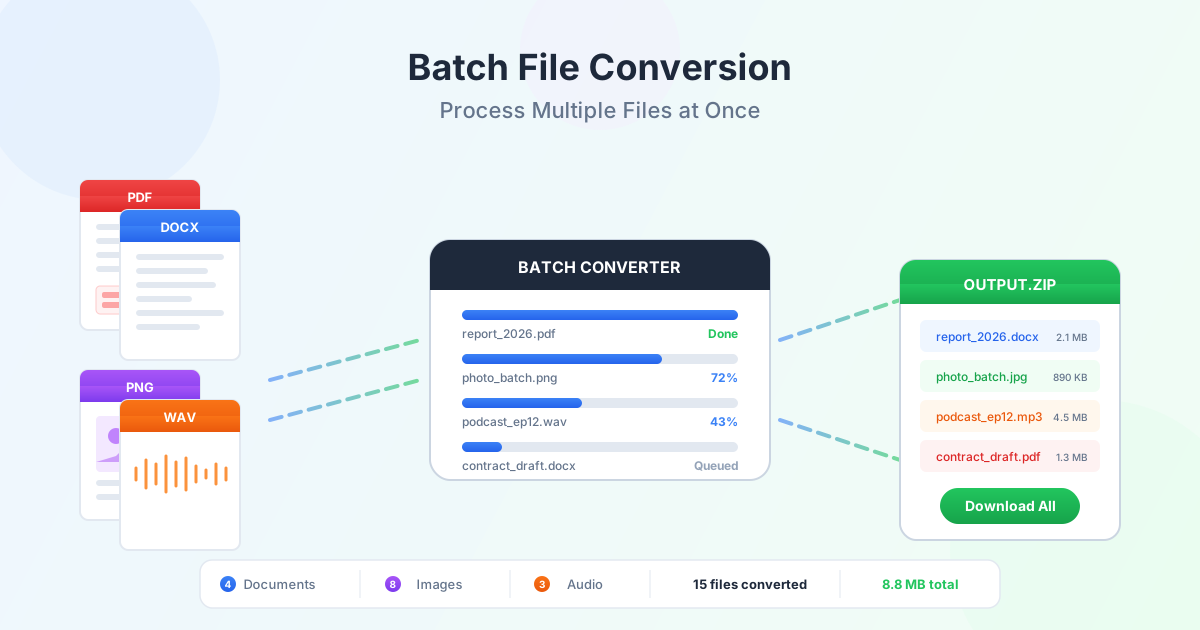
Converting one file is simple. Converting fifty is a different challenge entirely. Whether you are preparing a project archive, migrating document libraries, or processing a folder of images for a website, batch file conversion lets you convert multiple files at once instead of repeating the same steps for every single file.
This guide walks through the complete workflow for bulk file conversion across documents, images, and audio — from preparation and format selection to naming conventions, output organization, and downloading everything as a single ZIP archive.
When Batch Conversion Makes Sense
Single-file conversion works fine for one-off tasks — turning a contract into PDF or resizing a photo for an email. But once you have more than a handful of files, manual one-by-one conversion wastes time and introduces inconsistency. Batch file conversion becomes the practical choice in several common scenarios:
- Document migration — converting an archive of Word files to PDF for long-term storage, or turning scanned PDFs into editable Word documents using OCR
- Website image preparation — converting hundreds of PNG screenshots to JPG for smaller file sizes, or resizing product photos for an online catalog
- Audio library management — converting FLAC or WAV collections to MP3 for portable devices, or standardizing a podcast library to a single format
- Client deliverables — converting a set of project reports, invoices, or presentations into a unified format before sending to clients
- Format standardization — bringing a mixed collection of file types into one format so your team works with consistent files
The common thread is volume. Whenever you need to process multiple documents, images, or audio files with the same conversion settings, batch processing saves hours of repetitive work.
Supported Format Categories
Batch conversion is not limited to one file type. Most bulk file converters handle several format categories, each with its own set of input and output options.
Documents
Document batch conversion covers office formats and PDFs. Common operations include converting Word files to PDF for archiving, turning PDFs back into editable Word documents, and extracting tables from PDF into Excel spreadsheets. If you need to batch convert PDF to Word, upload all your PDFs at once and select DOCX as the target — each file converts individually with formatting preserved. For scanned documents, OCR runs automatically to extract the text.
Popular document conversions:
- PDF to Word — extract editable text from PDF documents
- Word to PDF, Excel to PDF, PowerPoint to PDF — standardize office documents into PDF
- Merge PDF — combine multiple PDFs into a single document after batch operations
Images
Image batch conversion handles format changes, quality adjustments, and size reduction across large photo or graphic collections. The most common use case is converting PNG to JPG to reduce file sizes for web use — a folder of 200 PNG screenshots at 5 MB each becomes 200 JPG files at under 500 KB each. You can also batch convert multiple images to PDF at once for documentation or reporting purposes.
Popular image conversions:
- PNG to JPG — reduce image file sizes for web and email
- JPG to PNG — add transparency support to photos
- WebP to PNG or JPG — convert modern web images to universally supported formats
- HEIC to JPG — convert iPhone photos for cross-platform compatibility
Audio
Bulk audio conversion is essential for music libraries, podcast production, and audio archiving. Converting WAV or FLAC files to MP3 reduces storage requirements dramatically — a 50 MB WAV file becomes a 5 MB MP3 at 320 kbps with negligible quality loss for most listeners. When you need to convert dozens of recordings, batch processing handles the entire folder in one operation.
Popular audio conversions:
- WAV to MP3, FLAC to MP3, M4A to MP3 — compress audio for portable devices and streaming
- MP3 to WAV — convert to lossless format for audio editing
- FLAC to WAV — prepare lossless files for DAW import
Step-by-Step Batch Conversion Workflow
A structured workflow prevents confusion and ensures consistent results when you convert multiple files at once.
Follow these steps whether you are processing 10 files or 500.
Step 1: Sort and Group Your Files
Before uploading anything, organize your source files. Group them by conversion type — all PDFs that need to become Word documents in one folder, all PNGs that need to become JPGs in another, all WAVs that need to become MP3s in a third. Mixing file types in a single batch operation leads to errors and confusion about which settings apply to which files.
If your files have inconsistent names (IMG_001.png, Screenshot 2026-05-01.png, photo.png), rename them before conversion. Consistent input names produce consistent output names.
Step 2: Choose the Target Format and Settings
Select the output format for the entire batch. Every file in the batch should convert to the same format with the same quality settings. For documents, this means choosing between PDF, DOCX, or XLSX. For images, decide on JPG quality (80-90% balances size and quality) or PNG for lossless results. For audio, pick a bitrate — 128 kbps for speech recordings, 256-320 kbps for music.
If you need different output formats for different files, split them into separate batches. Trying to apply different settings within one batch is how mistakes happen.
Step 3: Upload and Convert
Upload all files in the batch. Online converters typically let you drag and drop multiple files or select them from a file picker. The converter queues each file and processes them sequentially or in parallel, depending on the service. Larger batches take proportionally longer, but you only wait once instead of repeating the upload step for each file.
During conversion, most tools show progress indicators for each file. Watch for any files that fail — corrupted files, password-protected documents, or unsupported format variations can cause individual failures without stopping the rest of the batch.
Step 4: Download as ZIP
When the batch completes, download the results. Most batch converters package all output files into a single ZIP archive, which is far more convenient than downloading 50 files individually. Extract the ZIP to your output folder and verify a few files to confirm the conversion quality matches your expectations.
Step 5: Verify and Validate
Spot-check a sample of converted files. Open a few documents to confirm text is intact. View several images to verify quality and dimensions. Play a few audio files to check they sound correct. For large batches, checking 10-15% of files is usually sufficient to catch systematic issues. If anything looks wrong, re-convert only the affected files rather than reprocessing the entire batch.
Tips for Naming and Organizing Output
Good file organization before and after batch conversion prevents the frustration of searching through hundreds of files to find what you need. These naming and folder strategies scale from small batches to enterprise-level document processing.
Naming Conventions
- Use descriptive names before converting — rename "IMG_4521.png" to "product-hero-blue.png" before conversion so the output is immediately identifiable
- Include dates for versioned documents — "report-2026-05-26.pdf" is clearer than "report-final.pdf" when you have multiple versions
- Avoid special characters — stick to letters, numbers, hyphens, and underscores in filenames to prevent issues across operating systems
- Use sequential numbering for ordered content — "chapter-01.pdf" through "chapter-12.pdf" keeps files in logical order
Folder Structure
Separate source files from converted output. A clear folder structure looks like this:
project/ originals/ report-q1.docx report-q2.docx report-q3.docx converted/ report-q1.pdf report-q2.pdf report-q3.pdf
For ongoing batch operations, add date-based subfolders so each conversion run is traceable. This is especially useful for recurring tasks like monthly report conversion or weekly image processing.
Common Use Cases by Category
Document Batch Conversion
Offices and teams frequently need to process multiple documents at scale. Tax season means converting stacks of financial PDFs to Excel for data extraction. Legal teams convert contract archives from Word to PDF for tamper-proof storage. HR departments digitize paper forms by scanning to PDF, then batch converting to searchable documents with OCR.
The key for document batch conversion is format consistency. Decide on your archive format (PDF for final documents, DOCX for editable templates) and convert everything to match. Use PDF to Word conversion when you need to edit archived documents, and PDF compression afterward to reduce storage requirements.
Image Batch Conversion
Photographers, designers, and web developers deal with image batches constantly. A product shoot produces 300 RAW images that need to become JPGs for the website. A documentation team has 150 PNG screenshots that would be half the size as JPGs. A print shop receives files in mixed formats and needs everything in TIFF for production.
When you batch convert PNG to JPG, set the quality to 85-90% for photographs and 80% for screenshots — the visual difference is minimal but file sizes drop by 60-80%. For graphics with text or sharp edges, keep PNG format to avoid compression artifacts. Use PNG to JPG conversion for photo-heavy batches and keep PNG for diagrams and interface screenshots.
Audio Batch Conversion
Musicians, podcasters, and audio engineers regularly process multiple audio files. A musician converting a FLAC album to MP3 for distribution needs consistent bitrate across all tracks. A podcaster archiving episodes wants all recordings in the same format and quality. A field researcher with 40 WAV interview recordings needs compressed MP3 versions for transcription software.
For bulk audio conversion, the bitrate setting matters more than the converter itself. Speech content (podcasts, interviews, lectures) sounds fine at 128 kbps. Music needs 256-320 kbps to preserve detail. Visit the audio converter to process multiple audio files in a single session with consistent quality settings.
Optimizing Batch Conversion Results
Keep Source Files Intact
Always keep original files until you have verified the converted output. Conversion is not always reversible — converting a WAV to MP3 loses audio data permanently, and converting a DOCX to PDF removes editability. By keeping originals in a separate folder, you can re-convert with different settings if the first attempt does not meet your requirements.
Process in Manageable Batches
If you have 500 files to convert, do not upload all 500 at once. Split them into groups of 20-50 files. Smaller batches are faster to upload, easier to verify, and simpler to re-process if something goes wrong. They also reduce the risk of timeouts or memory issues with online converters.
Match Settings to Purpose
The right conversion settings depend on what you plan to do with the output. Files for web publishing need smaller sizes (compress images, use lower audio bitrates). Files for print or professional use need maximum quality (high-resolution images, lossless audio). Files for archiving need durable formats (PDF/A for documents, FLAC for audio). Define the purpose before choosing settings, and apply those settings consistently across the entire batch.
Use ZIP Downloads Efficiently
ZIP archives from batch conversion are convenient but can become confusing if you run multiple batches. Rename the downloaded ZIP file immediately — change "output.zip" to "product-images-jpg-2026-05-26.zip" before extracting. This makes it easy to identify which batch produced which files, especially when you run several batch operations in a day.