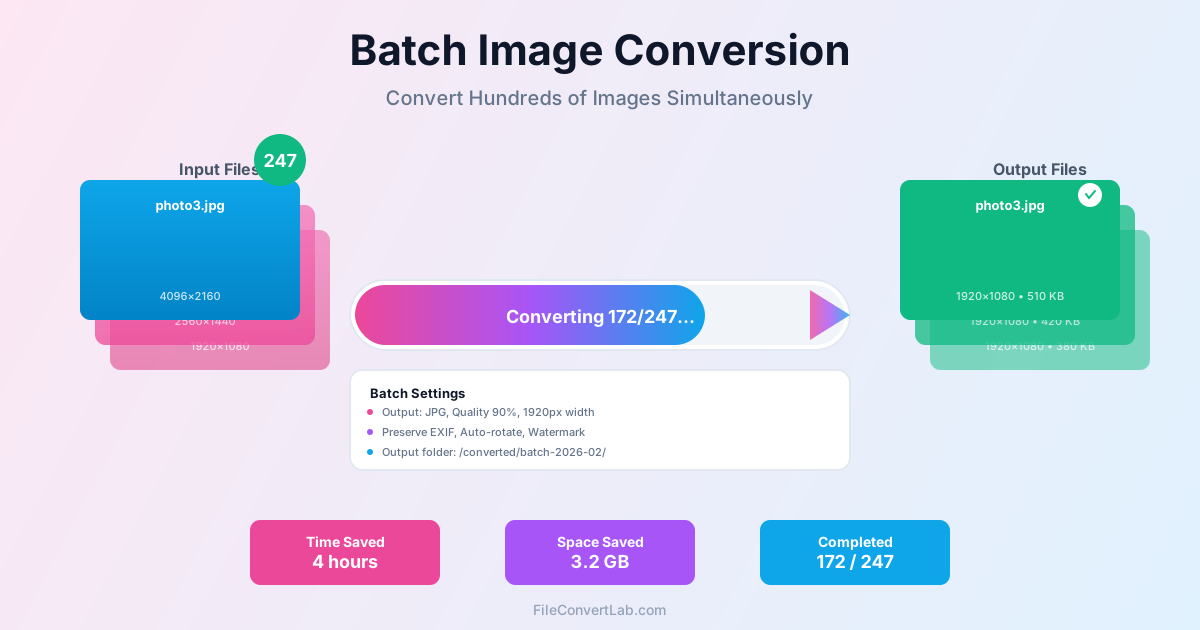
You shot 2,000 photos at a wedding and need JPGs for the client.
Your WordPress site has 800 PNGs that should be WebP. An e-commerce catalog needs every product image at three sizes. Doing this one file at a time would take days. Batch image conversion processes all files in a single operation with consistent settings — same quality, same dimensions, same format across every image.
Mass Convert PNG to JPG
PNG to JPG is the most common batch conversion. PNGs from screenshots, design exports, or scanned documents produce large files (3-15 MB each) because PNG is lossless. Converting to JPG at 85-90% quality cuts file size by 80-95% with barely visible quality loss on photographs. Our PNG to JPG converter handles multiple files simultaneously.
The key setting is quality level. At 90%, a 5 MB PNG photograph becomes a 400-600 KB JPG. At 85%, it drops to 250-400 KB. Below 80%, compression artifacts become visible in gradients and skin tones. For screenshots with text, go higher (92-95%) because JPG compression smears sharp edges.
One catch: PNGs with transparency lose it during conversion because JPG doesn't support alpha channels. The transparent area becomes white (or whatever background color your converter uses). If you need transparency, convert to WebP instead — it supports transparency with better compression than PNG.
Mass Convert JPG to PNG
The reverse conversion — JPG to PNG — makes sense when you need lossless archives of images that won't be re-edited, or when you need to add transparency later. Converting JPG to PNG won't restore lost quality (the JPG compression already happened), but it prevents further degradation if the files will be edited and saved repeatedly.
Expect file sizes to increase 3-5x. A 500 KB JPG becomes a 1.5-2.5 MB PNG. This is normal — PNG stores every pixel without compression loss.
If storage is a concern and you don't need lossless, JPG to WebP gives better compression while still supporting transparency.
Batch Convert PDF to JPG
Converting PDFs to images is common for previews, thumbnails, and social media sharing. Each PDF page becomes a separate JPG. A 50-page document produces 50 images. Our PDF to JPG converter handles multi-page documents and multiple PDFs at once.
Resolution matters here. At 72 DPI (screen resolution), text looks soft and blurry when zoomed. At 150 DPI, you get readable text in a reasonable file size — good for web previews. At 300 DPI, you get print-quality images but large files (a letter-size page at 300 DPI produces a 2550x3300 pixel image). Pick DPI based on how the images will be used, not on "maximum quality."
Batch Resize Images for Web
Camera photos are typically 4000-6000 pixels wide. Displaying them on a website at that size wastes bandwidth — monitors max out at 1920-2560px, and most content areas are 800-1200px. Batch resizing reduces every image to a target dimension before upload.
Common web dimensions and when to use them:
- 1920px wide: Full-width hero images, background photos. A 6000px original resized to 1920px at JPG 85% goes from 8 MB to 200-400 KB
- 1200px wide: Blog post images, article headers. The standard for content images where the layout is ~800px but you want 1.5x for retina displays
- 800px wide: Product cards, gallery thumbnails (large). Works well for catalog grids showing 2-3 images per row
- 400px wide: Small thumbnails, avatar-sized images. Under 50 KB each at JPG 80%
For responsive websites, you often need multiple sizes of each image for the HTML srcset attribute. Batch conversion can generate 3-4 variants per source image (e.g., 400px, 800px, 1200px, 1920px) in one pass. This gives browsers the right size for each viewport without serving oversized images to mobile devices.
Image Conversion vs. Image Optimization
These are different operations that people often conflate. Conversion changes the format: PNG becomes JPG, or JPG becomes WebP. Optimization reduces file size within the same format through smarter encoding.
Both reduce file sizes, but they work differently.
- Format conversion — changes the container and compression algorithm. PNG (lossless) to JPG (lossy) drops file size dramatically because you're accepting some quality loss
- Quality optimization — reduces quality within a format. JPG at 95% vs. 85% is the same format but different file sizes. Tools like mozjpeg produce smaller JPGs than standard encoders at the same visual quality
- Metadata stripping — removes EXIF, ICC profiles, and thumbnails embedded in the file. Can save 50-200 KB per image, significant for thumbnails but minor for large photos
- Resizing — reduces pixel dimensions. This has the largest impact: halving width and height quarters the pixel count and roughly quarters the file size
For maximum file size reduction, combine all four: resize down, convert to an efficient format, optimize compression, and strip unnecessary metadata. See our image optimization guide for detailed compression comparisons.
Real-World Workflows
Photographer: Wedding Delivery
A wedding photographer shoots 2,000-3,000 images in RAW (CR3, NEF, ARW). After culling and editing in Lightroom, they export to full-resolution JPG for archival, then need web-sized versions for the online gallery. Batch convert the full-res JPGs: resize to 2048px wide, quality 88%, strip GPS metadata (privacy), keep copyright EXIF. Output: ~400 KB per image instead of 8-12 MB.
The entire gallery loads in seconds instead of minutes.
Web Developer: Site Migration to WebP
A WordPress site has 800+ images accumulated over years — a mix of PNG screenshots, JPG photos, and unoptimized BMPs. Migrating to WebP cuts total image weight by 30-50%. Batch convert everything to WebP at quality 82, keep the originals as fallbacks for <picture> elements.
Monitor WebP browser support — as of 2026, it's above 97% globally.
E-commerce: Product Catalog
An online store adds 50-200 new product photos weekly. Each needs four variants: 1200px main image, 400px card thumbnail, 100px cart icon, and 2400px zoom view. Without batch processing, creating four versions of 200 images (800 files) is a full day of work. With batch resize, it takes minutes. Convert to JPG 90% for the main and zoom views, JPG 80% for thumbnails where compression is less noticeable.
Batch Conversion Tools for Developers
If you work in a terminal or need to integrate conversion into build scripts, command-line tools give you full control. These handle thousands of files without a GUI.
ImageMagick (CLI)
ImageMagick's mogrify command converts files in-place.
To convert all PNGs in a directory to JPG at 85% quality:
mogrify -format jpg -quality 85 *.png
To resize and convert simultaneously (max 1920px wide, maintain aspect ratio):
mogrify -format jpg -quality 85 -resize 1920x *.png
Use convert instead of mogrify when you want to write to a different directory (keeping originals intact).
The -strip flag removes all metadata if you want smaller files.
Python Pillow Script
For custom logic (conditional resizing, format detection, error logging), a Python script with Pillow gives you full flexibility:
from pathlib import Path from PIL import Image

src = Path("originals") dst = Path("converted") dst.mkdir(exist_ok=True)

for f in src.glob("*.png"):
img = Image.open(f) img.thumbnail((1920, 1920))  # max 1920px, keeps ratio img.save(dst / f"{f.stem}.jpg", "JPEG", quality=85)
This processes files sequentially. For parallel processing on large batches, wrap the loop with concurrent.futures.ThreadPoolExecutor.
Node.js sharp
Sharp is the fastest image processing library in the Node.js ecosystem, built on libvips. It handles batch conversion natively:
import sharp from "sharp"; import { glob } from "fs/promises";

for await (const file of glob("originals/*.png")) { await sharp(file) .resize({ width: 1920, withoutEnlargement: true }) .jpeg({ quality: 85, mozjpeg: true }) .toFile(file.replace("originals", "converted") .replace(".png", ".jpg")); }
The mozjpeg: true flag enables mozjpeg encoding, which produces 5-10% smaller files than standard JPEG at the same visual quality.
Automation on Every Platform
Instead of running batch conversion manually each time, set up automated pipelines that trigger on file changes.
- Windows (PowerShell): Use a FileSystemWatcher to monitor a folder and run ImageMagick when new files appear. Or schedule a Task Scheduler job to convert everything in C:\Uploads nightly
- macOS (Automator): Create a Folder Action that converts dropped images to your target format. Right-click any folder, attach the action, done
- Linux (cron + ImageMagick): A cron job running mogrify at 2 AM converts everything added to a watched directory during the day
- CI/CD pipelines: Add a sharp or ImageMagick step to your build pipeline. Every image committed to the repo gets optimized automatically before deployment
Choosing Quality Settings
Quality isn't a linear scale. The difference between 100% and 95% is barely visible but the file size drops 40-60%. The difference between 85% and 80% is noticeable in gradients and skin tones. Here's a practical guide:
- 92-95%: Archival quality. Use when the converted file becomes the permanent copy. Minimal compression artifacts
- 85-90%: Production quality. The sweet spot for web images, client deliveries, and portfolios. Most people can't distinguish this from the original
- 75-84%: Performance quality. Thumbnails, previews, email attachments. Artifacts visible if you zoom in, invisible at display size
- Below 75%: Only for small thumbnails or cases where file size is critical (e.g., loading 500 product images on a single page)
Always test on 10-20 representative images before batch converting thousands. A setting that works for outdoor landscapes may look terrible on product photos with white backgrounds. For a deeper comparison of format trade-offs, see our PNG vs JPG vs WebP analysis .
Related Topics
- PNG to JPG conversion guide — Deep dive into single-file PNG to JPG settings
- Image optimization for web — Compression techniques beyond format conversion
- PNG vs JPG vs WebP — Format comparison to choose the right output
- PNG to JPG converter — Convert your images online
- JPG to WebP converter — Migrate images to WebP format
Conclusion
Batch image conversion isn't about clicking "convert" on many files.
It's about choosing the right format, quality, and dimensions for your specific use case — then applying those settings consistently across hundreds or thousands of images. Start with a test batch of 20 files, verify the output meets your needs, then process the rest.
Whether you use an online converter, ImageMagick in a terminal, or a build pipeline, the workflow is the same: define settings once, convert everything, spot-check the results.