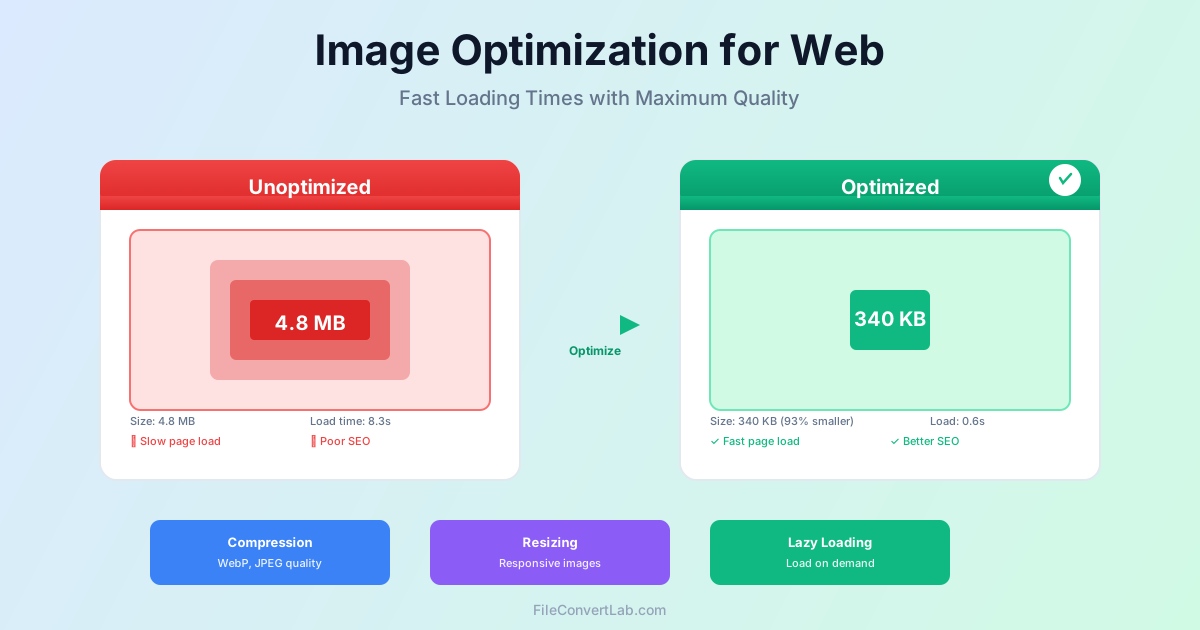
Image optimization is critical for web performance in 2026. Unoptimized images are the leading cause of slow page loads, poor Core Web Vitals scores, and lost conversions. Proper optimization reduces file sizes by 70-90% while maintaining visual quality, dramatically improving loading speed, SEO rankings, and user experience. This guide covers compression, format selection, responsive images, and automation techniques.
Why Image Optimization Matters
Images typically account for 50-70% of total page weight. A single unoptimized photo can be 4-8 MB, causing:
- Slow page loading (3-10 seconds instead of under 1 second)
- Poor Core Web Vitals scores (LCP, CLS)
- Lower Google search rankings
- Increased bounce rates (users leave before page loads)
- Higher bandwidth costs
- Worse mobile experience (slower cellular connections) Optimizing images addresses all these issues simultaneously.
Choosing the Right Format
WebP (Recommended for 2026)
WebP provides 25-35% better compression than JPG/PNG with equivalent quality.
Serve WebP to modern browsers with JPG/PNG fallbacks:
{/* language=text */ `
`}
JPG for Photos
Use for photographs and complex images. Quality 80-85% provides excellent results with dramatic file size reduction. See our PNG to JPG guide .
PNG for Graphics
Use for logos, icons, screenshots with text, or images requiring transparency.
PNG is lossless but creates larger files for photographs.
Compression Techniques
Lossy Compression
For JPG/WebP, use quality 80-85% for web:
- Reduces file size by 70-85% compared to 100% quality
- Quality loss imperceptible to most viewers
- Ideal balance of size vs quality for web delivery
Lossless Compression
For PNG, use tools like TinyPNG or pngquant to reduce file size 50-70% without quality loss through better compression algorithms.
Responsive Images
Serve appropriately sized images based on viewport:
{/* language=text */ ``}
This prevents serving 2560px images to mobile devices that only need 400px versions.
Lazy Loading
Defer loading images below the fold (not visible on initial page load):
{/* language=text */ ``}
Important: Never lazy load above-the-fold images, especially LCP elements like hero images. This delays rendering and hurts performance.
Dimension and Resolution
Set Explicit Dimensions
Always specify width and height attributes to prevent layout shifts (CLS):
{/* language=text */ ``}
Resize Before Upload
Don't upload 4000×3000 camera photos for 800px display width. Resize to:
- Small images (thumbnails): 400-600px
- Medium images (content): 800-1200px
- Large images (full-width): 1920-2560px
Core Web Vitals Optimization
LCP (Largest Contentful Paint)
- Optimize hero images aggressively (under 200 KB)
- Use priority hints:
<img fetchpriority="high"> - Preload critical images in
<head> - Never lazy load LCP images
CLS (Cumulative Layout Shift)
- Always set width/height attributes
- Use aspect-ratio CSS to reserve space
- Avoid inserting images above existing content
Automation Tools
Build-Time Optimization
- Next.js Image Optimization (automatic WebP, responsive sizes)
- Webpack image-webpack-loader
- Gatsby gatsby-plugin-image
CDN Services
- Cloudflare Image Optimization
- Cloudinary (automatic format/quality selection)
- Imgix (real-time image processing)
CMS Plugins
- WordPress: Smush, ShortPixel, Imagify
- Shopify: TinyIMG, Image Optimizer
Optimization Checklist
Before deploying images:
- ✓ Resize to appropriate dimensions (not larger than display size)
- ✓ Compress to 80-85% quality for JPG/WebP
- ✓ Convert to WebP with JPG/PNG fallbacks
- ✓ Add width/height attributes to prevent CLS
- ✓ Use lazy loading for below-fold images
- ✓ Implement responsive images with srcset
- ✓ Optimize LCP images aggressively (<200 KB)
- ✓ Add descriptive alt text for accessibility/SEO
Measuring Performance
Use these tools to verify optimization:
- Google PageSpeed Insights — Core Web Vitals scores
- WebPageTest — Detailed waterfall analysis
- Chrome DevTools Network tab — Individual file sizes/load times
- Lighthouse — Comprehensive performance audit
Related Topics
- PNG vs JPG vs WebP — Choosing the right format
- PNG to JPG converter — Reduce image file sizes
Conclusion
Image optimization in 2026 requires serving WebP to modern browsers with fallbacks, compressing at 80-85% quality, implementing responsive images, and lazy loading below-the-fold content. These techniques reduce file sizes 70-90% while maintaining visual quality, dramatically improving Core Web Vitals scores, SEO rankings, and user experience. Automate optimization with build tools or CDN services to ensure consistency across all images.