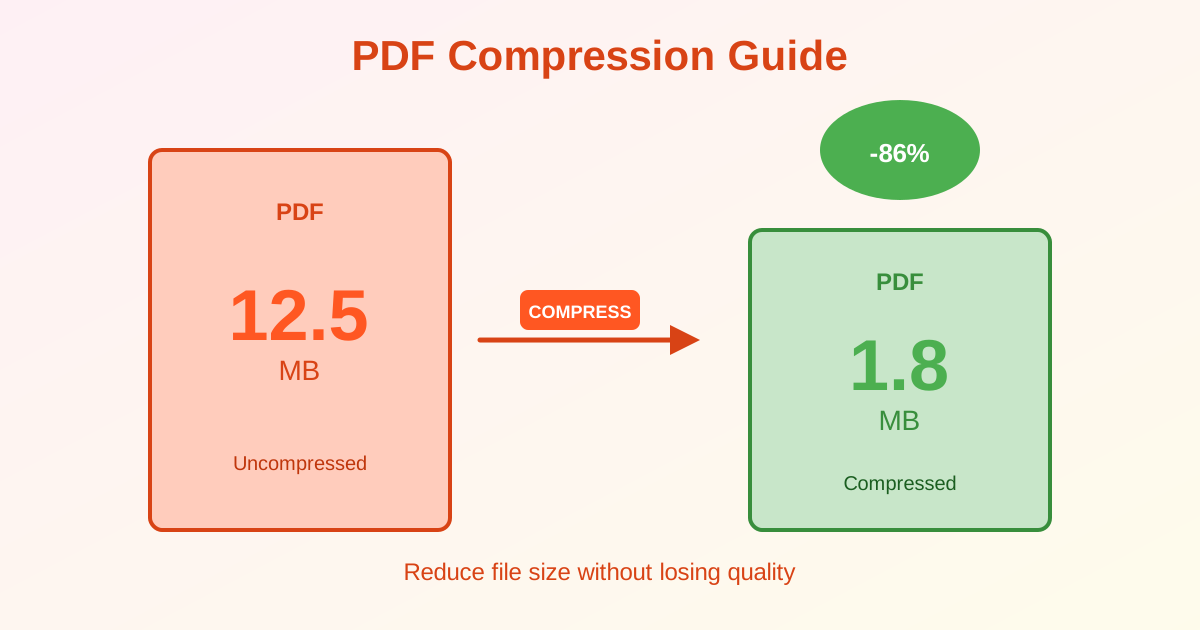
PDF files too large to email? Compression greatly reduces file size without significant quality loss. This guide explains how to compress PDFs, when to use compression, and how to choose the right compression level for your needs.
Why Compress PDFs?
Common reasons to reduce PDF file size:
- Email attachments — most services limit to 10-25 MB
- Faster uploads and downloads — smaller files transfer quickly
- Web page loading — compressed PDFs load faster for readers
- Storage savings — reduce cloud storage costs
- Mobile-friendly — smaller files use less cellular data
- Batch processing — compress before sending multiple PDFs
How PDF Compression Works
Compression reduces file size through three main methods:
1. Image Optimization
Images account for most of a PDF's file size. Compression:
- Reduces image resolution (e.g., 300 DPI → 150 DPI for screen viewing)
- Applies JPEG compression to photos
- Removes unnecessary metadata from images
- Downsamples high-resolution images to appropriate sizes
2. Metadata Removal
PDFs contain hidden data that increases file size:
- Editing history
- Embedded thumbnails
- Comments and annotations metadata
- Unused fonts and resources Removing this data reduces size without affecting visible content.
3. Font Optimization
Embeds only used characters instead of entire font files. A 200 KB font file reduces to 10-20 KB when only 50 characters are used.
Compression Levels Explained
Low Compression
- Quality: No visible quality loss
- Use for: Professional documents, printing, archival
- Example: 10 MB → 5-7 MB
Medium Compression
- Quality: Minimal quality loss, unnoticeable on screen
- Use for: Email attachments, web viewing, sharing
- Example: 10 MB → 3-5 MB
High Compression
- Quality: Visible quality reduction, acceptable for previews
- Use for: Quick previews, mobile viewing, temporary files
- Example: 10 MB → 1-3 MB
How to Compress PDF: Step-by-Step
- Upload your PDF to a compression tool
- Choose compression level (medium for most cases)
- Click "Compress" or "Optimize"
- Download the compressed PDF
- Check file size and quality Most tools show before/after file sizes so you can verify the reduction.
When to Use Each Compression Level
| Use Case | Compression Level | Why |
|---|---|---|
| Email attachment | Medium | Good quality, under 10 MB |
| Professional printing | Low | Maximum quality preserved |
| Website download | Medium-High | Fast loading, acceptable quality |
| Mobile viewing | High | Minimal data usage |
| Archive storage | Low | Long-term quality preservation |
| Quick preview/draft | High | Smallest size, temporary use |
What Doesn't Compress Well
Some PDFs compress less than others:
Text-Only PDFs
Text is already compact. Text-heavy PDFs without images may compress only a little. If a 1 MB text PDF compresses to 700 KB, that's normal.
Already Compressed PDFs
Re-compressing won't help. If a PDF is already optimized, further compression produces minimal savings. Check if images are already compressed (right-click image in PDF viewer → properties → check resolution).
Vector Graphics
PDFs with diagrams, charts, or illustrations (vector content) compress less than photo-heavy PDFs. Vector graphics are already efficient.
Compression vs Other Solutions
Compression vs Splitting
If your PDF is too large to email:
- Compress to reduce overall file size
- Split to divide into multiple smaller files Compression keeps all pages in one file. Splitting creates multiple files.
Compression vs Conversion
Converting to another format doesn't always reduce size:
- PDF → Word may increase file size (editable format overhead)
- PDF → JPG creates image files, not searchable documents
- Compression keeps the PDF format while reducing size
Tips for Better Compression Results
Compress Before Merging
If you're merging multiple PDFs, compress each one first, then merge.
This produces smaller final file size than merging uncompressed PDFs and compressing the result.
Keep Originals
Compression is permanent. Save the original uncompressed PDF if you might need maximum quality later (e.g., for printing).
Test Compression Levels
Compress a sample page first to check quality. If medium compression looks good, use it for the full document. If quality is poor, use low compression.
Common Issues and Solutions
Compressed PDF Still Too Large
If high compression doesn't reduce enough:
- Split the PDF into smaller sections
- Remove unnecessary pages before compressing
- Check if images are unnecessarily high-resolution
Text Looks Blurry After Compression
Text should never blur. If it does, the compression tool is too aggressive.
Use a different tool or lower compression setting. Text should always remain sharp at any compression level.
Can't Compress Password-Protected PDF
Remove the password first (requires the password), compress, then re-apply protection if needed. Encryption locks the file structure, preventing optimization.
Related Topics
- Split PDF — Divide large PDFs into smaller sections
- Merge PDF — Combine multiple PDFs (compress first for smaller result)
- Merge vs Split PDF — Choose the right tool for your task
Conclusion
PDF compression greatly reduces file size by optimizing images, removing metadata, and streamlining fonts. Use medium compression for email attachments and web viewing. Use low compression for printing or archival.
Compress before merging PDFs for best results. Always keep original uncompressed files if you need maximum quality later. Compression is permanent—you can't restore original quality after compressing.