You have a 150-page PDF report, a 2 GB video recording, or a folder with hundreds of high-resolution images. You upload the file to an online converter and... nothing happens.
The browser tab freezes, the progress bar stalls at 40%, or you get a blunt "file too large" error. Large file conversion fails on most platforms because they process everything inside your browser, and browsers were never designed to handle heavy files. This guide explains why large files break converters, how server-side processing solves the problem, and what you can do to convert large files of any type without size restrictions.
Why Large Files Fail to Convert
Understanding the failure points helps you avoid them. There are three main reasons a large file converter chokes on big inputs.
Browser memory limits
Browser-based converters load your entire file into memory inside a single browser tab. Most browsers cap each tab at 2-4 GB of RAM. A 100-page PDF with embedded images can easily consume 1-2 GB during processing. Add the conversion output and temporary buffers, and you hit the ceiling. The tab crashes, you lose progress, and the file stays unconverted.
Upload size restrictions
Many converters impose hard upload limits: 25 MB, 50 MB, sometimes 100 MB. These restrictions exist because the service pays for bandwidth and processing, and large files cost more. A single high-quality scan is 10-20 MB. A 50-page scanned PDF easily exceeds 100 MB. Videos measured in gigabytes are simply rejected.
Timeouts and slow connections
Even when a converter accepts a large file, the upload alone may take minutes on a standard connection. Many services set server-side timeouts of 30-60 seconds. If the file hasn't finished processing by then, the job is killed silently. You see a generic "conversion failed" message with no explanation.
How Server-Side Processing Handles Large Files
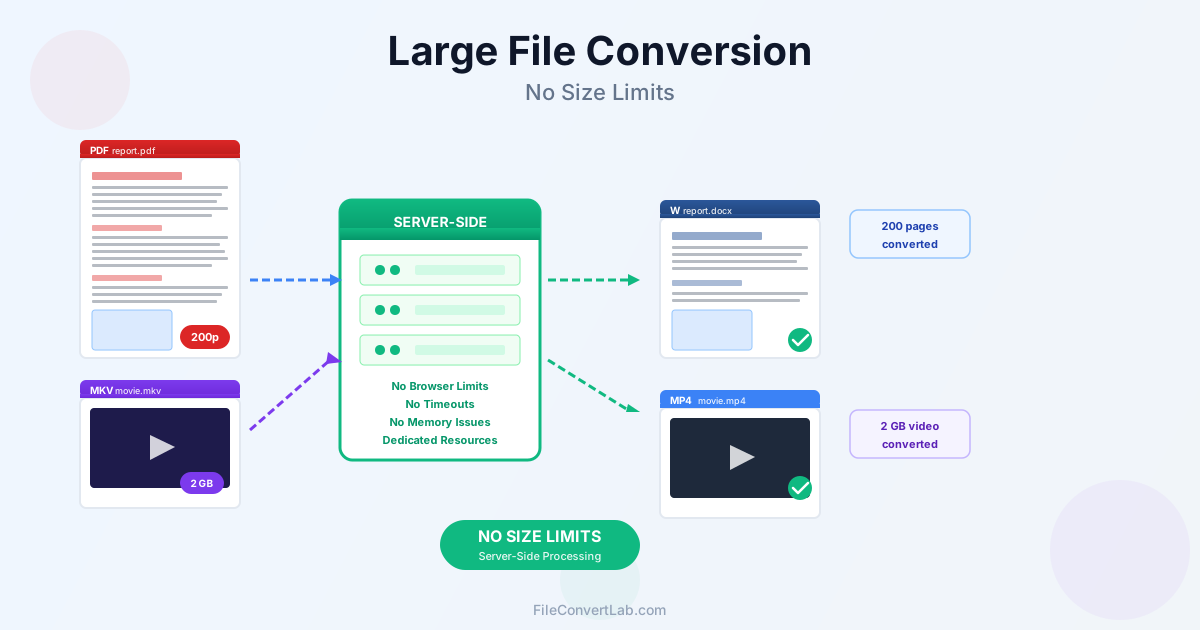
FileConvertLab processes files on dedicated servers, not inside your browser. When you upload a file, it goes directly to a server with multiple CPU cores, ample RAM, and no artificial size caps. The conversion runs as a background job: your browser only needs to display a progress indicator, not perform the actual work.
This architecture eliminates the three failure points above. The server has far more memory than a browser tab. There is no arbitrary upload limit imposed by a JavaScript runtime.
And the processing job runs for as long as it needs — minutes or even longer for very large videos — without timing out.
The result: a converter that takes files up to 100 MB without an account, 500 MB on Premium and 1 GB on Premium Plus, for documents, videos, images and archives alike. Page limits climb with the plan: 20 pages as a guest, 100 with a free account, 500 on Premium and 10,000 on Premium Plus.
Large Document Conversion
Documents are the most common large-file scenario. Legal contracts, research papers, financial reports, and government filings routinely span 100-300 pages with embedded charts, tables, and images.
How to convert large PDF files
A 200-page PDF with images and tables is typically 50-150 MB. Converting it to Word (DOCX) requires parsing every page, extracting text, preserving layout, and rebuilding the document in a completely different format. That kind of workload needs dedicated memory and processing power — exactly what server-side conversion provides.
Upload the PDF, select the output format, and wait. For a 200-page file, conversion typically takes 30-90 seconds on a server. The same file would crash most browser-based tools before reaching 50%.
Complex Word and Excel files
Large Word documents with hundreds of embedded images, tracked changes, and complex formatting are equally challenging. The same applies to Excel files with thousands of rows, multiple sheets, pivot tables, and charts. Server-side processing handles these without breaking a sweat.
Large Video File Conversion
Video files are where size restrictions hit hardest. A 1-hour recording in MKV format at 1080p is easily 2-4 GB. Raw footage from cameras can be 10 GB or more. Most online converters reject anything over 500 MB.
MKV to MP4 and other video formats
Converting MKV to MP4 is one of the most common large video file conversion tasks. MKV is popular for movies and recordings but has limited device compatibility. MP4 plays everywhere. Server-side transcoding handles multi-gigabyte MKV files by processing the video stream chunk by chunk, never loading the entire file into memory at once.
Other common large video conversions include MOV to MP4, AVI to MP4, and WebM to MP4.
All benefit from server-side processing where dedicated hardware accelerates the encoding.
What affects video conversion speed?
- File size and duration — a 2 GB file takes proportionally longer than a 500 MB file
- Resolution — 4K video requires roughly 4x the processing of 1080p
- Codec complexity — some codecs are faster to decode and re-encode than others
- Audio tracks and subtitles — multiple audio streams add processing time
Large Image Batches
Converting a single image is trivial. Converting 500 images from a photo shoot, a scanned document set, or a design export is a different story. Each image might be 5-20 MB. The total batch easily reaches 5-10 GB.
Server-side batch processing queues images and converts them in parallel. You upload the batch, the server processes each file independently, and you download the results as a single archive. No browser tab managing hundreds of concurrent conversions, no memory spikes, no crashes.
Tips: Reduce File Size Before Conversion
Sometimes you want a smaller output, not just a successful conversion. Here are practical ways to convert file to smaller size or reduce the input before converting.
- Compress PDFs first — use a PDF compressor to strip unnecessary metadata, downsample images, and reduce file size by 50-80% before converting to Word or Excel
- Reduce image resolution — if you are converting images for web use, resize them to the target dimensions before format conversion. A 6000x4000 photo resized to 1920x1280 converts faster and produces a smaller output
- Remove unnecessary pages — if you only need chapters 3-5 of a 200-page PDF, extract those pages first instead of converting the entire document
- Strip audio tracks from video — if you only need the video stream, removing unused audio tracks before conversion reduces file size and speeds up processing
- Compress large files for email — convert to a more efficient format (BMP to JPG, WAV to MP3, TIFF to PDF), then compress the result to fit email attachment limits
When to Split Files Instead of Converting Whole
In most cases, converting the entire file is the best approach. But there are scenarios where splitting first makes sense:
- You only need part of the file — extracting 10 pages from a 500-page PDF and converting just those pages saves time and produces a cleaner result
- The file is extremely complex — a 1000-page scanned PDF with OCR needs more resources than a 50-page text PDF. Splitting into 100-page chunks makes each conversion faster and more reliable
- Different sections need different formats — tables might need Excel conversion while narrative sections need Word. Split by content type, then convert each section to the appropriate format
- You need to distribute parts separately — if different team members need different chapters, split the document before converting rather than converting the whole thing and splitting after
Comparison: FileConvertLab vs Typical Online Converters
The table below compares key limits. Most browser-based converters share similar restrictions because they all face the same technical constraints.
| Feature | FileConvertLab | Typical Online Converter |
|---|---|---|
| Processing location | Dedicated server | Browser (client-side) |
| Max PDF pages | No practical limit | 50-100 pages |
| Max upload size | No hard cap | 25-100 MB |
| Video file support | Multi-GB files | 500 MB or less |
| Batch image conversion | Hundreds of files | 10-20 files |
| Processing timeout | Runs until complete | 30-120 seconds |
| Memory available | Server-grade (16+ GB) | Browser tab (2-4 GB) |
| Complex documents | Full support (tables, images, charts) | Often fails or loses formatting |
Practical Workflows for Common Large File Tasks
Convert a 100-page PDF to Word
- Open the PDF to Word converter
- Upload the PDF (up to 100 MB; 20 pages as a guest, 100 with a free account)
- Wait for server-side processing to complete; the page shows an estimated time
- Download the DOCX file with preserved formatting, tables, and images
Convert a 2 GB MKV video to MP4
- Open the MKV to MP4 converter
- Upload the MKV file — the server accepts multi-gigabyte uploads
- Select quality settings (keep original quality or choose a smaller size)
- Wait for transcoding to finish (a few minutes for a 2 GB file)
- Download the MP4 file ready for any device
Compress a large PDF for email
- Open the PDF compressor
- Upload the oversized PDF
- The server removes redundant data, downsamples images, and optimizes the structure
- Download the compressed file — typically 50-80% smaller
Conclusion
Large files do not need to be a problem. The "file too large to convert" error exists because of browser limitations, not because the file itself is too complex. Server-side processing removes those limitations entirely. Whether you are converting a 200-page PDF to Word, transcoding a 2 GB MKV to MP4, or processing hundreds of images in batch, the approach is the same: upload to a server, let dedicated hardware do the work, and download the result.
Try the converter with your largest file and see the difference.