File conversion seems simple — upload a file, pick a format, download the result. But the difference between a clean conversion and a broken one often comes down to preparation and settings. These file conversion best practices cover documents, images, audio, and video so you get the best results every time. Whether you need to convert a PDF to Word without losing formatting or batch-process hundreds of images, this guide gives you practical, tested file conversion tips for 2026.
Start With the Right Source File
The single most important file conversion tip: quality in equals quality out. No converter can add information that is not in the original file. A blurry 72 DPI scan will never produce a crisp 300 DPI document. A compressed 64 kbps MP3 will never sound like studio-quality audio.
Before converting anything, ask yourself: is this the best version of the file available?
- Documents: Use the original editable file (Word, Excel) whenever possible, not a PDF exported from it
- Images: Start from the highest resolution available — RAW or original camera files are ideal
- Audio: Use lossless sources (WAV, FLAC) rather than converting between lossy formats like MP3
- Video: Work from the original recording, not a file that has already been compressed for sharing
If you only have a compressed version, accept that some quality has already been lost. Converting it to a "higher quality" format will not restore that lost data — it just creates a larger file with the same quality.
Document Conversion Tips: PDF, Word, and Excel
Document conversion is where most people run into problems. PDFs and Word documents handle layout fundamentally differently, which means some adjustment is almost always needed.
How to Convert PDF Without Losing Formatting
The best way to convert a PDF to Word with minimal formatting loss:
- Check if the PDF is text-based or scanned. Select text in the PDF. If you can highlight and copy it, it is text-based and will convert well. If not, you need OCR conversion instead
- Note complex elements before converting. Multi-column layouts, nested tables, headers with images, and custom fonts are the most common sources of formatting issues
- Convert using a quality tool. PDF to Word conversion uses advanced algorithms to preserve document structure, tables, and images
- Review and adjust. Open the result and compare side-by-side with the original. Fix fonts first, then table alignment, then image positions
PDF Tables to Excel
Tables are the hardest element to convert because PDFs store them as lines and positioned text, not as actual table objects. For data-heavy documents:
- Use PDF to Excel instead of PDF to Word when tables are your primary content
- Simple, bordered tables with consistent column widths convert most reliably
- Tables spanning multiple pages may split — check page boundaries
- Merged cells and nested tables require manual cleanup after conversion
Quick Reference: Document Format Guide
| Conversion | Best For | Watch Out For |
|---|---|---|
| PDF to Word | Editing text, updating content | Fonts, multi-column layouts, headers |
| PDF to Excel | Extracting tabular data | Merged cells, multi-page tables |
| Word to PDF | Sharing final documents | Font embedding, image resolution |
| Scanned PDF to Word | Making scans editable | Scan quality, OCR accuracy |
Image Conversion Tips: Choosing the Right Format
Image conversion is about matching the format to the use case. There is no single "best" image format — each has trade-offs between quality, file size, and feature support.
Best Settings for Image Conversion
| Use Case | Best Format | Recommended Settings |
|---|---|---|
| Photos for web | JPG or WebP | Quality 80-85%, max 1920px wide |
| Screenshots, UI elements | PNG | Lossless, original resolution |
| Logos, icons | SVG or PNG | SVG for web, PNG for compatibility |
| Transparency needed | PNG or WebP | PNG-24 with alpha channel |
| Print materials | TIFF or PNG | 300 DPI minimum, lossless |
| Social media | JPG | Quality 90%, platform-specific dimensions |
PNG vs JPG: When to Use Each
This is the most common image conversion decision. The rule is straightforward:
- JPG for photographs and complex images with many colors and gradients. JPG compression works by discarding visual information humans barely notice, making it excellent for natural images. Convert PNG to JPG when you need smaller file sizes for photos
- PNG for screenshots, text, logos, diagrams, and anything with sharp edges or transparency. PNG is lossless, so every pixel stays exactly as the original. Image converter handles both directions
How to Reduce Image File Size Without Losing Quality
- Resize first, compress second. If you need a 800px-wide image for a website, resize from 4000px before applying compression. Compressing a huge image and then downsizing wastes processing and quality
- JPG quality 80-85% is the sweet spot. Below 80%, artifacts become visible. Above 90%, file size increases dramatically with minimal visual improvement
- Strip metadata. EXIF data (camera info, GPS, timestamps) can add 50-200 KB per image. Remove it for web use unless you specifically need it
- Try WebP. WebP produces files 25-35% smaller than JPG at the same visual quality, and most browsers support it in 2026
Audio and Video Conversion Tips
Audio and video conversion revolves around bitrate, codec, and container format choices. Getting these right means the difference between a file that sounds great and one that sounds like it is underwater.
Audio: Bitrate and Format Selection
| Use Case | Format | Bitrate |
|---|---|---|
| Music listening | MP3 or AAC | 256-320 kbps |
| Archival / editing | FLAC or WAV | Lossless (700-1400 kbps) |
| Podcasts / voice | MP3 or AAC | 96-128 kbps |
| Streaming | AAC or Opus | 128-256 kbps |
| The golden rule: always convert from a lossless source when possible. Converting MP3 to WAV does not add quality — it only increases file size. If you have the original WAV or FLAC, start from that. |
Video: Codec and Container Basics
- MP4 (H.264): Universal compatibility. Plays on every device, browser, and platform. Choose this when in doubt
- MKV: Excellent for archiving — supports multiple audio tracks, subtitles, and chapters. Use when you need features MP4 cannot provide
- WebM (VP9/AV1): Best for web streaming with smaller file sizes. Growing browser support in 2026
For video quality settings: CRF (Constant Rate Factor) 18-23 for H.264 offers a good balance of quality and file size. Lower CRF means higher quality but larger files. Resolution should match your target — downscaling 4K to 1080p is fine for web viewing and cuts file size by roughly 75%.
Compression Without Quality Loss
Reducing file size is a common conversion goal. The trick is understanding the difference between lossless and lossy compression — and knowing which situations call for each.
PDF Compression
PDFs often contain oversized embedded images, duplicate fonts, and unnecessary metadata.
PDF compression can typically reduce file size by 40-80% by:
- Downsampling embedded images to appropriate resolution (150 DPI for screen, 300 DPI for print)
- Removing duplicate font subsets
- Stripping metadata and unused objects
- Optimizing the internal PDF structure For text-heavy PDFs, compression is almost invisible. For image-heavy PDFs, check a few pages after compression to make sure image quality still meets your needs.
Image Compression Strategy
The best approach depends on the image type:
- Photos: JPG at 80-85% quality. Compression artifacts blend into natural image detail
- Screenshots: PNG with optimization tools. Lossless compression reduces size by 10-30% without any quality change
- Icons and logos: SVG whenever possible (vector, infinitely scalable). Otherwise PNG-8 for limited color palettes
When to Use OCR for Conversion
OCR (Optical Character Recognition) is essential for scanned documents but unnecessary — and even harmful — for digital ones. Knowing when to use OCR saves time and produces better results.
You Need OCR When:
- The PDF was created by scanning paper documents
- You cannot select or copy text from the PDF
- The PDF pages look like photographs of pages
- You need to extract text from images (receipts, business cards, whiteboards)
You Do NOT Need OCR When:
- You can select and copy text from the PDF — it is already digital
- The PDF was exported from Word, Excel, or another application
- Standard PDF to Word conversion produces editable text (not images)
Using OCR on a digital PDF can actually produce worse results because it converts perfect text into image-recognized text, introducing potential errors. Use OCR conversion only for scanned documents.
OCR Quality Tips
- Scan at 300 DPI or higher. Lower resolution makes text recognition unreliable
- Ensure good contrast. Black text on white background produces the best results
- Straighten pages. Skewed scans reduce accuracy significantly
- Always proofread. Even the best OCR makes mistakes with unusual fonts, poor scans, or handwriting
Batch File Conversion Tips
When you have dozens or hundreds of files to convert, manual one-by-one processing is impractical. Batch conversion saves hours, but requires upfront planning to avoid mass errors.
Batch Conversion Workflow
- Organize source files. Group files by type, quality, and intended output. Mixing vastly different files in one batch leads to suboptimal settings for most of them
- Test with a small sample. Convert 2-3 representative files first. Check the results carefully before processing the full batch
- Apply consistent settings. Use the same output format, quality level, and naming convention across the batch. Inconsistency creates more work later
- Use descriptive naming. Set up file naming patterns before conversion: original name + format suffix, sequential numbering, or date-based naming
- Verify a random sample. After batch conversion completes, spot-check 5-10% of the output files for quality issues
Batch Processing by File Type
- Images: Batch PNG to JPG conversion is the most common batch task. Set quality to 85% and max width for web use
- Documents: Batch PDF conversion works well for standardized documents (invoices, forms). Complex layouts need individual attention
- Audio: Batch audio conversion (e.g., WAV to MP3) benefits from consistent bitrate settings. Use 256 kbps for music libraries
Common File Conversion Mistakes to Avoid
These are the errors that waste time and produce poor results. Avoid them and your conversions will improve immediately.
Mistake 1: Converting Between Lossy Formats
Every time you convert between lossy formats (JPG to JPG, MP3 to MP3, MP4 to MP4), quality degrades. This is called generation loss. Always go back to the original source file for each conversion.
Converting a JPG that was already converted from PNG is worse than converting directly from the PNG.
Mistake 2: Upscaling and Expecting Better Quality
Converting a 480p video to 1080p does not improve quality. Converting a 72 DPI image to 300 DPI does not add detail. Converting a 128 kbps MP3 to WAV does not restore lost audio data. You cannot add information that was discarded during compression. Upscaling only increases file size.
Mistake 3: Using OCR on Digital PDFs
If your PDF already contains selectable text, standard conversion produces better results than OCR. OCR introduces recognition errors and loses formatting precision that direct text extraction preserves perfectly.
Mistake 4: Not Keeping Originals
Always keep the original file as your master copy. Conversion is a one-way process for lossy formats — you cannot perfectly reverse it. Store originals in a separate folder and work only with copies for conversion.
Mistake 5: Ignoring Format Capabilities
Converting a PNG with transparency to JPG removes the transparency (replaced with white or black). Converting a multi-track MKV to MP4 may drop subtitle tracks. Converting a layered PSD to JPG flattens all layers.
Always check what features your target format supports before converting.
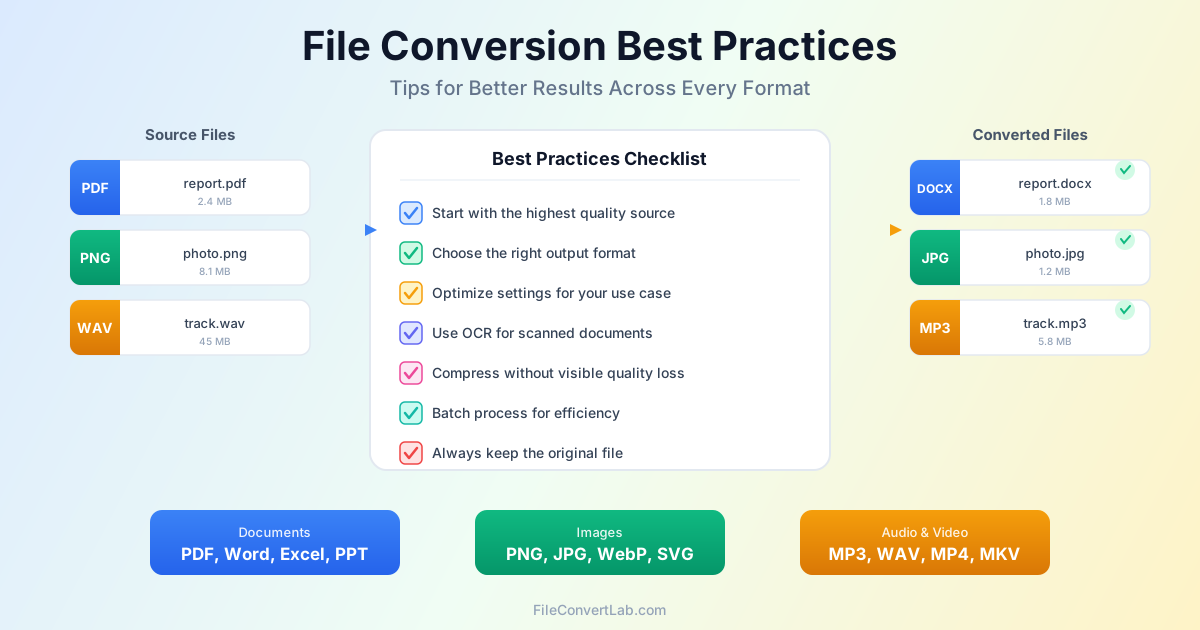
File Conversion Checklist
Use this quick reference before every conversion:
- Is this the highest quality version of the source file available?
- Am I using the right output format for my use case?
- Have I set appropriate quality/bitrate settings?
- Do I need OCR, or is the document already digital?
- Will I lose any important features (transparency, layers, subtitles)?
- Am I keeping the original file as a master copy?
- For batch jobs: did I test with a small sample first?
Related Tools and Guides
- PDF to Word Converter — convert PDFs while preserving formatting and structure
- PDF to Excel Converter — extract tables and data from PDF documents
- PDF Compressor — reduce PDF file size without visible quality loss
- OCR PDF to Word — convert scanned documents to editable text
- PNG to JPG Converter — convert images with optimal quality settings
- Image Converter — convert between all image formats
- All Conversion Tools — browse the full list of available converters
Conclusion
Good file conversion results come from three things: starting with the best source file available, choosing the right output format and settings, and understanding the limitations of the process. Always keep your original files, test before batch processing, and use OCR only when you actually need it. These file conversion best practices apply whether you are converting a single document or processing thousands of files. Ready to convert?
Browse all conversion tools to get started.