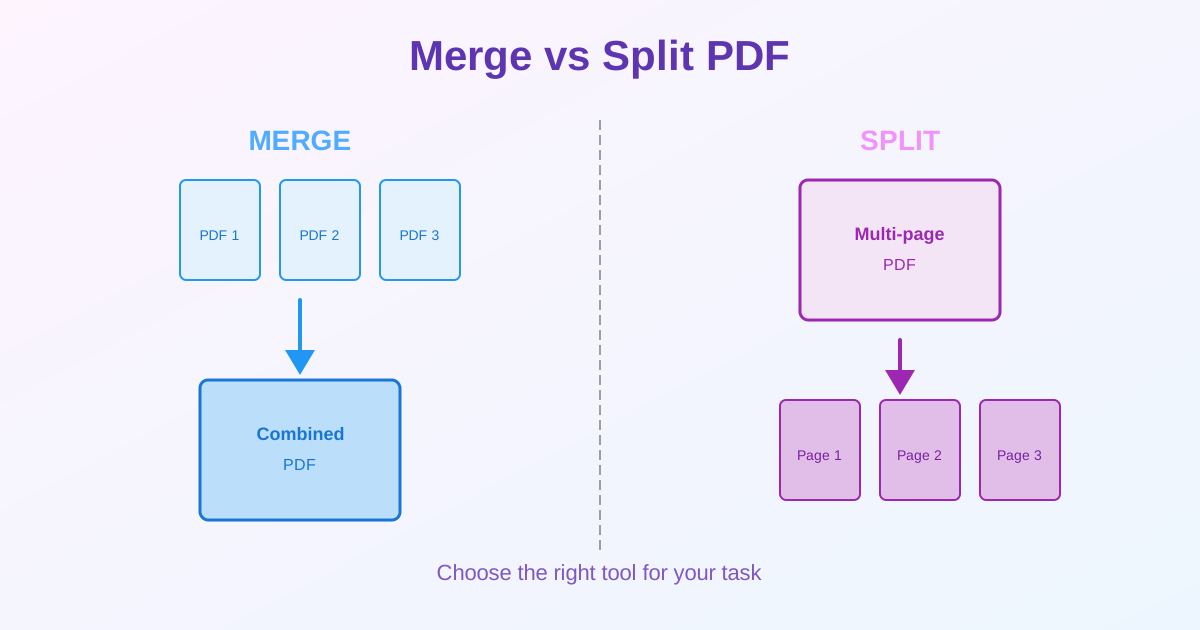
PDF merge and split are opposite operations. Merge combines multiple PDF files into one document. Split divides one PDF into multiple files. This guide explains when to use each tool, practical scenarios, and how to choose the right approach for your task.
What is PDF Merge?
Merging PDFs combines two or more separate PDF files into a single document. Pages from all input files appear in sequence in the merged PDF.
When to Merge PDFs
- Combine scanned pages into one document
- Consolidate multiple chapters or reports
- Create a complete contract from separate signature pages and terms
- Merge monthly invoices into an annual file
- Combine slides from multiple presentations
- Attach supporting documents to a main report
What You Get After Merging
One PDF containing all pages from input files:
- Pages appear in the order you selected (file1, then file2, etc.)
- Each page retains its original formatting
- Total file size equals the sum of input files
- Bookmarks and links may not transfer (tool-dependent)
What is PDF Split?
Splitting PDFs divides one PDF into multiple files. You can extract specific pages, split by range, or separate every page into individual files.
When to Split PDFs
- Extract specific pages from a large document
- Separate chapters from an ebook or manual
- Share individual pages without sending the entire file
- Divide scanned multi-page documents into separate items
- Remove unwanted pages by extracting only what you need
- Create individual PDFs from batch-scanned receipts or forms
What You Get After Splitting
Multiple PDF files from one original:
- Each file contains selected pages
- Formatting and content remain identical to the original
- File sizes are proportional to page count
- Bookmarks and table of contents are removed
Decision Tree: Merge or Split?
| Your Situation | Tool to Use | Why |
|---|---|---|
| Multiple separate files | Merge | Combine into one document |
| Need specific pages from a large PDF | Split | Extract only what you need |
| Scanned docs (each page = separate item) | Split | Create individual files per page |
| Multiple chapters or sections to combine | Merge | Create complete document |
| Large PDF to divide into chapters | Split | Separate by page ranges |
| Contract with separate signature page | Merge | Create complete contract |
Common Workflows Using Both
Workflow 1: Organize Then Extract
- Merge: Combine scattered scanned pages into one PDF
- Split: Extract specific sections (e.g., chapter 1, chapter 2) Use case: You scanned a book as 10 separate PDF files. Merge them into one document, then split by chapter for easier sharing.
Workflow 2: Extract Then Combine
- Split: Extract relevant pages from multiple large PDFs
- Merge: Combine extracted pages into one focused document Use case: You have 5 research papers (50 pages each). Extract key pages from each (pages 3-5, 10-12), then merge into a single summary document.
File Size Considerations
Merge Increases Size
Merging adds file sizes together:
- 3 MB + 5 MB + 2 MB = 10 MB merged PDF
- If the result is too large to email, compress the merged PDF
- Or compress each file before merging
Split Divides Size
Splitting distributes the original file size:
- 10 MB PDF with 20 pages → 20 files of ~500 KB each
- Splitting doesn't compress—each page retains its quality
- If individual files are still too large, compress before or after splitting
Alternatives to Consider
Page Deletion Instead of Split
If you want to remove specific pages but keep the rest together, use page deletion tools instead of splitting. Splitting creates separate files; deletion modifies the original.
Reordering Pages
To change page order within a PDF, use page reordering tools. No need to split and re-merge unless you're combining pages from different files.
Tips for Effective PDF Management
Name Files Clearly
After merging or splitting:
- Merged: "complete-report-2026.pdf" instead of "merged.pdf"
- Split: "chapter-1-intro.pdf" instead of "page-1.pdf"
Plan Before Merging
Decide the order of files before merging. Most tools let you reorder, but planning saves time. Put title pages first, content in logical sequence.
Check Page Counts
Before splitting, verify page numbers. Open the PDF and note where chapters or sections begin (e.g., Chapter 1: pages 1-25, Chapter 2: pages 26-50).
Related Tools
- Merge PDF — Combine multiple PDFs into one document
- Split PDF — Divide one PDF into multiple files
- Compress PDF — Reduce file size before or after merge/split
- How to Split PDF — Step-by-step splitting guide
Conclusion
Use PDF merge to combine multiple files into one document. Use PDF split to extract pages or divide large files into sections. Neither operation reduces file size—use compression if needed. For complex document management, combine both: merge scattered files, then split by chapter.
Choose based on your goal: consolidation (merge) or extraction (split).