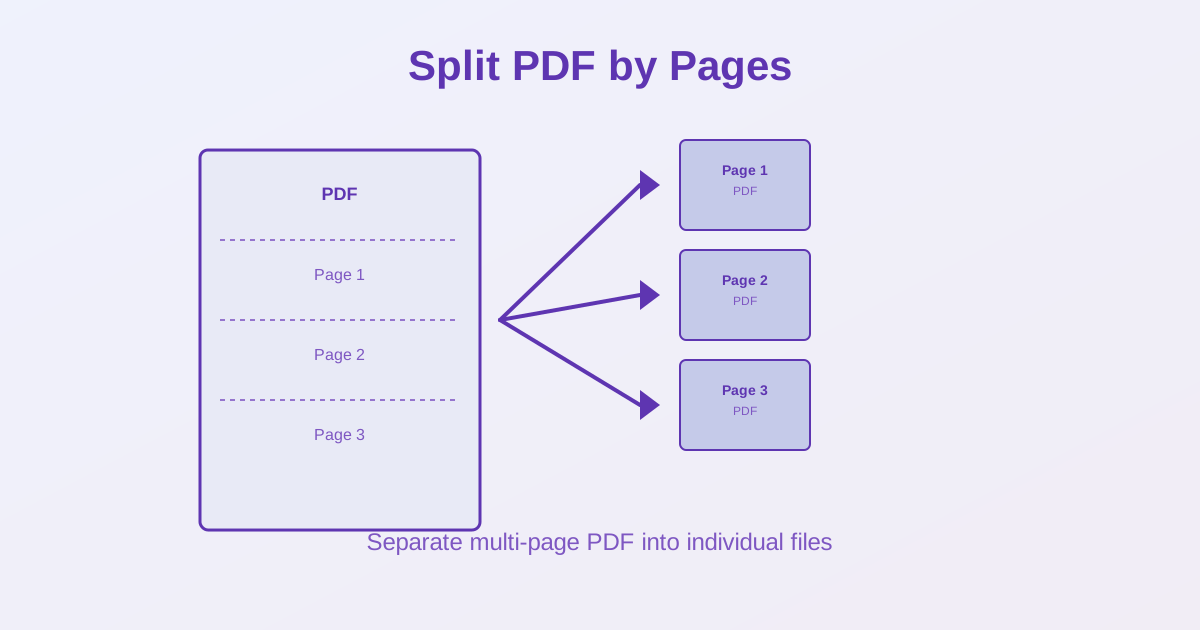
To split a PDF by pages, upload it to a PDF split tool, pick the pages or ranges you want (for example 1-25, 26-50), and download the parts — one PDF per range, or one per page if you split everything. Below are the three ways to split, what the files look like, and when deleting pages is the better choice.
Why Split PDFs by Pages
Common scenarios for splitting PDFs:
- Extract a single page from a report or ebook
- Divide a large PDF into chapters or sections
- Share specific pages without sending the entire document
- Separate scanned documents (receipts, contracts) into individual files
- Create individual PDFs for each form or invoice
- Remove unwanted pages while keeping specific ones
How to Split a PDF by Pages: Step-by-Step
Method 1: Split Every Page
Create a separate PDF for each page in the document:
- Upload your PDF to the split tool
- Keep every page selected (the page picker appears for PDFs of up to 20 pages; for longer files, enter ranges)
- Click "Split"
- Download a ZIP of single-page PDFs named page_1.pdf, page_2.pdf and so on
Best for: scanned documents where each page is a separate item (receipts, forms, contracts).
Method 2: Extract Specific Pages
Extract only the pages you need:
- Upload your PDF
- Enter page numbers (e.g., "3, 5, 7-10")
- Extract selected pages
- Download the result — a single range gives one PDF, several pages or ranges arrive as separate PDFs in a ZIP. To keep chosen pages together in one file, delete the others instead
Best for: pulling out one section or a few pages.
Method 3: Split by Page Range
Divide a PDF into sections (chapters, parts):
- Upload your PDF
- Specify ranges: "1-25" for Chapter 1, "26-50" for Chapter 2, etc.
- Split into multiple files
- Download the ZIP — each range is its own PDF, numbered in the order you entered the ranges
Best for: dividing ebooks, reports or manuals into logical sections.
PDF Splitting vs Alternatives
Split vs Merge
Splitting divides one PDF into many. Merging combines many PDFs into one. Use splitting when you need to:
- Extract sections from a large document
- Share individual pages
- Separate scanned multi-page documents
Split vs Delete Pages
If you need to remove unwanted pages and keep the rest together, use Delete PDF pages instead. Splitting creates separate files; deleting gives you one shorter PDF.
Split vs Compression
Splitting doesn't make the document smaller — the parts together can weigh far more than the original. We split a 333 KB, 10-page PDF into single pages: each page came out at about 262 KB, 2.6 MB in total, because every part carries its own copy of the embedded fonts. If the PDF is too large to email, compress it first, then split only if you still need to.
Tips for Better PDF Splitting
Plan Before Splitting
Before splitting, decide:
- Do you need every page as a separate file?
- Can you group related pages together (chapters, sections)?
- Are there pages you can skip entirely?
Name Files Clearly
After splitting, rename files with descriptive names instead of "page-1.pdf", "page-2.pdf". Use names like:
- contract-terms.pdf, contract-signature-page.pdf
- chapter-1-introduction.pdf, chapter-2-methodology.pdf
- invoice-2026-01.pdf, invoice-2026-02.pdf
Check Page Numbers First
Open your PDF and note page numbers before splitting. Many PDF viewers show "Page 5 of 50" at the bottom. This prevents extracting the wrong pages.
Common Issues and Solutions
Split PDF Loses Formatting
Splitting doesn't change page content — each page looks the same as in the original.
If formatting is lost, the PDF may be corrupted. Try opening it in a PDF viewer first to verify it displays correctly.
Can't Split Password-Protected PDF
Remove the password first with Unlock PDF (you need to know the password).
Then split the unlocked PDF.
Too Many Files After Splitting
Instead of splitting every page, use range-based splitting to group related pages. For example, split a 100-page PDF into 5 files of 20 pages each instead of 100 individual files.
Desktop Software vs Online Tools
Our split tool takes files up to 100 MB and 20 pages as a guest (100 pages on a free account; paid plans go higher). For bigger documents, desktop software is the easier route:
- Adobe Acrobat: Organize Pages → Split, by page count, file size or top-level bookmarks
- pdftk (command-line): fast, scriptable splitting for developers
- PDF-XChange Editor: desktop alternative with splitting features
For occasional splits of normal-sized files, the online tool needs no installation.
Related Tools
- Merge PDF — Combine multiple PDFs into one document
- Compress PDF — Reduce file size before or after splitting
- Merge vs Split PDF — When to use each tool
Conclusion
Splitting PDFs by pages lets you extract specific sections, divide large documents, or create individual files from multi-page scans. Use split-all mode for scanned documents, page selection for specific extractions, and range-based splitting for chapters. Check page numbers before splitting, name files descriptively, and compress large PDFs before splitting if file size is a concern.