You received a file with the .odt extension and have no idea what to do with it. Or maybe you use LibreOffice and wonder whether your colleagues can open your documents in Microsoft Word. So what is an ODT file exactly?
The ODT format — short for OpenDocument Text — is more common than most people realize, yet it still causes confusion. This guide explains what it is, how it compares to DOCX, and how to convert between the two formats without losing your formatting.
What Is the ODT Format?
ODT stands for OpenDocument Text. It is the default document format used by LibreOffice Writer, Apache OpenOffice Writer, and several other word processors. The format is part of the broader OpenDocument Format (ODF) family, which also includes ODS for spreadsheets and ODP for presentations.
Technically, an ODT file is a ZIP archive containing XML files that describe the document's content, styles, metadata, and embedded objects. This open, XML-based structure is standardized by OASIS and approved as an ISO/IEC standard (ISO/IEC 26300). The open standard means any software developer can implement ODT support without licensing fees or proprietary restrictions.
Because the OpenDocument format is vendor-neutral, governments and educational institutions around the world have adopted it as their official document standard. Countries including Brazil, Germany, India, and South Africa mandate or recommend ODF for public sector documents. This ensures long-term document accessibility regardless of which software is available decades from now.
ODT vs DOCX: Key Differences
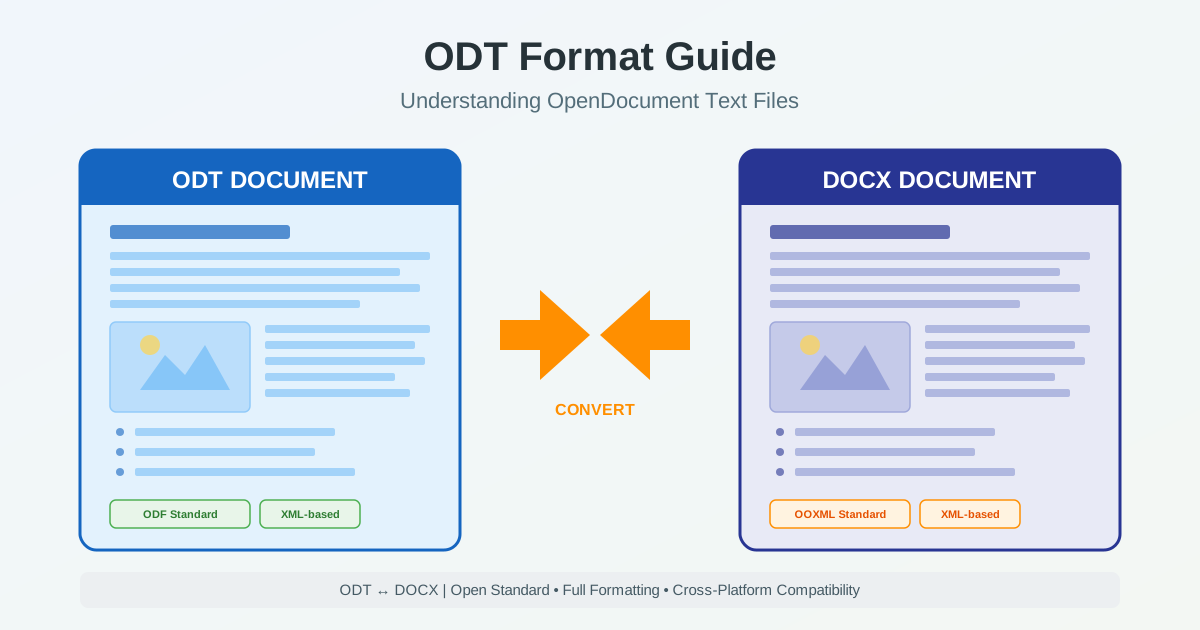
Both ODT and DOCX are modern, XML-based document formats — but they are not the same. Understanding the differences helps you decide which format to use and what to expect when converting between them.
| Feature | ODT | DOCX |
|---|---|---|
| Standard | ODF (ISO/IEC 26300) | OOXML (ISO/IEC 29500) |
| Maintained by | OASIS (vendor-neutral) | Microsoft (Ecma International) |
| Default editor | LibreOffice Writer | Microsoft Word |
| File structure | XML inside ZIP | XML inside ZIP |
| Style system | ODF styles (CSS-like) | OOXML styles (Word-specific) |
| Market share | Lower (gov/edu/open-source) | Dominant (enterprise/consumer) |
| Advanced features | Formula editor, change tracking | SmartArt, advanced typography, macros |
| The structural similarity means conversion between ODT and DOCX preserves most content accurately. Both formats store text, headings, lists, tables, images, headers, and footers in XML. The differences lie in style definitions, advanced features, and vendor-specific extensions. A heading in ODT maps to a heading in DOCX, but the underlying style markup uses different XML schemas. |
How to Open ODT Files
Opening an ODT file is straightforward on most modern systems. Here are your options, from best to most convenient:
LibreOffice Writer (Best Compatibility)
LibreOffice Writer is the native editor for ODT files. It renders all ODT features correctly, including advanced formatting, embedded objects, and change tracking. LibreOffice is available for Windows, macOS, and Linux at no cost.
If you regularly work with ODT files, LibreOffice gives you the most accurate editing experience.
Microsoft Word (2010 and Later)
Microsoft Word can open ODT files directly through File > Open. Word 2010 introduced basic ODF support, and newer versions handle more features. However, ODT compatibility in Word is not perfect. Complex formatting — custom page styles, nested frames, formula objects — may not display correctly. For simple documents with text, headings, lists, and images, Word handles ODT files well enough for viewing and light editing.
Google Docs
Google Docs imports ODT files when you upload them to Google Drive. The document converts to Google Docs format automatically, preserving text and basic formatting. This is a convenient option when you need to view or edit an ODT file quickly without installing any software. You can also export the document back as ODT or as DOCX.
Other Applications
Apple Pages on macOS and iOS supports ODT import. Calligra Words, AbiWord, and other open-source word processors also open ODT files natively. Online cloud storage services like OneDrive and Dropbox can preview ODT documents in the browser without requiring any download.
Converting ODT to DOCX
The most common reason to convert ODT to DOCX is compatibility. If your recipient uses Microsoft Word and you want to guarantee they see your document correctly, converting to DOCX eliminates formatting surprises. Here is what you need to know about the conversion process.
What Converts Well
- Text and paragraphs — body text, headings, font sizes, bold, italic, underline transfer accurately
- Lists — numbered and bulleted lists preserve their structure and indentation
- Tables — cell content, borders, merged cells, and background colors convert reliably
- Images — embedded images preserve their position, size, and resolution
- Headers and footers — page headers, footers, and page numbers map correctly
- Hyperlinks — links to websites and email addresses remain functional
What May Need Adjustment
- Custom paragraph styles — ODT and DOCX use different style inheritance, so custom styles may simplify
- Page layouts — ODT page styles work differently from DOCX sections, complex multi-column or mirrored layouts may shift
- Embedded formulas — ODT uses MathML for formulas, while DOCX uses OMML. Visual differences are possible
- Drawing objects — vector shapes created in LibreOffice Draw may not translate perfectly to Word shapes
- Macros — ODT macros (Basic/Python) do not convert to VBA macros in DOCX
Use our ODT to DOCX converter to convert your OpenDocument files to Word format with accurate formatting preservation. The conversion handles style mapping, image positioning, and table structure automatically.
Converting DOCX to ODT
The reverse conversion — DOCX to ODT — is equally important for users who prefer working in LibreOffice or need to comply with open format requirements. Microsoft Word documents convert to ODT with similar accuracy to the forward direction.
Most Word documents convert cleanly because the core document elements (text, tables, images, lists) have direct equivalents in the ODT format. Issues arise mainly with Word-specific features like SmartArt diagrams, which convert to static images, or Track Changes, which may need re-mapping to the ODT change tracking system.
Use our DOCX to ODT converter when you need to bring Word documents into the OpenDocument ecosystem. The converter preserves document structure, formatting, and embedded content.
ODT Compatibility with Microsoft Office
Microsoft Office has supported ODT files since Word 2010, but the level of compatibility varies by version and feature complexity. Understanding these limits helps you plan your workflow.
Word 2010-2013: Basic ODT support. Text, simple tables, and images open correctly. Advanced formatting features may be lost or simplified. ODF 1.1 support only.
Word 2016-2019: Improved ODF 1.2 support. Better handling of numbered lists, paragraph styles, and table formatting. Most business documents open without visible issues.
Microsoft 365: Best ODT compatibility in Word to date. Supports ODF 1.3 features including improved change tracking interoperability. Still not perfect with complex page layouts or LibreOffice-specific extensions.
If your document uses only standard formatting — headings, body text, tables, images, and lists — the ODT compatibility with Microsoft Office is good enough for most workflows. For documents with complex layouts or advanced features, converting to DOCX before sharing with Word users produces more predictable results.
When to Use ODT vs DOCX
Choosing between ODT and DOCX depends on your audience, requirements, and tools. Neither format is universally better — each has its strengths.
Choose ODT When
- Your organization mandates open document standards
- You work primarily in LibreOffice or OpenOffice
- Long-term archival and future accessibility matter (ISO standard)
- You need to avoid vendor lock-in to any specific office suite
- Government or regulatory compliance requires open formats
Choose DOCX When
- Your recipients primarily use Microsoft Word
- You need advanced Word features (SmartArt, advanced typography, VBA macros)
- Corporate templates and workflows are built around Microsoft Office
- You collaborate with others who expect DOCX format by default
- Maximum compatibility across business environments is required
In practice, many users keep their working files in whichever format their editor defaults to, then convert when sharing. LibreOffice users work in ODT and convert to DOCX for Word users. Word users rarely need ODT, but receiving ODT files from open-source users is increasingly common.
Best Practices for Working with ODT Files
Whether you create ODT files or receive them from others, these practices help avoid formatting problems and ensure smooth collaboration.
- Use built-in styles consistently. Heading 1, Heading 2, Body Text — these map cleanly between ODT and DOCX. Custom styles with unusual properties are more likely to cause conversion issues.
- Embed fonts if sharing. LibreOffice allows font embedding in ODT files (Format > Character > Embed). This ensures your document looks correct even if the recipient lacks your fonts.
- Test the conversion before sending. Convert your ODT to DOCX, open the DOCX, and verify the layout. Fix any issues in the original ODT, then reconvert.
- Avoid mixing format-specific features. If you know the document will be converted, avoid features that only work in one format (e.g., LibreOffice-specific drawing tools or Word-specific SmartArt).
- Keep images at reasonable resolution. Embedded images at 150-300 DPI are sufficient for most purposes and convert between formats without quality loss.
Related Conversions
Beyond ODT and DOCX, you may need other document format conversions depending on your workflow:
- All ODT conversion tools — convert ODT to and from various formats
- Word conversion tools — convert DOCX, DOC, and RTF files
- PDF to Word converter — extract editable text from PDF documents
- DOCX Format Guide — deep dive into the Office Open XML format
- Document Format Comparison — comparing PDF, DOCX, ODT, and other formats
Key Takeaways
- ODT is an open standard — maintained by OASIS, ISO-certified, and vendor-neutral. It ensures your documents remain accessible regardless of software changes.
- ODT is not the same as DOCX — both are XML-based but use different schemas and style systems. Conversion between them works well for standard content.
- Microsoft Word supports ODT — Word 2010+ can open and save ODT files, with compatibility improving in newer versions. Complex formatting may still differ.
- Convert when sharing — if your recipient uses Word, convert ODT to DOCX for the best experience. If they use LibreOffice, ODT is already the right format.
- Use built-in styles — standard heading and paragraph styles convert between ODT and DOCX most reliably.