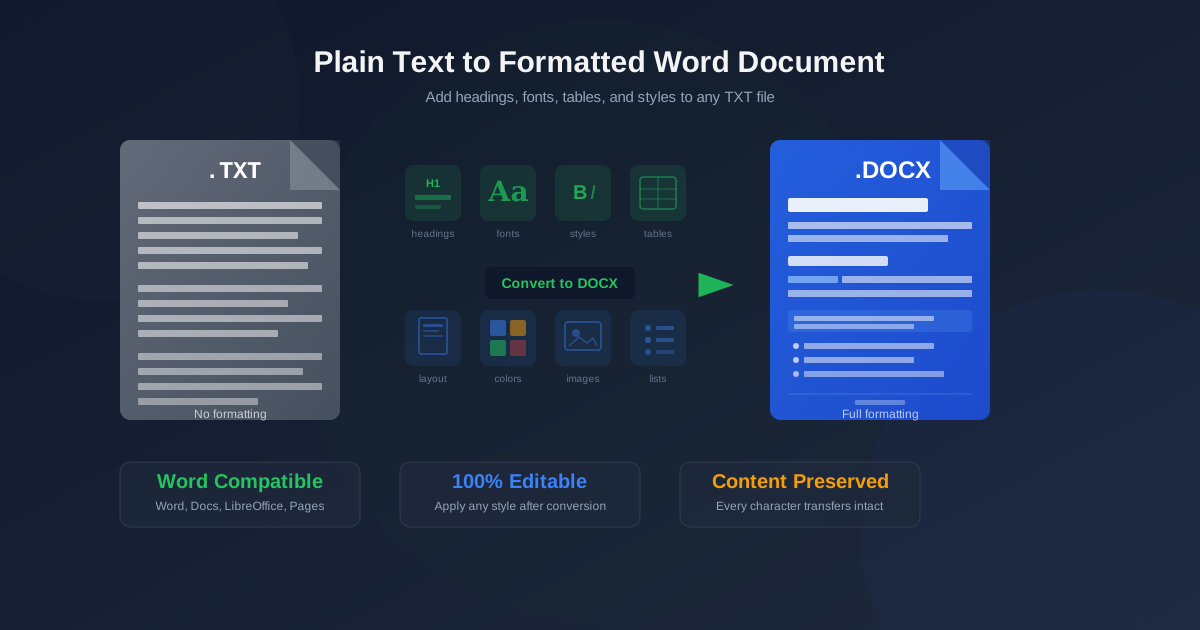
Plain text files are everywhere. Notepad creates them. Scripts output them. Servers log to them. Data exports produce them. A .txt file is the most universal format in computing — every operating system, every device, every text editor can read one. But the moment you need headings, bold text, fonts, tables, or any kind of visual structure, plain text hits a wall. It simply cannot store formatting.
When you convert TXT to Word, you cross that wall. The conversion takes your plain text content and wraps it in the Microsoft Word format, giving you a fully editable document where you can apply any formatting Word offers. This guide covers the practical side of that conversion: what changes, what stays the same, what you need to do after conversion, and which workflows benefit most from the TXT to DOCX path.
Why Plain Text Cannot Store Formatting
A TXT file is a stream of characters encoded in a character set — usually UTF-8 or ASCII.
That is all it contains. There is no metadata layer for fonts. No markup tags for headings.
No binary structure for images. When you open a TXT file in Notepad, you see exactly what the file contains: letters, numbers, spaces, and line breaks.
This simplicity is a strength for many use cases — configuration files, log output, data interchange, quick notes. But it means that to add formatting to a text file, you must convert it to a format designed for formatted documents. DOCX is the most practical choice because it is the standard format for Microsoft Word and is supported by every major word processor: Google Docs, LibreOffice, Apple Pages, WPS Office, and OnlyOffice.
What the TXT to DOCX Conversion Actually Does
When you convert a text file to a Word document, the converter reads every line of your TXT file and places it into a DOCX document structure. Each line becomes a paragraph. Blank lines become empty paragraphs. The full text content is preserved — nothing is added, nothing is removed, nothing is reworded.
What changes is the container. The raw text is now inside an Office Open XML package — a ZIP archive containing XML files that describe document structure, styles, and properties.
This container is what enables formatting. Before conversion, your text had no way to carry font information. After conversion, every paragraph has a style definition, and you can modify that style to apply any formatting Word supports.
The output uses a default font (usually Calibri 11pt) and the Normal paragraph style.
No headings are applied. No bold or italic. No colors. The formatting canvas is blank — intentionally. The converter does not guess what should be a heading or what should be bold, because there are no formatting signals in plain text to base those decisions on.
How to Convert TXT to DOCX Online
The fastest way to convert a text file to Word format is to use an online converter. The process takes three steps:
- Open the converter. Go to the TXT to DOCX converter and click the upload area or drag your file onto it.
- Upload your TXT file. Select the .txt file from your device. Conversion starts automatically after upload completes.
- Download the DOCX. When the conversion finishes — typically within a few seconds — click the download button to save the .docx file to your device.
Open the downloaded DOCX in Microsoft Word, Google Docs, or LibreOffice and begin applying the formatting your document needs.
TXT vs DOCX: Key Differences
Understanding the fundamental difference between these two formats helps you decide when to convert and when to keep your files as plain text.
| Feature | TXT | DOCX |
|---|---|---|
| Fonts | None — uses viewer's default | Any font, any size, embedded if needed |
| Headings | Not supported | H1 through H9 with auto table of contents |
| Bold, Italic, Underline | Not supported | Full support with color and highlight |
| Tables | Simulated with spaces or tabs | True tables with borders, merge, and styles |
| Images | Cannot embed | Inline, floating, with text wrapping |
| Page Layout | No pages — continuous text | Pages, margins, headers, footers, columns |
| Collaboration | No built-in tools | Track changes, comments, review mode |
| File Size | Minimal — text only | Larger — includes structure and style data |
| Compatibility | Universal — any editor | Word, Google Docs, LibreOffice, Pages |
| In short: TXT is for content that needs no formatting. DOCX is for content that needs to look professional, be shared as a document, or be printed with specific layout requirements. |
Formatting Your DOCX After Conversion
The real work begins after conversion. Your DOCX now contains all your text in a default style. Here is a practical workflow for adding formatting efficiently.
Apply Heading Styles First
Headings create document structure. Select each section title in your text and apply Heading 1, Heading 2, or Heading 3 from the Styles gallery. This does three things at once: it visually distinguishes section titles from body text, it builds the navigation pane (so you can jump between sections), and it enables automatic table of contents generation. For a long document converted from a text file, heading styles are the single most impactful formatting step.
Choose Your Body Font
Select all text (Ctrl+A) and set a body font. Standard professional choices include Calibri 11pt for digital documents, Times New Roman 12pt for academic and legal work, and Arial 11pt for general business correspondence. The font choice affects readability and document tone more than any other single formatting decision.
Clean Up Line Breaks and Spacing
TXT files often use hard line breaks at fixed widths — 72 or 80 characters per line.
When converted to DOCX, each of these short lines becomes a separate paragraph, creating choppy text that does not flow naturally. Use Find and Replace (Ctrl+H) to merge these lines: search for manual line breaks and replace them with spaces, then remove double spaces. Alternatively, adjust paragraph spacing (Format > Paragraph > Spacing) to control the visual gap between paragraphs without relying on blank lines.
Convert Tab-Separated Data to Tables
If your TXT file contained tabular data separated by tabs or fixed-width columns, the DOCX will show that data as text with tab characters. Select the tabular section, go to Insert > Table > Convert Text to Table, and choose the tab character as the delimiter. Word creates a proper table with borders and cell structure that you can style and sort.
Add Headers, Footers, and Page Numbers
TXT files have no concept of pages. Your DOCX does. Add page numbers, the document title, author name, or a date stamp in the header or footer area (Insert > Header & Footer).
For multi-page documents converted from long text files, page numbers are essential for navigation and reference.
Practical Workflows: When to Convert TXT to DOCX
Draft in Notepad, Format in Word
Many writers, developers, and content creators prefer drafting in plain text editors — Notepad, Vim, Sublime Text, VS Code, or iA Writer. These tools eliminate formatting distractions and let you focus entirely on content. Once the draft is complete, convert the TXT file to DOCX and apply formatting in Word or Google Docs. This two-phase workflow separates writing from design, which often produces better results for both.
Turn Exported Data into Reports
Database exports, CRM data pulls, and analytics tools often produce plain text output.
Converting that output to DOCX lets you add column headers, apply table formatting, insert charts from the data, and create a professional report. This is faster than manually copying data into a Word template, especially for recurring reports where you can save the formatted DOCX as a template for future conversions.
Make Transcripts Readable
Transcription services deliver plain text files with speaker names and timestamps. Converting to DOCX lets you apply heading styles to speaker names, bold timestamps, highlight key passages, and add comments for review. For interview transcripts, meeting minutes, or legal depositions, the formatted DOCX is dramatically easier to read and reference than a wall of plain text.
Prepare Documentation for Clients
README files, installation guides, API documentation, and technical specs are often written in plain text. When these documents need to go to non-technical stakeholders — clients, managers, compliance officers — converting to DOCX and adding professional formatting makes the content accessible and credible. A formatted Word document signals completeness and professionalism in ways that a plain text file does not.
Migrate Legacy Text Archives
Organizations holding archives of TXT files from older systems — mainframe exports, pre-2000 software output, early email archives — can batch convert them to DOCX for modern document management. DOCX files are indexable by search engines, manageable by document management systems, and editable by current software. The plain text content is preserved while gaining all the benefits of a modern document format.
Opening a TXT File Directly in Word
Microsoft Word can open TXT files directly using File > Open. When you do this, Word may display a file conversion dialog asking you to choose the text encoding (UTF-8, Windows-1252, etc.). Select the correct encoding and click OK. The text appears in Word using the default Normal style.
However, the file is still technically a TXT file until you explicitly save it as DOCX using File > Save As > Word Document (.docx). Until you do that, you are editing a text file in Word — any formatting you apply exists only in the Word session and will be lost if you save as TXT.
Using an online TXT to DOCX converter avoids this issue entirely. The output is a proper DOCX file from the start, with correct encoding handling and paragraph structure already in place.
Handling Character Encoding
The most common problem during TXT to DOCX conversion is character encoding. Modern text files use UTF-8, which supports every Unicode character — accented letters, Cyrillic, Chinese, Arabic, emoji, and special symbols. Older files may use Windows-1252, ISO-8859-1, or other regional encodings.
If the converted DOCX shows garbled characters — question marks, boxes, or wrong symbols — the source TXT was saved in a legacy encoding that was not detected correctly.
The fix is straightforward:
- Open the TXT file in Notepad (Windows) or TextEdit (Mac)
- Use File > Save As and change the encoding to UTF-8
- Save the file and convert it to DOCX again For files with mixed or unknown encoding, text editors like Notepad++ or VS Code can auto-detect the encoding and let you convert it to UTF-8 before the TXT to DOCX conversion.
TXT to DOCX vs Other Conversion Paths
Depending on your source material and target format, other conversion paths might serve your needs better.
- TXT to DOCX — the path covered in this guide. Best when you need full Word formatting capabilities: headings, fonts, tables, headers/footers, track changes.
- RTF to DOCX — for files that already have basic formatting in Rich Text Format. The conversion preserves existing bold, italic, and font choices while upgrading to the modern Word format.
- DOCX to TXT — the reverse direction. Strips all formatting from a Word document to produce clean plain text for scripts, data processing, or archiving.
For a full overview of text format conversions, see the TXT converter hub and the Word converter hub .
Tips for Better Results
- Save as UTF-8 before converting. This prevents encoding issues and ensures all characters — including accented letters, symbols, and non-Latin scripts — transfer correctly to the DOCX.
- Remove trailing whitespace. TXT files from older systems often have trailing spaces or tabs at the end of lines. These create invisible alignment issues in the DOCX. A quick search-and-replace in a text editor cleans this up before conversion.
- Use consistent line endings. Windows uses CRLF, macOS and Linux use LF. Mixed line endings can cause unexpected paragraph breaks in the DOCX. Most modern text editors can normalize line endings in one click.
- Separate sections with blank lines. If your TXT uses continuous text with no blank lines between sections, the DOCX will be one solid block. Adding blank lines between logical sections before conversion makes the output easier to format.
- Format in the right order. Apply heading styles first, then body font, then clean up spacing, then add page-level elements (headers, footers, page numbers). Working top-down through the formatting hierarchy is faster than jumping between different formatting types.
Conclusion
Converting TXT to DOCX is a simple but powerful step: it takes content trapped in a formatting-free container and moves it into the most widely supported document format in the world. The conversion preserves every character of your text while opening up the full range of Word formatting tools — headings, fonts, tables, images, collaboration features, and professional page layout.
The key insight is that the conversion itself is just the starting point. The value comes from what you do after: applying heading styles to create structure, choosing fonts for readability, cleaning up line breaks for flow, and adding page-level elements for professionalism. A well-formatted DOCX communicates differently than a wall of plain text — even when the words are identical.
Use the TXT to DOCX converter to convert your plain text files to Word format in seconds.