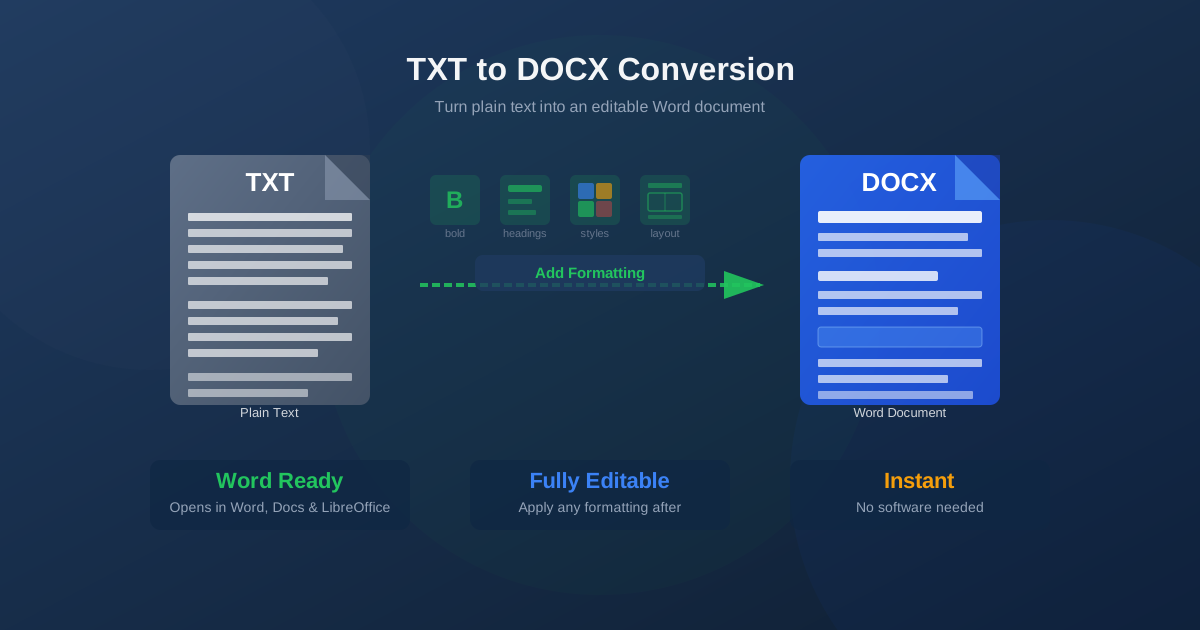
A plain TXT file contains only characters — no fonts, no headings, no formatting of any kind. Converting it to DOCX wraps that content in the Microsoft Word format, giving you a fully editable document you can open in Word, Google Docs, LibreOffice, or any modern word processor. This guide explains when TXT to DOCX conversion makes sense, what the output looks like, and how to handle the common issues that come up.
Why Convert TXT to DOCX?
Plain text is the universal input format for automated processes — scripts, exports, data pipelines, and text editors all produce TXT.
But the moment you need to share content professionally, add structure, or work with collaborators in a word processor, plain text becomes a limitation. DOCX unlocks everything TXT cannot do:
- Headings and hierarchy — organize content with H1, H2, H3 heading styles
- Typography — choose fonts, sizes, bold, italic, and underline
- Paragraph formatting — alignment, indentation, line spacing, and spacing between paragraphs
- Tables — convert tabular data into proper Word tables
- Track changes and comments — collaborate with reviewers using Word's built-in tools
- Headers and footers — add page numbers, document titles, and dates
- Styles and themes — apply consistent visual design across the document
- Export options — print, export to PDF, or share via Word-compatible services Converting TXT to DOCX is the first step in any workflow that starts with plain text and ends with a polished, shareable document.
What DOCX Format Offers Over TXT
DOCX is the successor to the older DOC format and became the Microsoft Word default in 2007. Under the hood, a DOCX file is a ZIP archive containing XML files that describe the document structure, content, and formatting. This architecture makes DOCX:
- Cross-platform — supported natively by Word, Google Docs, LibreOffice, Pages, and WPS Office
- Structured — paragraphs, sections, and styles have semantic meaning, not just visual appearance
- Extensible — supports macros, form fields, embedded objects, and digital signatures
- Compressible — the ZIP structure makes DOCX files significantly smaller than the old binary DOC format
- Machine-readable — the XML content can be processed programmatically with libraries like python-docx By contrast, TXT is just bytes — no structure, no metadata, no formatting capability. DOCX is the practical standard for document exchange in business, legal, academic, and publishing contexts.
How to Convert TXT to DOCX Online
The conversion takes three steps:
- Open the converter. Navigate to the TXT to DOCX converter and click the upload area or drag your file onto it.
- Upload your TXT file. Select the .txt file from your device. The conversion starts automatically after upload.
- Download the DOCX. When conversion completes — typically in under five seconds — click the download button to save the .docx file.
No account required, no software to install. Open the downloaded DOCX in Word, Google Docs, or LibreOffice and start formatting.
What the Output DOCX Looks Like
Because TXT files contain no formatting metadata, the converter cannot infer what should be a heading, what should be bold, or what font to use.
The output DOCX reflects this:
- Default body font — usually Calibri 11pt or Times New Roman 12pt, depending on the document template used
- Normal paragraph style — all paragraphs use the default “Normal” style with standard spacing
- Preserved line breaks — each line in the TXT becomes a paragraph; blank lines between sections become empty paragraphs
- No headers, footers, or page numbering — these do not exist in the source TXT and are not added automatically
Think of the output as a blank canvas: all your text is there, correctly structured, and ready for you to apply whatever formatting your document needs. The conversion does the import work; the styling is yours to do.
Common Use Cases
Bringing Exported Content into Word
Many tools export their content as plain text — note-taking apps, content management systems, database exports, and code comments. When you need to turn that exported content into a formatted report, proposal, or specification, converting to DOCX first is faster and more reliable than copy-pasting into a blank Word document, especially for multi-page files.
Converting README and Documentation Files
Software projects often include documentation as plain text files — README.txt, CHANGELOG.txt, INSTALL.txt. Converting these to DOCX lets non-technical stakeholders open and read them in Word without needing a text editor. For documentation that needs to be submitted to clients or included in compliance packages, DOCX is the expected format.
Preparing Interview Scripts and Transcripts
Transcription services typically deliver output as plain TXT. Converting to DOCX makes the transcript easy to annotate with comments, highlight key passages, apply speaker-name formatting, and share with colleagues who work in Word. The structure of the original transcript is preserved, and you can apply heading styles to mark questions and answers.
Writing Workflow: Draft in TXT, Format in DOCX
Many writers prefer distraction-free plain text editors for drafting — tools like Notepad, Vim, Sublime Text, or iA Writer. The absence of formatting options forces focus on content. Once the draft is complete, converting to DOCX opens up all of Word's layout and style tools for the production phase without interrupting the writing process.
Migrating Legacy TXT Archives
Organizations sometimes hold large archives of TXT documents from older systems — pre-2000 software, mainframe exports, or early email archives.
Converting these to DOCX brings them into a modern format that can be indexed, searched, and managed by current document management systems while preserving all the original text content.
Formatting Tips After Conversion
Once your TXT file is a DOCX, here are the most impactful formatting steps to apply in Word or Google Docs:
- Apply heading styles. Select lines that are section titles and apply Heading 1, Heading 2, or Heading 3 styles. This adds visual hierarchy and automatically builds a navigation pane and table of contents.
- Clean up blank lines. TXT files often use extra blank lines for visual spacing. In DOCX, use paragraph spacing (Format → Paragraph → Spacing) instead of blank lines for a cleaner look.
- Set the body font. Select all (Ctrl+A) and apply your preferred font. Calibri 11pt or Times New Roman 12pt are standard; Arial 11pt works well for digital documents.
- Fix list formatting. If your TXT used hyphens or asterisks as bullet characters, select those lines and apply a proper Word list style. The visual result is much cleaner.
- Add headers and footers. Insert page numbers, the document title, or your organization name in the header/footer area. This is especially useful for multi-page documents.
Handling Special Characters and Encoding
The most common issue when converting TXT to DOCX is character encoding.
Modern TXT files use UTF-8, which supports all Unicode characters correctly. Older files may use Windows-1252, ISO-8859-1, or other regional encodings that handle special characters — accented letters, curly quotes, em dashes — differently.
If you see garbled characters (question marks, strange symbols, or boxes) in your converted DOCX, the source TXT was likely saved in a legacy encoding. To fix this:
- Open the TXT file in Notepad (Windows) or TextEdit (Mac)
- Choose “Save As” and select UTF-8 as the encoding
- Save the file and re-upload it for conversion UTF-8 encoded files convert cleanly every time, including text in Cyrillic, Chinese, Arabic, Greek, and all other Unicode scripts.
TXT vs DOCX: Which Format for Which Purpose
| Use Case | Best Format | Why |
|---|---|---|
| Script or data processing input | TXT | No parser needed, direct string operations |
| Business report or proposal | DOCX | Formatting, headers, and professional layout |
| Version control in Git | TXT | Line-by-line diffs, readable history |
| Shared document for review | DOCX | Track changes, comments, collaboration tools |
| Long-term archiving | TXT | Format-agnostic, readable without software |
| Client deliverable | DOCX or PDF | Professional appearance, expected format |
| Drafting / writing | TXT → DOCX | Draft distraction-free, format for delivery |
| Email body content | TXT | Paste directly, no attachment needed |
Related Conversions
Depending on your workflow, one of these related conversions might be more appropriate:
- DOCX to TXT — extract plain text from Word documents, stripping all formatting
- RTF to TXT — strip Rich Text Format control codes to get clean plain text
- RTF to DOCX — convert legacy RTF files to the modern Word format
Conclusion
Converting TXT to DOCX is a one-way door from minimal to full-featured:
you gain access to every formatting and collaboration tool Word offers, with your text content intact. The output requires some formatting work since the source has no style information — but that is a feature, not a bug. The conversion gives you a clean slate to build exactly the document structure you need.
Use the TXT to DOCX converter to convert your plain text files instantly in your browser, with no software installation required.