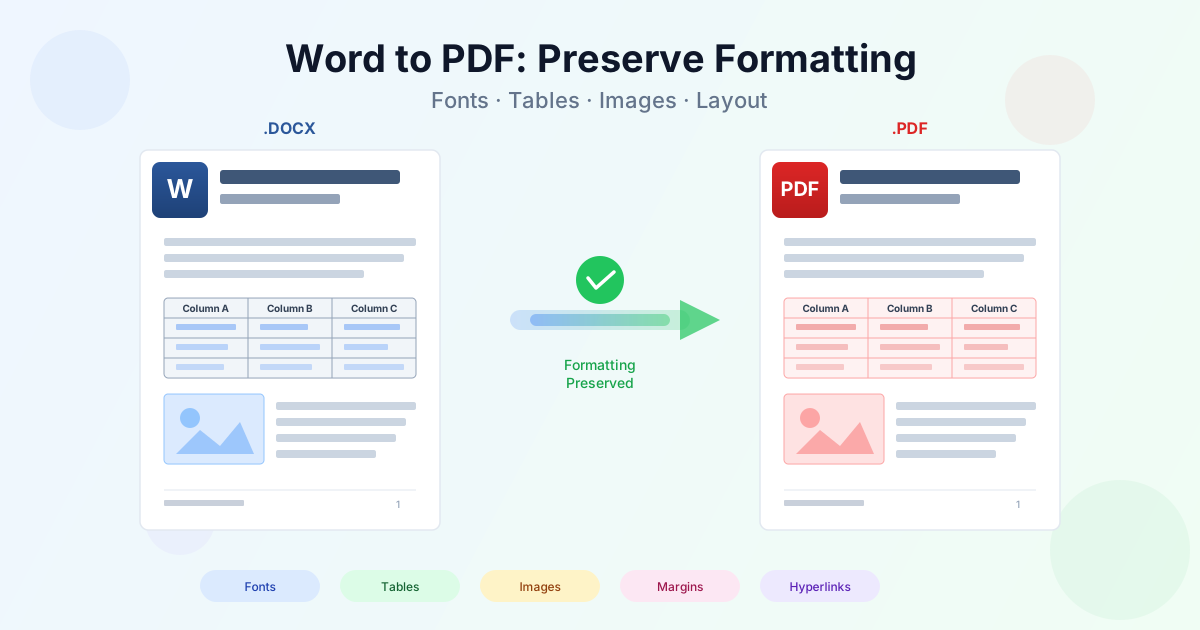
You finalize a report in Word, convert it to PDF, and open the result — only to find shifted margins, swapped fonts, and tables that broke across pages. Sound familiar? Formatting loss during Word to PDF conversion is one of the most common document headaches in professional and academic work. The good news: most formatting problems are preventable.
This guide walks through every major cause of formatting loss and shows you exactly how to fix each one before you hit convert.
Why formatting breaks when you convert Word to PDF
Word and PDF are fundamentally different formats. A DOCX file stores content as structured XML with style definitions that your version of Word interprets at render time. A PDF stores fixed-position content — every character, line, and image is placed at exact coordinates on the page. When you convert Word to PDF, the converter must translate flexible, flow-based layout into rigid coordinates. That translation is where formatting can slip.
The most common triggers for formatting issues include:
- Font substitution — the converter replaces unavailable fonts with alternatives that have different character widths
- Margin and spacing recalculation — subtle differences in how Word and PDF renderers measure whitespace
- Image anchoring — floating images shift when text reflows even slightly
- Table reflow — tables break across pages differently when line heights change
- Section and page breaks — "next page" section breaks behave differently across rendering engines
- Macro-dependent layout — field codes, auto-numbering, and TOC entries may not resolve correctly Understanding these causes lets you prepare your Word document so the converter has the best possible input. The sections below cover each formatting element in detail.
Fonts: the number one cause of layout shifts
Fonts are the single biggest reason formatting changes when you convert a Word file to PDF. If the conversion engine does not have access to the exact font you used, it substitutes a similar one. Even a close match like Arial for Helvetica causes measurable differences in character width, line length, and page breaks.
How font embedding works in PDF
A well-built converter embeds font subsets directly into the PDF. This means only the characters you actually used are stored inside the file, keeping size small while guaranteeing accurate rendering on any device. Problems arise when:
- The font license restricts embedding (some commercial fonts block PDF embedding)
- The font file is missing from the conversion server
- The document uses a decorative or system-specific font not available cross-platform
Safe font choices for Word to PDF
Stick to fonts that embed reliably and render consistently across platforms:
- Calibri — the default in modern Word, clean sans-serif, excellent embedding
- Arial — universal sans-serif, available on every major OS
- Times New Roman — classic serif, standard for academic and legal documents
- Georgia — web-safe serif with good readability at small sizes
- Verdana — wide spacing, excellent for screen-oriented PDFs If your brand requires a custom font, test the conversion with a single page first. Open the resulting PDF, zoom to 200%, and compare character shapes and spacing against the original Word document. If anything looks off, check the PDF font list (File > Properties > Fonts in Adobe Reader) to see whether the font was embedded or substituted.
Tables: preventing breaks and misalignment
Tables are the second most common source of formatting problems. A table that fits perfectly on one page in Word can spill onto a second page in PDF if even a single row becomes slightly taller during conversion.
Controlling table behavior before conversion
- Right-click the table and open Table Properties
- On the Row tab, uncheck "Allow row to break across pages" for header and critical rows
- On the Row tab, check "Repeat as header row at the top of each page" for the header row
- Set explicit row heights instead of relying on "Auto" — this prevents rows from expanding during conversion
- Avoid nested tables unless absolutely necessary, as they multiply alignment problems For tables with many columns, switch the page to landscape orientation for that section. In Word, insert a section break before and after the table, then change only that section to landscape. The converter preserves section-level orientation changes in the resulting PDF.
Fixing tables after conversion
If the PDF already has a broken table and you need to go back to edit, use PDF to Word to convert the PDF back to an editable document. Fix the table layout in Word, then convert again with the adjustments described above.
Images: anchoring, resolution, and compression
Images shift in the PDF when they are anchored to a paragraph that moves during conversion. Even a half-line change in text height above the image can push it to the next page or overlap surrounding content.
Anchoring images for stable conversion
- In Line with Text — safest option. The image behaves like a character and moves with text. Best for simple documents.
- Fixed position on page — locks the image to exact page coordinates. Best for letterheads, watermarks, and layouts where the image must stay in one spot regardless of text changes.
- Avoid "Behind Text" and "In Front of Text" for critical images — these layers may render differently across PDF engines.
Choosing the right resolution
Image resolution directly affects both visual quality and file size. Match resolution to the intended use:
- 300 DPI — professional printing: brochures, contracts with signature lines, proposals with charts
- 150 DPI — general business use: reports, internal documents, email attachments
- 96 DPI — screen-only viewing: on-screen presentations, web-distributed PDFs Compress images in Word before converting: select an image, go to Picture Format > Compress Pictures, and choose the target resolution. Check "Delete cropped areas of pictures" to remove hidden image data that inflates file size.
Page layout: margins, headers, footers, and breaks
Page layout elements are usually preserved accurately because they map directly to PDF page dimensions. However, certain edge cases cause problems.
Margins
Always set explicit margins instead of using Word defaults. Go to Layout > Margins > Custom Margins and enter exact values. Default margins vary between Word versions and locales, which means a document created on one machine may render with slightly different margins on another. Explicit values eliminate this ambiguity.
Headers and footers
Headers and footers convert reliably when they contain static text and page numbers. Issues appear when headers include:
- Dynamic fields — date/time fields update to the conversion time, not the original time
- Complex formatting — right-aligned page numbers with center-aligned titles in the same header can shift
- Different first page / odd-even — these are supported but verify each variation in the PDF output Replace dynamic date fields with static text before converting if the date matters. Right-click the field, select "Toggle Field Codes," and replace the field with the desired date string.
Page breaks and section breaks
Manual page breaks convert cleanly. Section breaks with "Next Page" also work well. The main risk comes from "Continuous" section breaks that change column count or margins mid-page — these can render differently depending on the converter. If you use continuous section breaks, verify the PDF output carefully.
Hyperlinks and table of contents
A well-converted PDF preserves clickable hyperlinks and internal navigation. Both external URLs and internal cross-references (like table of contents entries) should remain active.
- Update the table of contents before converting: References > Update Table > Update Entire Table
- Verify all hyperlinks are active (blue underlined text), not plain text that looks like a URL
- Test bookmarks and cross-references — right-click each one and choose "Update Field"
- After conversion, click several links in the PDF to confirm they work in your target PDF viewer
Step-by-step: convert Word to PDF with preserved formatting
Follow this checklist to get a pixel-perfect PDF from any Word document:
- Finalize content — complete all editing, spell-check, and review before converting
- Set explicit margins — Layout > Margins > Custom Margins with exact values
- Check fonts — use standard fonts or verify custom fonts embed correctly
- Lock table rows — uncheck "Allow row to break across pages" for critical rows
- Anchor images — set to "In Line with Text" or "Fix position on page"
- Compress images — Picture Format > Compress Pictures, choose appropriate DPI
- Update TOC and fields — References > Update Table, right-click fields > Update Field
- Replace dynamic dates — switch date fields to static text if the exact date matters
- Print Preview — check every page for orphan headings, split tables, and image placement
- Convert — upload to Word to PDF converter
- Verify the PDF — open the result, zoom to 200%, and compare against the Word original page by page
- Optimize size if needed — use PDF compression to reduce file size without quality loss
Formatting tips by document type
Resumes and cover letters
Resumes must render identically on every device because recruiters view them on phones, tablets, and desktops. Use Calibri or Arial at 10-12pt, set margins to 0.5-1 inch on all sides, and keep the file under 1 MB. Remove document metadata (File > Info > Inspect Document > Remove All) so the PDF does not leak your author name or company details. After converting, open the PDF on a phone to verify it reads correctly on a small screen.
Legal contracts and agreements
Legal documents require precise page numbers, clause numbering, and consistent spacing. Use numbered headings with Word styles (Heading 1, Heading 2) rather than manual numbering so the converter preserves the hierarchy. Set images of signatures to "In Line with Text" and use 300 DPI to keep signature lines crisp. Verify every page number, header, and footer in the PDF matches the Word original.
Academic papers and theses
Academic documents often have complex formatting: footnotes, endnotes, bibliography, figure captions, and equation editors. Update all cross-references and citation fields before converting. Test equation rendering carefully — Word equations built with the built-in equation editor convert more reliably than those created with third-party add-ins.
Verify figure and table numbering matches the references in the text.
Business reports and proposals
Reports often combine text, charts, and tables across dozens of pages. Use the TOC and bookmark features in Word to create navigable PDFs. Embed charts as images if they originate from Excel — pasted charts sometimes render with shifted labels during conversion. Keep consistent heading styles throughout and use section breaks between chapters to control page numbering.
What to do when the PDF still looks wrong
Even with careful preparation, some documents produce imperfect results on the first attempt. Here is a systematic troubleshooting approach:
- Identify the problem area — zoom to 200% in the PDF and note the exact page, paragraph, or element that looks wrong
- Compare against Print Preview — if Print Preview in Word already shows the issue, the problem is in the Word document, not the converter
- Check fonts — open PDF Properties > Fonts and look for "substituted" fonts. Replace them with standard fonts in Word.
- Check image anchoring — if an image shifted, change its wrapping to "In Line with Text" and reconvert
- Check tables — if a table broke across pages, set explicit row heights and disable row breaking
- Simplify and isolate — if the problem persists, create a copy of the document with only the problematic section and convert that. This isolates whether the issue is local or document-wide.
If you need to edit a PDF that was already distributed, convert it back to Word using PDF to Word, make corrections, and reconvert. For a broader set of PDF tools, visit the PDF converter hub.
DOCX vs DOC: which converts better?
DOCX (Word 2007 and later) converts to PDF more accurately than DOC (Word 97-2003) in almost every case. DOCX uses open XML formatting that converters can parse precisely, while DOC uses a binary format that requires more interpretation. If you are working with an older DOC file, save it as DOCX first (File > Save As > Word Document) before converting. This often resolves formatting issues that DOC-to-PDF conversion produces.
RTF (Rich Text Format) files also convert well but do not support some advanced features like SmartArt, embedded charts, or complex numbering. Use DOCX as your source format whenever possible for the most accurate conversion results.
File size after conversion: what to expect
The size of the resulting PDF depends primarily on images and embedded fonts. Here are typical ranges:
- Text-only document (5-10 pages) — 50-200 KB
- Report with charts and images — 500 KB to 3 MB
- Photo-heavy brochure — 3-10 MB
- Thesis with figures and appendices — 2-8 MB If the PDF exceeds your target size (many email systems cap attachments at 10-25 MB), compress images in Word before converting and use PDF compression afterward. Compressing a typical report PDF reduces size by 40-70% without visible quality loss.