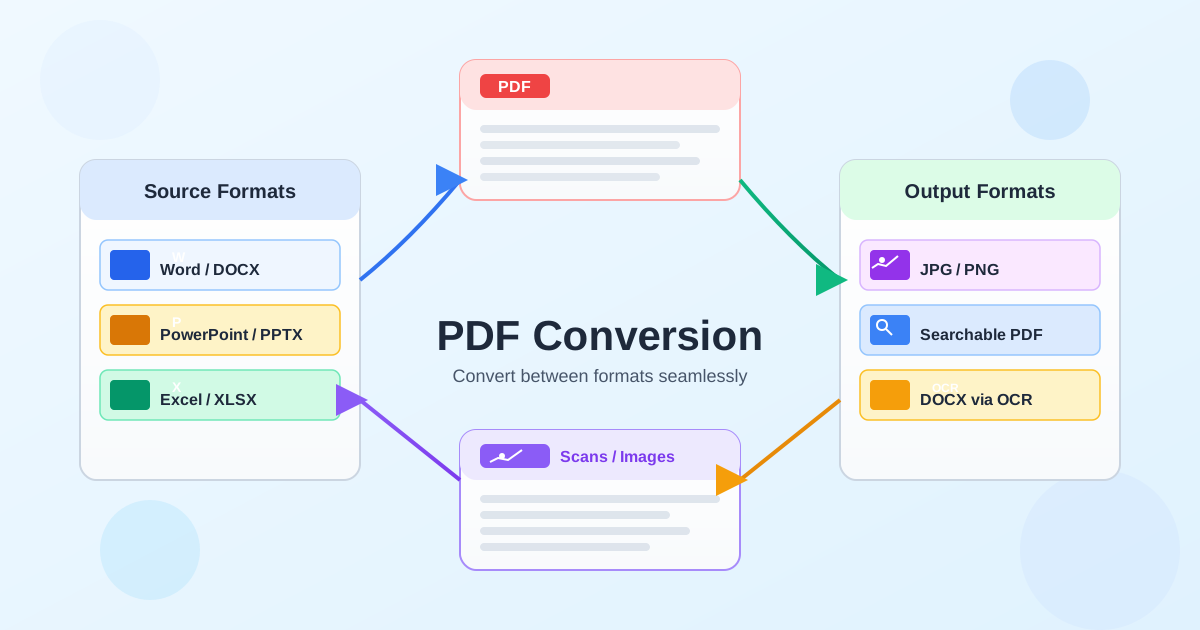
PDF is a distribution format, not an editing format. When you need to change text, pull numbers into a spreadsheet, or grab images for a presentation, you need to convert the PDF into something editable. This guide covers the four most common conversions: PDF to Word, PDF to Excel, PDF to JPG, and PDF to PowerPoint. Each section explains when to use it, what to watch for, and how to get the best result in 2026.
PDF to Word: preserve layout and formatting
Converting PDF to Word gives you an editable DOCX with headings, paragraphs, tables, and images. The goal is a document that looks like the original while being fully editable in Word, Google Docs, or LibreOffice.
Quick start
- Open PDF to Word on FileConvertLab.
- Upload your PDF. Prefer the original digital PDF, not a photo of a page.
- Leave layout mode on "Preserve" (default). This keeps relative spacing and structure.
- Download the DOCX and review headings, tables, and images.
- If the source is a scan, run OCR to DOC first.
Digital PDFs vs. scanned PDFs
Digital PDFs contain selectable text. These convert cleanly because the text, fonts, and structure are available to the converter. Scanned PDFs are just images. They need OCR to recover text first.
If you skip OCR, Word will receive pictures of text and you lose formatting and editability.
- Digital PDF → use PDF to Word
- Scanned PDF → run OCR (PDF to DOC) or OCR to searchable PDF first
Settings that help preserve layout
Preserve layout mode uses paragraph structure, spacing, and tables rather than absolute text boxes.
The result is editable and close to the original. Fonts: if the PDF embeds uncommon fonts, Word may substitute them, which changes line breaks. Install the original fonts on your system to avoid this.
Images: use "Keep image resolution" for crisp diagrams. If file size grows too much, compress images in Word or post-process with Compress PDF.
Fix common problems
- Headers/footers shift — check Page Setup in Word, match the page size (A4 vs. Letter).
- Lists become plain paragraphs — select the lines and reapply a bullet/number list style.
- Text wraps differently — install the original font or adjust character spacing by 0.1 pt.
- Tables break across pages — Table Properties → Row → uncheck "Allow row to break across pages".
- Multi-column layouts merge — reapply columns via Layout → Columns, or keep single-column for editing.
- Forms become static — recreate interactive fields using Word Developer tab → Content Controls.
PDF to Excel: extract tables into spreadsheets
Financial reports, invoices, price lists, and data exports live in PDFs but belong in spreadsheets. PDF to Excel detects tables and converts them into rows and columns you can filter, sort, and chart.
When to choose Excel over Word
If your PDF is mostly tables and numbers, Excel is the right target. You get formulas, pivot tables, and charting built in. If the document mixes text and tables, convert the text-heavy parts to Word and extract tables separately to Excel.
Tips for clean table extraction
- Digital PDFs with ruled tables extract best. Borderless tables may need manual column adjustment.
- Merged cells sometimes split into separate rows. Check totals and row counts after conversion.
- Scanned tables have no text for PDF to Excel to read. Use AI PDF to Excel, which recognizes tables on scanned pages (PDFs up to 10 pages).
- Multi-page tables may produce separate sheets. Combine them in Excel with copy-paste or VLOOKUP.
PDF to JPG: change a PDF to an image
Need to change a PDF to a JPG for a slide deck, social media post, or web page?
PDF to JPG exports each page as a separate JPEG image. This is the fastest way to save a JPG from a PDF without taking screenshots.
JPG vs. PNG: which format to pick
JPG is smaller and works well for photos, marketing materials, and social media. PNG is lossless and better for diagrams, text-heavy pages, and anything where you need sharp edges. Use PDF to JPG for photos and PDF to PNG for diagrams.
Alternatives for PDF to image
Tools like Canva let you import a PDF and export as JPG, but they reflow the layout to fit their templates.
Dedicated converters keep every element exactly where it was in the original. If you need pixel-perfect reproduction of a PDF page, a direct PDF-to-image conversion is the safest choice.
PDF to PowerPoint: convert a PDF file to a presentation
Need to convert a PDF file to a PowerPoint presentation? Each PDF page becomes a slide with text, images, and basic layout preserved. Use PDF to PowerPoint when you receive a read-only PDF of a slide deck and need to edit it, or when you want to reuse content from a report in a presentation.
After conversion
- Fonts may substitute if the original isn't installed. Replace with your brand fonts.
- Animations and transitions don't exist in PDF, so add them in PowerPoint after conversion.
- Speaker notes aren't stored in PDF. Re-add them manually.
- Complex charts may import as images. Recreate them with PowerPoint chart tools if you need editable data.
OCR: when your PDF is a scan
Scanned PDFs and mobile photos contain only pixels. Optical Character Recognition (OCR) detects letters and creates a searchable text layer. Without OCR, none of the conversions above will work well on scans.
- OCR to searchable PDF — keeps the original look, adds a text layer for search and copy.
- PDF (scan) to DOC — produces an editable DOCX from a scanned PDF.
- JPEG to searchable PDF — converts a photo of a document into a searchable PDF.
For deeper tips on choosing OCR modes and improving accuracy, see OCR Essentials.
How to choose the right conversion
Ask two questions: what will you do with the output, and is your source digital or scanned?
- Edit text, restructure sections → PDF to Word
- Analyze data, build charts → PDF to Excel
- Reuse images, embed in slides → PDF to JPG
- Edit a slide deck → PDF to PowerPoint
- Source is a scan → OCR PDF to Word for the text, AI PDF to Excel for the tables
Going the other way: convert files to PDF
PDF is the safest format for sharing documents that should look the same everywhere. Convert your source files before sending:
- Word to PDF — for reports, contracts, and letters.
- Excel to PDF — for printable spreadsheets with correct page breaks.
- PowerPoint to PDF — for slide decks that render consistently.
- JPG to PDF and PNG to PDF — to turn an image into a PDF page; Merge PDF then joins the pages into one document.
If the resulting PDF is too large, our PDF compression guide shows how to reduce file size while keeping clarity.