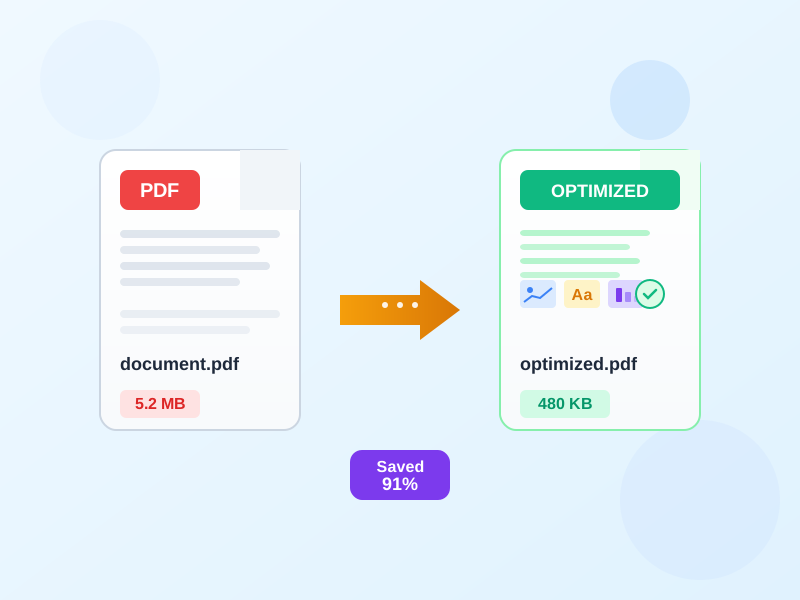
You need to email or upload a document, but the PDF is too big. Here is how to compress PDF files under 1MB without quality loss — keeping text sharp, charts readable, and photos clear while meeting size limits for portals and messaging apps. Follow the steps below using FileConvertLab's online PDF compressor — it finishes in seconds with no software to install.
Quick start: compress a PDF under 1MB
- Open Compress PDF on FileConvertLab.
- Upload your PDF. Large image-heavy files benefit the most.
- Select Balanced to start. If the result is over 1MB, try Stronger.
- Download the compressed PDF and verify clarity at 100% zoom.
How compression works (and what affects quality)
PDFs contain raster images, vector graphics, and embedded fonts. Compression reduces image resolution, applies more efficient JPEG/PNG encoding, and removes unused metadata. Text stays crisp because it is stored as vectors — it takes almost no space regardless of document length.
Quality issues come from two sources: aggressive downsampling (lowering DPI too far) and JPEG artifacts (blocky patches in photos). You avoid both by choosing the right compression level for your document type and leaving vector text untouched.
Recommended settings by document type
Scanned PDFs
- Target 150-200 DPI for general reading; 300 DPI only for fine print or stamps.
- Prefer JPEG for photos; PNG for text-heavy scans with line art.
- Run OCR to searchable PDF first to keep text searchable after compressing PDF documents.
Reports and slide decks
- Keep charts readable: avoid over-compressing red/blue areas (JPEG quality 70% or above).
- Downsample oversized photos to 150-220 DPI for screens.
- Flatten transparent overlays to reduce size without visible change.
Forms and vector drawings
- Leave vector text and paths untouched — they are tiny and stay sharp at any zoom.
- Only compress embedded images (logos, scans of signatures).
Step-by-step: bring a 2-5MB PDF under 1MB
- Run the default compression. Check the new file size.
- If still above 1MB, run again with Stronger settings.
- Zoom to 125% and skim pages with photos and tables. If they look soft, drop back to Balanced.
- Remove unused pages or appendices and recompress.
- If a single page dominates size (large photo), compress that image separately before embedding it in the PDF.
Compress PDF on Mac
macOS has a built-in option to reduce PDF size, but the results are often too aggressive.
Here is how to compress a PDF on Mac effectively:
Using Preview (built-in)
- Open the PDF in Preview.
- Go to File > Export.
- In the Quartz Filter dropdown, select Reduce File Size.
- Save. The compressed PDF will be significantly smaller. The catch: Preview uses a fixed compression profile with no quality controls. Photos often come out visibly blurry, and you cannot choose DPI or JPEG quality. For documents where image clarity matters, an online tool gives you more control.
Online compression (more control)
Upload your PDF to FileConvertLab's PDF compressor from any Mac browser. You pick the compression level (Balanced, Stronger, or Maximum) and can re-run with different settings until the size and quality are right. No app to install, works on any macOS version.
Online compression vs Adobe Acrobat
Many people search for how to compress PDF with Adobe or use Adobe Acrobat to compress PDF files.
Adobe Acrobat DC (Pro or Standard) includes "Reduce File Size" and "Optimize PDF" tools with granular controls over image quality, font subsetting, and object removal. It is the most powerful desktop option — but it requires a paid subscription (around $23/month for Acrobat Pro).
Adobe PDF compression works best when you need batch processing across hundreds of files or very specific output profiles (PDF/A, PDF/X). Adobe also offers an online Acrobat compress PDF tool, but it has page limits and still requires an Adobe account. Adobe Reader (the viewer) cannot compress PDFs at all — you need Acrobat Pro for that.
For everyday tasks — compressing a report before emailing, shrinking a scanned receipt, or getting a slide deck under a portal's size limit — an online compressor handles it without installing anything or managing a subscription.
Key differences at a glance:
- Cost: Adobe Acrobat Pro requires a monthly license. Online tools work without a subscription.
- Control: Acrobat offers per-object settings (individual image DPI, font subsetting). Online tools offer preset levels that cover 90% of use cases.
- Speed: Online compression takes seconds with no setup. Adobe Acrobat needs installation and updates.
- Platform: Online compressors work on any device with a browser — Windows, Mac, Linux, or mobile. Acrobat is desktop-only.
If you already have an Adobe Acrobat license, use its Optimize PDF for complex workflows. For quick, one-off compression, an online tool is faster and achieves comparable results on typical documents.
Real examples: before and after
Download these sample PDFs to see how compression affects file size and quality on different document types:
100 Pages Lorem Ipsum — Original (1.2 MB)
100 Pages Lorem Ipsum — Compressed (340 KB, balanced)
10 Page Report — Original (2.1 MB)
10 Page Report — Compressed (680 KB, balanced)
Text-heavy PDFs shrink the most because embedded images dominate file size, and those images compress well. Image-heavy decks need a careful balance — use the preview to check key charts before sharing.
Troubleshooting quality loss
Text looks blurry
- Check whether the original PDF has selectable text. If not, it is a scan — run OCR first.
- If it is a scan, increase DPI to 200-300 in the compression settings.
Photos show blocky artifacts
- Increase JPEG quality a step or choose PNG for diagrams with flat colors.
- Crop unused margins before compression to reduce the area being recompressed.
File still above 1MB
- Delete duplicate pages and unused appendices.
- Split the PDF by sections and send only the relevant part. You can use Split PDF to separate pages.
Conclusion
To make a PDF smaller without quality loss, start with balanced settings, keep vector text intact, and tune image DPI only where needed. Whether you are compressing PDF documents on a Mac, comparing options to Adobe Acrobat, or just trying to get a file under 1MB for an email attachment — the process is the same: compress, check, adjust.
When you are ready, try Compress PDF on FileConvertLab.