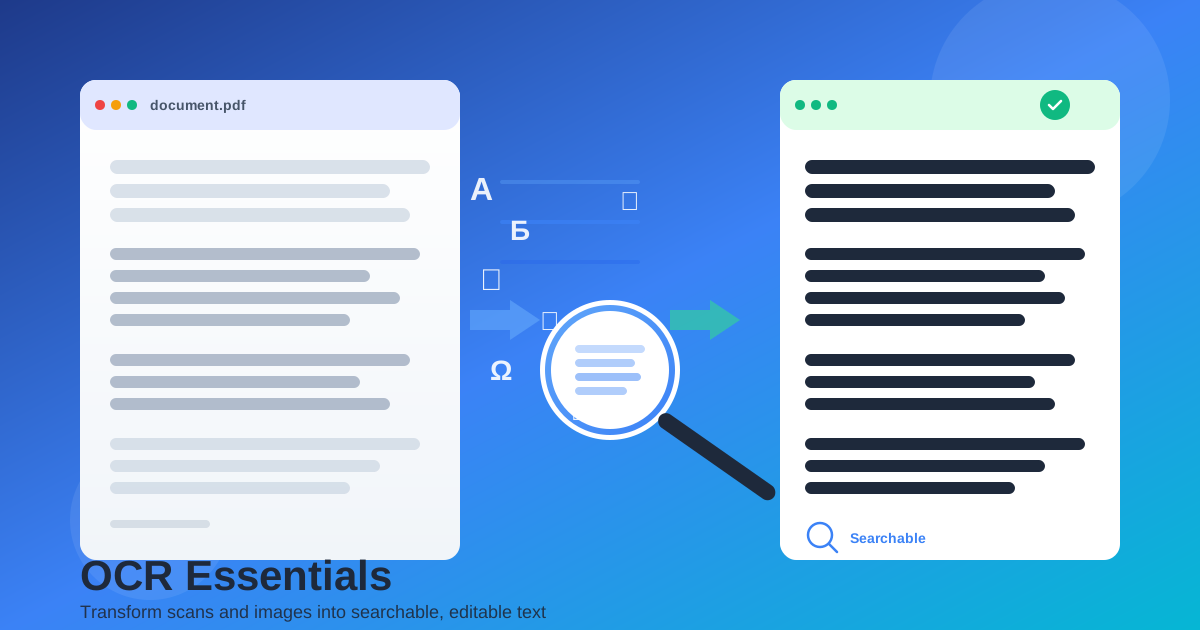
If you receive a scanned PDF and need the words inside, retyping is slow and error‑prone. Here’s how to extract text from scanned PDF using OCR so you get searchable, editable text in minutes. You’ll learn when to choose a searchable PDF vs. DOCX, how to pick the right language, and how to fix common issues like skewed pages or faint scans. We’ll use FileConvertLab’s browser‑based OCR tools so you can follow along without installing software.
Extract text from scanned PDF using OCR: quick start
- Open OCR: PDF to searchable PDF.
- Upload your scanned PDF and choose the correct language.
- Process and download a searchable PDF for fast find/copy.
- If you need to edit, use OCR: PDF to DOC.
When to choose searchable PDF vs. DOCX
- Searchable PDF — best for archiving, sharing, and quick lookup while keeping the original look.
- DOCX — best for rewriting content, changing formatting, or extracting sections into other documents.
Improve OCR accuracy
1) Image quality and DPI
- Scan at 300 DPI for general text; 200 DPI is the minimum for readability.
- Avoid heavy compression; JPEG artifacts can merge letters.
2) Deskew and crop
- Keep text upright. If pages are tilted, recognition confidence drops.
- Crop borders and backgrounds that have no text.
3) Language selection
- Choose the main language; for mixed pages, try the dominant one first.
- For accented scripts, use the exact language to match character sets.
Step‑by‑step: clean output in DOCX
- Run PDF (scan) to DOC.
- Open the DOCX and apply a single style to body paragraphs.
- Merge broken lines: select the paragraph, then clear manual line breaks.
- For tables, convert recognized blocks to a Word table if needed.
Common problems and fixes
Faint scans
- Increase contrast before OCR or rescan with “Text” mode.
- Turn off background removal if it erases thin strokes.
Multi‑language pages
- Run OCR twice with different languages and keep the better output.
- For short foreign terms, manual correction is often faster than multi‑language OCR.
Skewed or rotated pages
- Straighten pages during scanning or with an image editor before OCR.
- Ensure text baselines are horizontal for best accuracy.
Export options
- Searchable PDF — same visual layout with a hidden text layer for find and copy.
- DOCX — editable file for rewriting, formatting, and reuse.
- Image to DOC — for camera photos of receipts, slides, or notes.