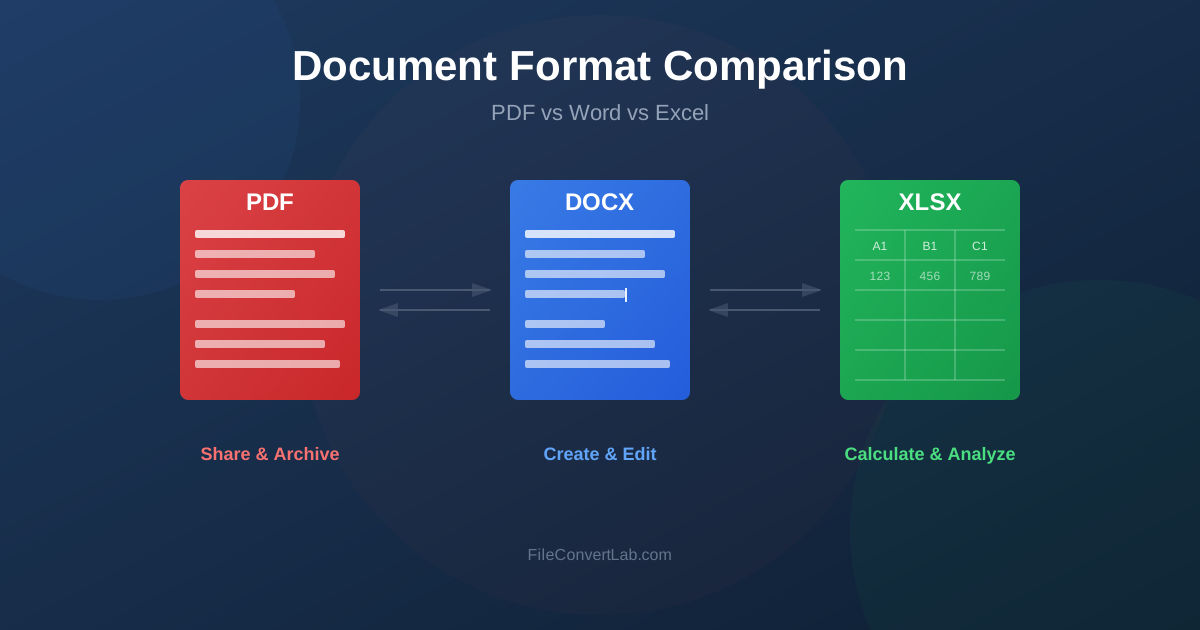
Choosing the right document format affects how people view, edit, and share your files.
PDF, Word (DOCX), and Excel (XLSX) each serve different purposes, and understanding their strengths helps you work more efficiently. This guide compares these three formats to help you decide when to use each one — and when to convert between them.
Quick comparison table
| Feature | Word (DOCX) | Excel (XLSX) | |
|---|---|---|---|
| Primary purpose | Final distribution | Document creation | Data & calculations |
| Editing | Limited | Full editing | Full editing |
| Layout consistency | Excellent | Variable | Variable |
| File size | Usually smaller | Medium | Variable |
| Universal viewing | Yes (any device) | Needs Word/viewer | Needs Excel/viewer |
| Best for | Sharing, archiving | Writing, editing | Numbers, analysis |
Understanding PDF format
PDF (Portable Document Format) was designed for one purpose: to preserve document appearance across all devices and operating systems. When you create a PDF, you're essentially taking a snapshot of your document that looks identical whether viewed on Windows, Mac, Linux, or mobile devices. Adobe created PDF in 1993, and it became an open standard in 2008.
The key advantage of PDF is predictability. A PDF created on your computer will look exactly the same when opened by a client in another country using a different operating system.
This makes PDF the best document format for official communications, legal documents, and anything where appearance matters.
When to use PDF
- Final documents — Contracts, invoices, reports meant for distribution.
- Print-ready files — Brochures, posters, any design work going to print.
- Archiving — Long-term storage where format preservation matters.
- Forms — Applications, surveys, documents that need signatures.
- Sharing externally — When recipients shouldn't edit the content.
PDF limitations
- Not designed for easy editing (though PDF editors can add annotations).
- Text reflow doesn't work well on small screens.
- Converting to editable formats may lose some formatting.
Understanding Word format
Microsoft Word's DOCX format is the standard for document creation and editing.
It offers rich formatting options, collaboration features, and integration with other Office applications. Most word processors can open and edit DOCX files, including Google Docs, LibreOffice Writer, and Apple Pages.
The DOCX format replaced the older DOC format in 2007. It uses XML-based compression, resulting in smaller file sizes and better data recovery options. When comparing Word document vs PDF for business use, Word wins for documents that need revision or collaboration, while PDF wins for final distribution.
Word documents support track changes, comments, and real-time collaboration through Microsoft 365 or Google Docs. This makes DOCX the preferred format during the drafting and review phases of document creation.
When to use Word
- Creating documents — Reports, letters, essays, any text-heavy content.
- Collaboration — Documents that multiple people will edit.
- Templates — Reusable document structures (letterheads, proposals).
- Drafts — Work in progress that needs revision.
- Mail merge — Personalized mass communications.
Word limitations
- Layout may shift between different versions of Word or other programs.
- Not ideal for final distribution (recipients can edit).
- Large documents with many images can become slow.
Understanding Excel format
Excel's XLSX format excels at structured data, calculations, and analysis. While Word handles flowing text, Excel organizes information in cells, rows, and columns — perfect for anything involving numbers, lists, or data manipulation.
Excel vs PDF for reports is a common question. Use Excel when recipients need to interact with the data — filtering, sorting, running calculations, or creating their own charts.
Use PDF when you want to present final results without allowing modifications.
Spreadsheets can contain formulas that automatically update when data changes. This makes Excel ideal for budgets, forecasts, and any document where numbers need to be calculated rather than just displayed. You can also use conditional formatting to highlight important values, create pivot tables for data summarization, and build charts directly from your data.
When to use Excel
- Financial data — Budgets, expenses, financial reports.
- Calculations — Any document needing formulas or automatic calculations.
- Data analysis — Charts, pivot tables, statistical analysis.
- Lists and databases — Inventory, contacts, tracking logs.
- Tabular data — Any information that fits naturally in rows and columns.
Excel limitations
- Not suitable for flowing text or document-style layouts.
- Printing can be tricky (page breaks, fitting to page).
- Complex spreadsheets can be difficult to share with non-Excel users.
Real-world scenarios: which format to choose
Here are specific situations you might encounter and the best document format for each:
Sending a resume or CV
Always send resumes as PDF unless specifically asked for Word format. PDF preserves your careful formatting and ensures the hiring manager sees exactly what you intended, regardless of their software or fonts installed.
Creating a project proposal
Start in Word for drafting and internal review. Use track changes to gather feedback from colleagues. Once approved, convert to PDF for client presentation. This workflow gives you editing flexibility while ensuring the final deliverable looks professional.
Sharing financial reports
If stakeholders need to verify calculations or create their own analysis, send Excel.
If they just need to review final numbers, convert Excel to PDF. For board presentations, you might extract key charts into a Word document, then convert to PDF for distribution.
Archiving business documents
PDF/A (archival PDF) is the gold standard for long-term document storage. It embeds all fonts and disables features that might change over time. For documents you need to archive for years or decades, convert to PDF/A format.
Filling out application forms
Many forms arrive as PDFs. If they have fillable fields, complete them directly in a PDF viewer.
If not, you have two options: use a PDF editor to add text boxes, or convert to Word, fill in the blanks, and convert back to PDF.
Conversion workflows
Often you'll need to move content between formats. Here are common scenarios and the best approach:
Word to PDF
The most common conversion. Use Word to PDF when your document is finished and ready for distribution. This preserves formatting and prevents unwanted edits.
PDF to Word
Need to edit a PDF? Convert it to Word using our PDF to Word converter.
This extracts text and formatting for editing. Note that complex layouts may need adjustment.
Excel to PDF
When sharing spreadsheet data with people who don't need to edit or don't have Excel.
Use Excel to PDF for reports, financial statements, or any tabular data meant for viewing only.
PDF to Excel
Received a PDF report with tables you need to analyze? Convert using PDF to Excel to extract tabular data into a workable spreadsheet.
Format selection flowchart
Ask yourself these questions to choose the right format:
- Will others edit this? Yes → Word or Excel. No → Consider PDF.
- Does it contain calculations? Yes → Excel. No → Word or PDF.
- Is layout critical? Yes → PDF for distribution.
- Is this a final version? Yes → Convert to PDF. No → Keep in Word/Excel.
- Will it be printed? Consider PDF for consistent print results.
Hybrid approaches
Sometimes the best solution combines multiple formats:
- Create in Word → Share as PDF — Most common document workflow.
- Analyze in Excel → Report in Word → Distribute as PDF — For data-driven reports.
- Receive PDF → Extract to Word → Edit → Save as PDF — For modifying received documents.
- Excel charts → Word document → PDF — For reports with embedded data visualizations.
When NOT to convert
Sometimes keeping the original format is the right choice:
- Don't convert PDF to Word just to read it — PDF viewers are available everywhere. Convert only when you need to edit.
- Don't convert Excel to Word for tables — Word handles tables poorly. Keep data in Excel or convert directly to PDF.
- Don't convert back and forth repeatedly — Each conversion can introduce formatting issues. Keep the original and convert copies.
- Don't convert scanned PDFs without OCR — A scanned PDF is just an image. Use OCR to extract actual text first.
File size considerations
File size matters for email attachments and storage:
- PDF — Generally compact. Can be further reduced with PDF compression.
- DOCX — Reasonable size for text. Images inflate file size significantly.
- XLSX — Small for data. Large if containing many charts or images.
Compatibility notes
- PDF — Opens everywhere. Every device has a PDF viewer.
- DOCX — Microsoft Word, Google Docs, LibreOffice, and most word processors.
- XLSX — Microsoft Excel, Google Sheets, LibreOffice Calc, Numbers. When uncertain about recipient capabilities, PDF is the safest choice for sharing.