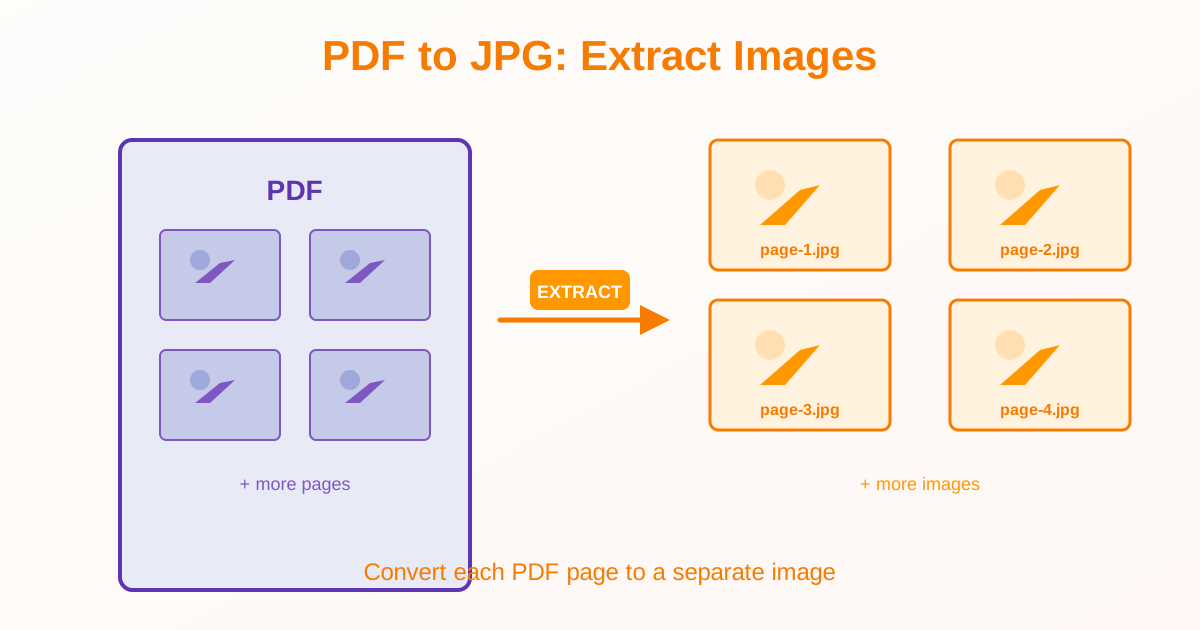
Need to extract PDF pages as images? PDF to JPG conversion turns document pages into image files you can edit, share, or use in presentations. This guide covers conversion methods, quality settings, and when to use PDF to JPG instead of other formats.
Why Convert PDF to JPG?
Common scenarios for extracting PDF pages as images:
- Use PDF pages in presentations or image editors
- Share specific pages as images on social media or websites
- Extract pages for inclusion in reports or documents
- Create thumbnails or previews of PDF pages
- Edit PDF content using image editing software
- Convert documents for platforms that don't support PDF
How to Convert PDF to JPG: Step-by-Step
Convert All Pages
- Upload your PDF to a PDF to JPG converter
- Select "All pages" or "Convert entire document"
- Choose quality/DPI (150 for web, 300 for print)
- Click "Convert"
- Download JPG files (page-1.jpg, page-2.jpg, etc.)
Convert Specific Pages
- Upload your PDF
- Select page range (e.g., "3-7") or specific pages (e.g., "1, 5, 10")
- Choose quality settings
- Convert and download selected pages as JPG Converting specific pages saves time and creates only the images you need.
Understanding DPI and Quality
What is DPI?
DPI (Dots Per Inch) determines image resolution. Higher DPI creates sharper but larger images.
| DPI | Use Case | File Size | Quality |
|---|---|---|---|
| 72 DPI | Quick previews, thumbnails | Small (50-200 KB) | Low (acceptable for previews) |
| 150 DPI | Web, email, screen viewing | Medium (200-800 KB) | Good (sharp on screens) |
| 300 DPI | Printing, detailed editing | Large (1-5 MB) | High (print quality) |
| 600 DPI | Professional printing, archival | Very large (3-10 MB) | Maximum quality |
Recommendation: Use 150 DPI for most cases. Increase to 300 DPI only if you'll print the images.
What You Get After Conversion
- One JPG per page — page 1 = image-1.jpg, page 2 = image-2.jpg
- Entire page as image — text, graphics, photos all become part of one image
- No editable text — text becomes pixels (use image editors to modify)
- Size depends on DPI — higher DPI = larger, sharper images
- Landscape/portrait maintained — page orientation preserved
PDF to JPG vs Alternatives
PDF to JPG vs PDF to PNG
Use JPG when:
- Smaller file size matters (JPG is 50-80% smaller than PNG)
- Pages contain photos or complex graphics
- Slight quality loss is acceptable Use PNG when:
- Pages have text or diagrams (PNG preserves text sharpness better)
- You need lossless quality
- Transparency is important
PDF to JPG vs PDF to Word
PDF to JPG creates images (not editable). PDF to Word creates editable documents. Use PDF to JPG when:
- You need images for presentations or websites
- You'll edit with image editors (Photoshop, GIMP)
- Content is visual (charts, diagrams, layouts) Use PDF to Word when:
- You need to edit text
- Content is text-heavy documents
Tips for Better PDF to JPG Results
Choose Appropriate DPI
Don't default to maximum DPI. Higher isn't always better:
- Web/email → 150 DPI is sufficient and faster to transfer
- Printing → 300 DPI for quality prints
- Thumbnails → 72 DPI for small previews
Extract Specific Pages
If you only need pages 5, 10, and 15, extract those specifically. No need to convert all 50 pages and delete 47 images afterward.
Check Image Dimensions
Page size affects image dimensions:
- Letter (8.5×11") at 150 DPI → 1275×1650 pixels
- A4 at 150 DPI → 1240×1754 pixels
- Letter at 300 DPI → 2550×3300 pixels Higher DPI creates proportionally larger images.
Common Use Cases
Social Media Sharing
Convert PDF pages to JPG for Instagram, Twitter, or Facebook posts:
- Extract the page you want to share
- Use 150 DPI (good quality, reasonable file size)
- Upload JPG to social media
Presentation Slides
Include PDF pages in PowerPoint or Google Slides:
- Convert relevant PDF pages to JPG
- Insert images into slides
- Resize and position as needed
Image Editing
Edit PDF content in Photoshop or GIMP:
- Convert PDF page to JPG at high DPI (300)
- Open in image editor
- Make changes (add annotations, crop, adjust colors)
- Save as JPG or convert back to PDF
Converting Back: JPG to PDF
If you edited JPG images and need a PDF again:
- Use JPG to PDF conversion
- Upload all edited JPG files
- Arrange in order
- Merge into one PDF
Common Issues and Solutions
JPG Images Look Blurry
Increase DPI. 72 DPI is too low for detailed viewing. Use 150 DPI minimum.
If still blurry, the original PDF may have low-resolution content.
File Sizes Too Large
Reduce DPI. 300 DPI creates large files. For screen viewing, 150 DPI is sufficient and produces files 4× smaller.
Can't Convert Password-Protected PDF
Remove password protection first (requires the password). Unlock the PDF, then convert to JPG.
Text Not Selectable in JPG
This is expected. JPG images don't contain selectable text—everything becomes pixels. If you need editable text, use PDF to Word instead of PDF to JPG.
Batch Conversion for Multiple PDFs
If you have many PDFs to convert:
- Some tools support batch upload (10-20 PDFs at once)
- Desktop software handles larger batches more efficiently
- Use consistent DPI settings across all conversions
Related Tools
- JPG to PDF — Combine images back into PDF format
- PDF to Word — For editable text documents
- Split PDF — Extract specific pages as PDF before converting to JPG
- JPG to PDF Guide — Learn about the reverse process
Conclusion
PDF to JPG conversion extracts pages as image files for editing, sharing, or use in other applications. Each PDF page becomes one JPG image with quality determined by DPI settings. Use 150 DPI for web and screen viewing, 300 DPI for printing. Text becomes non-editable pixels—use PDF to Word if you need to edit text. JPG produces smaller files than PNG but with slight quality loss. Extract specific pages instead of converting entire documents to save time and storage.