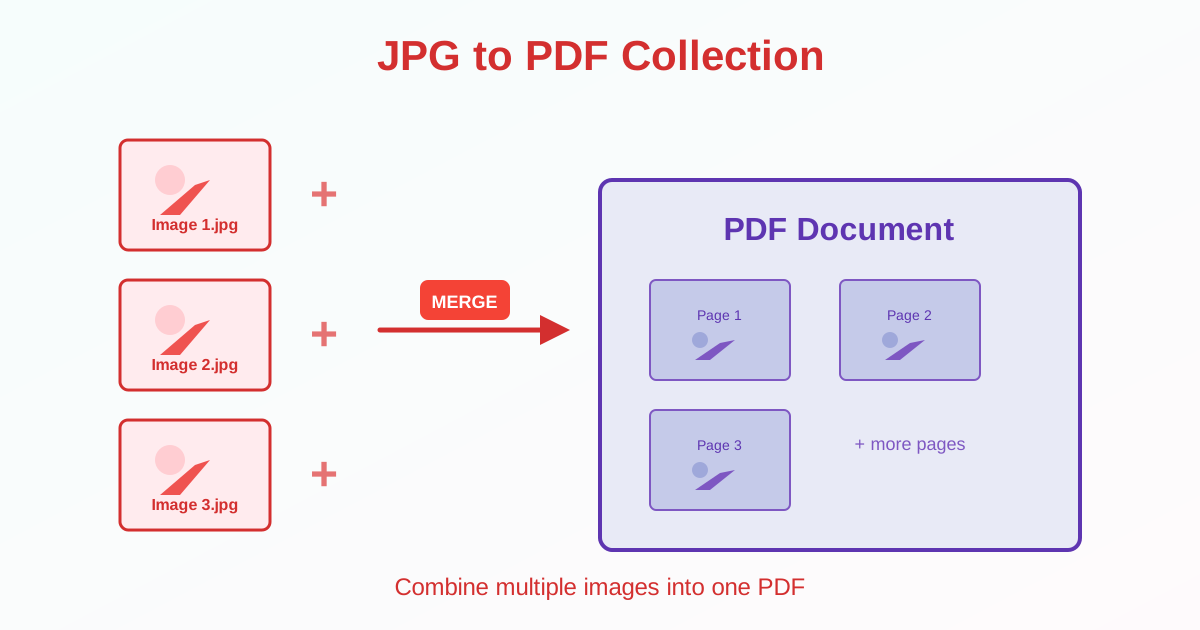
Need to organize multiple JPG images into one document? Converting JPG to PDF lets you combine photos, scanned documents, or screenshots into a single file for easy sharing and storage. This guide covers methods, best practices, and when to use JPG to PDF conversion.
Why Convert JPG to PDF?
Common scenarios for combining JPG images into PDF:
- Create photo albums or portfolios
- Combine scanned receipts or invoices into one document
- Merge multiple screenshots for documentation or tutorials
- Send multiple images as a single email attachment
- Organize product photos for catalogs or presentations
- Create digital documents from scanned pages
How to Convert JPG to PDF: Step-by-Step
Single Image to PDF
- Upload your JPG file to a JPG to PDF converter
- Click "Convert" or "Create PDF"
- Download the PDF (contains one page with your image)
Multiple Images to One PDF
- Upload all JPG images (drag-and-drop or select multiple files)
- Arrange images in the desired order (drag to reorder)
- Click "Merge to PDF" or "Combine"
- Download the multi-page PDF Each image becomes one page in the PDF, in the order you selected.
What You'll Get After Conversion
- One PDF file containing all your images
- Same quality as the original JPG files (no re-compression)
- One page per image — image 1 = page 1, image 2 = page 2, etc.
- Searchable text — none (images only). For searchable PDFs from scans, use OCR tools
- File size — slightly larger than total JPG sizes (5-10% overhead)
JPG to PDF vs Alternatives
JPG to PDF vs PNG to PDF
Use JPG to PDF for:
- Photos and pictures (smaller file size)
- Images without transparency
- Scanned documents (if saved as JPG) Use PNG to PDF for:
- Screenshots with text (sharper)
- Diagrams, logos, or graphics
- Images with transparency
JPG to PDF vs Image to Text (OCR)
JPG to PDF creates an image-based document. Text in images isn't searchable or editable. If you need to:
- Search text in scanned documents → use OCR
- Edit text from images → use OCR to extract text
- Just view images in PDF format → use JPG to PDF
Tips for Better JPG to PDF Results
Organize Before Converting
Rename files with numbers or prefixes so they sort correctly:
- Good: 01-cover.jpg, 02-intro.jpg, 03-chapter1.jpg
- Bad: IMG_2341.jpg, IMG_2339.jpg, IMG_2342.jpg (random order) This ensures images appear in the correct sequence when you select multiple files.
Check Image Orientation
Rotate images before converting. PDF creation tools usually don't auto-rotate.
If a photo appears sideways in your viewer, rotate it first (using image editing software or preview tools), then convert to PDF.
Compress Large Images First
If your JPG files are very large (5+ MB each from camera photos):
- Resize images to appropriate dimensions (1920px wide for documents)
- Compress JPG files (quality 80-85%)
- Then convert to PDF This creates a smaller PDF that's easier to email or share. 20 MB of photos can become a 3 MB PDF with proper compression before conversion.
Use Consistent Dimensions
For professional-looking PDFs, crop or resize images to the same dimensions before converting. This creates uniform page sizes in the PDF.
Common Use Cases
Photo Albums
Create digital photo albums:
- Select vacation or event photos
- Arrange in chronological order
- Convert to PDF
- Share as a single file via email or cloud storage
Scanned Documents
Combine scanned receipts, invoices, or contracts:
- Scan documents as individual JPG files
- Name files clearly (date or content)
- Merge into one PDF
- Store or submit as a complete document
Product Catalogs
Create catalogs or lookbooks:
- Take product photos
- Arrange by category or collection
- Convert to PDF
- Distribute to clients or upload to websites
After Creating Your PDF
Compress the PDF
If the resulting PDF is too large to email:
- Use PDF compression to reduce file size 50-80%
- Or compress JPG images before converting to PDF
Add More Images Later
To add images to an existing PDF:
- Convert new JPG images to PDF
- Merge the new PDF with your existing one This appends new pages to the original document.
Extract Images Back
To extract JPG images from a PDF later:
- Use PDF to JPG conversion
- Each page becomes a separate JPG image
Common Issues and Solutions
Images Appear in Wrong Order
File systems sort filenames alphabetically. IMG_10.jpg appears before IMG_2.jpg. Rename files with leading zeros: IMG_02.jpg, IMG_10.jpg.
PDF File Too Large to Email
Email services limit attachments to 10-25 MB. If your PDF exceeds this:
- Compress the PDF after creation
- Or resize/compress JPG images before converting
- Or split into multiple smaller PDFs
Images Look Blurry in PDF
JPG to PDF doesn't re-compress images. If images look blurry, the original JPG files were already low quality or low resolution. Check source images before converting.
Desktop Software vs Online Tools
For occasional use (10-50 images), online tools are simpler. For regular batch processing (100+ images), desktop software may be faster:
- Adobe Acrobat: Professional tool with batch conversion
- img2pdf (command-line): Fast bulk conversion for developers
- GIMP: Image editor that exports multi-page PDFs
Related Tools
- PDF to JPG — Extract images from PDF documents
- PNG to PDF — Convert PNG images (better for screenshots)
- Image to Text (OCR) — Extract searchable text from images
- Compress PDF — Reduce PDF file size after creation
Conclusion
Converting JPG to PDF lets you combine multiple images into one organized document. Each image becomes a page in the PDF, preserving original quality.
Organize and rename files before converting for correct page order. Compress large images before conversion to create smaller PDFs. Use JPG to PDF for photos and scans; use PNG to PDF for screenshots and graphics with text.
After creating your PDF, compress it if needed for easier sharing.