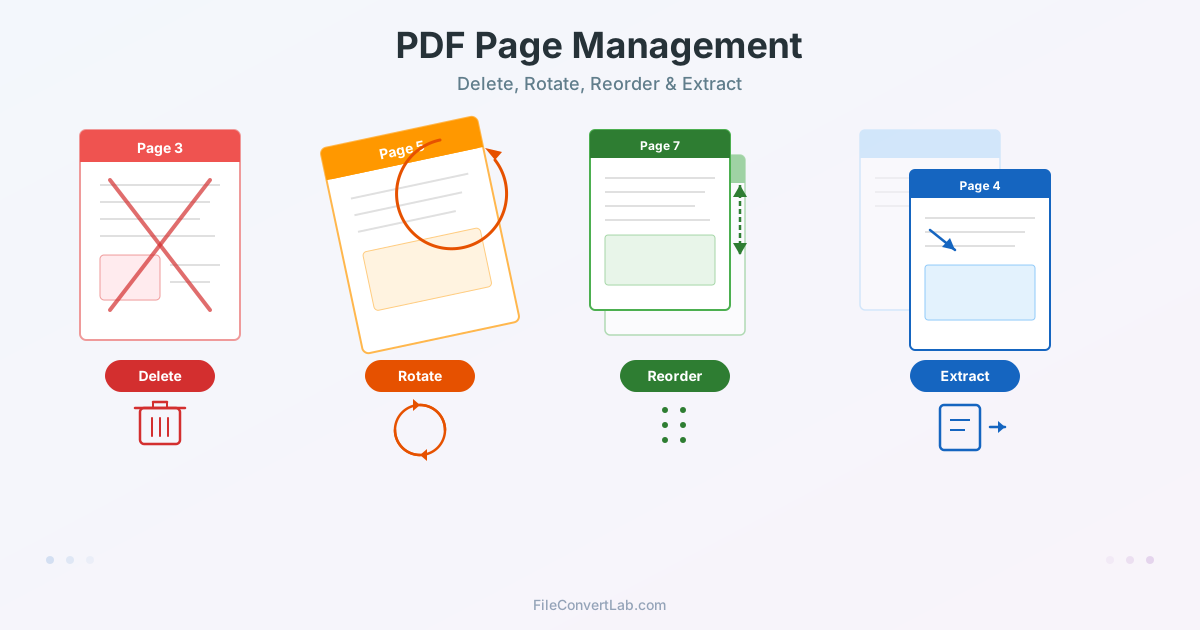
You have a 50-page PDF report and need to send only pages 12 through 18 to a colleague. Or a scanned document where one page was fed sideways. Or a merged file where the pages ended up in the wrong order. These are everyday problems, and they all have the same solution: managing pages within the PDF itself. This guide covers every page operation you will encounter — how to delete PDF pages, rotate them, rearrange their order, extract specific sections, and remove blank pages. Learning to manage PDF pages saves hours of manual work — here are practical steps for each scenario.
How to Delete Pages from a PDF
Deleting PDF pages is the most common page management task. Whether you need to remove a cover page, strip out advertisements, or cut unnecessary appendices, the process is straightforward. You select which pages to remove, and the tool produces a clean PDF without them.
Deleting Specific Pages
To delete specific pages from a PDF, open it in a PDF page deletion tool.
You can specify individual page numbers (like 1, 5, 13) or ranges (like 8-15). The tool removes those pages and outputs a new file with the remaining pages renumbered consecutively. The original file stays untouched — you always work with a copy.
Common scenarios for deleting pages:
- Cover and back pages: Remove title pages before distributing internal content
- Confidential sections: Strip pages containing sensitive data before sharing
- Duplicate pages: Remove repeated pages from a poorly assembled document
- Advertisements: Clean up e-books or catalogs by removing promotional pages
Removing Blank Pages from a PDF
Blank pages often appear in scanned documents (when a double-sided scan picks up empty backs) or in documents exported from Word where page breaks created unintended gaps. You can identify and remove blank pages manually by scrolling through the thumbnail preview, or use automatic blank page detection if your tool supports it.
Be cautious with automatic detection. Pages that look blank may contain headers, footers, page numbers, or watermarks that are not visible at thumbnail scale. Always review flagged pages at full size before confirming deletion. For scanned PDFs specifically, scanner artifacts — tiny dots or smudges — may prevent a page from being classified as blank even when it has no meaningful content.
What Happens to the File After Deletion
When you delete pages from a PDF, the tool creates a new file excluding those pages. Remaining pages are renumbered starting from 1. Internal links, bookmarks, and the table of contents may point to pages that no longer exist — check these after deletion and update them if needed. The file size typically decreases, especially when removing pages with images or scanned content. For best results, compress the PDF after deleting pages to reclaim space from any orphaned embedded resources.
How to Rotate Pages in a PDF
Page rotation fixes orientation issues without altering the content. A landscape table displayed in portrait mode, a scanned page fed sideways, or an architectural drawing that needs to be turned 90 degrees — rotation handles all of these.
Rotating a Single Page
To rotate a single page in a PDF, open the document in a PDF rotate and reorder tool.
Select the page you want to rotate, choose the rotation angle (90 degrees clockwise, 90 degrees counterclockwise, or 180 degrees), and apply. Only the selected page rotates — every other page remains exactly as it was.
Rotation options explained:
- 90 degrees clockwise: Turns a landscape page so it reads correctly in portrait view
- 90 degrees counterclockwise: The reverse — useful when the page was scanned upside-down sideways
- 180 degrees: Flips an upside-down page right-side up
Rotating Multiple Pages at Once
Batch rotation saves time when multiple pages share the same orientation problem. Select all affected pages and apply the same rotation to all of them in one operation. This is common with scanned documents where an entire section was scanned in the wrong orientation, or with PDFs exported from presentation software where slides alternate between portrait and landscape.
When Rotation Is Not Enough
Rotation works on the entire page — it cannot fix a single image or table that is tilted within an otherwise correct page. For that, you need to edit the PDF and adjust individual elements. If you receive a scanned document with slight skew (the page is not perfectly straight), rotation in 90-degree increments will not help. Deskewing requires image processing, which is a different operation from page rotation.
How to Reorder and Rearrange PDF Pages
Rearranging pages in a PDF means changing the sequence without altering individual page content. You might need to move an appendix before the main body, reorder chapters after combining multiple documents, or put a summary page at the beginning.
Drag-and-Drop Reordering
Most PDF page management tools display thumbnail previews of every page. To rearrange pages in a PDF online, you drag thumbnails to their new positions. This visual approach makes it easy to verify the new order before saving. Move page 15 before page 3, swap pages 7 and 12, or completely reshuffle the entire document.
Tips for efficient reordering:
- Plan the order first: Write down the desired page sequence before starting
- Work in batches: Move groups of consecutive pages together when possible
- Check transitions: After reordering, verify that page content flows logically at each transition
- Update references: Page numbers cited in the text will not automatically update
Reordering After Merging Multiple PDFs
When you merge multiple PDF files into one document, pages from different sources may not be in the ideal order. Perhaps you need to interleave pages from two documents (page 1 from file A, page 1 from file B, page 2 from file A, and so on) or move a section from one merged file to a different position. Reordering after merging is a natural follow-up step.
If you find yourself frequently merging and then reordering, consider using a dedicated reorder tool that lets you arrange pages from multiple source files simultaneously, rather than merging first and rearranging afterward.
How to Extract Specific Pages from a PDF
Extracting pages creates a new PDF containing only the pages you select. Unlike deletion (which removes pages you do not want), extraction pulls out pages you do want. The result is the same — a smaller document — but the mental model is different, and tools are often designed around one approach or the other.
Extracting a Page Range
The most common extraction task is pulling a consecutive range of pages. Specify the start and end page numbers, and the tool creates a new PDF with only those pages. Use the PDF split tool to extract a range:
enter pages 12-18 to get exactly those seven pages as a new file.
Practical use cases for range extraction:
- Sending a chapter: Extract pages 45-67 from a textbook to share one chapter
- Isolating a section: Pull the financial summary from a 200-page annual report
- Creating handouts: Extract the exercise pages from a training manual
- Filing requirements: Pull the signature pages from a legal document
Extracting Non-Consecutive Pages
Sometimes you need pages that are scattered throughout the document — page 2, page 7, pages 15-18, and page 31.
Advanced split tools support this by accepting comma-separated page numbers and ranges. The extracted pages appear in the output file in the order you specified, giving you control over both content and sequence.
Splitting vs Extracting: Choosing the Right Approach
Splitting divides the entire document into multiple files (for example, every 5 pages becomes a separate PDF).
Extraction creates one file from selected pages. If you need to break a 100-page manual into 10 chapters, splitting is more efficient. If you need pages 3, 17, and 42 from that manual, extraction is the right tool.
Read our detailed comparison in the merge vs split PDF guide.
Combining Multiple Page Operations
Real-world documents rarely need just one operation. A typical workflow might involve rotating two sideways pages, deleting the first three cover pages, reordering the remaining content, and then extracting a specific section for a colleague. The most efficient approach is to perform all operations in a single session rather than processing the file multiple times.
Recommended Operation Order
When combining operations, the order matters for efficiency:
- Rotate first: Fix orientation so you can properly identify page content
- Delete unwanted pages: Remove pages you do not need before spending time reordering
- Reorder remaining pages: Arrange the keeper pages in the desired sequence
- Extract if needed: Pull out a subset for a specific purpose
- Compress: Reduce file size after all page operations are complete
Working with Scanned Documents
Scanned PDFs present unique page management challenges. Pages may be in mixed orientations, blank pages from double-sided scanning pad the document, and page quality varies. Start by rotating all misoriented pages, then remove blanks, and finally reorder if the scanner produced pages out of sequence. If you need to edit the text content after organizing pages, convert the scanned PDF to an editable format using PDF conversion tools.
Page Management for Different Document Types
Different types of documents benefit from different page management strategies. Here is what to consider for each common category.
Reports and Business Documents
Business reports often have cover pages, tables of contents, and appendices that need adjustment before distribution. Delete the internal cover page when sending externally, extract the executive summary for management presentations, or reorder sections to match a different organizational structure. After making changes, verify that page numbers in the table of contents still correspond to actual content.
Legal and Compliance Documents
Legal documents require careful page management. Extract signature pages for filing, remove draft watermark pages that should not appear in the final version, and ensure exhibits are in the correct order. When working with legal PDFs, always keep the original file as a backup — court filings and contracts may need to be referenced in their original form.
Academic and Research Papers
Researchers often need to extract specific figures, tables, or sections from published papers. Extract the pages containing relevant data, remove publisher advertisements or subscription prompts, and combine extracted pages from multiple papers into a reading collection. Use the merge tool after extracting to compile your research materials into a single document.
Quality Preservation During Page Operations
A critical advantage of PDF page management over alternatives like screenshot-and-reassemble is that page operations are lossless. When you delete, rotate, reorder, or extract pages, the tool works with the original page data — text remains as text, vector graphics remain as vectors, and images remain at their original resolution. Nothing is re-rendered or recompressed.
This means you can confidently manage pages in PDFs containing high-resolution photographs, precise technical drawings, or documents with embedded fonts. The output quality is identical to the input — the only difference is which pages are present and in what order.
When Page Management Is Not Enough
Page-level operations change which pages are in the document and their order, but they do not modify content within a page. If you need to edit text, add annotations, insert images, or change formatting, you need a different approach.
- Edit content on a page: Use the PDF editor to add text, annotations, highlights, and images
- Make extensive text changes: Convert the PDF to Word first using the PDF converter, make your edits, and convert back
- Reduce overall file size: Compress the PDF to reduce image quality and optimize internal structure
- Combine files from different sources: Merge multiple PDFs into a single document before managing pages
Step-by-Step: Common Page Management Workflows
Workflow 1: Clean Up a Scanned Document
- Upload the scanned PDF to the rotate and reorder tool
- Identify and rotate any sideways or upside-down pages
- Switch to the delete pages tool and remove blank pages from double-sided scanning
- Verify the remaining pages are in the correct sequence
- Download the cleaned PDF
Workflow 2: Extract a Section for Sharing
- Open the source PDF in the split tool
- Enter the page range you need (for example, pages 24-31)
- Download the extracted section as a new PDF
- Optionally compress the extracted file before sending via email
Workflow 3: Reorganize a Merged Document
- Merge your source PDFs into a single file
- Open the merged file in the reorder tool
- Drag pages into the desired sequence
- Remove any duplicate or unnecessary pages
- Save the reorganized document