Batch PDF Conversion Guide
By File Converter Lab Team
Published: | Updated:
Converting a single PDF is straightforward, but when you're facing 10, 50, or 200 files, manual one-by-one conversion becomes tedious, time-consuming, and error-prone. Whether you're digitizing a document archive, preparing client deliverables, or migrating legacy files, batch PDF conversion workflows save hours of repetitive work while ensuring consistency across all outputs. This comprehensive guide shows you how to convert multiple PDF files at once — including workflow design, file organization strategies, format selection, automation techniques, naming conventions, and troubleshooting common batch conversion challenges for bulk operations with dozens or hundreds of files.
What is batch PDF conversion?
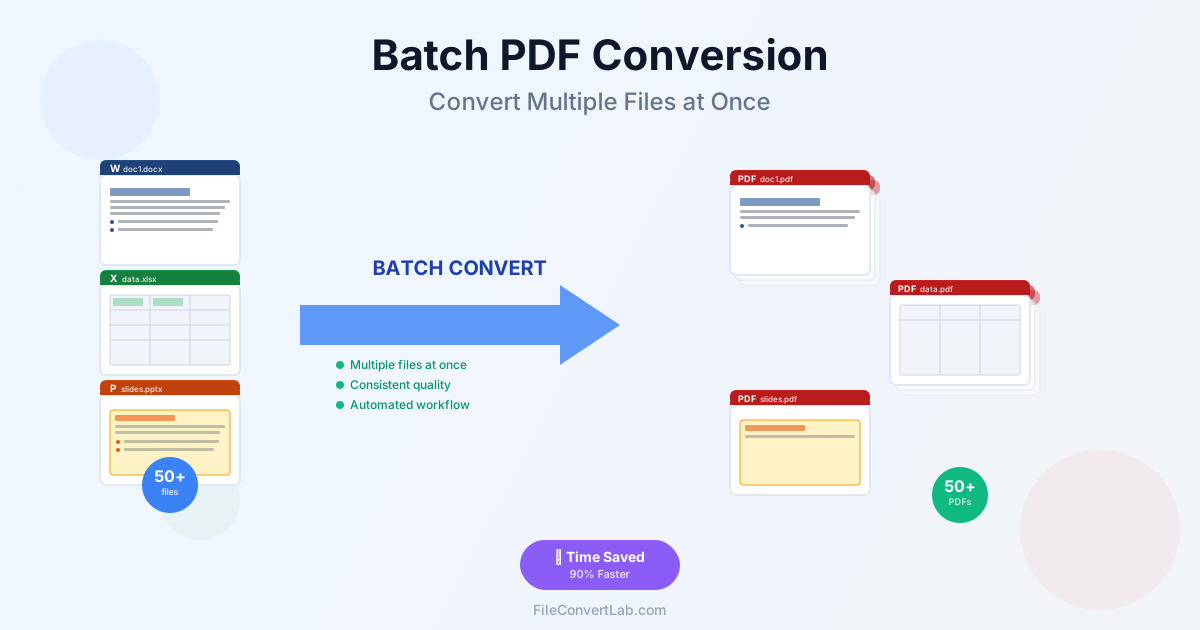
Batch PDF conversion (also called bulk conversion or multiple file conversion) processes many files in a single operation rather than converting them individually. Instead of uploading, converting, and downloading 50 PDFs one at a time, you process all 50 together with consistent settings, automatic naming, and parallel processing.
Benefits of batch conversion
- Time savings — convert 100 files in the time it takes to convert 5 manually
- Consistency — same quality settings, formats, and naming conventions across all files
- Automation — set rules once, apply to all files without repeated manual input
- Reduced errors — eliminate mistakes from repetitive clicking and file management
- Scalability — handle 10 or 1000 files with the same workflow
- Quality control — validate outputs systematically rather than spot-checking individual files
Common batch conversion scenarios
- Office document migration — convert Word, Excel, PowerPoint archives to PDF for long-term storage
- Scanned document processing — OCR and convert hundreds of scanned images to searchable PDFs
- Client deliverables — convert project reports, invoices, or contracts from source formats to PDF
- Archive digitization — convert legacy file formats to modern PDFs for accessibility
- Print preparation — convert design files to print-ready PDFs with consistent settings
- Format standardization — unify mixed-format document collections into a single format
Planning your batch conversion workflow
Successful batch conversion requires upfront planning. Jumping straight into converting 200 files without a workflow leads to misnamed files, inconsistent quality, and wasted time redoing work.
Pre-conversion checklist
- Inventory your files — count files, note formats (DOC, DOCX, XLS, PPT), check file sizes
- Define output requirements — target format (PDF), quality settings (screen/print), naming pattern
- Organize source files — group by type, department, project, or date in folders
- Establish naming conventions — decide on prefixes, suffixes, date formats, sequential numbering
- Choose conversion tools — online converters for small batches, desktop software for large batches
- Set quality parameters — resolution (150/300 DPI), compression level, color mode
- Plan validation steps — how will you verify 100% of files converted correctly?
- Backup originals — copy source files before conversion in case you need to retry
Choosing the right conversion method
Online batch converters (10-50 files):
- Upload multiple files in one session
- Each file processes individually but downloads as a batch
- Best for occasional batch operations with modest file counts
- Limited by upload size and concurrent processing limits
- Examples: Word to PDF, Excel to PDF, PowerPoint to PDF
Desktop batch converters (50-1000+ files):
- Process files locally without upload/download overhead
- Support advanced automation: watch folders, scheduled jobs, scripting
- Handle large files (100+ MB each) without connection issues
- Parallel processing for faster throughput
- Best for regular bulk operations or enterprise workflows
Command-line tools (1000+ files, automation):
- Fully scriptable for integration with other systems
- Maximum control over settings and workflows
- Ideal for developers, IT teams, and automated pipelines
- Requires technical knowledge (bash, PowerShell, Python)
- Examples: LibreOffice command-line, Ghostscript, pdftk
File organization strategies for batch conversion
Organizing files before conversion prevents chaos afterward. Proper structure makes validation, distribution, and archiving far easier.
Folder structure best practices
Option 1: Input/Output separation
/project-name/
/input/
document1.docx
document2.docx
document3.xlsx
/output/
document1.pdf
document2.pdf
document3.pdf- Pros: Clear separation, originals preserved, easy to compare before/after
- Cons: Duplicate folder structure if organizing by subfolder
Option 2: Date-based organization
/archive/
/2025-12-03/
/input/
[original files]
/output/
[converted PDFs]
/2025-12-04/
...- Pros: Chronological tracking, easy to audit past conversions
- Cons: Harder to find specific files without date context
Option 3: Project-based organization
/projects/
/client-a/
/contracts/
contract1.pdf
contract2.pdf
/invoices/
invoice-jan.pdf
invoice-feb.pdf
/client-b/
...- Pros: Logical grouping, easy to navigate by context
- Cons: Requires manual sorting before conversion
File naming conventions
Consistent naming prevents confusion and enables automation. Use patterns that sort logically and include essential metadata.
Recommended naming patterns:
- Sequential numbering:
doc_001.pdf,doc_002.pdf, ... (simple, sortable, no duplicates) - Date prefix:
2025-12-03_report.pdf(chronological sorting, easy to find by date) - Project code:
PROJ123_document.pdf(searchable, grouped by project) - Descriptor + ID:
invoice_A1234.pdf(human-readable, unique identifier) - Avoid: spaces (use underscores or hyphens), special characters (@, #, &), long names (>50 characters)
Batch conversion workflows by file type
Converting multiple Word documents to PDF
Scenario: You have 50 Word documents (DOCX, DOC) that need PDF conversion for client delivery.
- Organize all DOCX/DOC files in a single folder:
/input/word-files/ - Open Word to PDF converter or use desktop batch software
- Upload all files (or point the software to the input folder)
- Set quality: 150 DPI for screen, 300 DPI for print
- Choose output folder:
/output/word-pdfs/ - Start conversion — files process in parallel
- Validate: open 5-10 random PDFs to verify formatting, fonts, images
- Check file sizes — if too large, use Compress PDF in batch mode
Pro tip: Before batch conversion, test with 3-5 sample files to verify settings produce expected results.
Converting Excel spreadsheets to PDF
Scenario: Monthly reports stored as Excel files (XLSX) need PDF conversion for archival.
- Prepare spreadsheets: ensure print areas are set (Page Layout → Print Area → Set Print Area)
- Organize files:
/reports/2025/excel/ - Use Excel to PDF converter or desktop batch tool
- Set page orientation: portrait for narrow sheets, landscape for wide tables
- Configure scaling: "Fit to 1 page wide" for tables that should stay on one page
- Output folder:
/reports/2025/pdf/ - Validate: check that all columns/rows are visible, no cutoff data
Common issue: Excel sheets with multiple tabs. Most converters export only the active sheet. Solution: export each tab individually or use specialized multi-sheet converters.
Converting PowerPoint presentations to PDF
Scenario: Training presentations need PDF conversion for handout distribution.
- Decide on layout: 1 slide per page (full size) or 2-6 slides per page (handout mode)
- Organize presentations:
/training/slides/ - Use PowerPoint to PDF converter
- Set quality: 150 DPI for screen handouts, 300 DPI if printing
- Choose handout layout if desired (Notes Pages, 3 slides per page, etc.)
- Output folder:
/training/handouts/ - Validate: verify animations don't break layout, all images visible, text readable
Converting scanned images to searchable PDF
Scenario: You scanned 200 pages as JPG/PNG and need searchable PDFs with OCR.
- Group images by document (e.g., pages 1-5 = document1, pages 6-10 = document2)
- Use JPEG to PDF (OCR) or PNG to PDF (OCR)
- Select language for OCR (English, Spanish, etc.)
- Choose quality: 300 DPI for archival, 150 DPI for screen viewing
- Process in batches of 10-20 pages (OCR is slower than simple conversion)
- Merge multi-page documents using PDF merge tools
- Validate: test search functionality in random PDFs, verify text accuracy
Automation techniques for large-scale batch conversion
For regular bulk operations (weekly reports, daily scans, ongoing projects), automation eliminates manual intervention entirely.
Watch folder automation
Watch folders (hot folders) automatically process files dropped into a monitored directory.
- Set up watch folder:
/watch-folder/input/ - Configure converter to monitor this folder every 5 minutes
- Define conversion settings: format, quality, output folder
- Drop files into watch folder → automatic conversion → outputs appear in
/watch-folder/output/ - Move processed files to archive folder after conversion
Use cases: Scan-to-PDF workflows, daily report generation, automated client deliverables
Scheduled batch jobs
Schedule conversions to run during off-hours (nights, weekends) when system resources are available.
- Windows Task Scheduler or macOS Automator to trigger batch scripts
- Cron jobs on Linux servers for unattended processing
- Cloud-based task schedulers (AWS Lambda, Azure Functions) for serverless automation
Scripting batch conversions
Example: PowerShell script for batch Word to PDF (Windows)
# Convert all .docx files in C:\input to PDF in C:\output
$word = New-Object -ComObject Word.Application
$files = Get-ChildItem "C:\input\*.docx"
foreach ($file in $files) {
$doc = $word.Documents.Open($file.FullName)
$pdfPath = "C:\output\" + $file.BaseName + ".pdf"
$doc.SaveAs($pdfPath, 17)
$doc.Close()
}
$word.Quit()Benefits: Fully customizable, integrates with existing IT systems, handles thousands of files
Quality control and validation for batch conversions
Converting 100 files doesn't mean all 100 converted correctly. Validation catches errors before you distribute outputs.
Validation checklist
- File count — verify output count matches input count (100 input files = 100 output PDFs)
- File sizes — spot-check sizes (too small = missing content, too large = uncompressed images)
- Random sampling — open 5-10% of files at random, verify formatting, fonts, images
- Error logs — review converter logs for failed files or warnings
- Naming consistency — ensure all files follow naming convention
- Metadata check — verify author, title, date metadata if relevant
- Search test — for OCR conversions, test search functionality in sample files
Common batch conversion errors and fixes
Error: Some files failed to convert
- Cause: Corrupted source files, unsupported formats, password-protected files
- Fix: Check error logs, test failed files individually, remove passwords before conversion
Error: PDFs have inconsistent quality
- Cause: Mixed settings across batch, source files with different resolutions
- Fix: Standardize conversion settings, pre-process source files to uniform quality
Error: File names are duplicated or truncated
- Cause: Naming conflicts, filename length limits (255 characters)
- Fix: Use sequential numbering, shorten names before conversion, check for duplicates
Best practices for batch PDF conversion
- Start small — test with 5-10 files before processing hundreds
- Standardize inputs — consistent source formats, resolutions, naming reduce errors
- Backup originals — never overwrite source files; keep copies until validation completes
- Use staging folders — input → processing → output → archive workflow prevents chaos
- Document your workflow — write down steps, settings, folder structure for repeatability
- Validate thoroughly — spot-check 10% of outputs minimum, especially for critical files
- Optimize for size — compress images before conversion or use batch PDF compression after
- Parallelize when possible — process multiple files simultaneously for faster throughput
- Monitor resource usage — batch conversions consume CPU/memory; schedule during low-usage periods
- Archive strategically — keep originals for 30-90 days, move old batches to cold storage
Tools for different batch conversion needs
Web-based batch converters (10-50 files)
- Word to PDF — batch convert DOCX/DOC files
- Excel to PDF — batch convert spreadsheets
- PowerPoint to PDF — batch convert presentations
- JPEG to PDF (OCR) — batch OCR for scanned images
- Compress PDF — batch reduce PDF file sizes
Desktop batch converters (50-1000+ files)
- Adobe Acrobat Pro — enterprise-grade batch processing, automation workflows
- PDFtk — command-line tool for merging, splitting, batch operations
- LibreOffice (headless) — command-line batch conversion for Office files
- Ghostscript — advanced PDF manipulation, compression, format conversion
Related conversion workflows
- PDF to Word — batch extract text from PDFs for editing
- PDF to Excel — batch convert PDF tables to spreadsheets
- PDF to JPEG — batch extract images from PDFs
- PDF OCR — batch add searchable text layer to scanned PDFs
Frequently Asked Questions About Batch PDF Conversion
How many PDF files can I convert at once in a batch?
Online converters typically handle 10-50 files per batch session, limited by upload size and processing capacity. Desktop batch software processes 50-1000+ files, constrained only by system resources. Command-line tools can handle unlimited files with proper scripting. Start with small test batches (5-10 files) to verify settings before processing hundreds.
What's the fastest way to batch convert Word documents to PDF?
For 10-50 files, use online Word to PDF batch converters — upload all files together, download as a ZIP. For 50+ files, desktop software (Adobe Acrobat, LibreOffice command-line) processes faster with parallel operations. Automation via watch folders or scheduled scripts eliminates manual steps entirely for recurring batch jobs.
Can I convert different file formats (Word, Excel, PowerPoint) in one batch?
Most converters process one format type per batch (all Word OR all Excel). To convert mixed formats, either sort files by type first and run separate batches, or use universal desktop converters that auto-detect formats. Sorting by format ensures consistent quality settings (Word needs different settings than Excel).
How do I maintain consistent file names during batch conversion?
Use naming patterns before conversion: sequential numbering (doc_001.pdf), date prefixes (2025-12-03_report.pdf), or project codes (PROJ123_file.pdf). Most batch converters preserve original filenames; configure output name templates for automatic prefixes/suffixes. Avoid spaces, use underscores or hyphens, keep names under 50 characters.
What quality settings should I use for batch PDF conversion?
Use 300 DPI for professional printing (brochures, reports), 150 DPI for general business documents (contracts, invoices), and 96 DPI for screen-only viewing (email attachments). Apply the same settings across the entire batch for consistency. Test with 3-5 sample files first to verify quality before processing hundreds.
How do I handle failed files in a large batch conversion?
Check converter error logs to identify failed files (common causes: corruption, password protection, unsupported formats). Move failed files to a separate folder, troubleshoot individually (remove passwords, repair corruption, convert manually if needed), then retry. Always keep source file backups until validation confirms 100% success.
Can I automate batch PDF conversion to run without manual intervention?
Yes, use watch folders (hot folders) that auto-process files dropped into monitored directories. Schedule batch jobs with Windows Task Scheduler, macOS Automator, or Linux cron for overnight processing. Script conversions with PowerShell, Python, or bash for full integration with IT systems. Ideal for recurring workflows (daily reports, scan-to-PDF).
How do I organize hundreds of converted PDFs after batch processing?
Use input/output folder separation to preserve originals. Implement date-based folders (2025-12-03/output/) for chronological tracking, or project-based folders (client-a/invoices/) for logical grouping. Archive processed files after 30-90 days to cold storage. Document your folder structure and naming conventions for team consistency.
What's the best way to validate 100+ converted PDFs quickly?
Verify file count matches (100 input = 100 output). Spot-check 5-10% at random: open files, verify formatting, fonts, images. Check file sizes for anomalies (too small = missing content, too large = uncompressed). Review converter logs for errors. For OCR batches, test search functionality in random PDFs.
How do I reduce file size for batch-converted PDFs?
Compress images in source files before conversion (Word: Picture Format → Compress Pictures, choose 150 DPI). After batch conversion, use Compress PDF in batch mode to further reduce sizes. Remove metadata, embed font subsets only, and optimize for screen viewing (96 DPI) instead of print (300 DPI) if file size is critical.
Conclusion
Batch PDF conversion transforms time-consuming manual workflows into efficient automated processes. Whether you're converting 10 Word documents or 1000 scanned images, proper planning — file organization, naming conventions, quality settings, and validation — ensures consistent, error-free results. Start with small test batches, document your workflow, and scale gradually. For immediate batch conversion needs, explore Word to PDF, Excel to PDF, or JPEG to PDF (OCR) for streamlined multiple file processing.