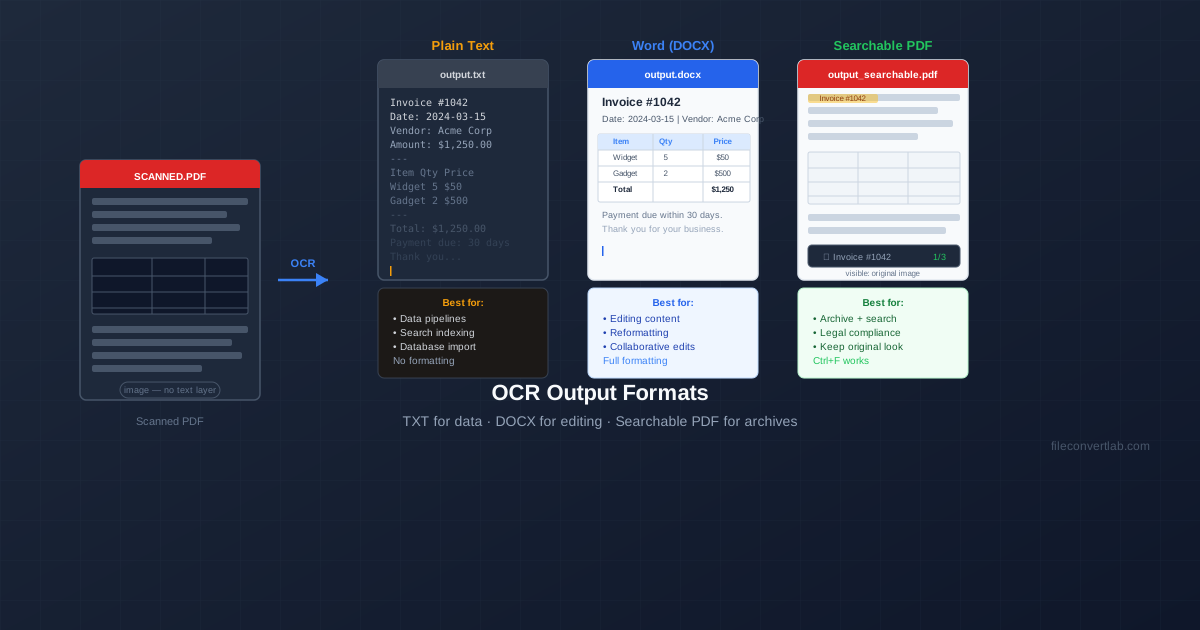
After OCR recognizes the text in your scanned document, you choose what to do with it. Three main output formats exist — plain text, Word (DOCX), and searchable PDF — and each is the right answer for a different situation. Picking the wrong one means extra work later.
This guide explains what each format actually produces, when it's the right choice, and when it isn't.
Quick Decision Guide
| I need to… | Use this format |
|---|---|
| Edit and reformat the document content | DOCX |
| Search through the document, keep original look | Searchable PDF |
| Archive a legal or official document | Searchable PDF |
| Feed text into a database or AI pipeline | Plain TXT |
| Index content for full-text search | Plain TXT |
| Collaborate on the document with others | DOCX |
Plain Text (TXT)
Plain text output is the raw result of OCR: every recognized character, in reading order, with line breaks but no visual formatting. No bold, no tables, no font sizes — just characters.
What TXT output looks like
An invoice scanned and converted to TXT becomes something like:
Invoice #1042 Date: 2024-03-15 Vendor: Acme Corp

Item        Qty    Price Widget       5     $50.00 Gadget       2    $500.00 Total               $1,250.00

Payment due within 30 days.
Tables become tab-separated or space-aligned text. Formatting is gone. The content is all there, but it's flat.
When to use TXT
- Data extraction pipelines: Feeding OCR output into a script that parses invoice amounts, dates, or customer names. TXT is the simplest format to parse programmatically.
- Search indexing: Building a full-text search index over a document archive. Plain text is what search engines want.
- AI and NLP input: Language models and NLP tools expect plain text. DOCX XML and PDF binary formats add overhead.
- Smallest file size: A 10-page document as TXT might be 20 KB; as DOCX it might be 200 KB; as searchable PDF it might be 2 MB (because the original scan image is preserved).
When TXT is not the right choice
- You need to edit and send back a document that looks professional
- Tables and formatting matter for the reader
- You need to preserve the original document appearance for legal or compliance purposes To get TXT output, use our image to text converter which outputs recognized text directly.
Word Document (DOCX)
DOCX output is OCR text reconstructed with formatting. The OCR engine not only recognizes characters but also attempts to infer structure: this block of text is a heading, these rows belong to a table, this text is bold. The result is an editable Word document that approximates the layout of the original.
What DOCX output includes
- Editable text paragraphs — select, cut, copy, reformat
- Tables — recognized rows and columns become actual Word table objects
- Bold and italic — usually preserved when clearly distinguishable in the scan
- Headings — larger text at the start of sections is often recognized as headings
- Lists — numbered and bulleted lists usually convert correctly
What DOCX output does NOT include
- Logos and decorative images (OCR extracts text, not graphics)
- Exact fonts (substituted with standard fonts like Calibri or Times New Roman)
- Pixel-perfect layout (positions are approximate; complex multi-column layouts often need manual cleanup)
- Handwriting (unless specifically supported by the OCR engine)
When to use DOCX
- You need to edit the content — update names, numbers, dates, or text
- You need to collaborate on the document with others in Word or Google Docs
- You need to reformat or restructure the content
- The final output will be sent or published as a Word document Convert scanned PDFs to editable DOCX with our OCR PDF to Word converter . For single-page images, use the image to Word converter .
Searchable PDF
Searchable PDF is the most nuanced of the three formats and the one people most often underestimate. The output file looks exactly like your original scanned PDF — same page images, same layout, same visual appearance. But it has an invisible text layer added by OCR that sits underneath the images.
This invisible layer is what enables Ctrl+F search, text selection, copy-paste, and screen reader access. The visual document is untouched; only the underlying searchability changes.
Why searchable PDF is the standard for archives
For legal documents, official records, signed contracts, and compliance documents, searchable PDF is almost always the right format. Here's why:
- Original visual integrity preserved. Signature positions, stamps, letterheads, and layout are exactly as scanned. Converting to DOCX changes all of this — the resulting document no longer looks like the original.
- Ctrl+F works. You can search across hundreds of archived documents for a case number, name, or specific phrase.
- Text is selectable and copyable. Need to copy a contract clause or an address? Select it directly from the PDF.
- Smaller than DOCX for image-heavy documents. Because the image layer is reused from the original scan rather than reconstructed, a searchable PDF of an image-heavy document is often similar in size to the original scan.
When to use searchable PDF
- Archiving official documents (contracts, court records, medical files)
- Building a searchable document management system
- When the original visual appearance must be preserved exactly
- When documents will be stored long-term and occasionally referenced Convert scanned PDFs to searchable PDF with our OCR to searchable PDF tool .
Format Comparison at a Glance
| Feature | TXT | DOCX | Searchable PDF |
|---|---|---|---|
| Editable | Raw text only | Yes — full editing | No (text layer read-only) |
| Formatting preserved | None | Approximate | Original image exact |
| Searchable | Yes | Yes | Yes |
| File size | Smallest | Medium | Large (contains scan images) |
| Images from original | Dropped | Usually dropped | Preserved exactly |
| Good for AI/scripts | Best | Needs parsing | Needs extraction |
Can I Convert Between Formats After OCR?
Yes, though some fidelity is lost in conversion. Practical scenarios:
- DOCX → PDF: Use Word's Export to PDF or our Word to PDF converter . Produces a text-based PDF (not a scanned image), fully searchable.
- TXT → DOCX: Paste the text into a Word document and save. No formatting, but the text is now in DOCX format.
- Searchable PDF → text: Select all text in a PDF reader (Ctrl+A) and copy. Pastes as plain text. Or use our PDF to Word converter to extract formatted text from a searchable PDF.
That said, the cleanest result always comes from choosing the right output format at OCR time, rather than converting after the fact. If you know you'll need to edit the document, choose DOCX from the start. If you need an archive copy, choose searchable PDF.