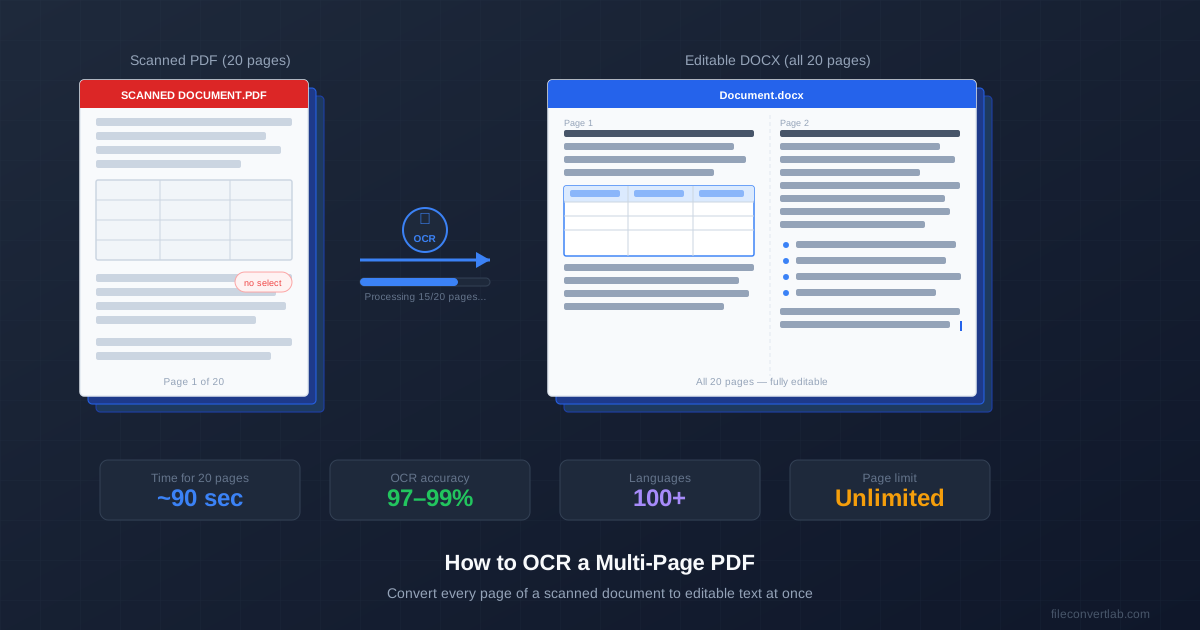
To OCR a multi-page PDF, upload the whole file once — every page is recognized in a single job and comes back as one document, in the original page order. You don't need to split it first, as long as it fits the limits: up to 20 pages and 100 MB as a guest (100 pages on a free account, 500 pages and 500 MB on Premium).
Big scans still raise practical questions: what to do when a file is over the limit, how long you'll wait, and how to check 100 pages of output without reading every line. This guide covers all of it.
How to OCR a Multi-Page PDF: Step by Step
- Check it's really a scan. Open the PDF and try to select a word. If you can, the text is already there — use PDF to Word instead; OCR would redraw every page and read it again.
- Check the page count and size against the limits below. If it's over, split it first (next sections).
- Upload the PDF to OCR PDF to Word. All pages go in one upload; there's no need to feed pages one by one.
- Pick the document language or leave it on Automatic. The tool offers 29 languages. Automatic recognizes the script on each page — Latin, Cyrillic, Greek, Arabic, Hindi, Thai, Chinese, Japanese or Korean; choosing the language yourself, when you know it, is the safe option and the one to use for Traditional Chinese.
- Wait for the job. After the upload the page shows an estimated time; it grows with the page count. The download appears in the same tab when the job is done, so keep it open.
- Download and spot-check the beginning, middle and end of the result.
Want the pages to keep their original look instead of becoming a Word file? Use OCR PDF to searchable PDF: the scan stays as it is and an invisible text layer makes Ctrl+F and copying work. For plain text, there's OCR PDF to text.
OCR a Large PDF: Page and Size Limits
| Plan | Pages per PDF | File size |
|---|---|---|
| Guest (no account) | 20 | 100 MB |
| Free account | 100 | 100 MB |
| Premium | 500 | 500 MB |
| Premium Plus | 10,000 | 1 GB |
Each OCR job also uses part of your daily credits, so a stack of large PDFs may take more than one day on a guest or free plan. See pricing for the current credits.
What decides the file size of a scan is mostly resolution and colour: a colour scan at 600 DPI is far heavier than a grayscale one at 300 DPI. If a PDF is over 100 MB, re-scanning in grayscale or at 300 DPI is often enough to get under the limit.
When to Split a PDF Before OCR
Split when the PDF is over your page or size limit — and consider it for very long documents even when it isn't:
- A failed job costs less. If one upload of 100 pages fails, you start over; with 25-page parts, you redo one part.
- Problem pages are easier to find. A torn, very dark or corrupt page is quicker to locate in 50 pages than in 200.
To split by page range, use the PDF split tool: enter ranges such as 1-50, 51-100 and download the parts as a ZIP. After OCR:
- Searchable PDF output: join the parts back into one file with Merge PDF
- Word output: open the first DOCX and paste the others in at the end, in order
Pages in the Wrong Order or Upside Down
The output follows the page order of the input PDF exactly. If the scanner fed pages out of order, fix that before OCR in Rotate and Reorder PDF. Sideways and upside-down pages you can leave as they are: each page is turned the right way up before it's read, and a searchable PDF opens with those pages upright.
Also skim the scan for pages that are much darker, blurred or cut off than the rest. With a phone-photographed document, lighting often changes from page to page; re-shoot the worst pages rather than hoping OCR copes.
What You Get Back from a Multi-Page OCR
- DOCX: one Word document; each original page starts a new page with the same page size, so page 37 of the scan is still page 37 in Word. You get the text lines and simple tables — not the images, headings or list formatting
- Searchable PDF: the original pages unchanged, with invisible text on top
- Plain text: everything in reading order, ready to paste anywhere
For a deeper comparison of the three, see OCR output formats: TXT vs DOCX vs searchable PDF.
PDFs with Scanned and Typed Pages Mixed
OCR treats every page the same way: it renders each page as an image and reads it — including pages that already had real text. Those typed pages usually come back cleanly, but the original text layer isn't reused.
If only a few pages are scans, it can be better to split them off: convert the text pages with PDF to Word, OCR only the scanned ones, and combine the results.
Multi-Language Multi-Page PDFs
Leave the language on Automatic: it is detected page by page, so a PDF with an English cover and Russian pages, or a French header page and Arabic pages, is read correctly in one job, without splitting. A language you choose in the menu applies to every page, so pick one when the whole document is in it — an English report with a French summary is fine with either Latin-script choice. On a single page that mixes scripts, the page is read with one model: choose that page's main language, or keep the other-script part on its own page. For more on scripts, see OCR for non-Latin scripts.
After OCR: Checking a Large Document Efficiently
Proofreading 100 OCR'd pages line by line isn't realistic. A faster routine:
- Spot-check pages across the document. Put the scan and the output side by side and check a handful of pages — for 100 pages, try 1, 10, 25, 50, 75 and 100. Clean samples usually mean a clean document.
- Search for typical OCR confusions: "rn" read as "m", "l" as "1", "O" as "0". Find & Replace catches repeated ones fast.
- Run the spell-checker. OCR mistakes tend to create non-words, and Word underlines them.
- Check numbers, names and tables closely. That's where a wrong character costs most; prose can be skimmed.
Summary
A multi-page scan doesn't need special handling: upload the whole PDF, pick the language, and get one document back in the same page order — up to 20 pages as a guest and 100 with a free account. Split only when the file is over your limit or when a very long job would be painful to repeat. Start with OCR PDF to Word, or OCR PDF to searchable PDF if the original look matters.