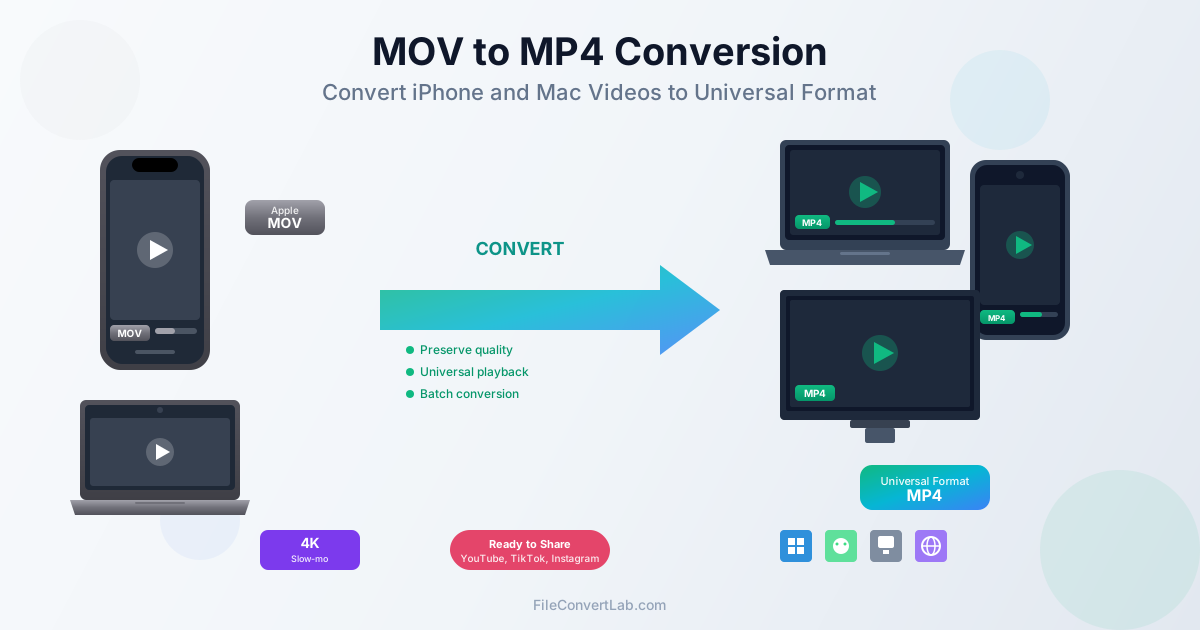
If you own an iPhone or Mac, you have likely encountered MOV files. This is Apple's native video format.
It works perfectly within the Apple ecosystem, but sharing videos with Windows users or playing them on Android devices can be problematic. Converting MOV to MP4 solves these compatibility issues while preserving video quality. This guide covers everything you need to know about MOV to MP4 conversion. Topics include understanding the formats, handling 4K footage, and batch processing vacation videos.
What is MOV Format?
MOV is a multimedia container format developed by Apple as part of their QuickTime framework. Introduced in 1991, MOV was designed to store video, audio, and other media types in a single file. The format supports multiple tracks, each containing different types of data such as video, audio, text (subtitles), and timecode.
MOV files are technically very similar to MP4 files. Both are based on the ISO base media file format (MPEG-4 Part 12), and they share many structural characteristics. The key difference is that MOV was developed by Apple and includes some proprietary extensions, while MP4 became the international standard for video distribution.
Key Characteristics of MOV
- Container format — MOV holds video, audio, and metadata but doesn't define the codec used
- Apple ecosystem — native support on macOS, iOS, and in Apple applications
- High quality — commonly used for editing and production workflows
- Flexible codecs — can contain H.264, HEVC (H.265), ProRes, and other video codecs
- Metadata rich — stores extensive file information including creation date, location, and camera settings
Why iPhones Record in MOV (or HEVC)
When you record video on an iPhone, the device saves files in MOV format by default. However, the actual video codec inside the MOV container depends on your iPhone settings and the recording mode you choose.
Standard Recording (H.264)
Older iPhones and the "Most Compatible" setting use H.264 video codec inside the MOV container. This produces larger files but ensures maximum compatibility when sharing directly with non-Apple devices.
High Efficiency (HEVC/H.265)
Modern iPhones default to HEVC (High Efficiency Video Coding), which compresses video considerably better than H.264 while maintaining the same visual quality. This means more videos fit on your phone. However, HEVC requires more processing power to play back and isn't supported by all devices and software.
ProRes on iPhone Pro Models
iPhone Pro models offer ProRes recording for professional video production. ProRes files are much larger (minutes of footage can be several gigabytes) but provide better quality for color grading and professional editing workflows. These are also stored in MOV containers.
Slow-Motion and 4K
Special recording modes like slow-motion (120fps or 240fps) and 4K video create larger MOV files with higher bitrates. Slow-motion videos include timing metadata that tells playback software which sections to display at reduced speed.
Compatibility Issues with Windows and Android
While MOV files play perfectly on Apple devices, users on other platforms often encounter problems:
Windows Playback Issues
- Windows Media Player — doesn't support MOV natively; requires codec installation
- HEVC codec requirement — Windows 10/11 requires purchasing the HEVC Video Extensions from Microsoft Store to play HEVC content
- Older Windows versions — may not play MOV files at all without third-party software
- Metadata handling — Windows may not read iPhone video metadata correctly
Android Device Problems
- Native app limitations — some Android gallery apps don't support MOV playback
- Messaging apps — sending MOV files via messaging may result in failed transfers or reduced quality
- HEVC support varies — not all Android devices have hardware HEVC decoding
Smart TV and Streaming Device Issues
- Format support — many smart TVs support MP4 but not MOV
- USB playback — playing MOV files from USB drives often fails on non-Apple TVs
- Streaming boxes — Roku, Fire TV, and Chromecast prefer MP4 format
Social Media Platform Requirements
- YouTube — accepts MOV but may re-encode more aggressively than with MP4
- Instagram — MOV works but MP4 uploads tend to process faster
- TikTok — prefers MP4; MOV files may experience quality loss during processing
- LinkedIn and Twitter — MP4 is the recommended format for video posts
Step-by-Step: Converting MOV to MP4
Converting MOV to MP4 is straightforward with the right tool. Here's how to do it using our online MOV to MP4 converter:
- Open the MOV to MP4 converter
- Click "Select File" or drag your MOV file onto the upload area
- Wait for the upload and conversion to complete
- Download your MP4 file when ready
- Test the converted file on your target device or platform
Tips for Best Results
- Check file size before uploading — large 4K or ProRes files may take longer to process
- Stable internet connection — especially important for large files to avoid upload interruptions
- Keep the original — always retain your original MOV file until you verify the conversion is satisfactory
- Test on target device — play the converted MP4 on the device you intend to use
Quality Preservation During Conversion
One of the most common concerns about video conversion is quality loss. Understanding how codecs and transcoding work helps set realistic expectations.
Container vs Codec
MOV and MP4 are both container formats — they package video and audio streams but don't define how the video is compressed. The actual video codec (H.264, HEVC, etc.) determines the visual quality. If your MOV file uses H.264 video, converting to MP4 with H.264 may require no re-encoding at all. You are simply changing the container. This is called "remuxing" and produces identical quality.
When Re-encoding is Necessary
Re-encoding happens when the source codec needs to be changed or when compatibility issues exist:
- HEVC to H.264 — if your target device doesn't support HEVC, re-encoding to H.264 is required
- ProRes to H.264 — ProRes must be re-encoded for consumer device playback
- Bitrate adjustment — reducing file size requires re-encoding at lower bitrate
- Resolution change — converting 4K to 1080p requires re-encoding
Minimizing Quality Loss
- Use appropriate bitrate — higher bitrate means better quality but larger files
- Match resolution — don't upscale lower resolution videos
- Use quality converters — professional tools preserve more detail than basic converters
- Avoid multiple conversions — each re-encoding introduces some quality loss
Understanding Bitrate
Bitrate measures how much data is used per second of video. Higher bitrate means more detail is preserved:
- 1080p video — 8-12 Mbps is typical for high quality
- 4K video — 20-50 Mbps maintains excellent quality
- Social media — platforms often compress to 5-8 Mbps regardless of upload quality
Batch Conversion for Vacation Videos
After a vacation, you might have dozens or hundreds of MOV videos from your iPhone. Converting them one by one would take hours. Batch conversion processes multiple files at once, saving significant time.
Organizing Files Before Conversion
- Create folders by day or location — organize videos before converting for easier management afterward
- Check file sizes — identify which videos are 4K or long recordings that may need special handling
- Remove duplicates — delete similar takes or accidental recordings before batch processing
- Note slow-motion clips — these need proper handling to preserve timing
Batch Conversion Process
- Gather all MOV files you want to convert into a single folder
- Use a converter that supports multiple file upload
- Upload all files or select the folder
- Wait for batch processing to complete
- Download converted files individually or as a package
Maintaining Organization
Converted files should maintain the same naming convention or add a suffix like "_converted" to distinguish them from originals. Keep your original MOV files in a backup location until you confirm all conversions are successful.
Handling 4K and Slow-Motion Videos
4K and slow-motion videos require special consideration due to their size and unique characteristics.
4K Video Considerations
- Large file sizes — a minute of 4K at 60fps can be 400-700 MB in HEVC
- Upload time — uploading for conversion takes longer; ensure stable connection
- Processing time — 4K conversion requires more computational resources
- Storage planning — ensure you have space for both original and converted files
Slow-Motion Video Handling
iPhone slow-motion videos contain special metadata that tells players which sections to display at reduced speed. When converting:
- Metadata preservation — good converters preserve slow-motion timing data
- Frame rate — slow-mo is recorded at 120fps or 240fps, then displayed at 30fps
- Alternative approach — export from iPhone Photos app which "bakes in" the slow-motion effect
- File size — slow-mo files are larger due to higher frame count
Cinematic Mode and Other Special Formats
Newer iPhones offer Cinematic mode with depth data for adjustable focus. When converting these videos:
- Depth data may be lost — MP4 may not preserve adjustable depth focus
- Bake in effects — set your desired focus in Photos before converting
- Consider use case — if you might want to adjust focus later, keep the original MOV
Sharing on Social Media Platforms
Social media platforms have specific requirements for video uploads. Converting to MP4 often improves upload reliability and processing speed.
Platform-Specific Recommendations
YouTube:
- MP4 with H.264 codec is the recommended format
- AAC audio for best compatibility
- Maximum 256GB file size or 12 hours
- 4K and 60fps are supported Instagram:
- MP4 preferred for feed posts and Reels
- Maximum 60 seconds for feed posts, 90 seconds for Reels
- 1080x1920 (9:16) resolution for Stories and Reels
- H.264 codec with AAC audio TikTok:
- MP4 or WebM formats accepted
- 9:16 aspect ratio (vertical video) recommended
- Up to 10 minutes for most accounts
- 1080x1920 resolution maximum LinkedIn:
- MP4 format required
- Maximum 10 minutes, 5GB file size
- Horizontal, square, or vertical aspect ratios
- H.264 codec recommended
Optimizing Before Upload
- Crop to platform aspect ratio — vertical for Stories/Reels/TikTok, horizontal for YouTube
- Keep it under limits — reduce resolution if file size is too large
- Add captions — many viewers watch without sound; consider adding subtitles
- First frame matters — platforms use the first frame or let you choose a thumbnail
Preserving Video Metadata
MOV files from iPhones contain valuable metadata including recording date, GPS location, camera settings, and more. Preserving this metadata during conversion helps with organization and future reference.
Types of Metadata in iPhone Videos
- Creation date and time — when the video was recorded
- GPS location — where the video was captured (if location services enabled)
- Camera settings — exposure, ISO, focal length, stabilization mode
- Device information — iPhone model, iOS version
- Orientation — portrait or landscape recording orientation
Metadata During Conversion
Not all converters preserve metadata equally:
- Basic metadata — creation date usually transfers to MP4
- GPS data — may or may not be preserved depending on the converter
- EXIF data — camera settings may be lost in some conversions
- Custom metadata — titles, descriptions added in Photos may not transfer
Checking Metadata After Conversion
On Mac, use Quick Look or Get Info to check file metadata. On Windows, right-click and select Properties > Details. Third-party tools like MediaInfo provide more comprehensive metadata viewing.
Alternative Approaches
While online conversion is convenient, there are other approaches depending on your needs.
iPhone Settings: Record in MP4 Directly
You can set your iPhone to record in the most compatible format to avoid conversion entirely:
- Open Settings > Camera
- Select Formats
- Choose "Most Compatible" This records H.264 video in MOV container, which is more compatible but uses more storage space. The format is still MOV technically. However, the H.264 codec inside has broader support.
AirDrop and Mac Photos Export
When you AirDrop videos to a Mac or PC, iOS can automatically convert HEVC to H.264 for better compatibility.
Similarly, exporting from Photos app gives options to convert format during export.
Desktop Video Editors
If you need to edit videos before sharing, video editors like iMovie, DaVinci Resolve, or Adobe Premiere can export directly to MP4. This combines editing and format conversion in one step.
Related Tools and Conversions
- MOV to MP4 — convert Apple MOV videos to universal MP4 format
- MOV Converter Hub — all MOV conversion options
- Video Converter — convert between all video formats
- MOV to WebM — convert for web embedding
- MOV to GIF — create animated GIFs from video clips
- Compress Video — reduce video file size