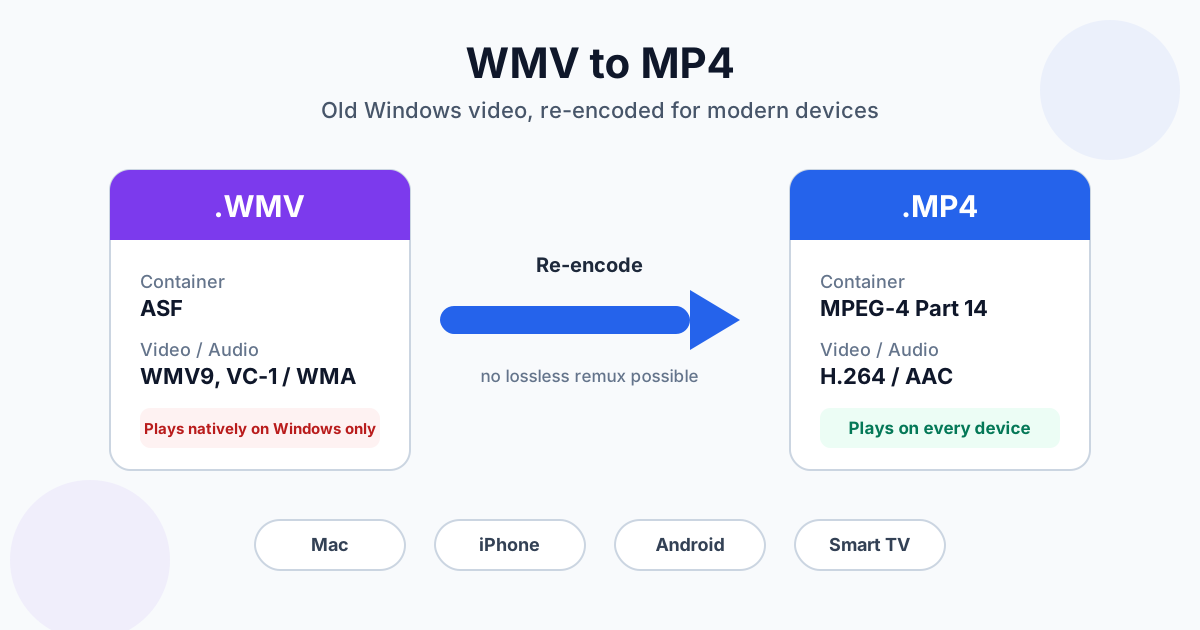
WMV files won't play on a Mac, an iPhone, most Android phones or in a web browser, because Windows Media Video is a Microsoft format that almost nobody outside Windows ever adopted. The fix is to convert WMV to MP4 with H.264 video and AAC audio — the one combination every modern device plays. Renaming the file to .mp4 doesn't work, and neither does a quick "container swap": WMV's video codec isn't allowed inside MP4, so the video has to be re-encoded.
The quickest way: upload the file to the WMV to MP4 converter and download the MP4. The rest of this guide covers the other routes (Mac, VLC, HandBrake), what happens to quality, and the files that can't be converted at all.
How to Convert WMV to MP4 Without Installing Anything
- Open the WMV to MP4 converter in any browser — Safari, Chrome, Edge, Firefox
- Add your .wmv files — drag them in or click to browse. You can drop several at once; they go into a queue and convert one after another
- Wait for each file to finish — conversion runs on our servers over an encrypted (HTTPS) connection, so your laptop doesn't do the heavy lifting
- Download each MP4, or use Download all as ZIP when you've converted a batch
What you get: an MP4 with H.264 video and AAC audio at 128 kbps. Resolution and frame rate stay the same as the source — a 640×480 Windows Movie Maker export comes back as 640×480, not upscaled.
Size limits: 100 MB per file without an account, 500 MB on Premium and 1 GB on Premium Plus. Conversion is free without sign-up, with a daily limit on operations; a video uses a bigger share of it than a document, so without an account that covers about five videos a day. How uploaded files are handled is described in the privacy policy.
Why WMV Won't Play on Mac, iPhone, Android or TV
WMV was built for Windows Media Player in the early 2000s. Microsoft never pushed it onto other platforms, and Apple and Google never added it. Here's where you'll hit a wall:
| Device / app | Plays WMV? | What to do |
|---|---|---|
| Windows 10 / 11 (Media Player, Movies & TV) | Yes | Nothing, unless you're sharing the file |
| Mac — QuickTime Player, iMovie, Photos | No | Convert to MP4, or play it in VLC or IINA |
| iPhone / iPad — Photos, Files | No | Convert to MP4, or use VLC for iOS |
| Android — Google Photos, most gallery apps | Usually no | Convert to MP4, or use VLC for Android |
| Chrome, Safari, Firefox, Edge | No | Convert to MP4 before embedding or sharing a link |
| Smart TVs and consoles | Depends on model | MP4 H.264 is the safe bet for a USB stick |
| YouTube and social apps | Varies by platform | Convert to MP4 first and skip the guesswork |
On a Mac, the old answer was the Flip4Mac plugin for QuickTime. It was discontinued years ago, so today it's either a player that decodes WMV itself (VLC, IINA) or a conversion.
A player app is fine if you just want to watch a file once. If you want the video in your Photos library, in iMovie, on a phone or in a shared folder that other people open, convert it.
How to Convert WMV Files on Mac
QuickTime and iMovie can't open WMV, so they can't export it either. Three options that work:
1. Online, from Safari. Use the WMV to MP4 converter as above. Nothing to install, and it works the same on an old Intel Mac and a new Apple silicon one. The trade-off is upload time: a 500 MB file takes a while on a slow connection.
2. HandBrake (free desktop app). Open the .wmv, choose the Fast 1080p30 preset (it won't upscale smaller sources), make sure Format says MP4, and click Start. HandBrake is the better choice for a folder of large files, because nothing leaves your Mac.
3. VLC. File → Convert / Stream → drop the file → choose the Video – H.264 + MP3 (MP4) profile → Save as File → Save. VLC works, but its converter is fiddly and occasionally produces a file with no sound. If that happens, edit the profile, open the Audio codec tab and pick MPEG 4 Audio (AAC) with a sample rate of 48000 Hz.
The same three routes work on Windows. For a closer walk-through of VLC's and HandBrake's settings, see VLC, FFmpeg and HandBrake compared.
Does Converting WMV to MP4 Lose Quality?
Technically yes — every WMV to MP4 conversion is a re-encode, and each lossy encode throws away a little detail. In practice, at a sensible quality setting you won't see the difference on footage that was recorded in WMV in the first place.
Why there's no lossless shortcut: MKV and AVI files can often go to MP4 in seconds by copying the video stream into a new container. WMV can't. When we tried to copy a WMV stream straight into MP4, the tool stopped with "codec not currently supported in container" — MP4 simply has no slot for Windows Media Video. So the video is always decoded and encoded again as H.264.
What we measured. We generated a 60-second 720p test clip (a moving test pattern over a gradient, with added grain), saved it as WMV at 4 Mbps with WMA audio, then converted it to MP4 with H.264 (CRF 23, medium preset) and 128 kbps AAC on an Intel i9-13900K desktop:
| File | Size |
|---|---|
| WMV source (WMV8 video, 4 Mbps; WMA 192 kbps) | 32.1 MB |
| MP4 result (H.264 CRF 23; AAC 128 kbps) | 9.1 MB |
The conversion took 3.6 seconds. The MP4 came out about 70% smaller, and it actually scored slightly closer to the lossless original than the WMV did (SSIM 0.939 vs 0.912) — H.264 compresses far more efficiently, and it smoothed over some of the WMV's block artefacts.
Don't take that ratio as a promise, though. A second test clip — a fractal zoom, full of fine detail that never repeats — went the other way: a 35.4 MB WMV became a 76.8 MB MP4, because the H.264 encoder spent bits faithfully preserving the blocky WMV artefacts. Heavily compressed, detailed WMVs can grow. If size matters more than fidelity, run the result through Compress Video afterwards.
Two caveats about the test: the encoder we used can only write WMV8, while most WMV files made after 2003 use WMV9 or VC-1, which are more efficient. And a synthetic clip is not your cousin's wedding video. The direction of the result holds; the exact percentage won't.
If you're curious why H.264 is the target rather than H.265 or AV1, the H.264 vs H.265 vs AV1 comparison explains the trade-off — short version: H.264 is the one that plays on everything, including ten-year-old TVs.
Batch-Converting Old Windows Movie Maker and Camcorder Files
Most WMV files lying around today came from a handful of places:
- Windows Movie Maker exports — the default save format for years
- Windows Media Encoder screen recordings — training videos, old tutorials
- Early web downloads — clips and trailers from the 2000s
- Windows phones and some webcams — recorded straight to WMV
If you have a whole folder of them:
- Test one file first. Convert a short clip, play it on the device you actually care about (the TV, the iPhone), then do the rest
- Queue them together. The online converter takes up to 20 files at once and hands back a single ZIP. Without an account the daily limit covers about five videos, and files over 100 MB need a Premium account or a desktop tool like HandBrake
- Keep the originals until you've spot-checked the MP4s — conversion creates new files and never touches the WMVs
- Keep the file names. The MP4 gets the same base name, so any "1998 summer holiday" naming survives
Mixed folder with AVI files too? They follow the same logic with a few extra wrinkles (missing audio, old codecs) — see how to convert AVI to MP4.
When WMV Can't Be Converted
DRM-protected WMV. Videos bought or rented from old online stores were often locked with Windows Media DRM. They play only on a PC with a valid licence, and no converter can decode them — ours included. If you still have the store account, re-download the purchase in a current format.
Truncated or damaged files. A WMV that was never fully downloaded can be unreadable. The converter checks every upload for a readable video stream before it starts, and a file without one is rejected with a "corrupted or not a valid video" message instead of failing halfway. If the file won't play in VLC either, the data is most likely gone.
Audio but no picture. Some .wmv files are really audio-only Windows Media files with the wrong extension. With no video stream, there's nothing to put in an MP4. Convert them as audio instead.
WMV vs MP4 at a Glance
WMV is really two things: the Windows Media Video codec family (WMV7, WMV8, WMV9 and VC-1) and the ASF container that holds it, usually with WMA audio. MP4 is a container too, standardised as part of MPEG-4, and it almost always carries H.264 or H.265 video with AAC audio.
| WMV | MP4 | |
|---|---|---|
| Container | ASF (Advanced Systems Format) | MPEG-4 Part 14 |
| Typical video codec | WMV9 / VC-1 | H.264, H.265 |
| Typical audio codec | WMA | AAC |
| Plays natively on | Windows | Windows, Mac, iOS, Android, browsers, TVs |
| Editing apps | Limited outside Windows | Opens in every major editor |
| Remux to the other format | No — needs a re-encode | — |
If the container-versus-codec distinction is new to you, video formats explained has the overview of every common format.
Need something other than MP4? For Final Cut Pro or an Apple-only workflow, convert WMV to MOV. For every other target (MKV, WebM, AVI, GIF), start from the WMV converter hub.
Summary
WMV files don't fail on modern devices because they're broken — they fail because Apple, Google and web browsers never added Microsoft's codec. Converting them to H.264 MP4 is always a re-encode, but at a normal quality setting the loss is invisible and the file usually shrinks. For one file or a folder, use the WMV to MP4 converter; for large batches on a Mac, HandBrake does the same job locally.
Related Tools
- WMV to MP4 converter — H.264 + AAC MP4 that plays on any device
- WMV to MOV — for Final Cut Pro and Apple workflows
- WMV converter hub — every WMV conversion in one place
- Compress Video — shrink the MP4 further for email or chat
- AVI to MP4 converter — the other legacy Windows format