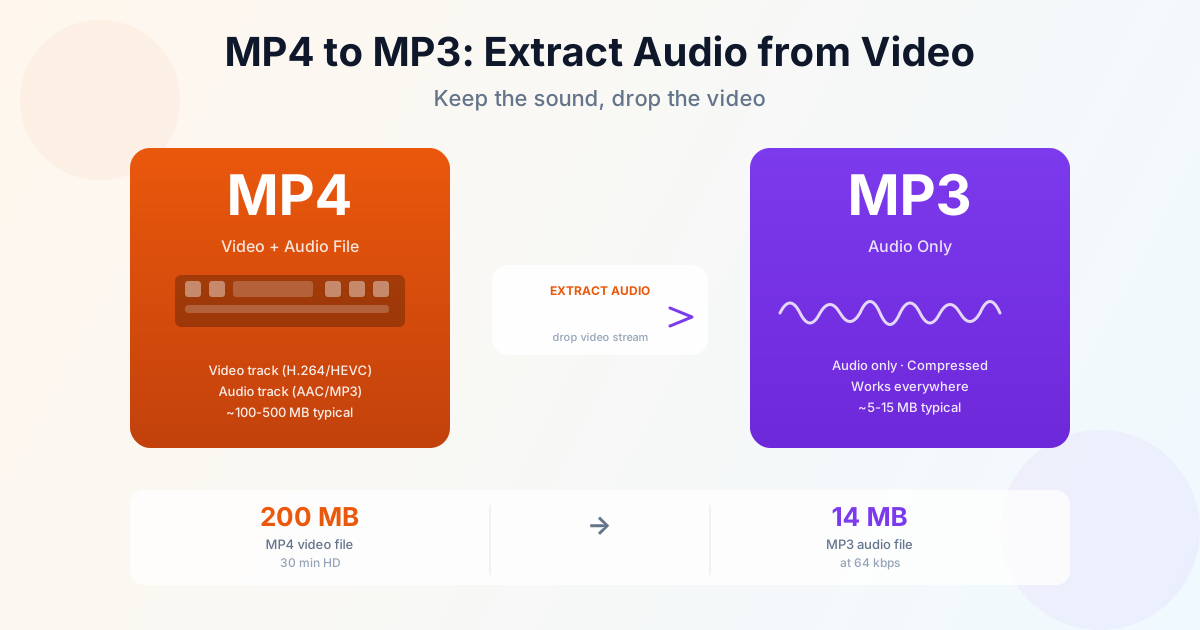
Converting MP4 to MP3 means extracting the audio track from a video and saving it as a standalone audio file. The video stream is discarded. You end up with a file that's typically 10–20× smaller than the original and plays on every phone, car stereo, and media player that exists.
Use our video to MP3 converter to do this instantly — no software to install. The rest of this guide explains bitrate choices, large-file handling, and when to use desktop freeware instead.
What Happens When You Convert MP4 to MP3
An MP4 file is a container. Inside it, there are typically two streams: a video track (H.264 or HEVC) and an audio track (usually AAC). The video track accounts for 90–95% of the file size.
When you convert to MP3, the tool reads the audio stream and re-encodes it to MP3 format.
The video stream is dropped entirely. This is why a 200 MB video can become a 5–15 MB MP3 — you're not compressing the audio heavily, you're just removing the video.
One important caveat: if the original MP4 was recorded with low-quality audio, the MP3 won't be better. Converting never improves audio quality — it can only preserve or reduce it.
Best Bitrate for MP4 to MP3 Conversion
The bitrate is the single most important setting when converting MP4 to MP3. Higher bitrate = better audio quality but larger file. Here's what to pick:
| Bitrate | File size (30 min) | Use case | Quality |
|---|---|---|---|
| 320 kbps | ~70 MB | High-fidelity music archiving | Near-transparent |
| 192 kbps | ~43 MB | Music, general listening | Excellent |
| 128 kbps | ~29 MB | Podcasts, speech, radio | Good |
| 96 kbps | ~21 MB | Voice memos, interviews | Acceptable |
| 64 kbps | ~14 MB | Minimum for speech only | Noticeable compression |
| For most purposes, 192 kbps is the sweet spot: you can't hear the difference from the original on typical speakers or earbuds, and the file stays manageable. |
Drop to 128 kbps for podcasts or lecture recordings — the human voice doesn't need the extra headroom that music does.
How to Convert MP4 to MP3
Online (fastest, no install)
The quickest path for most people. Upload the MP4, choose your bitrate, download the MP3.
Works directly in the browser — no account required.
- Open the video to MP3 converter
- Upload your MP4 file (drag and drop or browse)
- Select output quality (192 kbps recommended for music)
- Click Convert and download your MP3 Works on iPhone (Safari), Android (Chrome), Mac, and Windows. No app installation needed.
VLC — Free Desktop Software
VLC is the best freeware option for Windows and Mac. It's completely free, open source, and handles batch conversion.
- Open VLC → Media → Convert/Save (or Ctrl+R)
- Add your MP4 file(s) → click Convert/Save
- In the Profile dropdown, choose "Audio - MP3"
- Set the destination file path and click Start For batch conversion, add multiple files in step 2. VLC processes them sequentially.
Python (Automation)
For batch-converting folders of videos, Python with MoviePy is a good option:
from moviepy.editor import VideoFileClip import os

folder = "videos/" for filename in os.listdir(folder):
if filename.endswith(".mp4"):
path = os.path.join(folder, filename) clip = VideoFileClip(path) clip.audio.write_audiofile(path.replace(".mp4", ".mp3")) clip.close()
Install with pip install moviepy. This exports at the source audio quality by default. To set a specific bitrate, pass the bitrate parameter to write_audiofile.
Convert Large MP4 Files to MP3
Large files (500 MB to several GB) are common when converting video lectures, full movies, or long recordings. A few practical notes:
- Online tools: Upload time is the bottleneck, not processing. On a 50 Mbps connection, a 1 GB upload takes about 2–3 minutes. Processing is fast — typically 30–60 seconds for a 1-hour video.
- VLC offline: For very large files or slow internet, VLC processes entirely on your machine — no upload wait. A 2 GB file converts in under a minute on modern hardware.
- File size estimate: At 128 kbps, a 1-hour MP4 produces about a 60 MB MP3. At 192 kbps, about 90 MB. Nowhere near the original video size regardless of method.
Converting MP4A and MPEG-4 Audio Files
You may encounter files labeled as "MP4A", "MPEG-4 Audio", or with an .m4a extension. These are audio-only variants of the MP4 container — no video track, just AAC audio. They convert to MP3 exactly like video MP4 files.
Common sources of MP4A files: iTunes purchases, Apple Voice Memos exports, recorded audio from GarageBand. If you need to play them on a device that doesn't support AAC, our M4A to MP3 converter handles them directly.
Troubleshooting MP4 to MP3 Conversion
No audio in the output MP3
The source MP4 may have no audio track (screen recordings, some animated GIFs saved as MP4). Open the file in VLC and check the Audio menu — if it's greyed out, there's nothing to extract.
Audio is out of sync
MP3 doesn't support variable frame rates or non-standard sample rates well. If the source video has variable audio timing (common in screen captures), try exporting to M4A or AAC instead — they handle this more gracefully than MP3.
File is much larger than expected
You likely converted at 320 kbps from a long file. A 2-hour video at 320 kbps produces a 280 MB MP3. Drop to 128 kbps for speech content — most listeners can't tell the difference for voices.
Summary
Extracting audio from a video is fast and lossless at the right bitrate. Use the video to MP3 converter for single files, VLC for batch jobs. For music, 192 kbps or higher keeps the quality indistinguishable from the original; for speech and podcasts, 128 kbps is plenty.
Related Tools
If you're working with other audio formats, these guides cover the same workflow:
- M4A to MP3 — Apple audio files from iTunes and Voice Memos
- WAV to MP3 — uncompressed audio from recording software
- FLAC to MP3 — lossless audio from music downloads
- Video to MP3 converter — supports MP4, MOV, AVI, MKV, and more