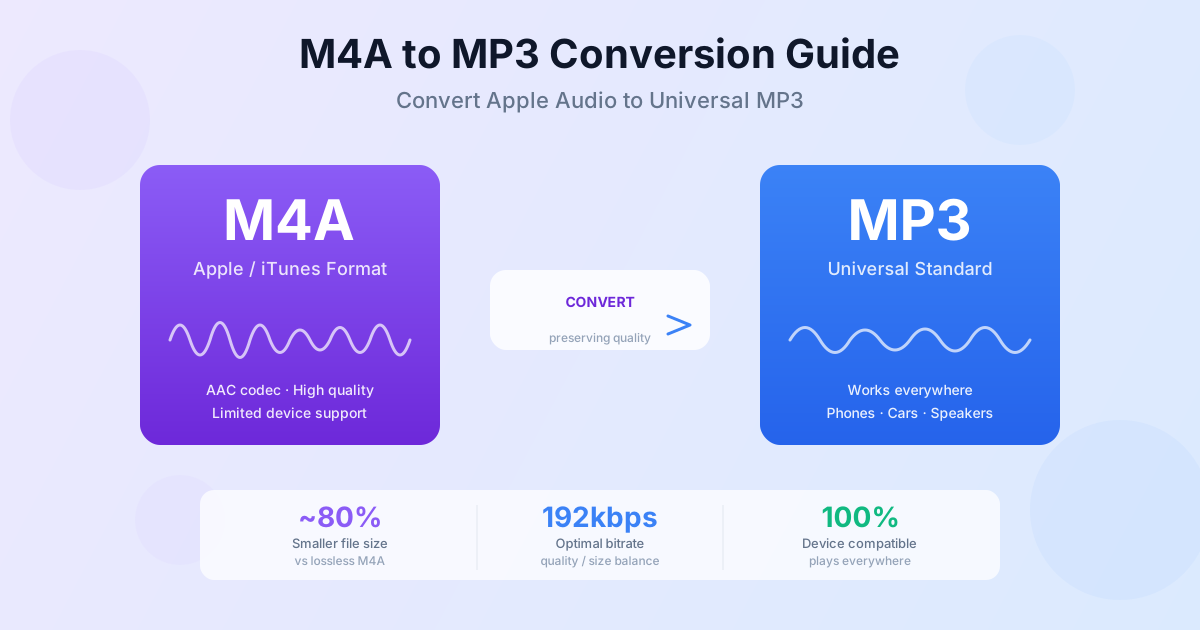
You downloaded music from iTunes, recorded a voice memo on your iPhone, or bought an audiobook — and now the file has a .m4a extension that your car stereo, old MP3 player or podcast app refuses to play. The fix: convert the M4A to MP3. Upload it to the M4A to MP3 converter and you get a 192 kbps MP3 back, with no software to install.
This guide covers the steps, voice memos from iPhone, what changes during conversion, and the bitrate to pick if you convert on your own computer.
What Is the M4A Format?
M4A is Apple's audio-only container format. It uses the AAC (Advanced Audio Coding) codec inside an MPEG-4 container — the same container as MP4 video, but without the video track. Apple introduced M4A to separate audio-only files from video files, since both would otherwise have the .mp4 extension.
M4A files are common in a few specific situations:
- iTunes purchases — music bought from the Apple ecosystem is typically delivered as M4A
- iPhone voice memos — the Voice Memos app saves recordings as M4A by default
- GarageBand exports — audio exported from GarageBand on Mac or iPhone uses M4A
- Audiobooks — some DRM-free audiobook formats use M4A with chapter markers
- Podcast exports — some editing apps produce M4A before encoding to the final format
The AAC codec inside M4A is more efficient than MP3: it reaches similar perceived quality at a lower bitrate. That advantage doesn't help, though, if the device or app you're using can't play AAC.
Why convert .m4a to .mp3?
MP3 is the most widely supported audio format there is. It works on almost every device made in the last 25 years: car stereos, old MP3 players, cheap Bluetooth speakers, alarm clocks, DJ software, video editing apps, and nearly every audio player on Windows and Linux. M4A, while excellent within the Apple ecosystem, hits walls outside it.
Common situations where M4A fails and MP3 works:
- Car stereos — many older USB and CD head units read MP3 but not M4A/AAC
- Older MP3 players — non-Apple players from the 2000s often reject M4A
- Non-Apple apps — some podcast managers, audiobook readers, and DJ tools only accept MP3
- Video editing software — timelines that import audio may not recognize M4A
- Sharing files — recipients on Windows or Android may not have an M4A-compatible player installed
- Web embedding — some CMS platforms and older web players don't play M4A directly
The trade-off is a small quality loss. Converting M4A to MP3 is a lossy-to-lossy process — you're decoding AAC (already lossy) and re-encoding it to MP3 (also lossy). You can't avoid this quality reduction, but you can minimize it by choosing a high enough bitrate. More on that below.
How to convert M4A to MP3 online
The fastest approach is the M4A to MP3 converter. Upload your file and download the MP3 — it always comes out at 192 kbps, which suits music and is more than enough for voice. No account required.
Step by step:
- Open the converter at fileconvertlab.com/convert/m4a/to-mp3
- Upload your .m4a files — drag and drop or click to browse. You can pick several at once; guests can upload files up to 100 MB each, far more than a typical song or voice memo
- No bitrate to set — the output is a fixed 192 kbps MP3 (see the bitrate guide below)
- Click Convert — the conversion runs on our servers. In our test a four-minute stereo track took about a second to process, plus the upload time
- Download the MP3 — one file at a time, or Download all as ZIP when you converted several
Each file counts toward the daily conversion limit, so for a whole iTunes library a desktop tool (see below) is the better fit.
How to Convert a Voice Memo to MP3
iPhone Voice Memos are saved as M4A, so converting one is the same job:
- In Voice Memos, tap the recording, then the … (more) button → Share.
- Choose Save to Files (or AirDrop it to your Mac).
- Open the voice memo to MP3 converter in Safari, tap the upload area and pick the file from Files.
- Download the MP3 and share it wherever MP3 is required.
On a Mac, voice memos are in the Voice Memos app — drag a recording to the desktop to get the .m4a file, then upload it. Voice memos are never DRM-protected, so they always convert. The 192 kbps output is generous for speech; if you need a smaller file for email, see the bitrate table below.
Best Bitrate for M4A to MP3 Conversion
Bitrate is the most important setting when converting M4A to MP3. Higher bitrate = larger file, better quality.
Lower bitrate = smaller file, more compression artifacts. Our online converter always uses 192 kbps; the table matters when you convert in a desktop tool that lets you choose (sizes are simple arithmetic for a 3-minute track):
| Bitrate | File size (3 min song) | Quality | Best for |
|---|---|---|---|
| 320 kbps | ~7 MB | Near-transparent | Archiving, professional audio, audiophiles |
| 256 kbps | ~5.8 MB | Very good | Music you care about, good headphones |
| 192 kbps | ~4.3 MB | Good | Most music, everyday listening — recommended default |
| 128 kbps | ~2.9 MB | Acceptable | Podcasts, voice recordings, audiobooks |
| 96 kbps | ~2.2 MB | Noticeable compression | Voice only, streaming over slow connections |
| One practical rule: a much higher bitrate than the source buys nothing. If your M4A is 128 kbps AAC, a 320 kbps MP3 won't sound better than a 192 kbps one — it's just a bigger file, because the detail lost in the AAC encode can't come back. Since MP3 is less efficient than AAC, going somewhat above the source bitrate (128 → 192) is reasonable; going far above it isn't. |
To check your source bitrate on a Mac: right-click the file → Get Info → More Info → Bit Rate. On Windows: right-click → Properties → Details → Bit rate.
Does M4A to MP3 Conversion Lose Audio Quality?
Converting M4A to MP3 is a generation loss scenario. Your M4A file is already compressed (AAC is lossy). Converting to MP3 compresses it again using a different algorithm. Each round of lossy compression introduces its own artifacts, and they stack.
In practice, the loss is small at 192 kbps or higher. Most people cannot hear the difference between a 128 kbps AAC source converted to 192 kbps MP3 and the original AAC file, especially on consumer-grade headphones or speakers. The cases where you notice generation loss:
- High-quality source at low output bitrate — a 256 kbps AAC converted to 96 kbps MP3 will sound worse than the original
- High-frequency content — cymbals, hi-hats, and sibilant vocals are most affected by lossy compression
- Studio monitors or high-end headphones — if you're listening critically, you may notice artifacts the average ear misses
- Multiple re-encodings — if the file has already been through several format changes, another round amplifies existing artifacts
If quality is critical and you have access to the original uncompressed source (CD rip, studio file), convert from that instead of from the M4A. But for iTunes purchases and iPhone recordings where M4A is the only version you have, 192 kbps MP3 is a practical and audibly acceptable result.
Does M4A to MP3 conversion preserve metadata?
Metadata — track title, artist name, album, artwork, track number, year — is stored in tags embedded in the audio file. M4A uses iTunes-compatible tags (MP4 tags), while MP3 uses ID3 tags. These are different systems, but most conversion tools translate between them automatically.
What typically survives the conversion:
- Title, artist, album, album artist
- Track number and disc number
- Year and genre
- Embedded album artwork (in some tools)
What may not survive:
- Chapter markers — M4A audiobooks can have chapters defined in the container; MP3 doesn't natively support this
- Lyrics — embedded lyrics may or may not transfer depending on the tool
- Podcast-specific tags — episode description, podcast category, etc.
- Custom iTunes tags — "Compilation", "Sort Artist", and similar iTunes-specific fields may be lost
What our converter does: in our test, title, artist, album, track number and year came through into the MP3, but the embedded cover art did not. Re-embed the cover in a tag editor like MusicBrainz Picard if you need it.
M4A vs MP3: format comparison
If you're deciding which format to keep going forward, here's how they compare on the dimensions that matter:
| Feature | M4A (AAC) | MP3 |
|---|---|---|
| Codec efficiency | Better — same quality at lower bitrate | Less efficient — needs higher bitrate for same quality |
| Device support | Apple devices, modern Android, modern browsers | Every device made since the late 1990s |
| Chapter support | Yes (audiobooks, podcasts) | Limited (ID3 chapter extension, rarely supported) |
| DRM | Apple Fairplay DRM on purchased content | No DRM standard (content can be DRM-free) |
| Max bitrate | No practical limit | 320 kbps (CBR) |
| Gapless playback | Yes | With LAME encoder header (not universal) |
| Software editing | Supported in modern DAWs | Widely supported |
| M4A wins on technical merits; MP3 wins on compatibility. If you're staying in the Apple ecosystem, keep M4A. |
If you need the file to work anywhere, convert it to MP3.
If you edit a recording in an audio editor first, export it as WAV and convert that to MP3 at the end with the WAV to MP3 converter, so the audio is only compressed once. For more on WAV and bitrate choices, see the WAV to MP3 guide.
Batch Convert an iTunes Library to MP3
If you have hundreds of M4A files from iTunes, converting them one by one online isn't practical. For large libraries, a desktop approach is faster:
Using VLC (free, cross-platform):
- Open VLC → Media → Convert/Save
- Add your M4A files → click Convert/Save
- In Profile, select "Audio — MP3"
- Set the destination folder and click Start
VLC processes the files one after another. It's free and works, but check the tags afterwards — VLC doesn't always carry them over.
Using the Music app on a Mac: in Music → Settings → Files → Import Settings, set Import Using to MP3 Encoder and choose a quality. Then select the songs and use File → Convert → Create MP3 Version. The MP3 copies appear next to the originals in your library.
Note about DRM-protected M4A files: iTunes purchases bought before 2009 may have Fairplay DRM.
DRM-protected M4A files cannot be converted by any third-party tool — the DRM locks the audio. If you bought the music from Apple, you can re-download it as DRM-free M4A from your purchase history (Apple removed DRM from music purchases in 2009). Voice memos, GarageBand exports, and other self-created M4A files are never DRM-protected.
Troubleshooting M4A to MP3 Conversion
The file won't upload or fails immediately. The file may be DRM-protected. Try playing it in VLC — if VLC can play it, it's not DRM-protected and the converter should work. If it won't play in VLC either, the file has DRM and cannot be converted by third-party tools.
The output MP3 has a gap or click at the start or end. MP3 encoders add a little padding, which some players don't hide. It's most noticeable between tracks of a gapless album; for those, a player that supports gapless MP3 playback helps.
Metadata (tags) are wrong or missing in the MP3. After downloading, open the file in a tag editor (Windows Media Player, MusicBrainz Picard, or iTunes itself can edit ID3 tags) and fix the fields manually. Large cover art images sometimes don't transfer — resize the artwork to under 500 × 500 px before re-embedding.
The converted MP3 sounds different from the M4A. This is expected — conversion always introduces some generation loss. If the difference is severe (muffled or distorted), the source bitrate was very low. Use 192 kbps or higher for the output and the difference will be minimal.
The file is a .m4p, not .m4a. M4P is the DRM-protected variant of M4A. These cannot be converted by any third-party tool without removing the DRM first (which may not be legal depending on your jurisdiction). Re-download from Apple's DRM-free library if possible.
Summary
M4A is technically better than MP3, but MP3 plays everywhere. For songs and voice memos, use the M4A to MP3 converter — upload, download a 192 kbps MP3. For a whole iTunes library, use VLC or the Music app on your computer. Either way, 192 kbps is plenty for most listening.
Related Tools
- M4A to MP3 converter — convert Apple audio files to universal MP3
- WAV to MP3 converter — convert lossless WAV audio to MP3
- WAVE to MP3 guide — bitrate selection and quality tips for WAV conversion