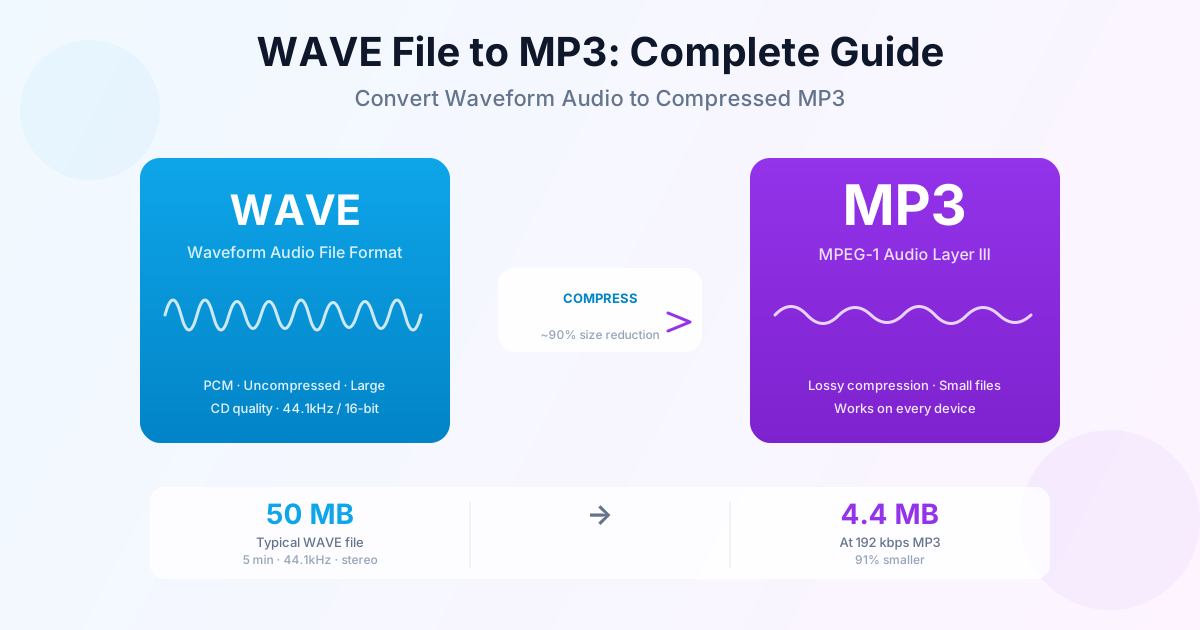
WAVE files are huge. A five-minute stereo recording at CD quality takes up about 50 MB as a WAVE file — the same audio fits in under 5 MB as a 192 kbps MP3. If you've recorded audio in a DAW, exported from a video editor, or received .wav or .wave files from a professional recording session, converting them to MP3 makes them practical to share, stream, and play on any device. This guide explains the conversion process, the right bitrate to pick, and what you do and don't lose in the process.
What Is the WAVE Audio Format?
WAVE (Waveform Audio File Format) is an audio container developed by Microsoft and IBM in 1991. It's one of the oldest digital audio formats and is still the default uncompressed format on Windows. The file extension is either .wav or .wave — both refer to the same format, just different ways to abbreviate "waveform."
Most WAVE files store audio as uncompressed PCM (Pulse-Code Modulation) — the raw digital samples with no compression applied. This is why WAVE files are so large: they store every sample of the audio signal at full resolution, with nothing discarded. A CD-quality stereo WAVE file has:
- 44,100 samples per second (44.1 kHz sample rate)
- 16 bits per sample (65,536 possible amplitude values)
- 2 channels (stereo)
- = 1,411 kilobits per second — about 10 MB per minute WAVE files are used wherever audio quality is critical and file size doesn't matter: professional recording studios, video production, game audio masters, broadcast, and DAW (Digital Audio Workstation) projects. They're the interchange format of professional audio — everything gets recorded or edited as WAVE, then distributed in a compressed format like MP3.
WAVE vs WAV: is there a difference?
No — WAVE and WAV are the same format. The difference is purely in the file extension. Early Windows limited file extensions to three characters, so the format used .wav. On macOS and systems without the three-character restriction, you may see .wave. Both extensions open the same way in every audio application. When searching online for help, "wave to mp3" and "wav to mp3" mean exactly the same thing.
How to convert a WAVE file to MP3
The quickest approach is our WAV to MP3 converter — it accepts both .wav and .wave files. Upload the file, pick a bitrate, and download the MP3.
- Go to the converter at fileconvertlab.com/convert/wav/to-mp3
- Upload your .wave or .wav file — drag and drop or click Browse
- Choose bitrate — 192 kbps for music, 128 kbps for voice (see the table below)
- Convert and download — the MP3 is ready in seconds for most files
For large WAVE files (recordings over an hour, multi-track exports), upload time is the main variable. The conversion itself is fast once the file reaches the server. If you need to convert dozens of WAVE files at once, a desktop tool like VLC or Audacity handles batch jobs more efficiently than uploading one by one.
Best Bitrate for WAVE to MP3 Conversion
Bitrate is the only setting that matters when converting WAVE to MP3. Higher bitrate = larger file, better quality. Here's a practical guide:
| Bitrate | File size (5 min) | Quality | Use case |
|---|---|---|---|
| 320 kbps | ~12 MB | Transparent to most ears | Music archiving, audiophile listening, masters |
| 256 kbps | ~9.6 MB | Very good | Music you care about, good headphones |
| 192 kbps | ~7.2 MB | Good — recommended default | General music, streaming, sharing |
| 128 kbps | ~4.8 MB | Acceptable | Voice, podcasts, audiobooks, radio |
| 96 kbps | ~3.6 MB | Noticeable compression | Voice-only, bandwidth-constrained delivery |
| For most people, 192 kbps is the sweet spot: the size reduction from WAVE is massive (50 MB → 7 MB for a 5-minute track), and the quality difference from the original is inaudible on consumer speakers or earbuds. Only choose 320 kbps if you're keeping archive copies of music you care deeply about. |
Does WAVE to MP3 Conversion Lose Audio Quality?
Converting WAVE to MP3 is a lossless-to-lossy conversion. Your WAVE file contains every bit of the original audio. MP3 compression applies a perceptual audio model — it removes sounds the human ear is statistically unlikely to notice: sounds masked by louder simultaneous frequencies, very high frequencies, very quiet details, and phase information between channels.
This is fundamentally different from converting one lossy format to another (like M4A to MP3). Starting from WAVE means you have the full original signal to work from. The encoder can make better decisions with more data, and there's no pre-existing compression damage to amplify.
At 192 kbps, most people genuinely cannot distinguish the MP3 from the original WAVE in a blind listening test. The types of audio most sensitive to MP3 compression:
- High-frequency transients — cymbals, hi-hats, and sibilant consonants may develop a subtle metallic artifact at lower bitrates
- Quiet passages with detail — soft reverb tails and ambient room sound can lose resolution below 128 kbps
- Stereo imaging — the MP3 encoder sometimes simplifies the stereo field slightly, which critical listeners may notice on headphones For voice recordings, podcasts, and speech, 128 kbps is completely transparent. Human speech occupies a narrow frequency range that MP3 encodes efficiently.
Converting WAVE files from specific sources
WAVE from a DAW (Ableton, Logic, Pro Tools)
If you exported a mix from a DAW as WAVE, you already have the best-quality master. Convert it at 320 kbps for your personal archive and 192 kbps for distribution and sharing. Keep the original WAVE — you may need it later for a different platform or remaster.
WAVE from a video editor (Premiere, DaVinci, Final Cut)
Video editors often export audio stems or final mixes as WAVE. These are typically 48 kHz (broadcast standard) rather than 44.1 kHz (CD standard). Both work fine with our converter — the sample rate difference doesn't affect conversion. Use 192 kbps for general distribution.
WAVE from a game or application
Some games and applications store sounds as WAVE files. These may be mono (single channel) rather than stereo, and may use non-standard sample rates (22 kHz, 11 kHz). The converter handles these correctly.
For game audio, 128 kbps is typically sufficient since the source quality may already be limited.
WAVE from a voice recorder or dictaphone
Voice recorders often produce WAVE files at 16 kHz or 22 kHz mono. These are already lower quality than music WAVE files. 128 kbps MP3 is sufficient — a higher bitrate wastes space without any quality benefit since the source doesn't contain the frequencies a higher bitrate would preserve.
Converting WAVE to other audio formats
MP3 isn't the only option when leaving WAVE behind. For reference:
- WAVE → MP3 — best universal compatibility. Every device plays MP3. Use this for most purposes. Our WAV to MP3 converter handles the conversion.
- WAVE → M4A (AAC) — more efficient than MP3 at the same bitrate; 128 kbps AAC sounds like 192 kbps MP3. Works great on Apple devices. Less universally supported than MP3 on older hardware.
- WAVE → FLAC — lossless compression. FLAC reduces WAVE file size by ~40–60% with no quality loss at all. Use this if you want smaller files but need to preserve every bit of audio quality. FLAC is not supported on all devices (notably car stereos and some portable players).
- WAVE → OGG Vorbis — open-source alternative to MP3. Slightly better quality per bitrate, but support is limited compared to MP3. Useful for web games and open-source projects.
For a deeper comparison of audio formats, see our WAV to MP3 guide and M4A to MP3 guide.
Summary
WAVE is the lossless master format — perfect for editing, impractical for everyday use. Converting to MP3 at 192 kbps gives you a file that's 93% smaller and sounds identical on any real-world playback system. Use the WAV to MP3 converter for individual files. Keep the originals if you have the storage — they're your lossless source.
Related Tools
- WAV to MP3 converter — convert WAVE audio to MP3 with bitrate selection
- M4A to MP3 converter — convert Apple M4A audio to universal MP3
- M4A to MP3 guide — bitrate selection and metadata tips for Apple audio
- Change WAV to MP3 guide — Mac, Windows, and online options compared