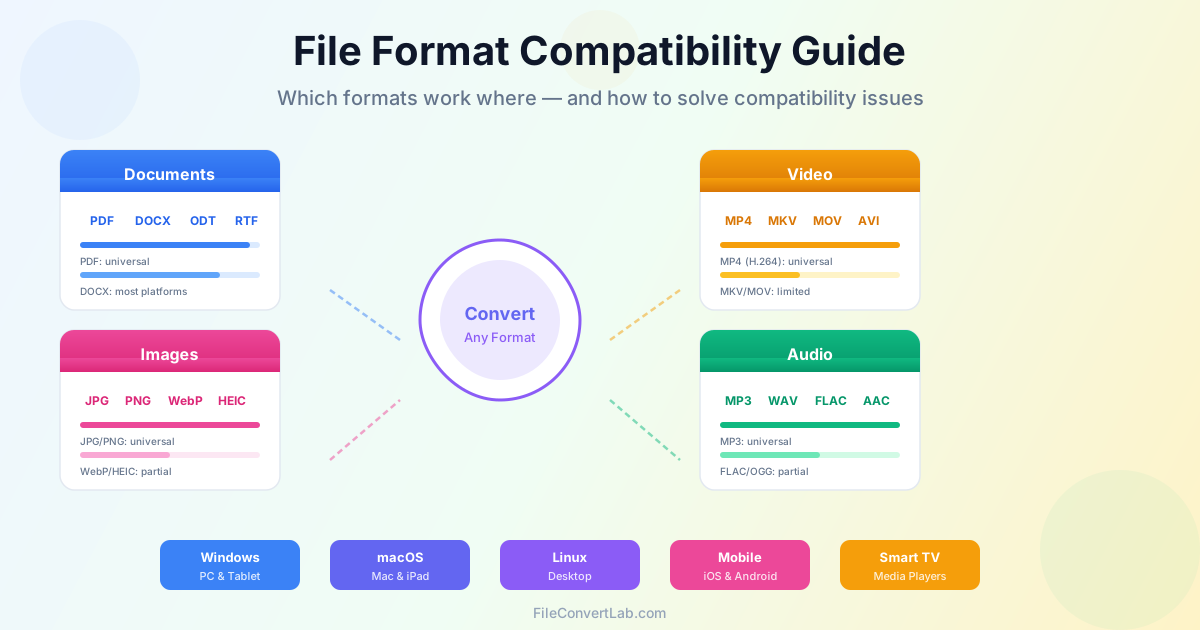
File format compatibility is one of the most common frustrations in digital life. You receive a document you cannot open, a video that will not play on your TV, or an image your editor does not recognize. The error message says "file format not supported" — but the file works perfectly on someone else's device.
The problem is not the file itself. It is a mismatch between the format and your software or hardware.
This guide covers file compatibility across every major category — documents, images, video, and audio.
Whether your MKV won't play on TV or an image editor rejects a WebP file, you'll find the explanation and solution below.
Why File Format Compatibility Matters
Every file on your computer is stored in a specific format — a set of rules that determines how the data is organized inside the file. When you try to open a file, your software needs to understand those rules.
If it does not, you get an error. File type compatibility is not just about having the right app installed.
It is about the intersection of format, software version, operating system, and device capabilities.
Compatibility issues happen constantly: a colleague sends a .pages file that Windows cannot open, a client delivers photos in HEIC format that your design software rejects, a downloaded video in MKV format will not play on your smart TV. These are not rare edge cases — they are everyday problems that affect everyone who works with files across different platforms and devices.
Document Format Compatibility
Documents are where file compatibility problems show up most frequently in professional settings. Different word processors, operating systems, and software versions handle document formats differently, leading to formatting shifts, missing fonts, and outright refusal to open files.
Document Format Support by Platform
| Format | Windows | macOS | Linux | Mobile |
|---|---|---|---|---|
| All browsers, Edge, Acrobat | Preview, Safari, Acrobat | Evince, Okular, browsers | Native on iOS and Android | |
| DOCX | Word, LibreOffice, WPS | Word, Pages, LibreOffice | LibreOffice, OnlyOffice | Word, Google Docs, Pages |
| DOC (legacy) | Word, LibreOffice (limited) | Word, Pages (limited) | LibreOffice (limited) | Limited support |
| ODT | LibreOffice, Word (partial) | LibreOffice, Pages (partial) | LibreOffice (native) | Limited support |
| .pages | Not supported | Pages (native) | Not supported | iOS only |
| RTF | WordPad, Word, LibreOffice | TextEdit, Word, Pages | LibreOffice, AbiWord | Limited support |
Common Document Compatibility Problems
The most frequent document compatibility issues fall into several categories:
- Platform-exclusive formats: Apple's .pages and .numbers files do not open on Windows or Linux. Google Docs files saved offline use a proprietary format that requires Google apps
- Version mismatches: A DOCX file created in Word 2024 with advanced features may not render correctly in Word 2016 or LibreOffice
- Font substitution: A document created on Mac using Helvetica Neue will substitute fonts on Windows, shifting paragraph breaks, margins, and page count
- Legacy formats: Files from WordPerfect (.wpd), Lotus 1-2-3 (.wk3), or old Word (.doc) are increasingly difficult to open as modern software drops support for outdated formats
The solution for cross-platform document sharing is straightforward: convert to PDF when you need the document to look identical everywhere, or convert to DOCX when editability matters. A PDF to Word converter handles the reverse — turning a locked PDF into an editable document when you need to make changes.
Image Format Compatibility
Image format compatibility has become more complex as newer formats like WebP and HEIC offer better compression but are not yet supported everywhere. What looks like a simple photo can become an unsupported file depending on where you try to open it.
Image Format Support by Platform
| Format | Browsers | Desktop Apps | Mobile | Social Media |
|---|---|---|---|---|
| JPG/JPEG | All browsers | Universal | Universal | All platforms |
| PNG | All browsers | Universal | Universal | All platforms |
| WebP | Modern browsers | Partial (newer apps) | Android native, iOS 14+ | Inconsistent |
| HEIC/HEIF | Not supported | macOS native, Windows 10+ (codec) | iOS native, Android 9+ | Not accepted |
| SVG | All browsers | Vector editors only | Limited | Not accepted |
| GIF | All browsers | Universal | Universal | All platforms |
| TIFF | Not in browsers | Photo editors, Preview | Limited | Not accepted |
Solving Image Compatibility Issues
When you encounter an image that will not open or upload, the issue is almost always the format. The fix is conversion to a universally supported format:
- WebP not supported? Convert to PNG for lossless quality or JPG for smaller file size. The WebP to PNG converter preserves transparency and full image quality
- HEIC from iPhone? Convert to JPG for universal compatibility. Windows users frequently encounter this with photos received from iPhone users
- TIFF not displaying? Convert to PNG for web use or JPG for sharing. TIFF is a professional format that most consumer software does not support
- SVG not accepted? Convert to PNG at the resolution you need. SVG is vector-based and requires a rasterized version for most non-web applications
The image converter handles all these transformations, letting you convert between any image format without installing software.
Video Format Compatibility
Video file compatibility is particularly confusing because two files with the same extension can behave differently. A video file has two layers: the container (the file format like MP4 or MKV) and the codecs (the compression methods for video and audio inside). Your device must support both the container and the codecs, or playback fails.
Video Format Support by Device
| Format | PC/Mac | Smart TVs | Mobile | Web/Streaming |
|---|---|---|---|---|
| MP4 (H.264) | Universal | Universal | Universal | Universal |
| MKV | VLC, media players | Some models only | VLC, MX Player | Not in browsers |
| MOV | QuickTime, VLC | Limited support | iOS native, Android partial | Safari only |
| AVI | Windows Media, VLC | Older models | VLC only | Not supported |
| WebM | Chrome, Firefox, VLC | Rarely supported | Android, Chrome | Chrome, Firefox, Edge |
Fixing Video Playback Problems
When a video will not play, the fastest solution is converting to MP4 with H.264 video and AAC audio — the single most compatible combination across all devices and platforms. Common scenarios:
- MKV won't play on TV: MKV is popular for movies because it supports multiple audio tracks and subtitles, but most smart TVs cannot play it. Converting MKV to MP4 resolves playback on virtually any TV or streaming device
- MOV from iPhone: Apple devices record in MOV format, which has limited compatibility on Windows and Android. Convert to MP4 for universal sharing
- AVI from old camera: AVI is a legacy format that modern devices increasingly do not support. Convert to MP4 to play on current hardware
- Video plays but no audio: This usually means the audio codec inside the file is unsupported (common with DTS or AC3 audio in MKV containers). Converting to MP4 re-encodes the audio to AAC, which is universally supported
Use the video converter to convert any video format to MP4 for guaranteed playback on all devices.
Audio Format Compatibility
Audio file compatibility is generally simpler than video, but issues still arise — especially with lossless formats and proprietary codecs. Like video, audio files have a container and a codec, and both must be supported by the playback device.
Audio Format Support by Device
| Format | PC/Mac | Smartphones | Car Stereos | Smart Speakers |
|---|---|---|---|---|
| MP3 | Universal | Universal | Universal | Universal |
| AAC/M4A | iTunes, VLC, browsers | Universal | Most modern cars | Universal |
| WAV | Universal | Universal | Some models | Limited |
| FLAC | VLC, foobar2000, Winamp | Android native, iOS 11+ | Limited | Some models |
| OGG | VLC, browsers | Android only | Rarely supported | Rarely supported |
| WMA | Windows only | Android partial | Some models | Rarely supported |
| MP3 remains the safest choice when maximum compatibility matters. If a device plays audio at all, it plays MP3. |
For higher quality, AAC (in M4A container) offers better sound at the same file size and has near-universal mobile support. FLAC is excellent for archiving and audiophile listening, but many consumer devices — car stereos, older smart speakers, and basic media players — do not support it.
File Compatibility Between Mac and Windows
Cross-platform file compatibility between Mac and Windows is a constant source of problems. While both systems can open many of the same formats, there are significant differences in default formats, font libraries, and file system behavior that cause issues.
Key Differences That Cause Problems
- Default photo format: iPhones and Macs save photos in HEIC format by default. Windows requires a codec extension to open HEIC files, and many Windows applications do not support it at all
- Default video format: Mac and iPhone record video in MOV format. While Windows can play some MOV files, compatibility depends on the codec inside. Many MOV files from newer iPhones use HEVC (H.265), which requires additional codecs on Windows
- Document formats: Pages, Numbers, and Keynote files from Apple's iWork suite do not open on Windows at all. The reverse is less of a problem — Mac can open most Microsoft Office formats
- Font differences: Mac comes with fonts that Windows does not have (and vice versa). Documents created with platform-specific fonts will substitute different fonts on the other system, changing layout and appearance
- File naming: macOS allows characters in file names that Windows prohibits (like colons and question marks). Files with these characters cannot be saved on Windows
How to Ensure Cross-Platform Compatibility
For documents, convert to PDF before sharing across platforms — PDF embeds fonts and fixes layout, eliminating platform differences. For images, use JPG or PNG — both work everywhere. For video, MP4 with H.264 is the universal choice. When you need editable documents to work on both systems, stick to DOCX and use only fonts available on both platforms (Arial, Times New Roman, Georgia).
How to Open Old File Formats
Legacy file formats from discontinued software present a unique compatibility challenge. As software evolves, older formats lose support. Files that opened perfectly a decade ago may be unreadable today. This is especially common with:
- .doc (old Word): Pre-2007 Word format. Modern Word can still open these, but formatting may shift. LibreOffice handles older .doc files well. For best results, open in LibreOffice and save as DOCX
- .wpd (WordPerfect): Once the dominant word processor format, now nearly abandoned. LibreOffice can open most WordPerfect files and convert them to modern formats
- .wks/.wk3 (Lotus 1-2-3): Legacy spreadsheet format. LibreOffice is the best option for opening these files and converting to XLSX
- .pst (Outlook): Outlook data files are tied to Microsoft Outlook. Without Outlook installed, these files cannot be accessed. Third-party tools can extract emails to standard formats
- .fla/.swf (Flash): Flash files are no longer supported by any major browser or operating system since Flash was discontinued in 2020. Standalone Flash players exist but are not recommended for security reasons
The general approach to old file formats is: identify the format by its extension, find software that can still open it (LibreOffice is often the best choice for documents and spreadsheets), and immediately convert to a modern format (DOCX, XLSX, PDF) to future-proof the content.
Conversion as the Universal Solution
When a file format is not supported, conversion is the most reliable solution. Rather than installing obscure software, hunting for codecs, or buying platform-specific apps, converting the file to a widely supported format solves the problem immediately. Here is a quick reference for the best target format by category:
| Category | Best for Viewing | Best for Editing | Tool |
|---|---|---|---|
| Documents | DOCX | File Converter | |
| Images | JPG or PNG | PNG (lossless) | Image Converter |
| Video | MP4 (H.264) | MP4 or MOV | Video Converter |
| Audio | MP3 | WAV (lossless) | Audio Converter |
| Conversion does not require installing software. Online converters process your file on the server and return the converted version — you upload the unsupported format and download a file that works everywhere. |
Mobile File Compatibility
Smartphones add another layer to file compatibility. Mobile operating systems support fewer file formats than desktop systems, and the apps available for opening files are more limited. Common mobile compatibility issues:
- ZIP and RAR archives: iOS has built-in ZIP support but not RAR. Android supports ZIP natively but RAR requires a third-party app
- Office documents: Both platforms can open DOCX, XLSX, and PPTX with the right app installed (Microsoft Office or Google Docs). ODT and RTF support is limited
- Video playback: iPhones play MP4 and MOV natively. Android plays MP4 natively. MKV and AVI require third-party players on both platforms
- Image formats: JPG, PNG, and GIF work on all smartphones. WebP works on modern phones. TIFF and BMP have very limited mobile support
When sharing files with someone on a mobile device, stick to the most universal formats: PDF for documents, JPG or PNG for images, MP4 for video, and MP3 for audio. If the recipient cannot open a file, convert it before sending.
Preventing Compatibility Issues
The best approach to file format compatibility is preventing problems before they happen. Follow these practices to minimize compatibility issues when creating and sharing files:
- Know your audience: Before sharing a file, consider what devices and software the recipient uses. If unsure, default to the most universal format
- Use standard formats: PDF for final documents, DOCX for editable documents, JPG/PNG for images, MP4 for video, MP3 for audio. These formats work on virtually every device
- Embed fonts in documents: When creating PDFs or sharing Word files across platforms, embed fonts to prevent substitution issues
- Avoid platform-specific formats: Do not send .pages files to Windows users, HEIC photos to Android users, or WMA audio to Mac users
- Convert before sharing: If you created a file in a specialized format (RAW photos, FLAC audio, ProRes video), convert to a standard format before sending to others
- Keep originals: Always keep the original file in its native format for your own use. Convert copies for sharing, not the original
Conclusion
File format compatibility issues are unavoidable in a world with hundreds of file formats and dozens of platforms. The good news is that the solution is almost always the same: convert the file to a widely supported format. For documents, PDF and DOCX cover nearly every use case. For images, JPG and PNG are universal. For video, MP4 with H.264 plays everywhere. For audio, MP3 is the safest bet. When you encounter a "file format not supported" error, do not waste time hunting for obscure software or codecs — convert the file to a standard format and move on.
Use the file converter to transform any unsupported file into a format that works on your device. Whether it is a PDF that needs to be editable, a WebP image that needs broader compatibility, or an MKV video that needs to play on your TV — conversion makes every file accessible on every device.