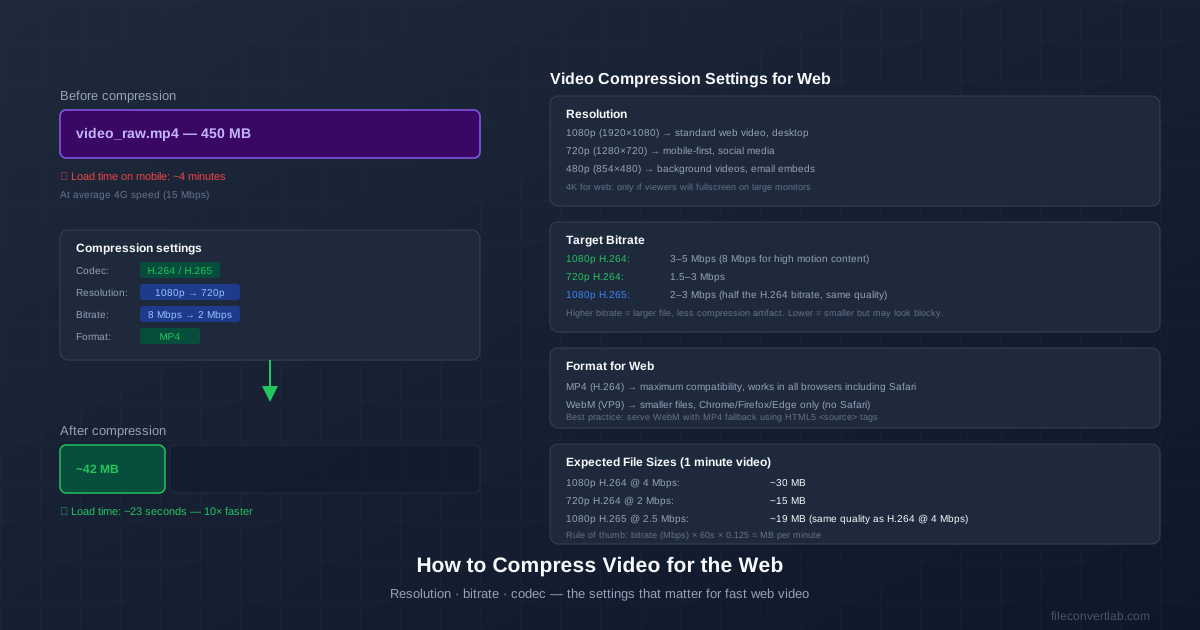
A 450 MB video takes over 4 minutes to load on a mobile connection. The same content compressed properly fits in 40–50 MB and starts playing in seconds.
The difference isn't quality — it's choosing the right codec, resolution, and bitrate for web delivery.
Three settings control web video file size: resolution (how many pixels), bitrate (how much data per second), and codec (how efficiently data is compressed). Get these right and you can cut file size by 80–90% with no visible quality loss.
Resolution: Match Your Use Case
Higher resolution means more pixels — and exponentially more data. 4K is 4× the data of 1080p at the same bitrate. For most web video, 1080p or 720p is sufficient.
| Resolution | Use case | Notes |
|---|---|---|
| 4K (3840×2160) | Cinematic, premium showcase | Only if viewers have 4K displays |
| 1080p (1920×1080) | Standard web video, desktop | Good default for most content |
| 720p (1280×720) | Mobile-first, social media | Half the data of 1080p |
| 480p (854×480) | Background video, email | Fastest loading, lower quality |
Bitrate: The Main Size Control
Bitrate is how much data per second the video uses. Higher bitrate = better quality and larger file. Lower bitrate = smaller file and more compression artifacts (blockiness, blurring on fast motion).
These targets work well for most web video:
| Resolution + codec | Recommended bitrate | MB per minute |
|---|---|---|
| 1080p H.264 | 3–5 Mbps | ~23–38 MB/min |
| 720p H.264 | 1.5–3 Mbps | ~11–23 MB/min |
| 1080p H.265 | 2–3 Mbps | ~15–23 MB/min |
| 720p H.265 | 1–1.5 Mbps | ~8–11 MB/min |
| 480p H.264 | 0.8–1.5 Mbps | ~6–11 MB/min |
| File size formula: bitrate (Mbps) × 60 × 0.125 = MB per minute. |
A 5-minute video at 4 Mbps = 4 × 60 × 0.125 = 30 MB per minute × 5 = 150 MB total.
High-motion content (sports, gaming, fast cuts) needs higher bitrates than low-motion content (talking head, screen recordings). The codec has trouble compressing fast-changing frames and needs more data to avoid artifacts.
Codec: H.264 vs H.265 vs VP9
The codec determines how efficiently video data is compressed. Newer codecs achieve the same quality at lower bitrates — which means smaller files.
- H.264 (AVC): The safe default. Every browser, device, and player supports it. At 4 Mbps for 1080p, it delivers good quality. Use H.264 when maximum compatibility is required.
- H.265 (HEVC): About 50% smaller files at the same quality as H.264. Supported by modern browsers and devices, but Safari's H.265 support for web video is inconsistent. Good choice if most of your audience uses Chrome or Firefox.
- VP9 (WebM): Google's open-source codec. Similar efficiency to H.265, great browser support in Chrome/Firefox/Edge. Not supported by Safari. Best served as WebM with an MP4/H.264 fallback.
- AV1: The newest major codec — up to 30% smaller than H.265. Browser support is excellent, but encoding is very slow on consumer hardware. Suitable for content where encoding time is not a constraint.
Compression with HandBrake (Recommended)
HandBrake is the standard free tool for video compression. It runs on Windows, Mac, and Linux.
- Download HandBrake from handbrake.fr and open it.
- Drag your video file into HandBrake or use File → Open.
- In the Summary tab: set Format to MP4, check Web Optimized (enables Fast Start for streaming).
- In the Video tab: Video Codec: H.264 (x264) for compatibility, or H.265 for smaller files.
- Framerate: Same as source (or 30fps if source is 60fps and you want smaller files).
- Quality: Use Constant Quality mode, CRF 22–23 for H.264 (lower = better quality).
- In the Dimensions tab: Set resolution if you want to downscale (e.g., 1920×1080 → 1280×720).
- Click Browse to set output path, then Start Encode.
The Web Optimized Setting (Fast Start)
Always enable Web Optimized (also called Fast Start or "moov atom first") when exporting for web. This moves the video's metadata table to the beginning of the file.
Without it: the browser must download the entire MP4 before it can start playing.
With it: playback can begin after downloading just the first few percent of the file.
This is one of the highest-impact, zero-quality-cost optimizations for web video.
HTML5 Video: Serving Multiple Formats
For optimal browser coverage, serve WebM and MP4 together using HTML5 <source> tags.
The browser picks the first format it supports:
<video controls>
  <source src="video.webm" type="video/webm">
  <source src="video.mp4" type="video/mp4">
  Your browser does not support HTML5 video.
</video>
Chrome, Firefox, and Edge use the WebM (smaller file). Safari and iOS use the MP4.
Result: best file size for most users, full compatibility for Apple users.
Quick Checklist Before Publishing
- Resolution matches the use case (720p for mobile, 1080p for desktop)
- Codec is H.264 for compatibility, H.265 for size-sensitive content
- Bitrate is in the recommended range for the resolution and codec
- Web Optimized / Fast Start is enabled on the MP4
- File size is reasonable: under 30 MB/min for 1080p, under 15 MB/min for 720p
- Watch the output on a mobile device to confirm quality is acceptable