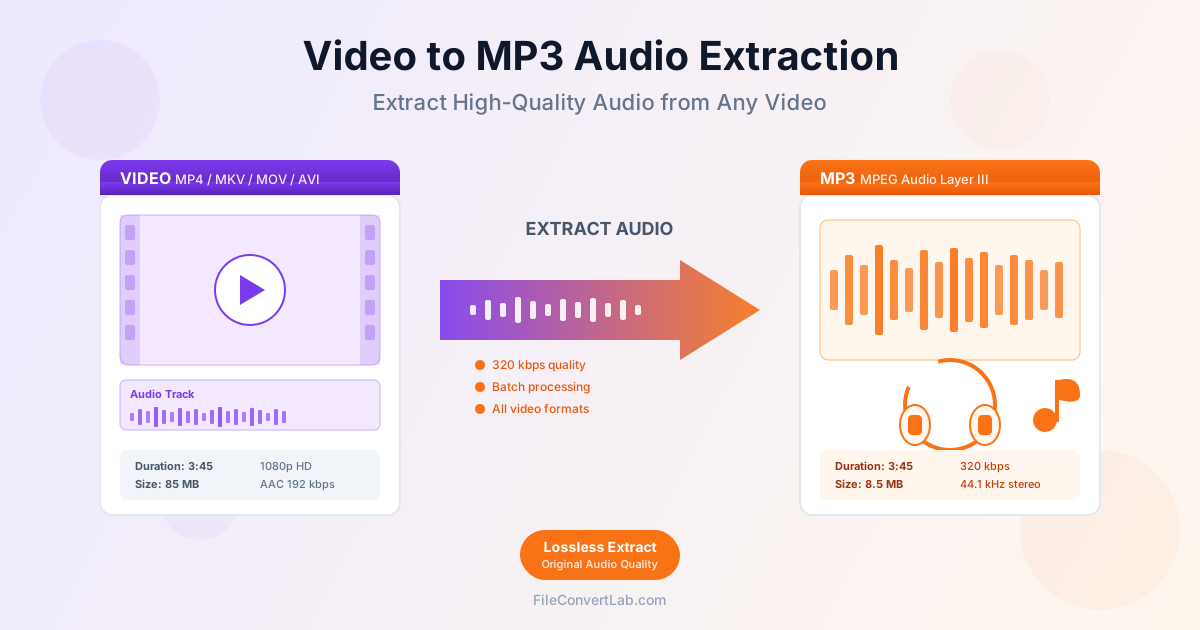
Video files contain both visual and audio content, but sometimes you only need the audio. Whether you want to listen to a lecture on your commute, save music from a concert recording, create a podcast from a video interview, or extract a soundtrack for personal use, converting video to MP3 lets you keep just the audio portion in a compact, universally compatible format. This guide covers everything you need to know about extracting audio from video files, from understanding the process to choosing the right quality settings for your needs.
Why Extract Audio from Video Files?
There are many practical reasons to extract audio from video. Understanding these use cases helps you determine the best approach and quality settings for your specific needs.
Educational Content
University lectures, online courses, webinars, and tutorial videos often contain valuable information that does not require watching the screen. Extracting the audio lets you listen while commuting, exercising, or doing other activities. A 2-hour video lecture might be 2GB as video but only 100MB as audio, making it much easier to store on your phone or portable music player.
Music and Concerts
Live concert recordings, music videos, and performances captured on video can be converted to audio-only files for your music library. This allows you to enjoy the music through any audio player without needing video playback capability. Concert recordings in particular benefit from this approach since the visual quality of amateur recordings is often poor, but the audio can still be excellent.
Podcasts and Interviews
Video interviews, panel discussions, and podcast episodes released as video can be converted to audio for easier consumption. Many people prefer audio-only formats for this type of content since it does not require visual attention. The extracted audio can be added to your podcast app alongside your regular subscriptions.
Language Learning
Foreign language videos, including movies, TV shows, and language lessons, can be converted to audio for listening practice. This approach is particularly effective for improving listening comprehension and pronunciation. You can listen repeatedly during daily activities without needing to watch a screen.
Content Creation
Creators often need to extract audio from their own video recordings for various purposes: creating behind-the-scenes content, repurposing video content as podcasts, or extracting voice-overs for use in other projects. The extracted audio can be edited separately and combined with new visuals or used standalone.
Storage Space Savings
Video files consume significantly more storage than audio files. A 1GB video might convert to a 50MB MP3 file, reducing storage requirements by 95%. For large collections of content where video is not essential, converting to audio-only format frees up substantial disk space while preserving the important content.
Understanding Audio Quality and Bitrate
When extracting audio from video, the bitrate setting determines both the quality and file size of the resulting MP3. Understanding these options helps you choose the right balance for your needs.
What is Bitrate?
Bitrate measures how much data is used per second of audio, expressed in kilobits per second (kbps). Higher bitrates mean more data, which translates to better audio quality but larger file sizes. Lower bitrates reduce file size but can introduce audible compression artifacts.
Common MP3 Bitrate Options
- 128 kbps — acceptable quality for speech content like podcasts and lectures. File size is small, making it ideal for long recordings or limited storage. Some compression artifacts may be audible in music, especially on high-quality headphones.
- 192 kbps — good quality for most purposes including music. This is a popular choice that balances quality and file size well. Most listeners cannot distinguish this from higher bitrates in casual listening.
- 256 kbps — high quality suitable for music libraries. Compression artifacts are rarely audible even on good audio equipment. This is a solid choice when quality matters but you still want reasonable file sizes.
- 320 kbps — the highest standard MP3 bitrate, offering near-CD quality. Ideal for music you want to preserve at the best possible quality within the MP3 format. File sizes are larger but still much smaller than video.
Choosing the Right Bitrate
Your choice depends on the content type and how you plan to use it:
- Speech content (lectures, podcasts, interviews) — 128-192 kbps is sufficient since human speech does not require high bitrates to sound clear. The smaller file size makes these easier to store and transfer.
- Music for casual listening — 192-256 kbps provides good quality for background music, workout playlists, and everyday listening through phone speakers or standard earbuds.
- Music for critical listening — 320 kbps preserves the most detail for listening on high-quality headphones or speaker systems where subtle differences become audible.
- Archival purposes — consider 320 kbps or lossless formats like FLAC to preserve maximum quality. You can always convert to lower bitrates later, but you cannot recover quality lost to compression.
File Size Comparison
To help you plan storage, here are typical file sizes for a 4-minute song at different bitrates:
| Bitrate | Quality Level | 4-Minute File Size | 1-Hour File Size |
|---|---|---|---|
| 128 kbps | Acceptable (speech) | ~3.8 MB | ~58 MB |
| 192 kbps | Good (general use) | ~5.8 MB | ~87 MB |
| 256 kbps | High (music) | ~7.7 MB | ~115 MB |
| 320 kbps | Maximum (audiophile) | ~9.6 MB | ~144 MB |
Step-by-Step: Extracting Audio from Video
Follow these steps to extract audio from your video files and save as MP3:
Basic Conversion Process
- Open the Video to MP3 converter
- Upload your video file by clicking "Select File" or dragging the file onto the page
- Select your desired audio quality (bitrate) from the available options
- Click "Convert" to start the audio extraction process
- Download your MP3 file once conversion completes
- Test playback to verify the audio quality meets your expectations
Supported Video Formats
Most common video formats can be converted to MP3:
- MP4 — the most common video format, works with all converters
- MKV — popular for high-quality video content and movies
- MOV — Apple QuickTime format from iPhones and Macs
- AVI — older but still widely used format
- WebM — web-optimized format used by many online platforms
- WMV — Windows Media Video format
- FLV — Flash video format from older web content
Tips for Best Results
- Check source audio quality — the extracted MP3 cannot exceed the quality of the original audio track in the video. A video with 128 kbps audio will not benefit from exporting at 320 kbps.
- Consider the content type — choose bitrate based on whether you are extracting speech or music, not just maximum quality.
- Test with a short clip first — if converting a long video, test the settings on a short portion to verify the results before processing the entire file.
- Keep originals — maintain your original video files until you verify the extracted audio meets your needs.
Common Use Cases in Detail
Extracting Audio from Online Video Downloads
Many people download videos for offline viewing and later want to extract just the audio. This is particularly common with music videos, live performances, and educational content. The process is straightforward: download the video file to your device, then use a converter to extract the audio track as MP3.
For music content, use 256-320 kbps to preserve quality. For lectures and podcasts, 128-192 kbps is sufficient and saves storage space. Remember that the quality of the extracted audio depends on the original video's audio track, not the video quality.
Converting Recorded Lectures and Webinars
Educational recordings are ideal candidates for audio extraction. Most lecture content does not require video to be useful, and audio-only format is much more convenient for review and study. University students often convert recorded lectures to MP3 for studying during commutes or exercise.
For lecture content, 128 kbps provides clear speech quality while minimizing file size. A 90-minute lecture converts to approximately 85 MB at this bitrate, small enough to store dozens on your phone without concern for storage space.
Creating Podcast Episodes from Video Content
Content creators often repurpose video content by extracting the audio for podcast distribution. Video interviews, panel discussions, and talk-format content translate well to audio-only format. The extracted audio can be edited, have intro/outro music added, and distributed through podcast platforms.
For podcast-quality audio, 192 kbps is the standard. This provides clear voice reproduction while keeping file sizes manageable for listeners who download episodes.
Some podcast networks specify bitrate requirements, so check before publishing.
Building a Music Library from Video Sources
Live performances, concert recordings, rare tracks, and music videos can all contribute to your personal music library when converted to audio format. The key is choosing appropriate quality settings to preserve the music while keeping files manageable.
For music, always use at least 256 kbps, and 320 kbps is recommended if storage is not a concern. Lower bitrates can sound acceptable for casual listening but become noticeably compressed on good speakers or headphones.
Batch Processing Multiple Files
When you have multiple video files to convert, batch processing saves significant time compared to converting one file at a time.
Organizing Files for Batch Conversion
- Gather all video files in a single folder for easy selection
- Create a separate folder for the output MP3 files
- Verify all files are in supported formats before starting
- Decide on consistent quality settings for the entire batch
- Estimate total processing time based on combined video length
Batch Conversion Best Practices
- Use consistent settings — apply the same bitrate to all files in a batch for uniform quality
- Process by category — batch music separately from lectures so each can use appropriate bitrates
- Monitor progress — check the first few converted files to verify settings before completing the entire batch
- Plan for processing time — large batches may take significant time depending on video lengths
- Verify results — spot-check converted files from the batch before deleting original videos
Naming and Organization
After batch conversion, organize your MP3 files with consistent naming conventions. Include relevant information like artist, title, date, or episode number.
Proper organization makes it easier to find files later and integrate them into your music player or podcast app.
Alternative Audio Formats
While MP3 is the most compatible format, other audio formats offer different advantages:
AAC (Advanced Audio Coding)
AAC provides better quality than MP3 at the same bitrate. It is the default format for Apple devices and iTunes. If you primarily use Apple products, AAC may be a better choice. However, some older devices and software do not support AAC playback.
- Advantages: Better quality per bitrate, native Apple support, smaller files at equivalent quality
- Disadvantages: Less universal than MP3, some devices may not support it
- Best for: Apple ecosystem users, modern devices, quality-conscious listeners
FLAC (Free Lossless Audio Codec)
FLAC preserves the original audio quality without any compression losses. Files are larger than MP3 but contain every detail from the source audio. This format is ideal for archiving or when maximum quality is essential.
- Advantages: Lossless quality, no compression artifacts, perfect for archiving
- Disadvantages: Large file sizes (3-5x larger than high-bitrate MP3), limited device support
- Best for: Archival, audiophiles, source material for further editing
WAV (Waveform Audio)
WAV is an uncompressed format that preserves full audio quality. Files are very large but work universally across all platforms. WAV is commonly used as an intermediate format for audio editing before final compression.
- Advantages: Universal compatibility, uncompressed quality, no encoding artifacts
- Disadvantages: Very large files (10x larger than 320 kbps MP3), no metadata support
- Best for: Audio editing workflows, temporary storage, professional applications
OGG Vorbis
OGG is an open-source format that offers good quality at various bitrates. It is popular in gaming and open-source software but has limited support on mobile devices and mainstream music players.
- Advantages: Open source, good quality, no licensing fees
- Disadvantages: Limited device support, not supported by iTunes or many hardware players
- Best for: Linux users, open-source enthusiasts, specific applications requiring OGG
When to Choose Each Format
| Use Case | Recommended Format | Reason |
|---|---|---|
| Maximum compatibility | MP3 (320 kbps) | Works on every device and player |
| Apple devices | AAC (256 kbps) | Better quality, native support |
| Archival / preservation | FLAC | Lossless quality for future use |
| Audio editing | WAV | Universal editing software support |
| Podcasts / speech | MP3 (128-192 kbps) | Small files, universal support |
Legal Considerations for Personal Use
Extracting audio from video files raises questions about copyright and fair use. Understanding the legal landscape helps you make informed decisions about your personal use.
Generally Permitted Uses
- Personal recordings — extracting audio from your own video recordings is completely legal
- Public domain content — works in the public domain can be freely converted and used
- Creative Commons content — content with appropriate CC licenses may permit conversion (check the specific license terms)
- Format shifting for personal use — in many jurisdictions, converting content you legally own for personal use on different devices is permitted
Important Considerations
- Copyright protection — most commercial music, movies, and professional content is copyrighted
- Terms of service — downloading from streaming platforms typically violates their terms, even for personal use
- Distribution is prohibited — even if personal conversion is permitted, sharing converted files typically violates copyright
- Regional variations — copyright laws vary by country; what is permitted in one jurisdiction may not be in another
Best Practices
To stay on safe ground:
- Only convert content you have legally obtained
- Keep converted files for personal use only
- Do not distribute or share converted audio files
- Respect platform terms of service
- When in doubt, purchase or stream through official channels
Troubleshooting Common Issues
Problem: No Audio in Output File
Cause: The video file may not contain an audio track, or the audio is in an unsupported codec.
Solutions:
- Verify the original video has audio by playing it in a media player
- Try a different converter that supports more audio codecs
- Check if the video has multiple audio tracks and select the correct one
Problem: Audio Quality is Poor
Cause: The source video may have low-quality audio, or the conversion bitrate is too low.
Solutions:
- Check the original video's audio bitrate; you cannot exceed the source quality
- Try converting at a higher bitrate (256 or 320 kbps)
- Find a higher-quality version of the source video if available
Problem: Conversion Takes Too Long
Cause: Large file size, slow internet connection (for online converters), or limited processing power.
Solutions:
- For online converters, ensure a stable internet connection
- Process during off-peak hours when servers are less busy
- Split very long videos into shorter segments for faster processing
- Consider desktop software for large files or batch processing
Problem: File Size is Larger Than Expected
Cause: Higher bitrate than necessary, or stereo conversion of mono content.
Solutions:
- Choose a lower bitrate appropriate for your content type
- Use mono output for speech content (cuts file size in half)
- Match bitrate to your actual listening needs, not maximum quality
Problem: Audio and Video Were Out of Sync
Cause: This usually indicates a problem with the source video, not the extraction process.
Solutions:
- Check if the original video has sync issues
- The extracted audio should match the video's audio; sync issues transfer from the source
- Use audio editing software to adjust timing if needed
Related Audio and Video Tools
- Video to MP3 — extract audio from any video file
- Video to MP3 — convert video files to MP3 audio
- Audio Converter — convert between different audio formats
- MP3 to WAV — convert MP3 to uncompressed WAV format
- FLAC to MP3 — convert lossless audio to compressed MP3
- Video Converter — convert between video formats
- MKV to MP4 — convert MKV video to MP4
- Compress Audio — reduce audio file size