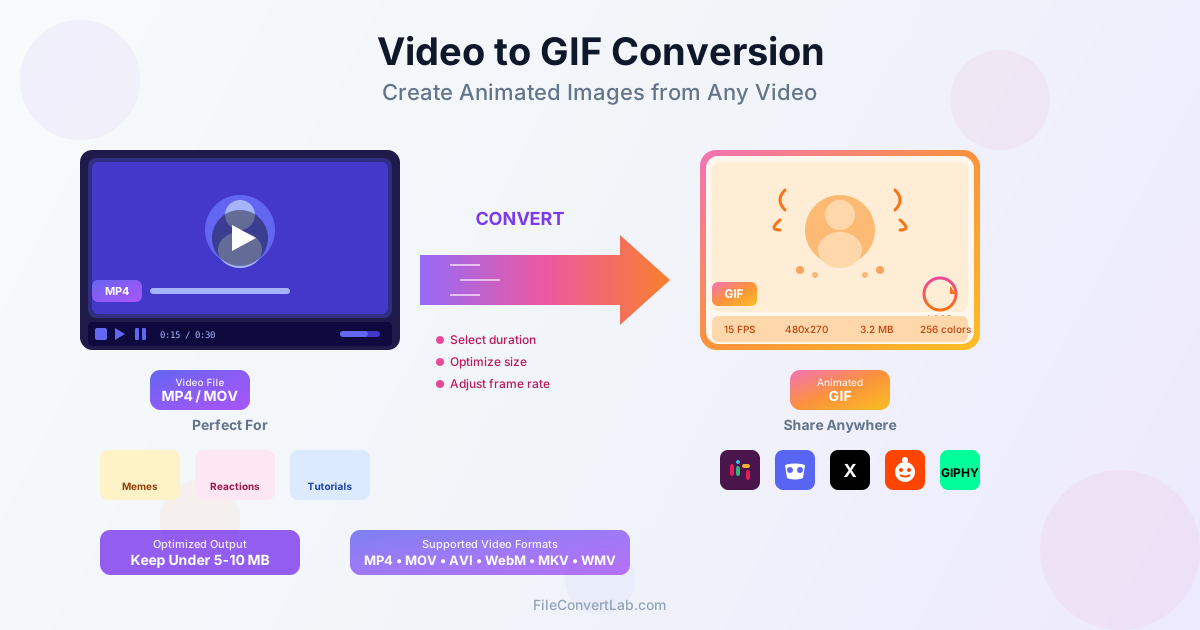
GIFs have become a universal language of the internet. From reaction images in chat to product demonstrations on websites, animated GIFs offer a unique combination of motion and simplicity. Unlike video files, GIFs play automatically, loop seamlessly, and work virtually everywhere without a video player. This guide covers optimal settings, file size optimization, and best practices for different platforms.
What is GIF Format and Why is it Still Popular?
GIF (Graphics Interchange Format) was introduced in 1987. It is one of the oldest image formats still in widespread use. Despite being nearly four decades old and technically limited, GIF remains incredibly popular for one simple reason: universal compatibility and effortless sharing.
The GIF format supports animation through a sequence of frames displayed in rapid succession. When the last frame is reached, the animation loops back to the beginning. This creates continuous playback without any user interaction. Automatic looping is fundamental to how GIFs are used in modern communication.
Why GIFs Remain Relevant
- Universal support — GIFs display natively in web browsers, email clients, messaging apps, and social media platforms without plugins or special players
- Automatic playback — GIFs start playing immediately when visible, no click or tap required
- Seamless looping — the continuous loop creates mesmerizing effects perfect for reactions and demonstrations
- Inline display — GIFs embed directly in text conversations rather than appearing as attachments
- No sound required — GIFs are silent by design, making them appropriate for quiet environments
- Simple sharing — copy and paste a GIF just like any other image Platforms like Giphy and Tenor, along with built-in GIF keyboards in iOS and Android, have made GIFs even more accessible. Major messaging platforms — Slack, Discord, Microsoft Teams, and WhatsApp — all support inline GIF playback. This has cemented the format's role in digital communication.
GIF vs Video: When to Use Each Format
Understanding when to use GIF versus video helps you choose the right format for each situation. Both have distinct advantages depending on your content and where you plan to share it.
Choose GIF When:
- Short loops work best — content under 10-15 seconds that benefits from continuous replay
- No audio is needed — reactions, expressions, and visual demonstrations that speak for themselves
- Embedding in text — chat messages, emails, forum posts, and comments where inline display matters
- Automatic playback is essential — you want motion to catch attention without requiring clicks
- Maximum compatibility needed — sharing across platforms where video support varies
- Creating memes and reactions — the classic GIF use case where brevity and impact matter
Choose Video When:
- Content is longer — anything over 15-20 seconds becomes unwieldy as a GIF
- Audio is important — music, speech, sound effects, or ambient audio add value
- File size matters critically — videos compress far more efficiently than GIFs
- Full quality is required — the 256-color GIF limitation affects complex scenes
- User control is preferred — pause, seek, and volume controls benefit the viewer
- High frame rates needed — smooth 30fps or 60fps playback for action content
The Modern Alternative: Video Displayed as GIF
Many platforms now display short videos in a GIF-like manner with autoplay and looping. Twitter, Reddit, and Discord convert uploaded GIFs to video formats internally while maintaining the GIF user experience. This provides better compression and quality. However, true GIFs remain necessary for email, some messaging apps, and situations requiring maximum compatibility.
Understanding GIF Technical Limitations
GIF's age shows in its technical limitations. Understanding these constraints helps you create better GIFs and set realistic expectations for the output quality.
256 Color Limit
Each GIF frame can contain a maximum of 256 colors, chosen from a palette of 16.7 million possible colors.
This limitation affects how GIFs display complex imagery:
- Smooth gradients become banded — sky, shadows, and color transitions show visible steps
- Photographic content suffers — real-world footage loses subtle color variations
- Dithering helps but adds noise — dots and patterns simulate additional colors
- Solid colors work well — animation, graphics, and text render cleanly For video content with rich colors and gradients, expect some quality loss when converting to GIF. Simple animation and content with limited color ranges convert much better.
No Audio Support
GIF is an image format and cannot contain audio. Any sound from your source video will be completely lost during conversion. If audio is important to your content, consider keeping it as a video or creating a GIF with caption text overlaid. Many reaction GIFs use captions to convey what was originally spoken dialogue.
Large File Sizes
Despite looking simpler than video, GIF files are often larger than equivalent video files. GIF uses lossless compression designed for simple graphics — not the sophisticated algorithms in modern video codecs.
A 10-second GIF can easily exceed 10-20 MB. The same content as an MP4 might be under 1 MB.
This size issue affects where you can share GIFs. Many platforms impose file size limits. Large GIFs also load slowly on mobile connections. Optimizing file size while maintaining acceptable quality is a key skill covered later in this guide.
Frame Rate Constraints
While GIF technically supports any frame rate, practical considerations limit smooth playback:
- Browser rendering — most browsers cap GIF playback around 50fps regardless of the file's actual frame rate
- File size impact — more frames mean larger files; 30fps doubles the size of 15fps
- Processing load — high frame rate GIFs can strain mobile devices
- Common standards — 10-15fps is typical for most GIFs and provides smooth enough motion
Step-by-Step: Converting Video to GIF
Converting video to GIF is straightforward with the right tool. Here's how to create GIFs from your videos using our online converter:
Basic Conversion Process
- Open the converter for your video format: MP4 to GIF, MOV to GIF, or other supported formats
- Click "Select File" or drag your video onto the upload area
- Wait for the upload and conversion to complete
- Download your GIF file
- Test the GIF in your intended platform before sharing widely
Supported Video Formats
You can convert to GIF from various video formats:
- MP4 to GIF — the most common video format from phones, cameras, and downloads
- MOV to GIF — Apple QuickTime format from iPhones and Macs
- AVI to GIF — older Windows video format
- WebM to GIF — web-optimized video format
- MKV to GIF — popular format for movies and TV shows
- WMV to GIF — Windows Media Video format
- FLV to GIF — Flash Video format from older web content
Tips for Best Results
- Trim before converting — if possible, cut your video to the exact segment you want as a GIF before uploading
- Keep it short — aim for 3-6 seconds for most reaction GIFs, up to 15 seconds maximum
- Choose the right moment — the best GIFs capture a complete action or expression
- Consider the loop point — how smoothly does the end connect back to the beginning?
- Check file size — if the result is too large, consider reducing dimensions or frame rate
Optimal Settings for Different Uses
The ideal GIF settings depend on where you plan to use it. Here are recommended settings for common scenarios:
Social Media (Twitter, Facebook, LinkedIn)
- Dimensions: 480px width maximum for inline posts
- Frame rate: 10-15 FPS
- Duration: 3-6 seconds
- Target size: Under 5 MB (platforms may re-compress larger files)
- Note: Twitter converts GIFs to video internally but maintains the GIF experience
Messaging Apps (Slack, Discord, Teams)
- Dimensions: 300-400px width for chat readability
- Frame rate: 10-12 FPS
- Duration: 2-5 seconds
- Target size: Under 3 MB for quick loading
- Note: Smaller GIFs load faster in busy chat channels
Email Marketing
- Dimensions: 600px width maximum (standard email width)
- Frame rate: 8-10 FPS
- Duration: 2-4 seconds
- Target size: Under 1 MB ideally, 2 MB maximum
- Note: Many email clients block large images or display only the first frame
Website and Blog Content
- Dimensions: Match your content width, typically 600-800px
- Frame rate: 12-15 FPS
- Duration: As needed for demonstrations, 3-10 seconds typical
- Target size: Under 5-8 MB for reasonable page load times
- Note: Consider using video with autoplay for better performance
Tutorial and Documentation GIFs
- Dimensions: 800-1200px width to show UI details clearly
- Frame rate: 15-20 FPS for smooth cursor movement
- Duration: 5-15 seconds per step
- Target size: Up to 10 MB acceptable for detail preservation
- Note: Screen recordings with limited colors convert better than video footage
File Size Optimization Strategies
Large GIF files cause slow loading, may exceed platform limits, and consume excessive bandwidth. Here are strategies to reduce GIF file size while maintaining acceptable quality:
Reduce Dimensions
The most effective way to reduce file size is to make the GIF smaller. A 480px wide GIF is roughly half the file size of a 720px wide GIF. For most chat and social media uses, 300-480px width is sufficient and creates much smaller files.
Lower the Frame Rate
Each frame in a GIF adds to the file size. Reducing from 20 FPS to 10 FPS cuts the file size nearly in half.
For most content, 10-15 FPS provides smooth enough motion. Only tutorial GIFs showing cursor movement typically need higher frame rates.
Shorten the Duration
Longer GIFs mean more frames and larger files. Trim your video to include only the essential moment. A well-timed 3-second GIF is more impactful and sharable than a rambling 15-second one. Find the exact start and end points that capture the action or expression you want.
Reduce Color Count
While GIF supports up to 256 colors per frame, using fewer colors reduces file size. For simple content with limited colors, 64 or 128 colors may be sufficient. Complex photographic content needs the full 256 colors but will compress less efficiently.
Choose Simple Content
GIF compression works better with areas of solid color and less complex imagery. Content with lots of fine detail, noise, or rapid changes produces larger files. If possible, choose source video that has simpler backgrounds and clear subjects.
File Size Guidelines by Platform
- Discord: 8 MB without Nitro, 50 MB with Nitro
- Slack: 1 GB file size limit (but smaller is better for chat flow)
- Twitter: 15 MB for GIFs uploaded as images
- Facebook: No official limit but recommends under 8 MB
- Reddit: Varies by subreddit, generally 20 MB via direct upload
- Email: Keep under 1-2 MB for reliable delivery and display
- General recommendation: Target 5-10 MB maximum for wide compatibility
Frame Rate Selection Guide
Frame rate significantly affects both the quality and file size of your GIF. Here's how to choose the right frame rate for different content types:
8-10 FPS: Economy Mode
- Best for: Simple reactions, expressions, email GIFs
- Creates noticeably choppy motion but smallest files
- Acceptable when content is simple and brief
- Not suitable for fast action or smooth movement
12-15 FPS: Standard Mode
- Best for: Most reaction GIFs, social media, chat
- Good balance between smooth motion and file size
- Adequate for most human movement and expressions
- The most commonly used frame rate for GIFs
18-24 FPS: Quality Mode
- Best for: Tutorials, product demos, detailed animations
- Smooth motion similar to traditional video
- Significantly larger file sizes
- Use only when smooth movement is important
Matching Source Video Frame Rate
Your source video likely runs at 24, 30, or 60 FPS. Converting to GIF does not require matching this rate.
Reducing the frame rate is one of the best ways to control file size. A 30 FPS video converted to 15 FPS will have half the frames and a much smaller file. It will still appear reasonably smooth.
Best Practices for Social Media GIFs
Each social media platform handles GIFs slightly differently. Here are tips for getting the best results on popular platforms:
Twitter converts uploaded GIFs to MP4 video internally but displays them with GIF-like behavior (autoplay, loop, muted). Your GIF will look better than expected — video compression is more efficient than GIF.
Upload at the best quality you have; Twitter will optimize it.
Reddit supports both true GIFs and video. For high-quality animated content, consider uploading as video to the native video player. For traditional GIF posts, keep file size reasonable and use descriptive titles.
Many subreddits prefer Imgur or Giphy links for GIFs.
Facebook and Instagram
Both platforms support GIFs but may compress them significantly. Instagram does not support GIF uploads directly; use the Boomerang feature or upload as video instead. Facebook works better with Giphy links than direct GIF uploads for comments and messages.
LinkedIn supports GIFs in posts and comments. Professional content performs better than casual memes on this platform. Use GIFs to demonstrate products, show data visualizations, or add subtle animation to presentations.
Best Practices for Messaging Apps
Messaging apps are perhaps the most common place for GIF sharing. Here's how to optimize for popular chat platforms:
Slack
- Keep GIFs under 3 MB for fast loading in busy channels
- Use the /giphy command for quick access to the Giphy library
- Custom GIFs can be uploaded directly to channels
- Large GIFs may cause lag in channels with many members
Discord
- 8 MB limit without Nitro subscription (50 MB with Nitro)
- GIFs under 256 KB can be used as animated server emojis
- Discord automatically converts some GIFs to video for efficiency
- Tenor integration provides searchable GIF library
Microsoft Teams
- Built-in GIF search via Giphy integration
- Custom GIFs can be shared via file upload
- Keep business-appropriate content for professional channels
- Large GIFs may affect meeting performance if shared during calls
WhatsApp and iMessage
- Both compress GIFs during sending, affecting quality
- Shorter, smaller GIFs survive compression better
- WhatsApp converts larger GIFs to video automatically
- iMessage displays GIFs inline with smooth playback
Creating Perfect Loop Points
A well-looped GIF plays continuously without a jarring jump between the end and beginning. Creating smooth loops requires careful selection of start and end points:
Natural Loop Content
Some content naturally loops well:
- Repetitive actions — typing, walking in place, nodding
- Cyclic motion — spinning objects, waving, pendulum movements
- Perfect loops in videos — content specifically created to loop
- Stable camera shots — fixed backgrounds make loops less noticeable
Finding Good Loop Points
For content that does not naturally loop, look for frames where:
- The subject returns to a similar position as the start
- Background elements are consistent between start and end
- Motion direction at the end matches the start
- Facial expressions or poses are neutral or matching
The Pause Technique
If a perfect loop is impossible, end on a moment of pause or stillness. A brief freeze at the end before looping back to the start is less jarring than cutting mid-motion. This is why many reaction GIFs end with the subject holding a pose or expression.
Common Video to GIF Use Cases
Reaction GIFs
The classic GIF use case: capturing a moment of emotion or expression from movies, TV shows, or real life to use as a response in conversations. The best reaction GIFs are 2-4 seconds, clearly convey an emotion, and loop smoothly. Look for exaggerated expressions, dramatic gestures, or universally understood reactions.
Product Demonstrations
Show how a product works in a quick, looping animation. GIFs are effective for demonstrating app interfaces, physical product features, before/after comparisons, and assembly instructions. Keep the focus on one feature per GIF and use clear, simple movements.
Tutorial Screencasts
Record your screen performing a task, then convert to GIF for documentation, help articles, or GitHub READMEs.
Screen recordings often convert well because they have limited colors and clear graphics. Use higher frame rates (15-20 FPS) to show smooth cursor movement.
Meme Creation
Transform video clips into shareable meme content. The most effective meme GIFs capture relatable moments and often include caption text overlaid on the video. Classic movie scenes, TV show moments, and viral video clips are popular source material.
Social Media Content
Create eye-catching animated content for posts, stories, and ads. GIFs stand out in feeds filled with static images. Use motion to draw attention to key messages, showcase products from multiple angles, or create engaging visual effects.
Reverse Conversion: GIF to Video
Sometimes you need to convert in the opposite direction. GIF to video conversion is useful when:
- You want better compression and smaller file sizes
- A platform requires video format instead of GIF
- You need to add audio to an animated sequence
- You want to edit the content in video editing software Our tools also support converting GIFs back to video:
- GIF to MP4 — convert to the most universal video format
- GIF to WebM — convert to web-optimized video
- GIF to AVI — convert for video editing software
- GIF to MOV — convert for Apple devices and software
Related Conversion Tools
- MP4 to GIF — convert the most common video format to GIF
- MOV to GIF — convert iPhone and Mac videos to GIF
- WebM to GIF — convert web videos to GIF
- GIF Converter Hub — all GIF conversion options including GIF to video
- Video Converter — convert between all video formats
- Compress Video — reduce video file size before conversion