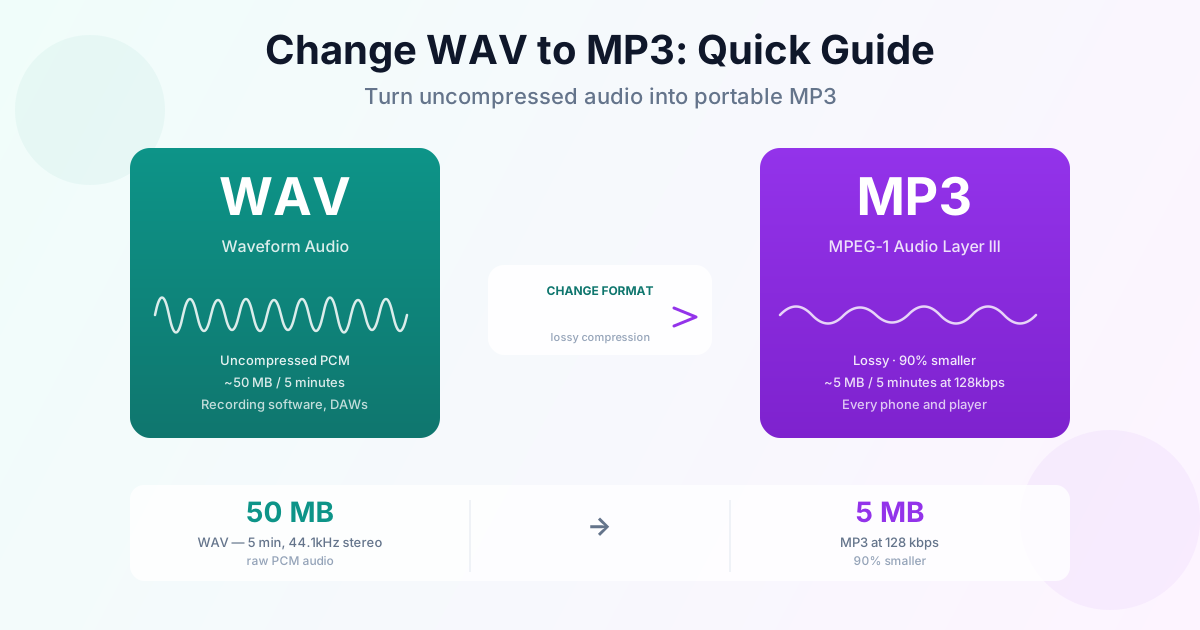
To change WAV to MP3, upload the file to a converter, let it encode the audio as MP3 and download the result — the file shrinks to a fraction of its size. A 5-minute CD-quality WAV is about 53 MB; the same recording as a 192 kbps MP3 is about 7 MB, and about 5 MB at 128 kbps.
The trade-off is that MP3 uses lossy compression, but at the right bitrate the difference is inaudible on normal speakers and earbuds.
Our WAV to MP3 converter changes the format online and outputs 192 kbps MP3 — a sensible default for music. The rest of this guide covers bitrate choice, Mac and Windows methods, and converting a whole folder at once.
Why WAV Files Are So Large
WAV stores audio as raw PCM data — uncompressed samples straight from the recorder. CD-quality stereo (44.1 kHz, 16-bit) runs at 1,411 kbps, which is about 10.6 MB per minute.
MP3 cuts that to 128–320 kbps with psychoacoustic compression: it drops sounds the ear is unlikely to notice, such as quiet frequencies masked by louder ones. At 192 kbps the file is about 86% smaller than the WAV.
Keep WAV when: you're editing in a DAW, mastering, or archiving a lossless master. Change WAV to MP3 when: you're sharing, streaming, or need the file to play on any phone, car stereo or player.
Best Bitrate for WAV to MP3
The bitrate decides both quality and size. The sizes below are simple arithmetic (bitrate × 300 seconds):
| Bitrate | File size (5 min) | Best for |
|---|---|---|
| 320 kbps | ~12 MB | Music archiving, critical listening |
| 192 kbps | ~7 MB | Music for everyday listening |
| 128 kbps | ~5 MB | Speech, radio, casual music |
| 96 kbps | ~3.6 MB | Voice memos, interviews |
| 64 kbps | ~2.4 MB | Speech only — music sounds thin |
For music, 192 kbps is the practical sweet spot. For a voice recording, 128 kbps is plenty — speech doesn't need the high frequencies that low bitrates sacrifice. For more on music bitrates, see 128 vs 320 kbps and other audio bitrates.
How to Change WAV to MP3 Online
- Open the WAV to MP3 converter
- Drag your WAV file onto the page or browse to it — you can add up to 20 files at once
- Click Convert — the MP3 is encoded at 192 kbps
- Download the MP3 (or, for several files, each one separately or all together as a ZIP)
It works in any browser on Windows, Mac, iPhone and Android, with no software to install. The conversion itself runs on our servers.
Need a smaller file than 192 kbps? Run the MP3 through the audio compressor and pick 64–320 kbps.
Change WAV to MP3 on Mac
Music app (or iTunes)
- Open Music (or iTunes on macOS Mojave and earlier)
- Go to Settings → Files → Import Settings (in iTunes: Preferences → General → Import Settings), set Import Using: MP3 Encoder and choose a quality
- Drag the WAV file into your library and select it
- Choose File → Convert → Create MP3 Version
- Right-click the new copy → Show in Finder
The menu item names whichever encoder is set in Import Settings, so step 2 comes first — with the default AAC encoder you'll see "Create AAC Version" instead.
Audacity (free, more control)
- Open Audacity and import the WAV (File → Import → Audio)
- Choose File → Export Audio (older versions: File → Export → Export as MP3)
- Set the format to MP3, bitrate mode Constant, quality 192 kbps
- Save the MP3
Current Audacity versions include the MP3 encoder, so there's nothing extra to install.
Change WAV to MP3 on Windows
VLC Media Player (free)
- Open VLC → Media → Convert/Save (Ctrl+R)
- Click Add and pick your WAV file
- Click Convert/Save
- Choose the Audio - MP3 profile
- Set an output file name ending in .mp3 and click Start
Audacity works the same way on Windows as on Mac.
Batch Convert WAV to MP3
To change a folder of WAV files to MP3 online, select up to 20 files in the WAV to MP3 converter, click Convert all files and download everything as one ZIP. For hundreds of files, a desktop tool saves uploading:
- Audacity macros — create a macro in Tools → Macro Manager that exports as MP3, then open Tools → Apply Macro → Palette and use its Files button to run it on a whole selection of WAV files
- VLC — add several files in the Convert/Save dialog; they convert one after another
Summary
WAV is uncompressed and heavy to share; MP3 at 192 kbps keeps music sounding the same on everyday equipment at about a seventh of the size. Use the WAV to MP3 converter for single files or batches of up to 20, and Audacity or VLC for large folders. Keep the WAV masters if you have the space — they're your lossless source.
Related Tools
- WAV to MP3 complete guide — quality comparison and format background
- WAVE to MP3 — the same format with the .wave extension
- MP3 to WAV — convert back to uncompressed for editing
- M4A to MP3 — convert Apple audio files