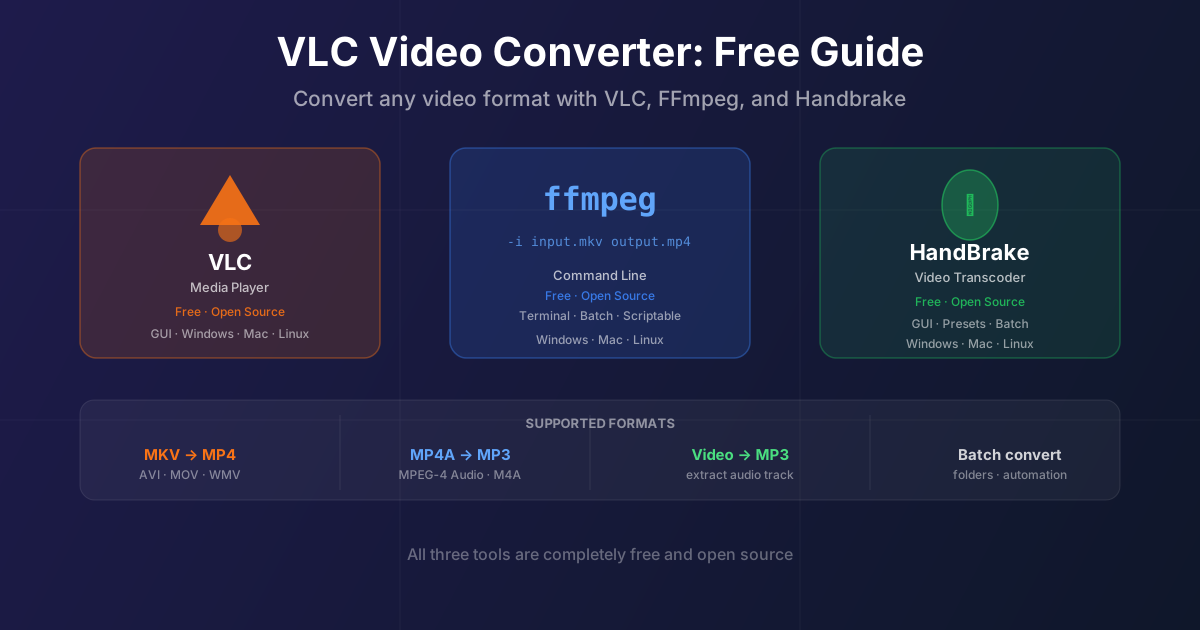
Three free tools handle almost every video conversion task: VLC for quick one-off conversions with no extra software, FFmpeg for fast lossless remuxing and batch automation from the command line, and HandBrake for quality-controlled re-encoding with presets for every device.
For quick conversions without installing anything, our online video converter handles the most common formats in the browser. The desktop tools below are better for large files, batch jobs, or regular conversion work.
VLC: Quick Conversions Without Extra Software
VLC is primarily a media player, but its built-in converter handles most common format changes without installing additional software.
Convert any video with VLC
- Open VLC → Media → Convert/Save (Ctrl+R on Windows)
- Click Add and select your video file
- Click the Convert/Save button
- In the Profile dropdown, choose your target format: Video — H.264 + MP3 (MP4) — universal MP4
- Video — H.265 + MP3 (MP4) — smaller, modern devices
- Audio — MP3 — extract audio only
- Set the destination file path (include the correct extension)
- Click Start VLC re-encodes the video, which takes longer than remuxing. A 1-hour video may take 10–30 minutes depending on your CPU and settings.
Extract MP3 audio from video with VLC
Use the same Convert/Save dialog but select the Audio — MP3 profile. VLC drops the video stream and encodes only the audio. This is useful for extracting a soundtrack, podcast recording, or voiceover from a video file.
FFmpeg: Fast, Lossless, Scriptable
FFmpeg is a command-line tool that runs on Windows, Mac, and Linux. It's faster than VLC for most tasks because it can remux — move video streams between containers without re-encoding.
Install FFmpeg
- Mac: brew install ffmpeg
- Windows: download from ffmpeg.org, extract, add to PATH
- Linux: sudo apt install ffmpeg
MKV to MP4 (lossless remux)
ffmpeg -i input.mkv -c copy output.mp4
The -c copy flag copies all streams without re-encoding. A 10 GB MKV converts in seconds. Use this whenever the MKV contains H.264 or H.265 video — it's lossless and instant.
MKV to MP4 with audio re-encode
ffmpeg -i input.mkv -c:v copy -c:a aac output.mp4
If the MKV contains FLAC or DTS audio (not supported in MP4), add -c:a aac to re-encode only the audio.
Video is still copied losslessly.
Extract MP3 audio from video
ffmpeg -i video.mp4 -q:a 0 -map a audio.mp3
-q:a 0 uses variable bitrate at highest quality. -map a selects only the audio stream. Works with MP4, MKV, MOV, AVI — any format FFmpeg can read.
Convert MP4A / MPEG-4 Audio to MP3
MP4A files (also .m4a) are audio-only MP4 containers with AAC encoding:
ffmpeg -i audio.m4a -codec:a libmp3lame -q:a 2 output.mp3
-q:a 2 is approximately 190 kbps variable bitrate — excellent quality. For our online converter, use the M4A to MP3 tool directly.
Batch convert a folder
```bash
# Mac/Linux — convert all MKV in current folder to MP4 for f in *.mkv; do ffmpeg -i "$f" -c copy "\${f%.mkv}.mp4" done
# Windows PowerShell
Get-ChildItem *.mkv | ForEach-Object { ffmpeg -i $.Name -c copy ($.BaseName + ".mp4") }
## HandBrake: Quality Encoding with Presets

HandBrake is the best free GUI tool when you need to compress video while controlling quality — converting a 4K file for a tablet, shrinking a large video for sharing, or preparing content for specific devices.

1. Open HandBrake and drag your video onto the window
2. Choose a **Preset** from the right panel (Fast 1080p30 is a good default for general use; device-specific presets like Apple TV or Android are in the sub-menus)
3. Set the output folder in the **Save As** field
4. Click **Start Encode** — or **Add to Queue** for batch processing

HandBrake always re-encodes, which takes longer than FFmpeg remuxing but gives you control over the output size and quality.

## Which Free Video Converter to Use
| Task | Best tool | Speed |
| --- | --- | --- |
| MKV → MP4, no quality change | FFmpeg -c copy | Seconds |
| Single file conversion, no CLI | VLC or online tool | Minutes |
| Compress video for sharing/storage | HandBrake | Minutes–hours |
| Batch convert a folder | FFmpeg loop or HandBrake queue | Varies |
| Extract audio from video | FFmpeg or online tool | Seconds |
## Summary
Use FFmpeg with -c copy for instant lossless remuxing (MKV → MP4 in seconds), HandBrake when you need quality-controlled re-encoding with presets, and VLC for occasional one-off conversions without installing anything new. For browser-based jobs, the [online video converter](/convert/mkv/to-mp4) covers the common formats.

## Related Tools
- [ MKV to MP4 guide ](/blog/mkv-to-mp4-guide) — format comparison and conversion options
- [ MP4 to MP3 ](/blog/mp4-to-mp3-guide) — extract audio from video files
- [ AVI to MP4 ](/blog/avi-to-mp4-guide) — convert old Windows video format
- [ Video to MP3 converter ](/convert/video/to-mp3) — online audio extraction, no software needed