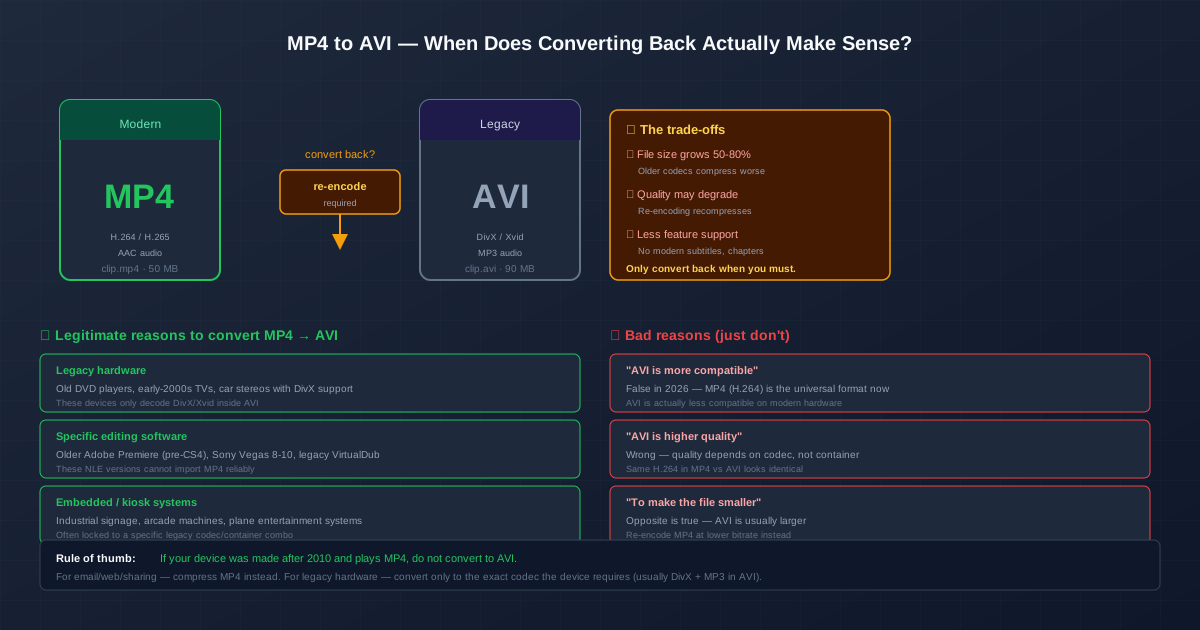
Converting MP4 to AVI is one of those requests that sounds reasonable until you look at it closely. In 2026, MP4 is the universal format — every modern device, browser, and editor handles it. AVI is a legacy container from the late 1990s that modern hardware has largely moved past. For 95% of people, the right answer to "how do I convert my MP4 to AVI?" is: don't.
But there is a real 5%. If you are working with a legacy DVD player that only reads DivX files, an old editing program that refuses MP4 imports, or an embedded system locked to a specific codec, converting back is legitimate. This guide covers when it makes sense, what you lose in the process, and how to do it with the least damage when you genuinely must.
First: Are You Sure You Need AVI?
Before walking through the conversion, rule out the common misunderstandings. People often ask for AVI because of myths that no longer hold:
- "AVI is more compatible." The opposite is true today. MP4 with H.264 video and AAC audio plays on essentially every device shipped after 2010 — iPhones, Android, Windows, Mac, Smart TVs, game consoles, all modern browsers. AVI support is patchy on new hardware, especially Smart TVs and mobile.
- "AVI is higher quality." Quality is decided by the codec and bitrate, not the container. The same H.264 video at the same bitrate looks identical inside MP4 or AVI. The container is just the wrapper.
- "AVI files are smaller." Wrong direction — AVI is usually larger. It tends to hold older codecs (DivX, Xvid) that compress less efficiently than H.264/H.265, so a re-encoded AVI at equivalent quality is often 50-80% bigger than the source MP4.
- "My player won't open MP4." Sometimes this is a codec issue rather than a container issue. Check whether the player supports H.264 but not the specific MP4 you made — re-encoding the video inside MP4 is usually less damaging than switching containers.
If your real goal is smaller files for email or web, see our video compression guide instead. If your goal is broader compatibility on modern devices, the answer is MP4 with H.264 — not AVI.
The Three Legitimate Reasons
Genuine cases where converting MP4 to AVI is the right call:
1. Legacy Hardware That Only Decodes DivX/Xvid
Older DVD players with a "DivX" sticker, early-2000s flat-panel TVs, some in-car entertainment systems, and a few arcade cabinets have hardware decoders locked to MPEG-4 Part 2 (DivX or Xvid) inside an AVI container. They literally cannot decode H.264, no matter what container it is in. For these devices, AVI is not a preference — it is a hard requirement.
Look for a "DivX", "Xvid", or "MPEG-4" logo on the device or in its manual. If you do not see one and the device was made after 2010, it almost certainly handles MP4 (H.264) and the AVI conversion is unnecessary.
2. Old Editing Software
Specific versions of professional editing tools have buggy or missing MP4 import:
- Adobe Premiere Pro prior to CS4 (2008)
- Sony Vegas Pro 8 through 10
- Legacy VirtualDub (the original, not VirtualDub2)
- Some old versions of Pinnacle Studio and Ulead If you are stuck on one of these for a specific reason (project compatibility, archival pipeline), converting source footage to AVI can be the path of least resistance. The modern fix is to upgrade the software — but that is not always possible with licensed or abandoned tools.
3. Embedded and Kiosk Systems
Industrial signage players, arcade machines, plane in-flight entertainment systems, and some medical imaging hardware run firmware that expects a very specific file.
These systems are often "frozen" — the manufacturer no longer updates them, and the only path is to produce a file that matches what they were originally configured to read. If that is AVI with a particular FourCC code, you must convert.
What You Lose When Converting
AVI is an old container and it shows. Be aware of what does not transfer cleanly:
- Modern subtitle tracks. MP4 and MKV hold soft subtitles as text tracks. AVI's subtitle support is essentially nonexistent — you typically end up with a separate .srt file, or you hard-burn subtitles into the video.
- Multiple audio tracks. MP4 and MKV support multiple languages and commentary tracks. AVI can technically hold more than one, but player support is unreliable.
- Chapter markers. AVI has no real chapter mechanism. If your MP4 uses chapters (common in films and lectures), they will not survive the conversion.
- Metadata and cover art. MP4 metadata (title, artist, year, cover art) does not transfer to AVI. The output file will be a bare video with no descriptive metadata.
- Modern codecs. AVI cannot hold H.265, AV1, Opus, or AAC-LC reliably. You are limited to older codecs, which means a re-encode with quality loss.
Container Swap vs Re-Encode (and Why AVI Usually Forces Re-Encode)
When converting between modern containers (MP4 ↔ MKV, for example), you can often do a container swap — copying the video and audio streams unchanged into the new wrapper. No re-compression, no quality loss, near-instant.
AVI rarely allows this. The codecs most MP4s use today (H.264 video, AAC audio) are either not supported inside AVI or produce non-standard files when forced in. So in practice, MP4 → AVI almost always means a full re-encode: the source video is decompressed and re-compressed with a codec AVI can hold, typically Xvid or DivX for video and MP3 for audio.
The one exception is when your source MP4 already contains MPEG-4 Part 2 video and MP3 audio — then a stream copy (-c copy in FFmpeg) works and quality is preserved. This is rare for newly produced MP4s but common for MP4s that were themselves converted from AVI years ago.
Choosing the Right Codec for AVI
If you must re-encode, pick codecs that maximise compatibility with the legacy hardware you are targeting:
| Stream | Recommended codec | Notes |
|---|---|---|
| Video | Xvid or DivX (MPEG-4 Part 2) | Most widely supported by legacy players |
| Audio | MP3 (CBR, 128-192 kbps) | Universal; avoid AAC in AVI |
| FourCC code | DX50 (DivX 5) or XVID | Set to match what the target device expects |
| Resolution | Keep source, or downscale to 720×576 / 720×480 | Old DVD players max out at SD resolutions |
| Frame rate | Match source exactly | Mismatched fps causes audio drift on old players |
| Avoid the temptation to put H.264 inside AVI. It technically works in some players, but produces non-standard files that many legacy decoders reject outright — exactly the devices you are converting for. |
Method 1: HandBrake (Easiest GUI)
HandBrake is a free, cross-platform video transcoder. It does not have a built-in AVI preset, but it can output MPEG-4 Part 2 video inside an AVI container when configured manually.
- Open HandBrake and drag your MP4 onto the window.
- In the Summary tab, set Format to AVI (if greyed out, use MP4 and switch after).
- Under Video, choose MPEG-4 (Xvid) or MPEG-4 (FFMPEG) as the codec.
- Set Quality to RF 18-20 for a good quality/size balance. Lower numbers mean higher quality and larger files.
- Under Audio, choose MP3 with a bitrate of 160 or 192 kbps.
- Click Start Encode. Note: recent HandBrake versions deprecated the AVI container in the GUI. If you do not see AVI as an output option, use FFmpeg instead — it is the more reliable path for legacy format output anyway.
Method 2: FFmpeg (Most Control)
FFmpeg handles AVI output cleanly and gives full control over codecs, bitrate, and FourCC codes. It is the recommended tool for this conversion.
Standard re-encode (Xvid + MP3)
ffmpeg -i input.mp4 -c:v mpeg4 -vtag DX50 -b:v 1500k -c:a libmp3lame -b:a 160k output.avi
The -vtag DX50 sets the FourCC to DivX 5, which most legacy hardware recognises. Swap for -vtag XVID if your device specifically wants Xvid.
Video bitrate of 1500 kbps is a reasonable SD target; raise it for HD sources.
Lossless container swap (rare)
ffmpeg -i input.mp4 -c copy output.avi
This only works when the MP4 already contains MPEG-4 Part 2 video and MP3 audio. For typical H.264/AAC MP4s, FFmpeg will refuse with an error — which is the correct behaviour, because forcing H.264 into AVI produces broken files.
Downscale to SD for old DVD players
ffmpeg -i input.mp4 -c:v mpeg4 -vtag DX50 -b:v 1200k -vf scale=720:576 -c:a libmp3lame -b:a 128k output.avi
The -vf scale=720:576 filter downscales to PAL SD resolution (use 720:480 for NTSC regions). Many DivX-certified DVD players refuse files larger than SD, so this filter is often the difference between a file that plays and one that does not.
Method 3: Online Converter (One or Two Files)
For a quick one-off, an online MP4 to AVI converter handles the job without installing software. Drag the file onto the page, pick AVI as the output, and download. The conversion runs server-side using the same FFmpeg engine under the hood.
Watch the file-size readout: if the output AVI is dramatically larger than the source MP4, the converter used a high bitrate default. That is normal for legacy codecs, but you may want to use HandBrake or FFmpeg directly to control the bitrate if size matters.
When to Use a Different Conversion Instead
Often the real fix is a different conversion entirely:
- File will not play on your TV? It is probably a codec issue, not a container issue. Re-encode to H.264 inside MP4 — see our video formats guide .
- Need just the audio? Extract it losslessly instead of converting the whole video — see how to extract audio from video .
- File too big for email? Compress the MP4 rather than switching containers. The web compression walkthrough has the bitrate targets.
- Want subtitles, chapters, multiple audio? Use MKV, not AVI. MKV is a modern container with none of AVI's limitations.
Quick Summary
- MP4 to AVI is almost always the wrong move in 2026. MP4 is the universal format; AVI is legacy.
- Three legitimate reasons: legacy DivX-only hardware, specific old editing software, embedded/kiosk systems.
- Expect quality loss and larger files. Re-encoding to Xvid/MP3 is mandatory for H.264 sources, and legacy codecs compress worse.
- Pick codecs for compatibility. Xvid or DivX video, MP3 audio, FourCC DX50 or XVID.
- Downscale to SD for old DVD players. Many refuse anything larger than 720×576 (PAL) or 720×480 (NTSC).
- Use FFmpeg for the conversion. HandBrake has deprecated AVI output; online converters work for one-offs but offer less control.