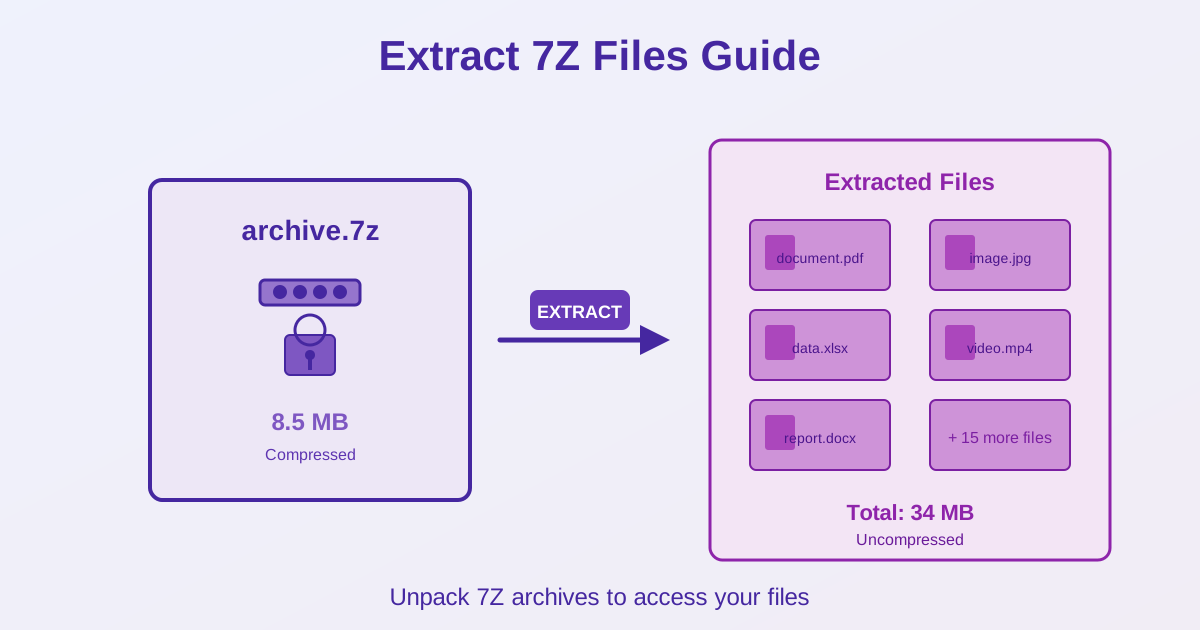
7Z is a high-compression archive format that requires special software to extract. Unlike ZIP, 7Z files don't open natively on Windows, macOS, or Linux. This guide shows you how to extract 7Z archives on any platform.
Why 7Z Needs Special Software
Operating systems include built-in support for ZIP but not 7Z:
- ZIP: Built into Windows, macOS, Linux (right-click → Extract)
- 7Z: Requires third-party software (7-Zip, WinRAR, etc.) 7Z offers 30-50% better compression than ZIP, but this comes with the trade-off of needing software installation. See our 7Z vs ZIP comparison for more details.
Extracting 7Z on Windows
Method 1: 7-Zip (Recommended)
7-Zip is open-source software, lightweight, and completely capable:
- Download 7-Zip from 7-zip.org (official site only)
- Install the software (follow installer prompts)
- Right-click the 7Z file
- Select 7-Zip → Extract here (or "Extract to folder name/")
- Files extract to the same location as the archive
Method 2: WinRAR
WinRAR is popular commercial software (paid, but trial works):
- Download WinRAR from win-rar.com
- Install and right-click the 7Z file
- Select Extract here or Extract to...
Method 3: PeaZip
Another option with a graphical interface:
- Download PeaZip from peazip.github.io
- Install and use the same right-click extraction process
Extracting 7Z on macOS
Method 1: Keka (Recommended)
Keka is a modern Mac archive utility:
- Download Keka from keka.io or Mac App Store
- Install the app
- Right-click (or Control-click) the 7Z file
- Select Open With → Keka
- Files extract automatically to the same folder
Method 2: The Unarchiver
- Download The Unarchiver from Mac App Store
- Install and set it as default for 7Z files
- Double-click 7Z files to extract automatically
Method 3: Command Line (p7zip)
For advanced users:
- Install Homebrew if not already installed
- Run: brew install p7zip
- Extract with: 7z x filename.7z
Extracting 7Z on Linux
Method 1: p7zip (Command Line)
Install p7zip via package manager:
```bash
# Ubuntu/Debian sudo apt install p7zip-full
# Fedora/RHEL
sudo dnf install p7zip p7zip-plugins
# Arch Linux
sudo pacman -S p7zip
# Extract command
7z x filename.7z
### Method 2: File Manager Integration

After installing p7zip:

- Right-click 7Z file in file manager (Nautilus, Dolphin, Thunar)
- Select **Extract here** or **Extract to...**
- Files extract using the installed p7zip backend

## Extraction Options Explained

### Extract Here
- Extracts files to the current location
- Warning: May clutter folder if archive contains many files
- Best for: Archives with a single folder inside

### Extract to [Archive Name]/
- Creates a new folder with the archive name
- Extracts all contents into that folder
- Best for: Archives with multiple loose files
- Recommended: Keeps things organized

### Extract to...
- Choose custom destination folder
- Useful when extracting to external drive or specific location

## Extracting Specific Files
Don't need the entire archive? Extract specific files only:

1. Open the 7Z file in 7-Zip (or equivalent)
2. Browse the archive contents (like a folder)
3. Select specific files or folders you need
4. Click **Extract** button
5. Choose destination and extract only selected items

## Password-Protected Archives
If the 7Z file is encrypted:

1. Begin extraction as normal
2. Software will prompt for password
3. Enter the password (case-sensitive)
4. Extraction proceeds if password is correct **No password?** You cannot extract the archive. 7Z uses AES-256 encryption which is extremely strong—there's no practical way to recover files without the password.

## Common Issues and Solutions

### "Cannot Open File as Archive" Error
Causes and fixes:

- **Corrupted download:** Re-download the file
- **Incomplete download:** Check file size matches expected
- **Wrong extension:** File might not actually be 7Z (check true format)

### Extraction Takes Forever
- Ultra-compressed 7Z files extract slower than standard compression
- Large archives (multi-GB) naturally take time
- Extracting to slow drives (network, USB 2.0) delays process
- Solution: Be patient or extract to faster storage

### "Access Denied" During Extraction
- Extract to location where you have write permissions
- Don't extract to C:\Program Files or system folders
- Extract to Documents, Desktop, or user folders instead

## Converting 7Z to ZIP
If recipients can't open 7Z files, convert to ZIP for universal compatibility:

1. Extract the 7Z archive
2. Select all extracted files
3. Compress as ZIP (right-click → Send to → Compressed folder on Windows)
4. Share the ZIP file instead Or use our [7Z to ZIP converter](/convert/7z/to-zip) for automatic conversion. Note: ZIP will be 30-50% larger than 7Z.

## Command-Line Extraction Examples

### Basic Extraction
# Extract to current directory 7z x archive.7z
# Extract to specific folder
7z x archive.7z -o/path/to/destination
### With Password
# Extract password-protected archive 7z x archive.7z -pYourPassword
### List Contents Without Extracting
# View archive contents 7z l archive.7z
## Online Extraction Tools

Online tools exist but have limitations:

### Pros
- No software installation needed
- Works on any device with browser

### Cons
- Upload/download time for large files
- File size limits (typically 100-500 MB)
- Privacy concerns (uploading sensitive data)
- Slower than local extraction

**Recommendation:** Install local software for regular use. Use online tools only for one-time needs on restricted computers.

## Best Practices
- Always extract to a dedicated folder (not Desktop root)
- Check archive contents before extracting (use "list" or preview)
- Keep original 7Z file until verifying extraction succeeded
- For large archives, ensure sufficient disk space (check archive size × 3)
- Don't extract directly to system folders (C:\Windows, /usr, etc.)

## Related Topics
- [ 7Z vs ZIP Comparison ](/blog/7z-vs-zip) — Understand format differences
- [ 7Z to ZIP Converter ](/convert/7z/to-zip) — Convert for universal compatibility

## Conclusion
Extracting 7Z files requires software installation—7Z is not built into operating systems. Use 7-Zip (Windows), Keka (macOS), or p7zip (Linux) for reliable extraction. Right-click and select "Extract to [folder name]" to keep files organized. Password-protected archives require the correct password—encryption cannot be bypassed. For large files, extraction may take several minutes. Convert 7Z to ZIP if recipients need universal compatibility (ZIP is 30-50% larger but works everywhere). Always verify extraction succeeded before deleting the original 7Z archive.