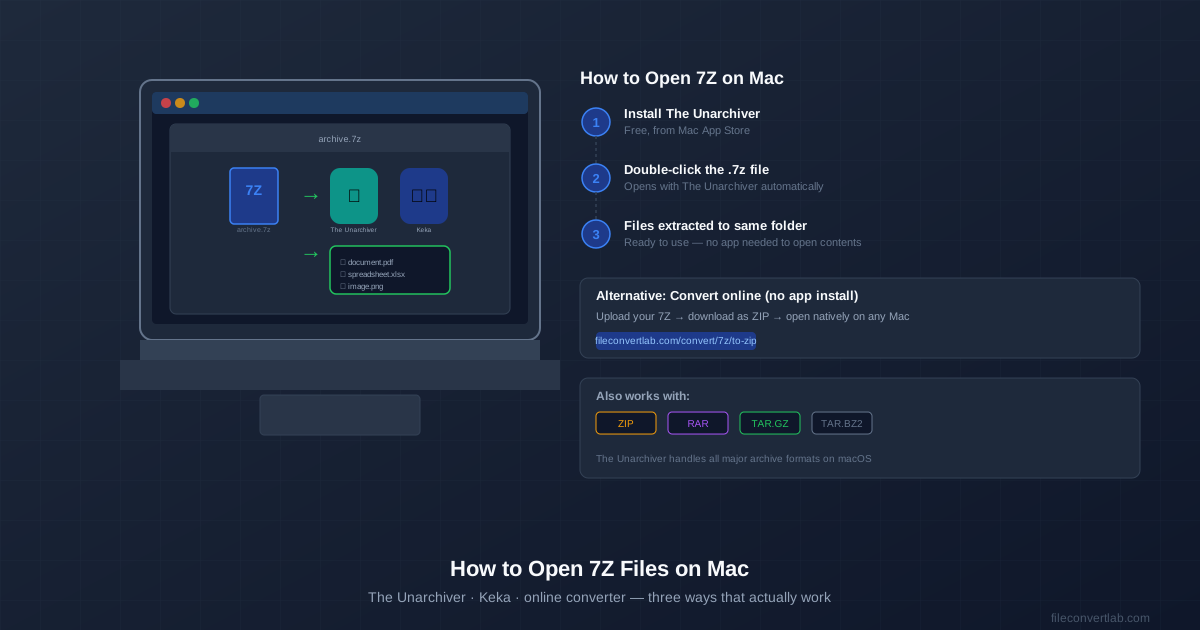
macOS cannot open 7Z files without a third-party app. Double-clicking a .7z file shows an error because Apple doesn't include 7Z support in macOS.
The fix takes about two minutes: install The Unarchiver from the Mac App Store (free), and 7Z files will open just like ZIP files from then on.
If you don't want to install anything, there's an online option: convert the 7Z to ZIP, which Mac opens natively. Both approaches are covered below.
Method 1: The Unarchiver (Recommended)
The Unarchiver is a free Mac App Store app that adds support for 7Z, RAR, TAR, and dozens of other archive formats. It's the most popular extraction utility on macOS with over 10 million downloads.
Installation and setup
- Open the Mac App Store and search for "The Unarchiver", or go directly to the app listing (it's free). Click Get and authenticate if prompted.
- After installation, open The Unarchiver once. A dialog appears asking which formats to associate — check 7-Zip Archive and any other formats you want it to handle. Click Done.
- Now double-click any .7z file in Finder. The Unarchiver opens automatically and extracts the contents to the same folder.
That's it. After the one-time setup, 7Z files behave exactly like ZIP files — double-click to extract.
If 7Z files still open with the wrong app
Right-click the .7z file → Get Info → expand the Open With section → select The Unarchiver from the dropdown → click Change All.... This sets The Unarchiver as the default for all .7z files on your Mac.
Method 2: Keka
Keka is a more full-featured archive manager for Mac. It handles 7Z extraction and also lets you create archives, browse archive contents before extracting, and drag individual files out without extracting everything.
Keka costs $2.99 on the Mac App Store. A free version is available from the developer's website (keka.io). Both are identical in functionality — the paid version simply supports the developer.
When to use Keka instead of The Unarchiver
- You need to create 7Z archives, not just open them.
- You want to extract individual files from a large archive without extracting everything.
- You want more control over extraction destination, file naming, and other options. For simply opening 7Z files someone sent you, The Unarchiver is simpler and completely free.
Method 3: Convert 7Z to ZIP Online
If you only need to open one 7Z file occasionally and don't want to install any software, convert it to ZIP first. macOS opens ZIP natively without any app.
- Go to our 7Z to ZIP converter .
- Upload your .7z file.
- Download the resulting .zip file.
- Double-click the ZIP — macOS opens it without any app. Limitation: This approach works well for smaller archives. Very large 7Z files (several GB) are better handled by a local app like The Unarchiver, since uploading and downloading large files is slower than extracting locally.
Method 4: Terminal (for developers)
If you have Homebrew installed, you can install the 7-Zip command-line tool and extract archives directly from Terminal.
# Install 7-Zip via Homebrew brew install sevenzip # Extract a 7Z archive 7zz x archive.7z # Extract to a specific folder 7zz x archive.7z -o/path/to/destination # List archive contents without extracting 7zz l archive.7z
Note: the command is 7zz (not 7z) when installed via Homebrew on macOS to avoid conflicts with other tools.
Comparing the Options
| Method | Cost | Install needed | Best for |
|---|---|---|---|
| The Unarchiver | Free | App Store app | Most users — simple, reliable |
| Keka | Free / $2.99 | App Store or website | Creating archives + selective extraction |
| Online converter | Free | None | One-time use, no install |
| Terminal (Homebrew) | Free | Homebrew + sevenzip | Developers, scripting, batch extraction |
Working with 7Z Files You Received
Password-protected 7Z archives
If the .7z file is password protected, both The Unarchiver and Keka will prompt you to enter the password when you try to extract. Enter the password the sender gave you.
If the password is wrong, extraction will fail — there's no workaround for AES-256 encryption.
Multi-part 7Z archives
Some large 7Z archives are split into multiple parts named archive.7z.001, archive.7z.002, etc.
Keep all parts in the same folder and open the first part (archive.7z.001) with The Unarchiver or Keka — they automatically read the remaining parts.
Other archive formats on Mac
Once you have The Unarchiver installed, it also handles RAR, TAR, TAR.GZ, TAR.BZ2, and many other formats. You don't need separate apps for each. If you also work with RAR files, see our guide on ZIP vs 7Z vs RAR to understand when each format is used.
Sending 7Z Files to Mac Users
If you're creating archives to share with Mac users, consider using ZIP instead of 7Z. ZIP works without any extra software on macOS, making it easier for recipients. Use 7Z when compression ratio matters more than compatibility — for example, for your own backups or when you know the recipient has the right tools.
If you need to convert a 7Z archive you received into a format that's easier to share, our 7Z to ZIP converter handles the conversion online.