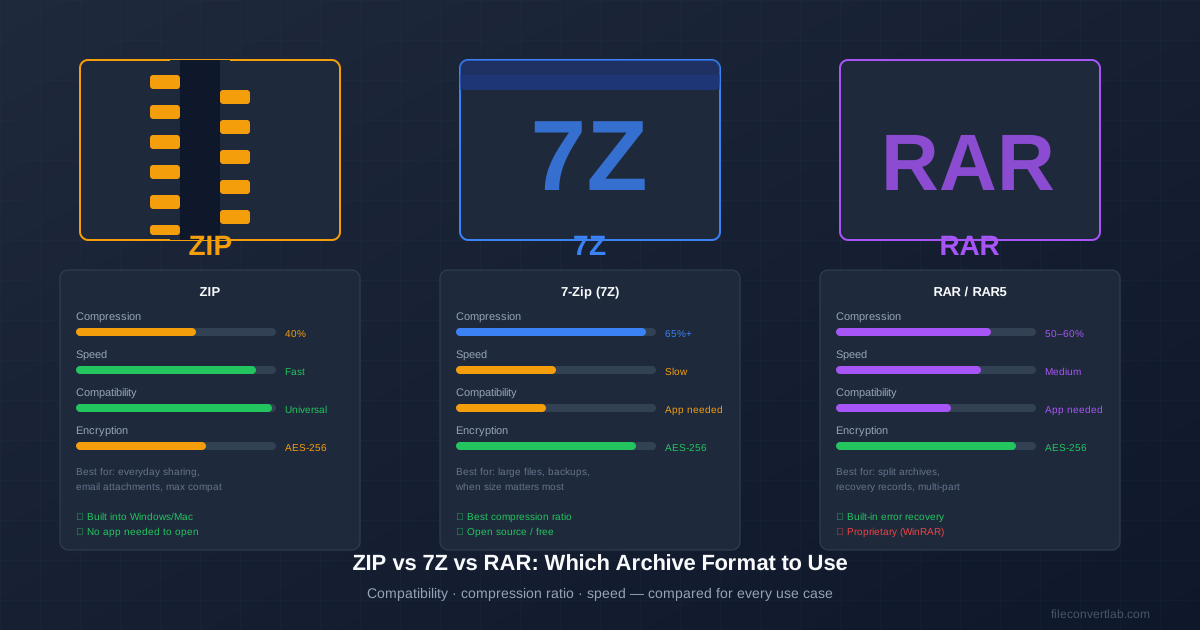
You need to compress some files. Three format options exist — ZIP, 7Z, and RAR — and picking the wrong one means either a file the recipient can't open or a needlessly large archive. The right choice depends on who receives the file, how much you care about size, and what software they have.
Short answer: ZIP for sharing, 7Z for storage, RAR for specialized use cases. The rest of this guide explains why.
The Decision in One Table
| Format | Compression | Speed | Compatibility | Best for |
|---|---|---|---|---|
| ZIP | ~40% reduction | Fastest | Built-in everywhere | Sharing with anyone |
| 7Z | ~65% reduction | Slowest | App required | Personal backups, large files |
| RAR | ~50–60% reduction | Medium | App required | Split archives, error recovery |
| If you need to convert between these formats, our 7Z to ZIP converter handles the conversion online without installing software. |
ZIP: The Universal Default
ZIP has been the standard archive format since 1989. Its defining advantage is that every major operating system opens ZIP files without any software installation: Windows Explorer, macOS Finder, and Linux file managers all handle ZIP natively. Android and iOS can open ZIP attachments directly. This universality is why ZIP dominates email attachments and downloads.
ZIP's strengths
- Zero compatibility friction: The recipient doesn't need to install anything.
- Fast compression and extraction: The Deflate algorithm is simple and fast — good for automated scripts and time-sensitive workflows.
- Random access: You can extract individual files from a ZIP without decompressing the whole archive. 7Z solid archives require decompressing everything to reach one file.
- Wide software support: Every programming language has ZIP libraries; automation tools handle ZIP natively.
ZIP's weaknesses
- Lower compression ratio: ZIP archives are typically 30–50% larger than equivalent 7Z archives on compressible data.
- File name encryption gap: ZIP encryption hides file contents but leaves filenames visible in the archive listing. Anyone can see what files are inside without the password.
- 4 GB file size limit in the original format (though ZIP64 extension removes this limit in modern implementations). Use ZIP when: sharing files with people who may not have compression software, sending email attachments, distributing downloads, or automating workflows that need to extract individual files.
7Z: Maximum Compression
7Z is the native format of 7-Zip, an open-source compression tool. It uses the LZMA2 algorithm, which achieves significantly higher compression ratios than ZIP's Deflate — often 30–50% smaller archives on the same data. The trade-off is that compression takes longer and the recipient needs 7-Zip or a compatible tool to open the file.
7Z's strengths
- Best compression ratio: LZMA2 consistently outperforms Deflate (ZIP) and similar algorithms (RAR) on most data types.
- Filename encryption: 7Z encrypts both file contents AND the file list. Without the password, an attacker can't even see what files are inside.
- Open source and free: 7-Zip has no cost and no usage restrictions, unlike WinRAR.
- Large file support: No practical size limits.
7Z's weaknesses
- Requires software to open: Recipients need 7-Zip (Windows/Linux), The Unarchiver (Mac), or a similar tool. No built-in support on any OS.
- Slower compression: Maximum compression mode can take significantly longer than ZIP on large datasets.
- Solid archive trade-off: 7Z's best compression uses solid archives where files are compressed together. Extracting a single file requires decompressing the whole archive up to that point. Use 7Z when: creating personal backups, archiving large datasets where storage size matters, or sending files to a technically capable recipient who has 7-Zip installed. If you receive a 7Z file and need to open it on Mac, see our guide on opening 7Z files on Mac .
RAR: The Specialist
RAR was dominant in the early 2000s when 7-Zip didn't yet exist and ZIP's compression was clearly inferior. Today, its compression sits between ZIP and 7Z — better than ZIP, not quite as good as 7Z. RAR's remaining advantages are features that ZIP and 7Z don't replicate as well:
- Split archives (multi-part RAR): RAR can split a large archive into multiple fixed-size parts (archive.part1.rar, archive.part2.rar, ...). This was essential for distributing large files over old CD/DVD media or unreliable connections where a single large file was impractical.
- Recovery records: RAR can embed redundancy data into the archive. If part of the archive is corrupted or a download is incomplete, recovery records can reconstruct the damaged portion without downloading everything again.
- Locking archives: RAR can lock an archive to prevent accidental modification after creation.
RAR's weaknesses
- Proprietary: Creating RAR archives requires WinRAR (commercial software, nag-screen after 40-day trial). Extracting is free. 7-Zip creates 7Z files for free.
- No native OS support: Like 7Z, RAR requires third-party software to open.
- No compelling advantage over 7Z for most use cases: Better compression (7Z), same encryption, both require software. The specific features (recovery records, multi-part) matter only in specific scenarios. Use RAR when: you specifically need split archives with recovery records, or you're distributing files in contexts where partial downloads are expected. For most other use cases, ZIP or 7Z is more appropriate.
Compression Ratio in Practice
Compression ratio varies enormously by file type. Understanding this prevents disappointment when 7Z doesn't make your ZIP archive much smaller:
| File type | ZIP reduction | 7Z reduction | Notes |
|---|---|---|---|
| Text files, source code | 60–70% | 75–85% | Both formats excel here |
| Word/Excel documents | 30–50% | 50–70% | DOCX/XLSX are already ZIP internally |
| JPG / MP4 / MP3 | 0–3% | 0–5% | Already compressed — no gain |
| PNG images | 5–20% | 10–30% | Depends on image content |
| Executables / binaries | 30–50% | 50–70% | 7Z advantage clearest here |
| If you're compressing a folder of JPG photos, any archive format will produce nearly the same result — there's nothing to compress. If you're archiving a code repository or a large folder of documents, 7Z's advantage is real and measurable. |
Encryption: Which Format Is More Secure?
All three formats support AES-256 encryption, which is strong enough that brute-force breaking isn't feasible. The meaningful difference is in filename encryption:
- ZIP: Encrypts file contents but the file list (names and sizes) remains visible. Anyone can open the archive and see "contract_signed.pdf, salary_2024.xlsx" without the password.
- 7Z: Can encrypt both contents and filenames. With header encryption enabled, the archive appears empty to anyone without the password.
- RAR5: Same as 7Z — encrypts both contents and filenames when the option is selected.
For sensitive documents where even the file names should be secret, use 7Z or RAR5 with header encryption enabled. For archives where privacy of filenames isn't a concern, any format's encryption is equally strong.
Converting Between Formats
Received a 7Z file but need a ZIP? Or want to convert a RAR archive to ZIP for sharing? Use our online converter — no software installation required:
- 7Z to ZIP — convert a 7Z archive to universally compatible ZIP
- Extract archives — open 7Z, RAR, ZIP, and other archive formats online
Converting doesn't change the files inside — only the container and compression algorithm change. The extracted content is identical.