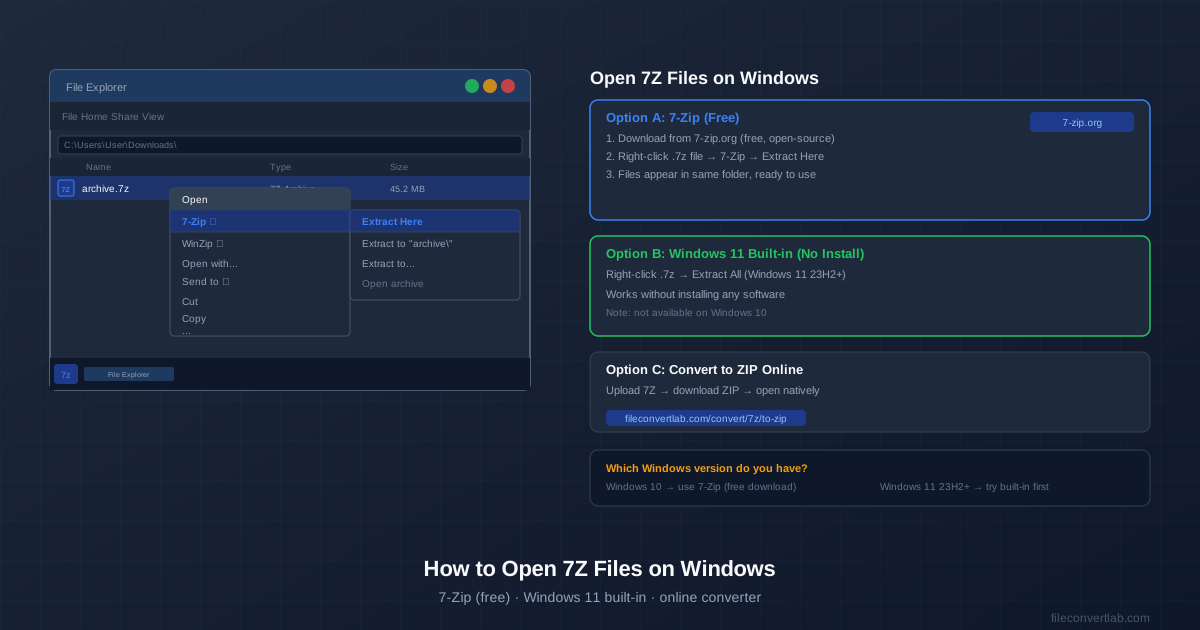
How you open a 7Z file on Windows depends on your Windows version:
- Windows 11 (23H2 or later): right-click the .7z file → Extract All. Done — no software needed.
- Windows 10 or older Windows 11: install 7-Zip (free, from 7-zip.org), then right-click → 7-Zip → Extract Here.
- No install at all: convert the 7Z to ZIP online, then open the ZIP natively.
Method 1: Windows 11 Built-in (No Install)
Microsoft added native 7Z support to Windows 11 in the 23H2 update (October 2023).
If you have a recent Windows 11 install, you can open 7Z files without downloading anything.
Check your Windows 11 version first
- Press Win + R, type winver, press Enter.
- Look for Version 23H2 or higher (22631.xxxx or later build numbers).
- If you have 23H2+, you can open 7Z files natively.
Extracting with Windows 11
- Right-click the .7z file in File Explorer.
- Click Extract All from the context menu.
- Choose a destination folder (default is the same folder).
- Click Extract. Windows 11 also lets you double-click a .7z file to browse its contents — similar to how ZIP files work. You can then drag files out individually without extracting everything.
Method 2: 7-Zip (Windows 10 and All Windows Versions)
7-Zip is a free, open-source archive manager that handles 7Z files on all Windows versions — including Windows 10, where there's no built-in support. It's also the tool that created the 7Z format, so it has the best compatibility.
Installing 7-Zip
- Go to 7-zip.org and download the installer for your system (64-bit for most modern PCs).
- Run the installer — it takes about 30 seconds.
- When prompted about file associations, check 7z (and any other formats you want 7-Zip to handle) and click OK.
Extracting a 7Z file with 7-Zip
After installation, right-clicking any .7z file gives you a 7-Zip submenu with three main options:
| Option | What it does | Use when |
|---|---|---|
| Extract Here | Files appear in the same folder as the .7z | Archive has a root folder inside, or you want files right there |
| Extract to "archive" | Creates a new subfolder named after the archive | Archive has many loose files that would clutter your folder |
| Extract files... | Lets you choose any destination folder | You want the files in a specific location |
| Extract Here is the fastest for most situations. If the archive contains many files, use Extract to "archive" to keep things organized. |
Browsing archive contents before extracting
Double-clicking a .7z file (after 7-Zip is installed as the default handler) opens 7-Zip File Manager, showing the archive contents. You can browse folders, preview file names, and drag specific files out without extracting the entire archive.
This is useful for large archives where you only need one or two files.
Method 3: Convert 7Z to ZIP Online
If you don't want to install any software and you're on Windows 10 (or an older Windows 11 build without native 7Z support), convert the 7Z to ZIP online.
Windows can open ZIP files natively since Windows XP.
- Go to our 7Z to ZIP converter .
- Upload your .7z file.
- Download the .zip result.
- Right-click the ZIP → Extract All — works without any software. This approach is best for one-off archives. If you regularly receive 7Z files, installing 7-Zip is more practical.
7-Zip vs WinRAR vs Windows Built-in
| Tool | Cost | Opens 7Z | Creates 7Z | Notes |
|---|---|---|---|---|
| 7-Zip | Free | Yes | Yes | Best all-round choice |
| Windows 11 built-in | Free | 23H2+ only | No | Extraction only, no creation |
| WinRAR | Trial / paid | Yes | Yes | Nags after 40-day trial |
| Online converter | Free | Yes (→ ZIP) | No | No install, good for one-off |
Common Situations
Password-protected 7Z files
When you try to extract a password-protected 7Z file with 7-Zip, a password dialog appears. Enter the password the sender provided and click OK.
If the archive uses header encryption (filenames are also hidden), 7-Zip asks for the password immediately when you try to open the archive. Without the correct password, the archive cannot be opened — AES-256 encryption cannot be bypassed.
Multi-part 7Z archives (.7z.001, .7z.002, ...)
Large archives are sometimes split into numbered parts. Keep all parts in the same folder and open the first part (.7z.001) with 7-Zip. It will automatically read the remaining parts and reconstruct the full archive.
7Z file won't open — "Cannot open file as archive"
This error usually means the file is corrupted or the download was incomplete.
Try downloading the file again. If the sender split the archive into parts, make sure you have all parts in the same folder before extracting. If only one part is missing, the archive cannot be reconstructed.
Working with Archive Formats
If you frequently work with archives, understanding when to use each format helps.
See our guide on ZIP vs 7Z vs RAR for a full comparison of compression ratios, speed, and compatibility.
If you need to share a 7Z file with someone who may not have extraction software, convert it to ZIP first — everyone can open ZIP files on any device without installing anything. Use our 7Z to ZIP converter to do this online.